All items tagged with "accessibility"

Use Talkler For Hands-Free, Eyes-Up Email Access

Use Talkler For Hands-Free, Eyes-Up Email Access

Hey, Talkler!

Ever wanted to check your email in your car, or while cooking? Running? Eating? Now you can with Talkler, a new app from Talkler Labs LLC. Talkler is out now in the App Store, ready to get you checking and sending email without using your hands or even your eyes.

All you need to do once you’ve installed the app is say, “Hey Talkler,” and you’ll be able to listen to your email, and reply using your voice. You can navigate through all your email with your voice, as well.

Read the rest of this post »

Barnes And Noble’s Nook App Gets VoiceOver And Zoom Accessibility

Barnes And Noble’s Nook App Gets VoiceOver And Zoom Accessibility

Good news, everyone! Barnes & Noble’s Nook app for iOS has just been updated with support for Apple’s fantastic VoiceOVer accessibility feature, as well as the zoom functionality. This brings the Nook iOS app up to parity with iBooks, the only other iOS e-reader app that can be used by folks with a visual impairment or learning disability to have books read out loud.

Zoom lets those with low vision see the screen at much higher magnification than just increasing the font size, allowing them to use the buttons, icons, and other visual interface systems that they can’t see at the standard size on the iPad or iPhone screen.

Read the rest of this post »

Slow Down The Home-Click Speed In iOS 6 For Less Frustration [iOS Tips]

Slow Down The Home-Click Speed In iOS 6 For Less Frustration [iOS Tips]

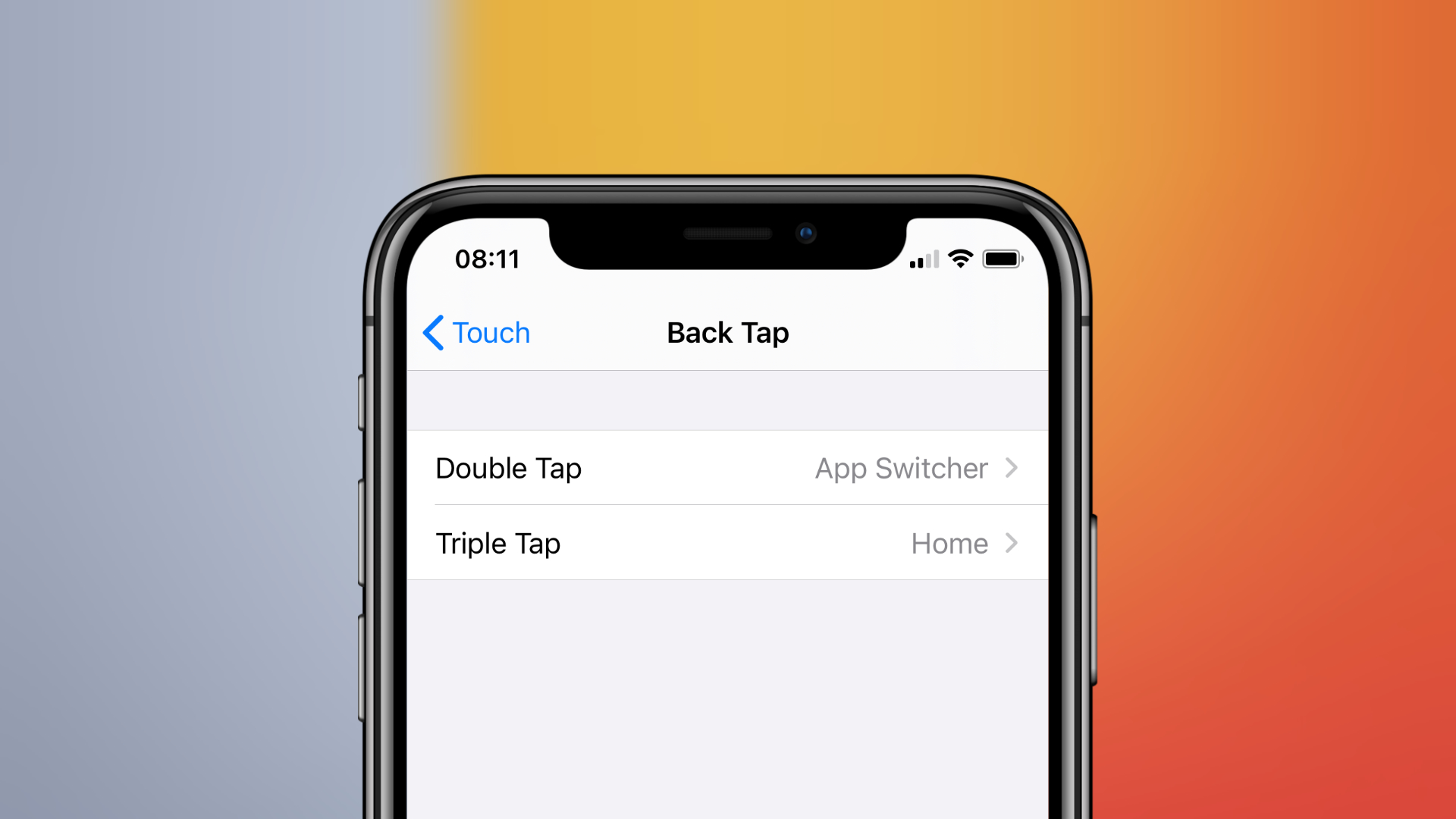
The iPhone is a paragon of simple design. It packs a ton of complexity in a simple, easy to understand package. One example is the iconic Home button. One click of the iPhone, iPod touch, or iPad touch will wake your device, a click and hold will bring up Siri, and a triple click can enable a host of accessibility features.

Did you know, however, that you can set the speed at which the Home button will recognize your clicks? Added in iOS 6, this feature will be a boon to anyone with motor issue or even just those of us who want to slow down the speed at which we double or triple click that Home button.

Read the rest of this post »

Apple Updates iOS 6 App Store, Now More Accessible With VoiceOver

Apple Updates iOS 6 App Store, Now More Accessible With VoiceOver

Apple silently updated the iOS 6 App Store today, adding more accessibility features to its VoiceOver interface for users who experience blindness and low vision. The new changes are in response to user complaints about accessibility in the iOS 6 App Store, and will help those users perform faster searches when interacting with the App Store via the VoiceOver system.

Read the rest of this post »

Enable Accessibility Options Anywhere In Mountain Lion [OS X Tips]

Enable Accessibility Options Anywhere In Mountain Lion [OS X Tips]

Built into every Mac are a host of accessibility options. People with visual disabilities may need to zoom into the screen, making everything on it bigger in order to see enough to use the Mac. Individuals who experience blindness can use VoiceOver, which has the Mac speak everything on screen, including menus and dialog buttons. Other people with visual impairments may need to invert the Display colors and adjust the contrast to help them with eye fatigue as well as seeing the items on screen.

Read the rest of this post »

Subscribe to the Cultcast

BBC iPlayer For iOS Gets Retina Visuals For New iPad, Better Video Playback & More

BBC iPlayer For iOS Gets Retina Visuals For New iPad, Better Video Playback & More

BBC iPlayer is finally Retina-ready for the new iPad.

The BBC has updated its iOS today, finally delivering high-resolutions visuals for the third-generation iPad. It also introduces “improved video performance,” better accessibility with VoiceOver controls, and more.

Read the rest of this post »

Here’s How Guided Access Works In iOS 6 [Video]

Here’s How Guided Access Works In iOS 6 [Video]

Apple is heavily promoting accessibility features in iOS 6.

With every iteration of iOS, Apple provides more and more accessibility features to its users to make iOS devices open to more people than ever before. iOS 6 includes something big. Guided Access is essentially a tool that allows you to restrict certain areas of your screen and physical buttons in order to make the device easier to use for someone with a disability, or for younger children.

Guided access can even be used in the classroom, to stop children from exiting the current app while taking a test. It’s a really neat feature, and in my opinion, one of the most overlooked. With iOS 6 beta 2, the feature is finally functional, so in this video I’ll show you how it can work.

Read the rest of this post »

Flipboard Gets SoundCloud & Readability Integration, Audio Feeds, Accessibility & More

Flipboard Gets SoundCloud & Readability Integration, Audio Feeds, Accessibility & More

Flipboard just keeps getting better and better.

Flipboard for iOS has received another major update this morning, introducing a number of new features like SoundCloud and Readability integration, a new category dedicated to audio feeds, Accessibility options for the visually impaired, and lots more.

Read the rest of this post »

See Your Screen More Easily with Built In Accessibility [OS X Tips]

See Your Screen More Easily with Built In Accessibility [OS X Tips]

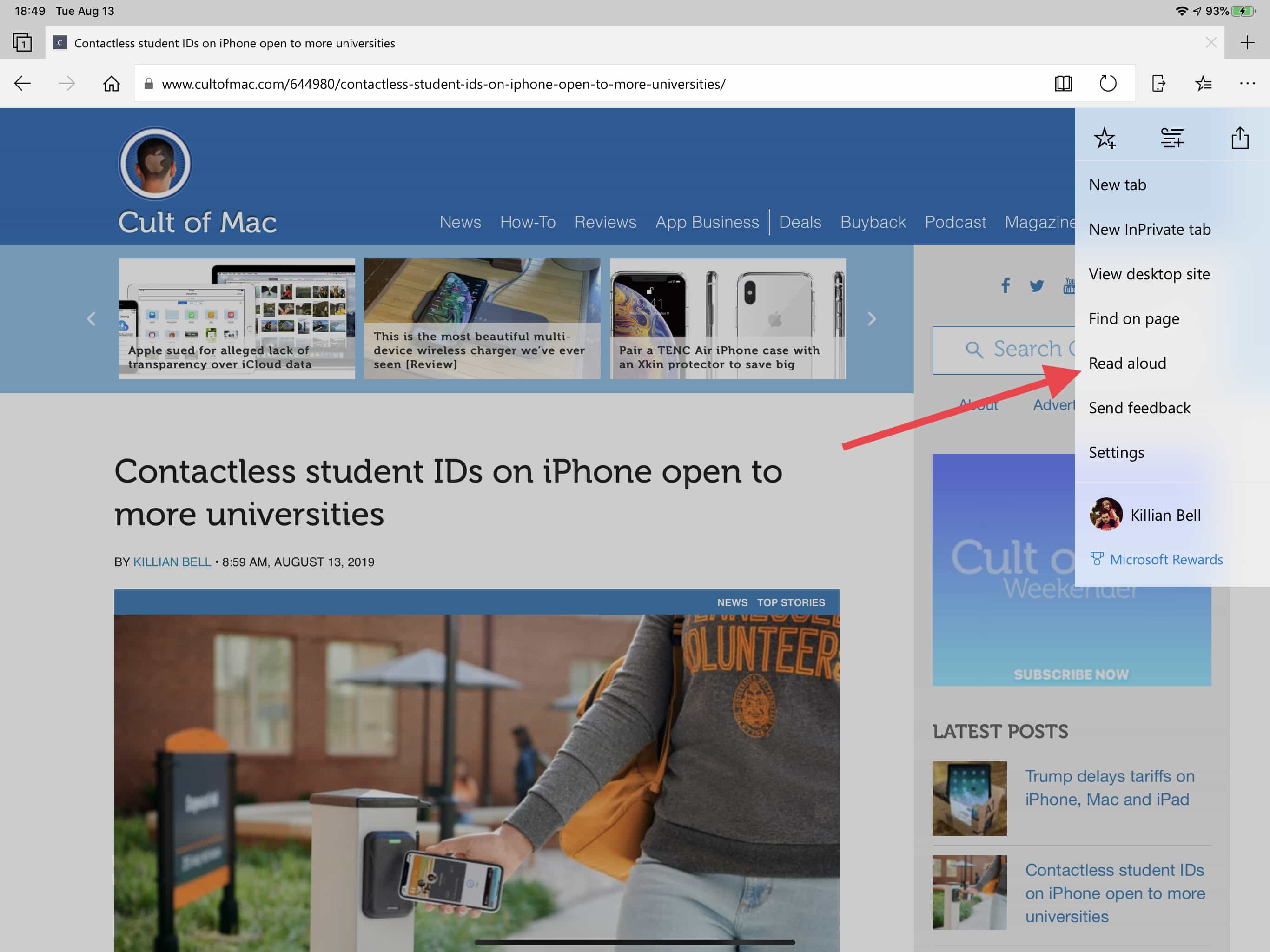
As we all age, chances are our senses will age along with us. As someone with great vision most of my life, I was aghast a couple of months ago when I couldn’t read the writing on a watch battery, no matter how close or far I held it from my eyes. So sad!

Luckily for us, and for thousands of users with visual impairments, OS X has a plethora of ways to interact with the Mac, all built right into the operating system. In this tip, we’ll focus on the vision side of things.

Read the rest of this post »

Make Your Mouse Cursor Bigger [OS X Tips]

Make Your Mouse Cursor Bigger [OS X Tips]

Here’s a basic but essential trick that Windows users take for granted—making the mouse cursor bigger, which can help on larger screens of if you simply prefer it that way.

Read the rest of this post »