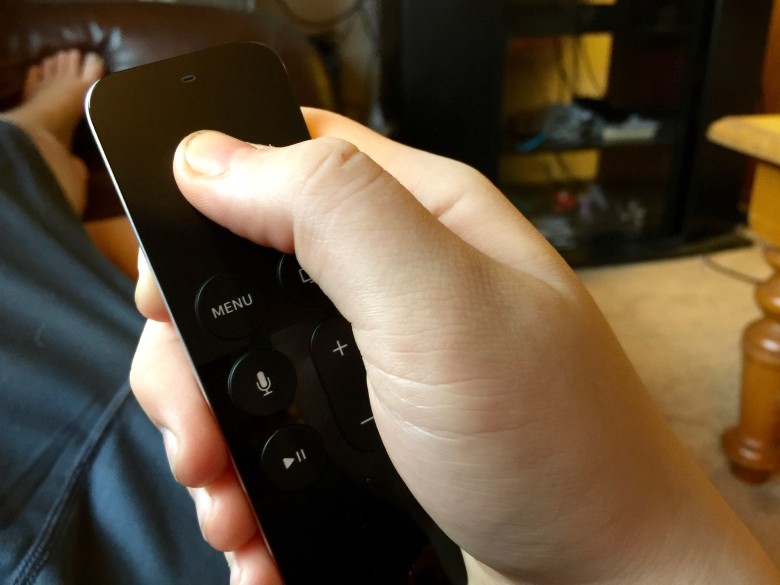
Want to play your Mega Man 2 ROM on your new fourth-generation Apple TV? How about Super Mario Bros. 3?
It’s a ton of fun to play classic console arcade games, especially if you have a few ROMs lying around on your hard drive and would like to play them on the big screen.
Here’s how to get your new Apple TV all set up to rock some retro games.
First of all, you’ll need a fourth-generation Apple TV running the latest version of tvOS, an active Apple Developer Account (free or otherwise), a copy of XCode for your Mac and a USB-A to USB-C cable (I grabbed this one from Amazon).
You’ll also need emulation software to run on your Apple TV. Provenance is the one I used; it’s one of the nicer ones and it will run on your Apple TV as well as your iOS devices. It’s super-easy to use and only takes a bit of work to compile the code.
Use the USB-C cable to connect your Apple TV to your Mac; this will let your Mac and the Apple TV communicate and add the compiled software emulator to your Apple TV.
Set up Xcode
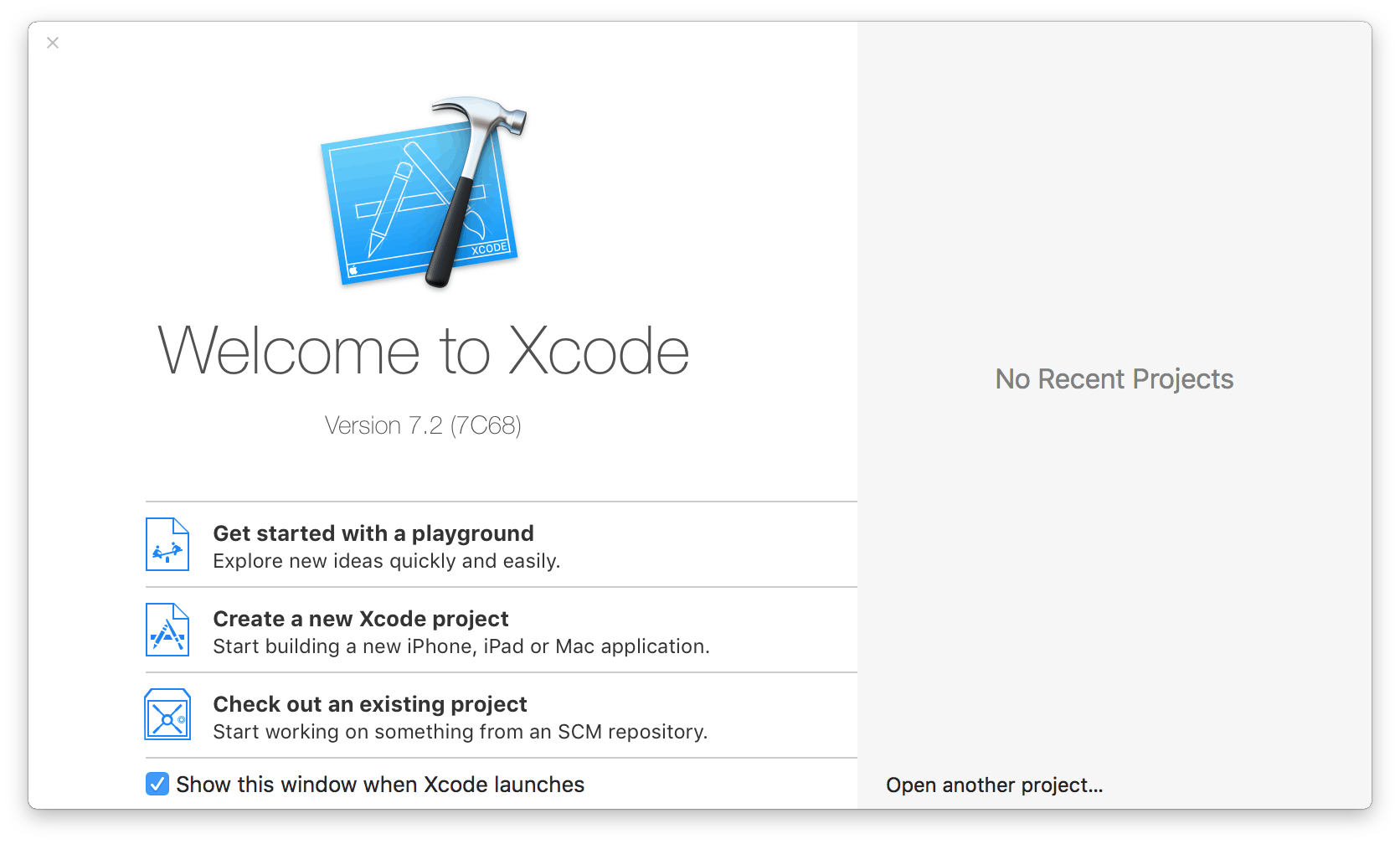
Photo: Apple
Next, set up Xcode. Launch it on your Mac and you’ll be prompted to enter your Apple ID. If you don’t get the prompt, simply head into Preferences in Xcode and enter your ID and password there.
Once your Apple ID is verified, head to the Provenance code repository at GitHub and copy the source URL from the top of the file list. Next, choose Check Out from the Source Control menu in Xcode. Paste the source URL you just copied into the repository location field that shows up. Click on the Next button in the lower right corner of the Xcode screen.
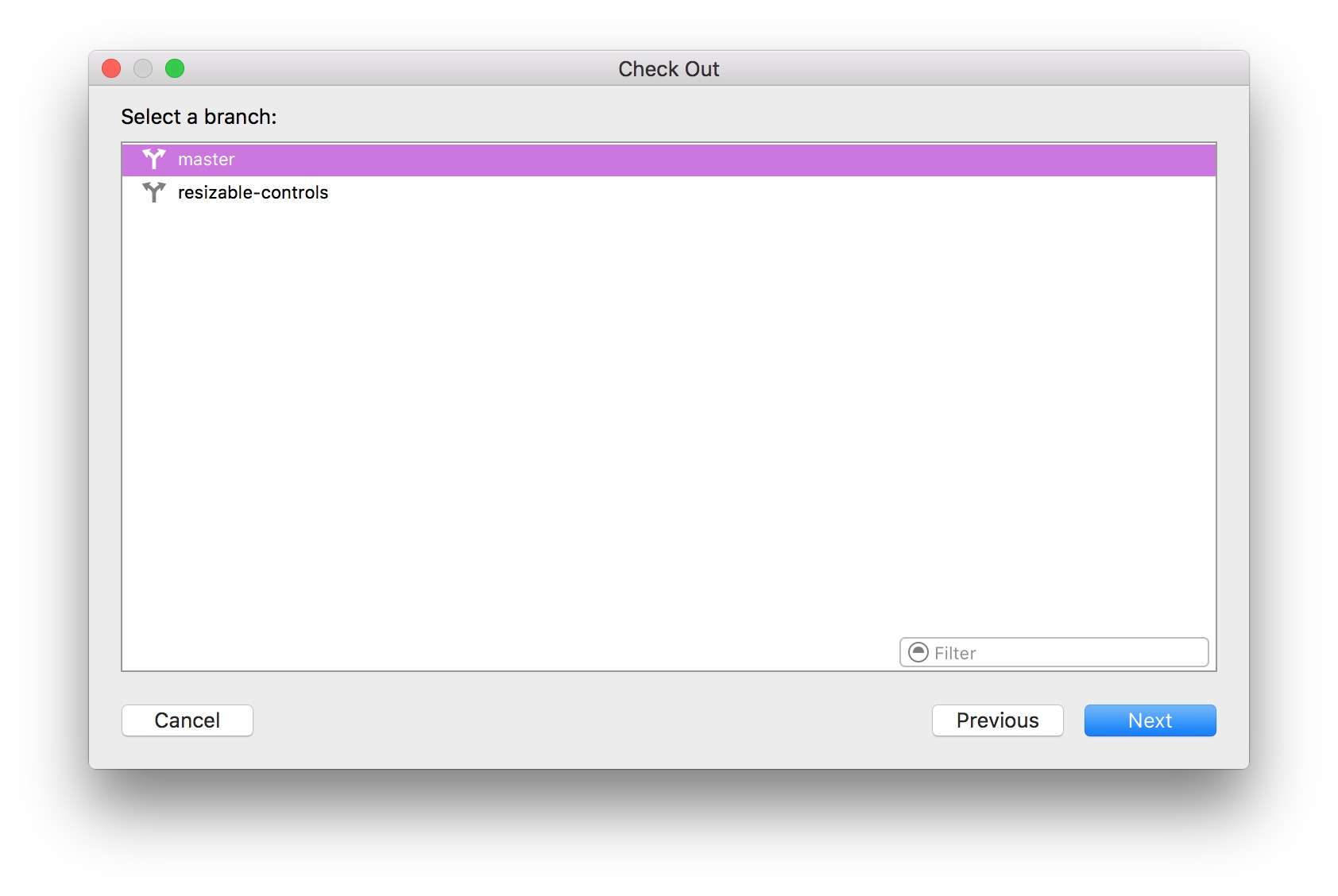
Choose the master branch and click on the blue Next button. Save the folder named Provenance somewhere where you can find it later, like your Downloads or Desktop folder.
Once the source code is downloaded, you’ll get a new Provenance window. If your Apple TV is connected to your Mac via USB, turn it on. Provenance will prompt you to add the device to your Xcode install. Choose it, click Next, and let Xcode do its thing.
Next, click on the Provenance in the left-hand pane. Change the Bundle Identifier to something different than what’s in there (I just replaced the bit between com and Provenance with my name, so it reads com.roblef.Provenance). Select your developer ID from the Team menu in the Identity section, as well. You might get an error message or two here – click on Fix It until they stop.
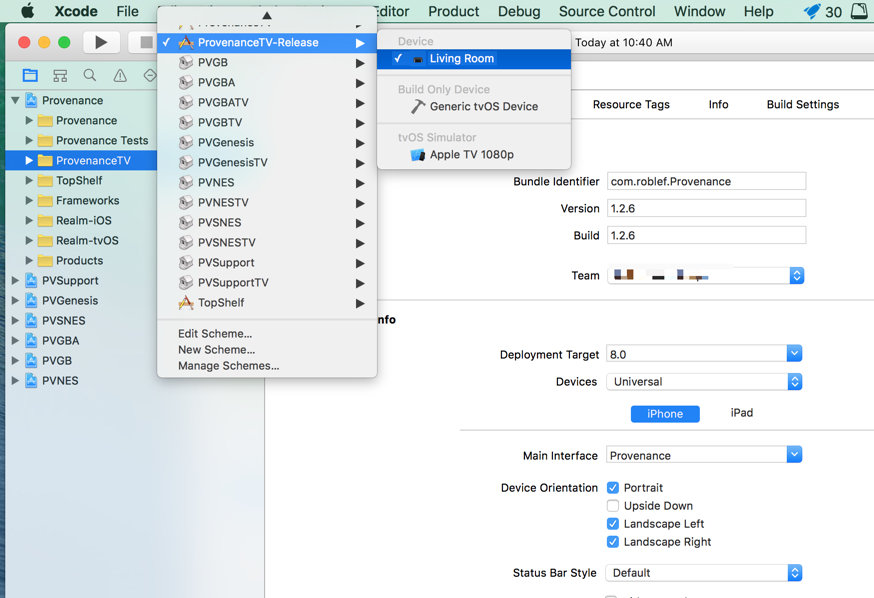
Photo: Rob LeFebvre/Cult of Mac
In the left pane, click on the little triangle to the left of the top level Provenance item. You’ll see another folder labeled “ProvenanceTV.” Click on it and then click on the Scheme button (in the top part of the window, just to the right of the Play/Stop buttons. Choose ProvenanceTV-Release and then your Apple TV device. Once selected, click on the Play button (which will build the app for you). You might have to enable Developer Mode on your Mac; click through any dialogs here. Fix any code signing issues during or after the build process, too.
At the end of the process, Provenance should be installed on your Apple TV – you can swipe to it with the Siri Remote and launch it on your Apple TV home screen.
Add games
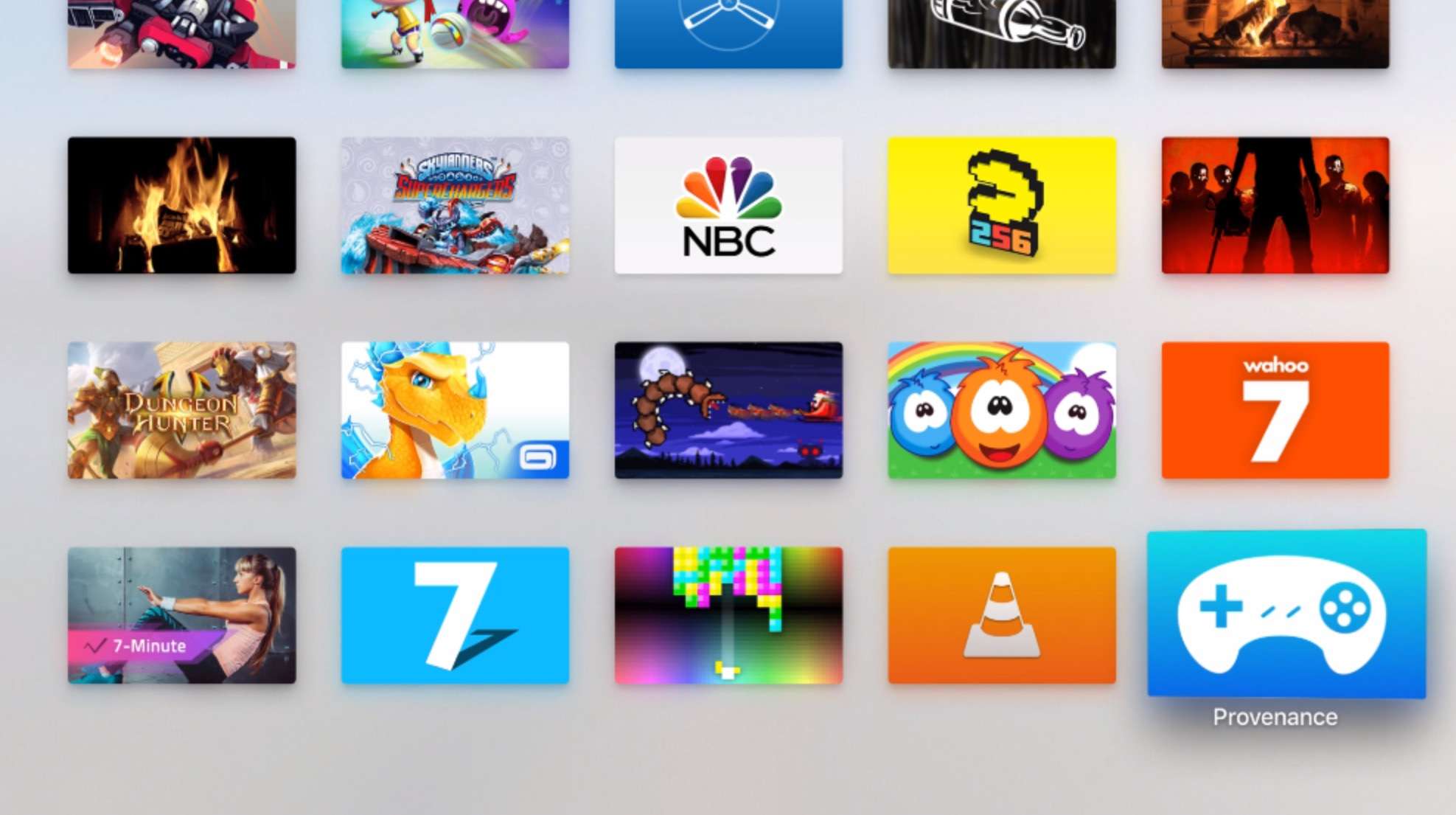
Photo: Rob LeFebvre/Cult of Mac
Provenance supports Sega Genesis, Game Gear/Master System, Sega CD, SNES, NES, GB/GBC and GBA ROMs. You really should get them from your own cartridges or at least own the games if you go searching to download them.
Assuming you’ve gotten your legal ROMs onto your Mac, when you launch Provenance on your Apple TV, you’ll just see a blank screen. Click on the Import button, however, and you’ll get a web address you can type into your web browser on your Mac.
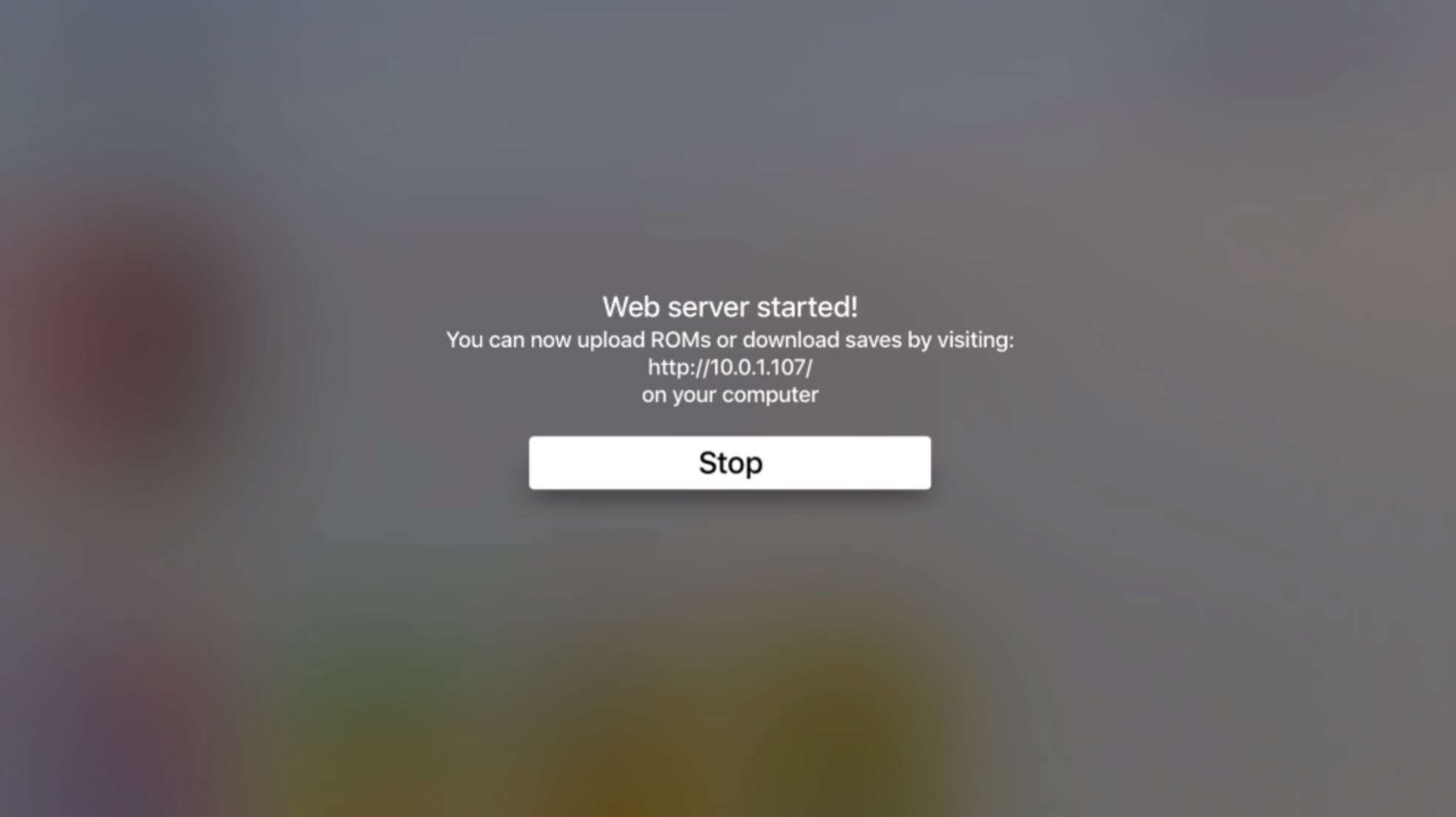
Photo: Rob LeFebvre/Cult of Mac
Navigate to the address shown in your Import screen on your Mac via your favorite web browser. Click on the little folder to the left of the /roms folder and then click on the Upload button. Choose the ROMs from your Mac and then hit Open in the file dialog box. Older games like those on the NES or SNES will transfer quickly. Click the Stop button on your Apple TV and you’ll be taken back to the Provenance games screen.
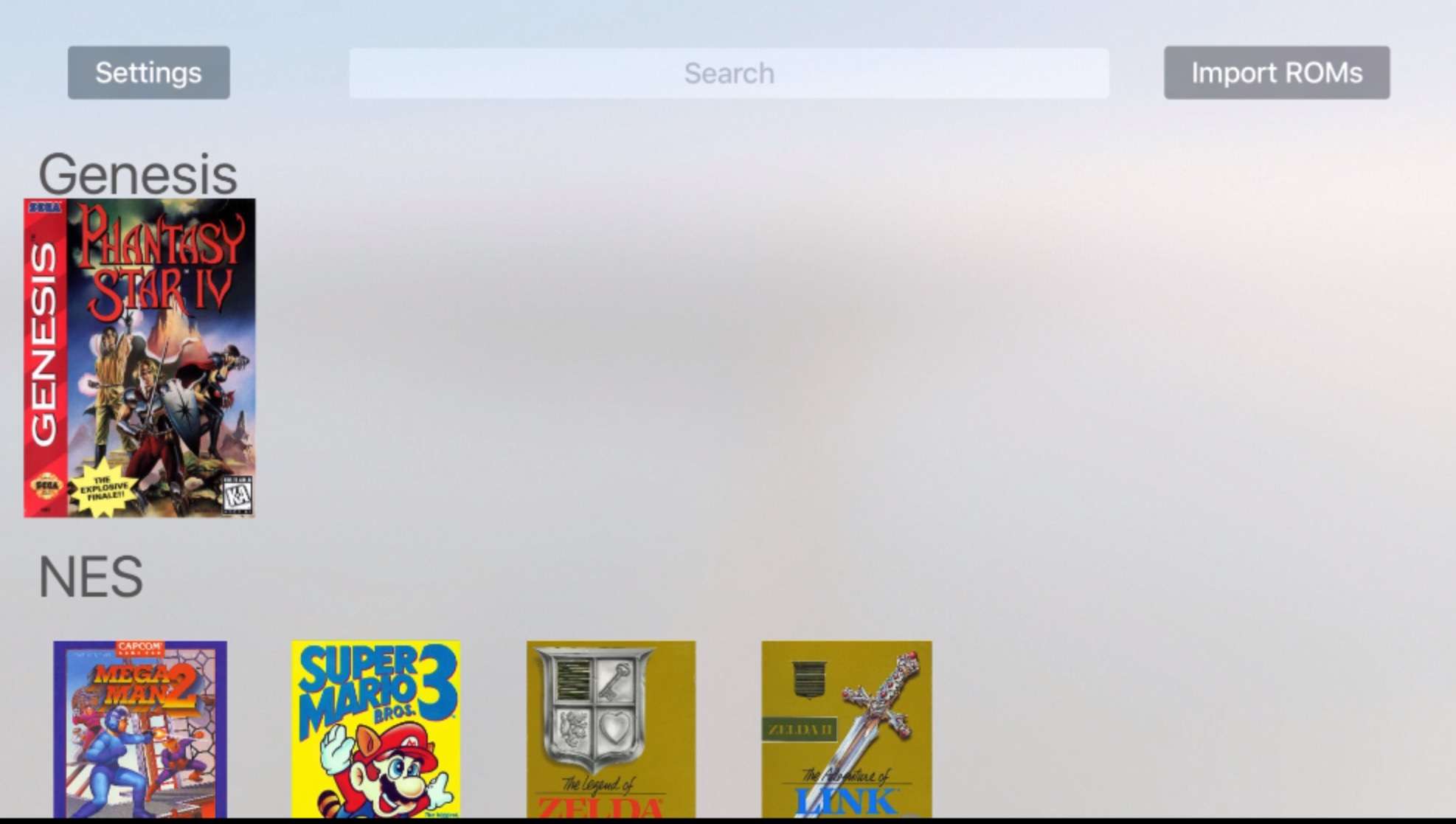
Photo: Rob LeFebvre/Cult of Mac
Swipe over to any games you’ve uploaded and click it to start. You’ll want to use the Menu button to start any games, and while you might want to connect an MFi controller like the Steel Series Nimbus to your Apple TV, it may not work with your games. The Siri Remote is generally compatible with all the games I tried out, and once you get comfortable with the control scheme (hold your remote sideways), it’ll seem like second nature.
Now you can play all your older games on your Apple TV — enjoy!

Rob LeFebvre is an Anchorage, Alaska-based writer and editor who has contributed to various tech, gaming and iOS sites, including 148Apps, Creative Screenwriting, Shelf-Awareness, VentureBeat, and Paste Magazine. Feel free to find Rob on Twitter @roblef, and send him a cookie once in a while; he’ll really appreciate it.


21 responses to “How to play retro arcade games on your Apple TV”
Is there multi remote support?
Yup
What the fuck is Super Mario World 3?
really?
Yes really
Got it – fixed. Thanks for the heads up, though I wasn’t sure what you meant at first. :)
Yeah, I was being a smartass. :-)
really? ;)
Dude you clearly never owned a fucking Super Nintendo because Super Mario World 3 was THE MOST popular SNES game ever made. lol. Do your homework before posting such stupid questions
Show me Super Mario World 3 on SNES. Provide a link.
Consoles are not arcade games.
Technically correct.
This is old news
Older than the Apple TV 4th gen? Not *that* old. :) Besides, I had to wait for my USB cable to arrive in the mail.
Your right, I guess old is a matter of opinion. I’ve been playing Nintendo games on both of my 4th gen Apple TV’s for weeks now, just seems like old news….waiting on some new cool 3rd party apps to sideload. 2nd beta version of Kodi is running great tho (in separate news)
Is there a way to do this without being a developer? $99 a year seems steep
It is free
Im not playing Retro games with that remote, it would be a nightmare
Sorry for this question, but I’m new to Xcode.
While I can see my Apple TV as a connected Device when I go to Xcode -> Window -> Device, I am unable to see it as a device for selecting as depicted in the 3rd screen shot above.
What am I doing wrong / not doing?
Thanks.
I can’t get past the Team menu Identity section. I keep getting that Fix It button and error message.
Oh wait. That is Super Mario LAND 3. I forgot they did the whole Disney Land… Disney World thing with Mario. World applied to the home console and Land for the mobile Gameboy.