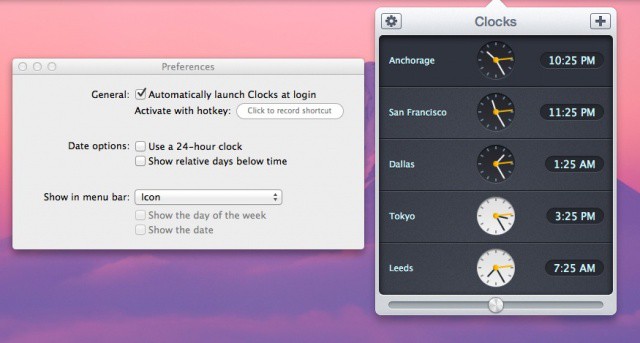
Maybe you’re a world traveler, looking to keep track of the time in the many places you visit around the globe. Or, you might be an office manager, only your offices are spread acloss several different timezones in as many countries. Heck, maybe you just write for a bunch of different websites and your editors need you to keep track of what time it is in their hometown before you call them about a hot story lead. Whatever the reason, today’s tip is an app that will help you with the need for many clocks.
Cleverly named Clocks is an app that sets up right in your menu bar, ready when you need it. Downloading it from the Mac App store for $1.99 will load it into your Launchpad, while clicking on the app icon will launch it.
Clocks runs in your menu bar. Click on the little clock face there to show the application window. Click on the plus sign in the upper right corner of the resulting window to type in the name of a city. You can then click on it in the pop up list that appears, and add it to the clocks app. The app window continues to resize as you add cities.
[Via MacLife]
Got an OS X tip? Need help troubleshooting OS X? Drop me a line or leave a comment below.

Rob LeFebvre is an Anchorage, Alaska-based writer and editor who has contributed to various tech, gaming and iOS sites, including 148Apps, Creative Screenwriting, Shelf-Awareness, VentureBeat, and Paste Magazine. Feel free to find Rob on Twitter @roblef, and send him a cookie once in a while; he’ll really appreciate it.


One response to “Set Up Multiple World Clocks In Your Menu Bar [OS X Tips]”
Why the f#ck isn’t this part and parcel of OSX? What a rip off. Angry Windows user.