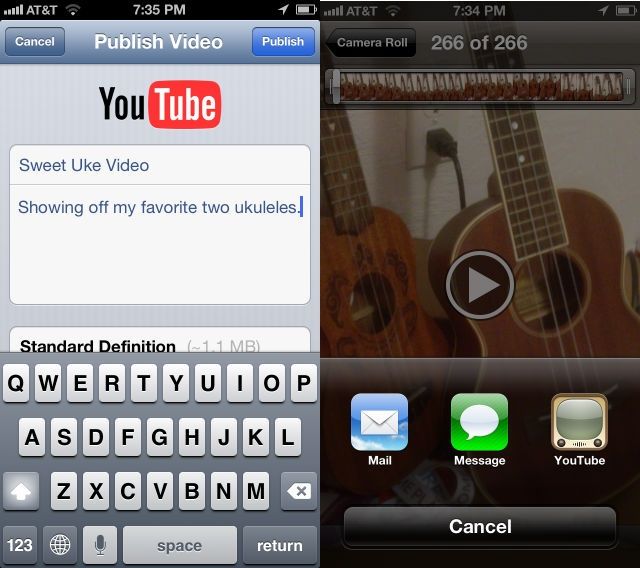
I don’t take a lot of video with my iPhone, so I didn’t know about this tip until today. When looking to upload video to YouTube, I figured you’d have to transfer the video to your Mac, open up a web browser like Safari or Chrome, and use the YouTube website to upload it.
Not so, apparently, as there’s an easy Share to YouTube button in the Photos app that lets you send it directly from your iOS device. Here’s how to use it.
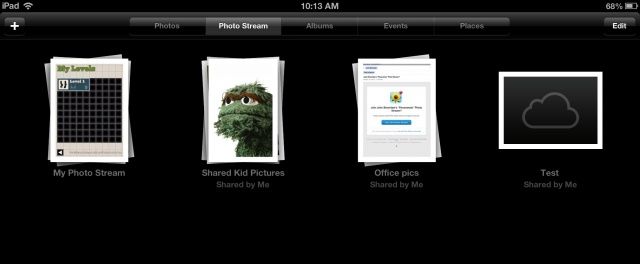
Shared Photo Streams are fantastic, of course, barring the niggling detail that only the person who creates them can add photos to them. Sometimes, though, as with all tech, things don’t necessarily work the way they should. For example, sometimes you won’t be able to see comments that have been posted by subscribers. Other times, deleting a comment from a shared Photo Stream via iPhoto or Aperture won’t be reflected on your iPhone.
One of the best tools in a photographer’s editing kit is the crop. Finding the best part of a picture and cutting out all else is a fantastic way to make an ordinary picture into a great picture.
You can do this right on your iPhone or iPad with the Photos app. Here’s how.
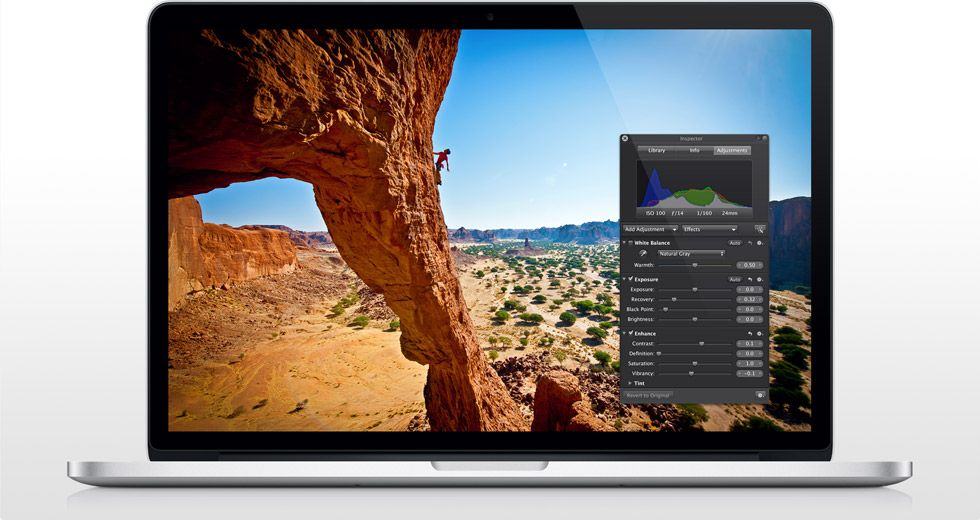
One of Apple’s biggest announcements yesterday — apart from something about some new iPad — was iPhoto for iOS. We’d suspected that Apple would fill in the hole in its iLife suite, and we were right. What we weren’t expecting was something as fully featured as iPhoto turned out to be. That said, it seems the app was really built with the iPad 3 in mind: It works great on the iPad 2, but it’s a little glitchy in places: just like its desktop cousin.