All items tagged with "ios tips"

Use Zoom And Large Text Options To Help See Stuff On The Screen [iOS Tips]

Zoom

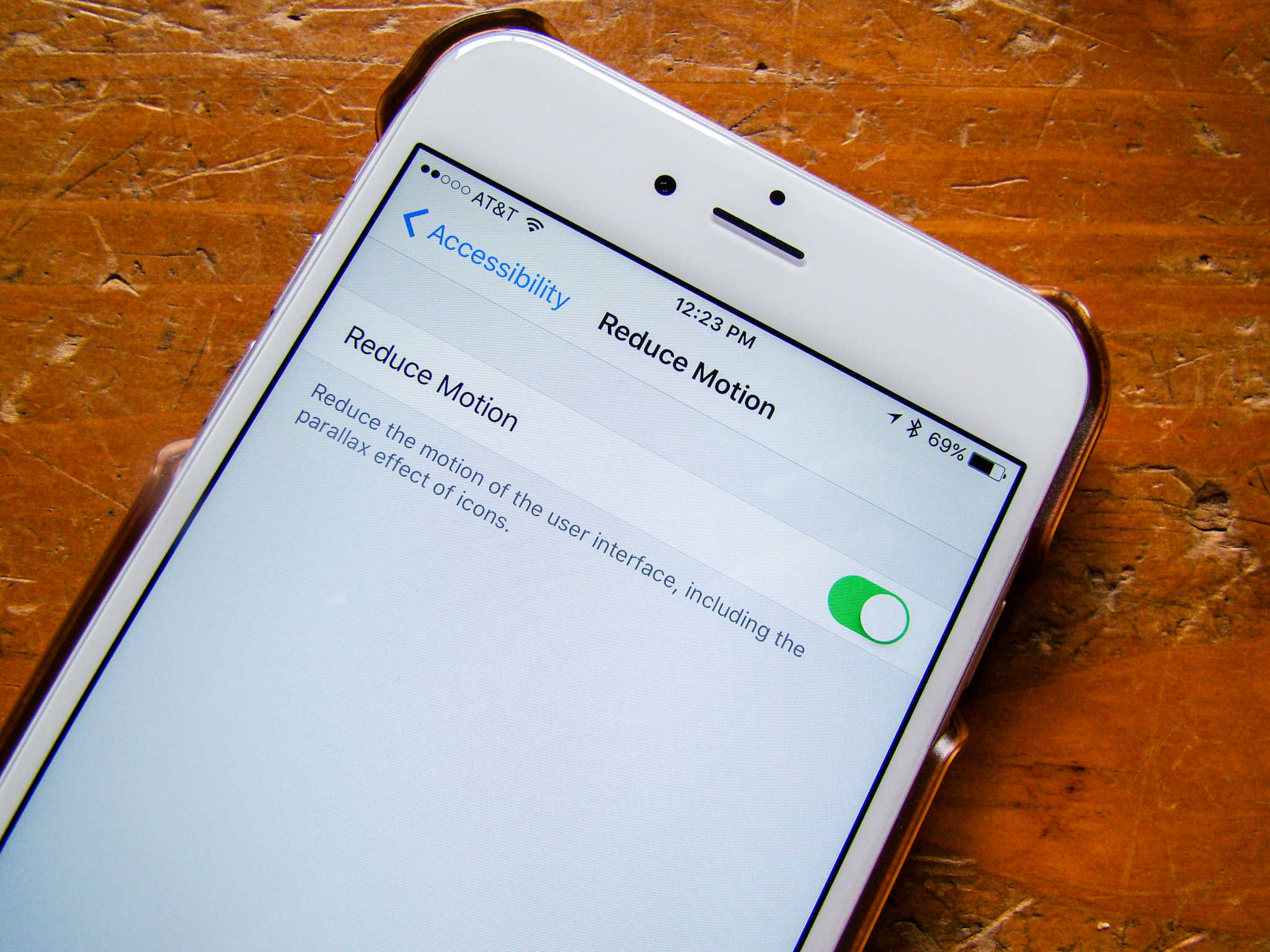
Another accessibility option built right into iOS is Zoom. Like VoiceOver, it was originally created to help those with a visual impairment access their iPhone, iPad, or iPod touch. Zoom is made for those who need things magnified on the screen, and it can be pretty darn helpful for those of us who may not have a specific visual disability.

Some apps zoom in within the app itself, like Maps, Safari, or Google Earth. That doesn’t help if you need the buttons and iOS controls magnified, or the text in apps like Mail, right?

Here’s how to set things up with Zoom.

Read the rest of this post »

Enable VoiceOver And Have Your iPhone Or iPad Read Twitter To You [iOS Tips]

VoiceOver

VoiceOver is the name of the amazing text-to-speech feature in iOS and Mac OS X that allows those with visual impairments to use their Apple devices right out of the box, without needing help from a sighted person. On the iPhone or iPad, it empowers those with a visual disability to become more independent and function on a day to day basis in a world that isn’t really set up for them.

As an individual without a visual impairment (aside from a slight nearsightedness), I use VoiceOver to have my iPhone read to me when I’m in the car but need to catch up on email or want to hear what folks are doing on Twitter. Here’s how to set that up.

Read the rest of this post »

Five Awesome Ways To Master Mailbox For iPhone [Feature]

If you’re one of the lucky ones to have signed up for Mailbox, Orchestra’s amazing new email client for the iPhone, you know how great it is. It allows you to re-think how you deal with email on a daily basis. Mail messages can be archived, set to remind you at a later time or day, or placed in lists you create yourself all with a swipe of your thumb or finger. Mailbox turns email into much less of a chore while on the go.

Here are five great tips and tricks to get you mastering the Mailbox app for iPhone.

Read the rest of this post »

How Does Mailbox For iPhone Work With The Gmail Web Client? [iOS Tips]

gmail mailbox integration

One of the advantages of Mailbox only working with Gmail is that a lot of the conventions you’re already used to are present in this fantastic on-the-go email app for your iPhone. If you spend a lot of time on your iPhone using Mailbox, you might have wondered what it does with your mail when you archive, set to later, or add to a list.

Well, it’s really quite simple.

Read the rest of this post »

Star And Mark Mail Unread Using Mailbox for iPhone [iOS Tips]

Mailbox Unread Star

Mailbox for iPhone lets you send each email to a list, set it to snooze for a certain number of hours or days, or even just archive the email if you want.

In addition, you can mark emails as read or unread, and star them, just like in Gmail itself. THis gives you yet another way to sort and classify emails on the go, which also transfers easily to the web version of Gmail, as well.

Read the rest of this post »

Subscribe to the Cultcast

Change Snooze Timing And Logic In Mailbox For iPhone [iOS Tips]

Mailbox Snoozes

Mailbox for iPhone is revolutionary, sure, and it lets you “snooze” your emails to a point later in the day, week, or month. But what if you don’t like the way it does that?

By default, Mailbox defines the start of your day as 6 am, the start of your weekend as 10 am, and the end of your workday as 6 pm. It defines Later Today as +4 hours, and Someday as +3 months.

If that doesn’t fit your individual schedule or tastes, here’s how to change it.

Read the rest of this post »

Undo That Mistaken Swipe In Mailbox For iPhone [iOS Tips]

mailbox swipe

One of the central conceits of new iOS mail client, Mailbox, is getting to Inbox Zero, a zen state of pure joy, in which you feel much better having dealt with all your email. The way the app does this is with swipes. Swipe partway across an email to the right and you archive it with a pleasant green checkmark. Swipe completely from left to right and you send the offending email to the trash. It’s lovely, and easy, and oh so nice.

But what happens when you make a mistake and long swipe to Trash when you really meant to short swipe to Archive?

Read the rest of this post »

Batch Archive Or Delay All Messages In Mailbox App For The iPhone [iOS Tips]

Mailbox All Swipe

If you’re one of the lucky ones to have signed up for Mailbox, Orchestra’s amazing new email client for the iPhone, you know how great it is. It allows you to re-think how you deal with email on a daily basis. Mail messages can be archived, set to remind you at a later time or day, or placed in lists you create yourself all with a swipe of your thumb or finger. Mailbox turns email into much less of a chore while on the go.

Did you know, however, that instead of swiping each email one at a time, there’s a way to take care of all of them at once? Here’s how.

Read the rest of this post »

Add International Top Level Domains To Safari Mobile Web Keyboard [iOS Tips]

International TLDs

You probably already knew about how to tap and hold on the .com button in your iOS version of Safari to bring up the top level domains that come with the basic web keyboard, right? Tap into the URL bar at the top of Safari, and the web keyboard will show up. Tap and hold on the .com button and you’ll see all the top level domain suffixes for .com, .edu., .org, .net, and the like (if you’re in the US).

But what if you want to be able to quick access domains not in your main country, like Australia (.au), Canada (.ca), or the UK (.co.uk)? With a quick trip into the Settings app, you can add these and others, super easily.

Read the rest of this post »

Navigate Your Calendar Even Faster On Your iPhone [iOS Tips]

iOS Calendar

You know how when you use the iOS Calendar app, you can tap on the little arrows to the right or left of the Day or the Month? This will move you one unit per tap, so when you’re in Month view, you’ll move forward one month if you tap on the right arrow, and one month back if you tap on the left arrow. Same thing with the Day view: tap on the left arrow to move back one day, the right arrow to move forward one day. Simple, right?

Turns out that you can move through the calendar even faster in either Day or Month view.

Read the rest of this post »