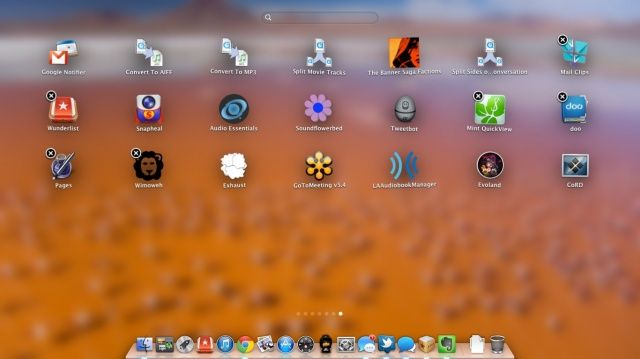
There’s even an easy way to delete apps you’ve purchased from the Mac App Store these days, aside from the tried and true “drag app icon to trash” method we’ve all grown to know and love since OS X debuted oh so many years ago.
AirDrop is a pretty slick app that was first available in OS X Lion. It basically allows any Mac see any other Mac with the protocol enabled on the network, with no configuration or knowledge of file sharing needed. You just drop a file onto any available AirDrop icon, and your file heads over to that user’s Mac. No muss, no fuss, just simple.
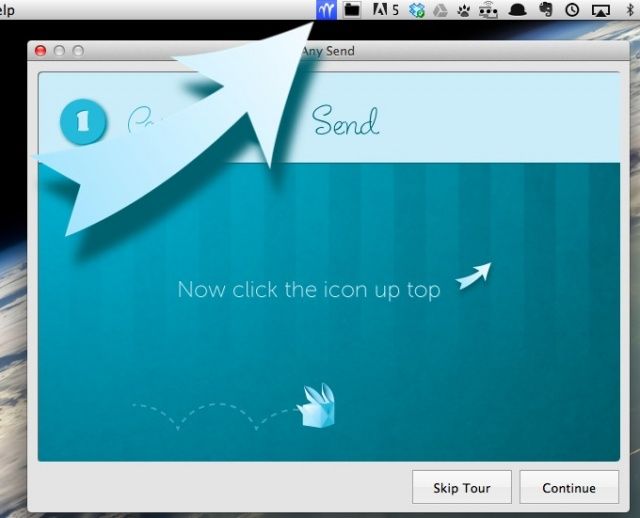
At least, that’s the concept. In reality, I’ve not seen AirDrop ever work that easily. Luckily, there’s an alternative that’s even simpler: Any Send, a free Mac app that lets you send files to any other Mac using WiFi.
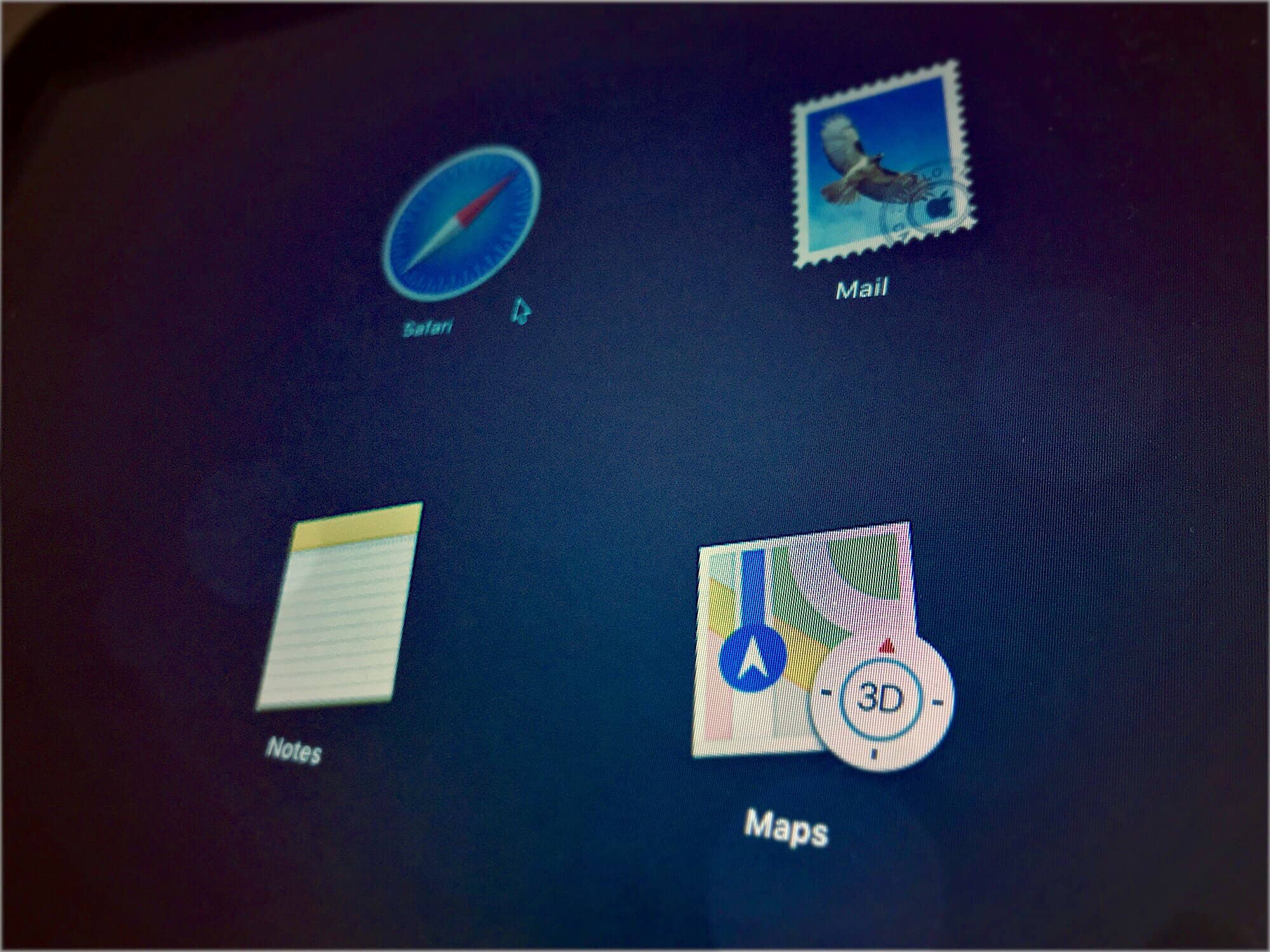
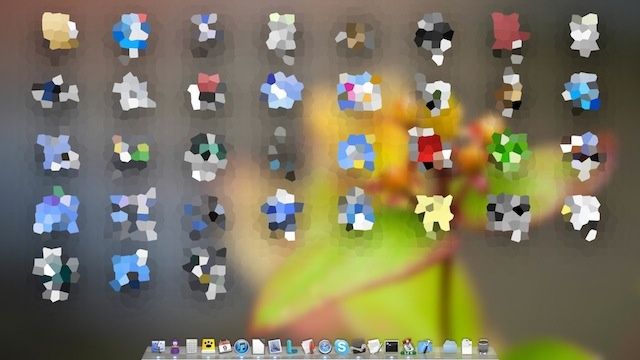
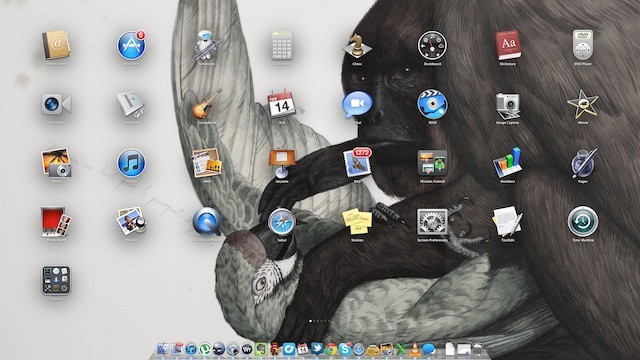
99.95% of the time I pray that my Mac will never get a bug, but now part of me holds on to a sliver of hope that I will one day see an OS X bug that is as beautiful as this. A very small number of Mac users have reported that Launchpad has thrown out a new bug that crystalizes all of the icons on the Launchpad screen.
The way the bug occurs is pretty simple – the blur effect and crystallise effect are two built in core image filters and somehow Launchpad is applying the crystallise effect when it should be using blur. It’s a bit whacky and goes away after a bit, but it sure is spectacular.
Here’s how the bug morphed another Mac user’s screen:
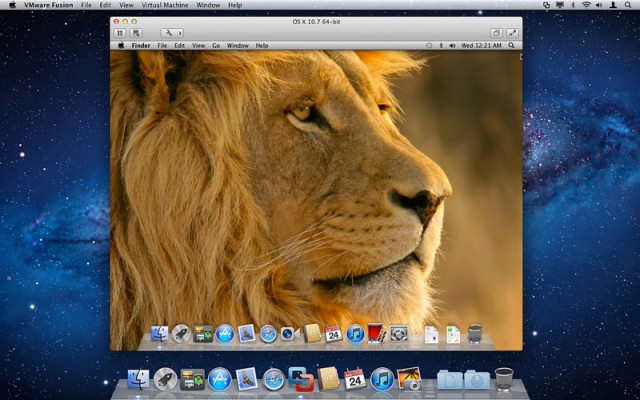
We knew it wouldn’t be long before VMware’s Fusion 5 had a competitor. Today Parallels has announced the release of Parallels 8 for Mac, the latest edition of its flagship virtualization software, which includes support for Windows 8, and boasts Retina-ready visuals for the new MacBook Pro. Other improvements include support for Mountain Lion Dictation, Bluetooth sharing, and Launchpad integration.
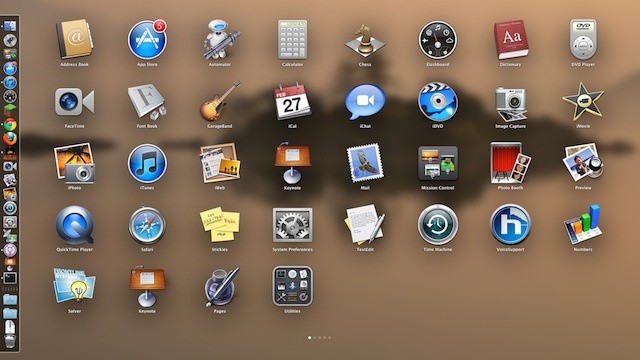
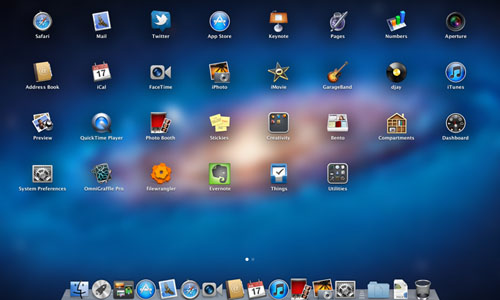
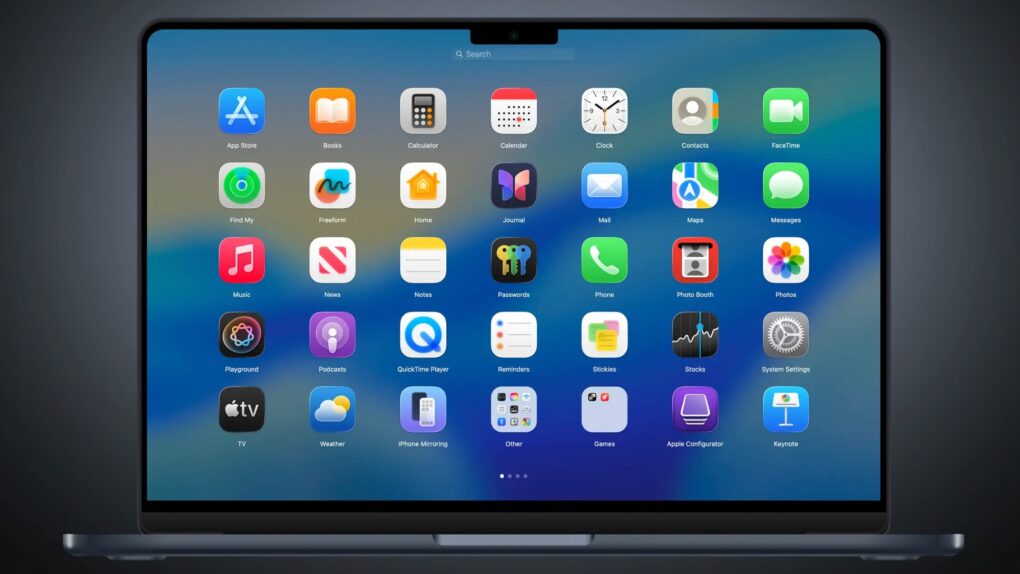
Launchpad tries to bring an iOS-style app interace to OS X. Whether you like it or not, it’s here to stay. Introduced in OS X Lion, Launchpad arranges the apps you have installed on your Mac in a grid array, much like the apps are arranged on your iPhone, iPad, or iPod touch. Of course, your Mac has a much bigger screen than these iOS devices (hopefully), so there’s even more of a need to filter out the apps you don’t want so that you can find the apps you do want to find.
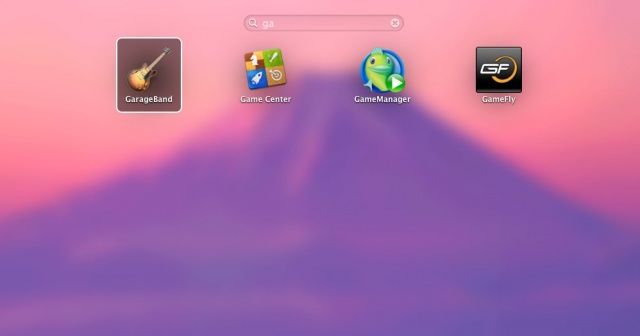
In iOS, as you get more and more apps installed on your device, you’re gonna end up swiping to the right of the home screen at some point and typing the name of an app into the Search field there. Prior to Mountain Lion, there was no way to do this in OS X. Now, however, there is, and I sincerely hope they bring this concept back to enrich iOS itself.
Convergence. It’s all the rage, lately, and what better two items to converge than your Mac, running OS X, and your iPad (or iPhone, or iPod touch), running iOS? IT’s two great tastes that taste great together, to quote an old commercial that mostly no one has heard of any more.
With these five tips, you’ll amaze your friends with a Mac that looks more like your iPad than it does your Mac. So, read on, intrepid souls, and follow our steps to make that sweet Apple computer into something resembling the post-PC magical device we all love.
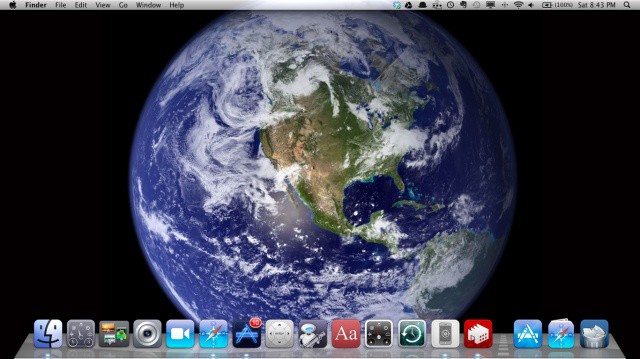
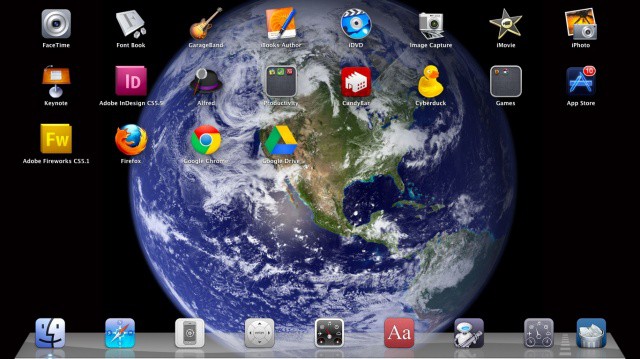
When Launchpad first rocketed (sorry) onto the scene in Mac OS X Lion, most people were firmly in the “hate it” or “love it” camp. There didn’t seem to be much in between, but maybe that’s just due to the contentious nature of the internets. Regardless, today’s tip is firmly in the “love it” camp, showing you how to clean up Launchpad, add in just the Apps you want to use, and then a quick trick for clearing the background to show off that cool iOS-like Earth from space picture.
Here’s another OS X Lion feature: the Launchpad. It fades in and out when being shown and hidden. You’d think this was just the way things are, but there’s actually a way to disable it. Why would you want to? Older computers that still support OS X Lion might need a little less to worry about, and turning off animations like this (or the “move to dock” window function) can help things feel a bit snappier. Or, maybe you just don’t like the fade in and fade out. Have it your way.
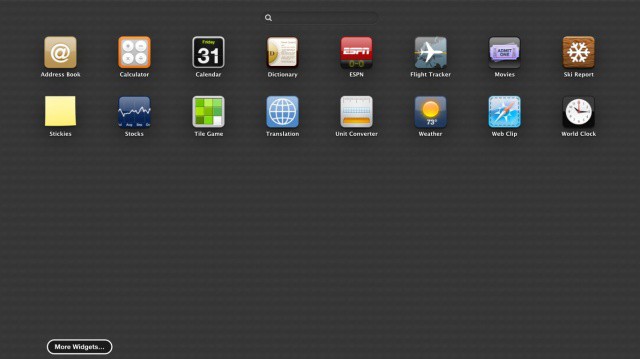
Not a huge change, but we just noticed that in OS X Mountain Lion, Apple has changed the way adding widgets in Dashboard works to be more akin to Launchpad, with a full screen of equally spaced widgets being selectable instead of Lion’s approach, which puts available widgets at the bottom edge of the display.
OS X Lion’s new Launchpad feature isn’t exactly known for its customizability. The whole point is to give Mac noobs more familiar with iOS than OS X a way to effortlessly interact with their Mac, with little drama or tweaking. One of the few things in Launchpad you can tweak, however, is the way your desktop background is displayed on it. By default, Launchpad defaults to blurring it, but if you want to deblur it (or even turn it into a nearly black-and-wite), it’s just a short keystroke combo away.