If you’re selling, giving away, or scrapping an old iPhone, iPad, or iPod touch, you’re likely to plug it into iTunes and hit the restore button to remove all of your personal content and reset the device’s software back to factory settings. But did you know that you can do all that without iTunes?
Here’s how to reset your iOS device and remove all of its content and settings without iTunes.
Back in October, we highlighted one of the new features in iOS 5 that allows you to hide previous App Store purchases from your ‘Purchased’ list. It’s great for removing all those apps and games that you may be ashamed of, such as Hello Kitty Parachute Paradise. But what happens if you want to reveal those purchases again?
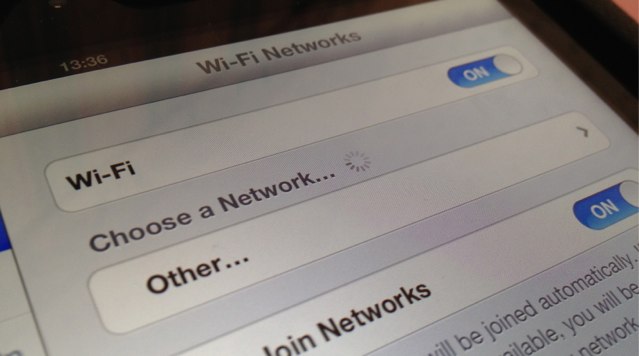
This morning we reported that a number of new iPad owners are suffering from poor Wi-Fi performance on their new tablet. If you’re one of the unlucky few, then this simply fix might just solve the issue, and in turn save you a visit to the Genius Bar.
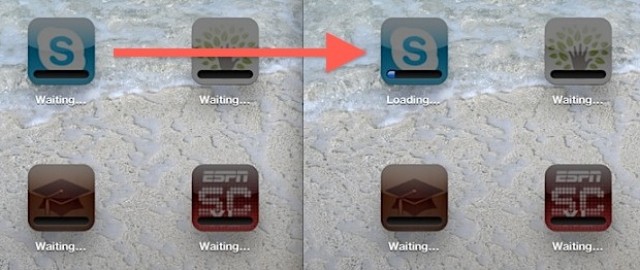
Over the past few days, a large number of iOS users have been reporting that their App Store downloads are becoming stuck on the “Waiting” status when they attempt to install or update a number of apps at once. It is thought that the influx of Retina updates for the new iPad is causing an App Store overload.
Fortunately, there is a simple workaround. Here’s how to fix that frustrating “Waiting” freeze.
If you frequently use the iPad’s Picture Frame feature, you’ve probably noticed that it likes to zoom in on people’s faces within each photo. Fortunately, there is a way to prevent this.
Your iPhone’s camera might be good enough to replace your old point-and-shoot — especially if you have the iPhone 4S — but it does have some flaws. For instance, it’s not great at taking those really close-up shots for catching the smallest details; it just doesn’t focus.
But with just a droplet of water, you can add a macro lens to your iPhone that allows you to capture crystal clear high-resolution close-ups. Here’s how!
Did you know that the Calculator app built into iOS has a hidden swipe gesture that allows you to delete those digits that you tap accidentally? No, neither did I until this morning, when I discovered this nifty little backspace trick by accident.
Are you still emailing contact cards and photos to your friends? Did you know that you can transfer them instantly with a fist bump using the free Bump app? The best thing about Bump is it’s not just available on iOS, so you can use it to send contacts and images to friends on Android devices and other smartphones, too.
While repeated alerts for our text messages are helpful sometimes, other times they’re just downright annoying. If you find that they frustrate you more than they help you, here’s how to turn them off and receive just one alert per message.
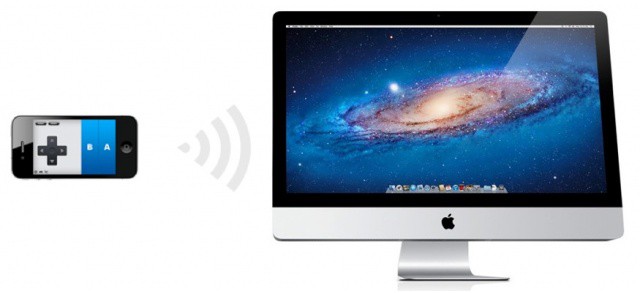
We recently showed you how to control iPad games using the Joypad app on your iPhone, and today we have another Joypad trick that’s guaranteed to impress your friends: controlling games on your Mac. That’s right — you can use your iPhone as a touchscreen gamepad for your Mac.