Save Yourself the Unwanted Bill and Disable In-App Purchases [How To]
In-App Purchases are no joke. With the Freemium model becoming a mainstay for many popular apps, iOS users may get confused and can easily rack up a $100 tab in minutes. To prevent this from happening to you we’re going to show you how to disable all in-app purchases.
The process is extremely simple. You just go to Settings>>General>>Restrictions>>Enter PIN>>Enable Restrictions>>In-App Purchases Off.
I’ve included screenshots of the whole thing too, just incase you get lost.
Step 1: Go to Settings

Step 2: Go to General

![Save Yourself the Unwanted Bill and Disable In-App Purchases [How To]](http://cdn.cultofmac.com/wp-content/plugins/lazy-load/images/1x1.trans.gif)
Step 3: Under General go to Restrictions

![Save Yourself the Unwanted Bill and Disable In-App Purchases [How To]](http://cdn.cultofmac.com/wp-content/plugins/lazy-load/images/1x1.trans.gif)
Step 4: Enter your Passcode
![Save Yourself the Unwanted Bill and Disable In-App Purchases [How To]](http://cdn.cultofmac.com/wp-content/plugins/lazy-load/images/1x1.trans.gif)
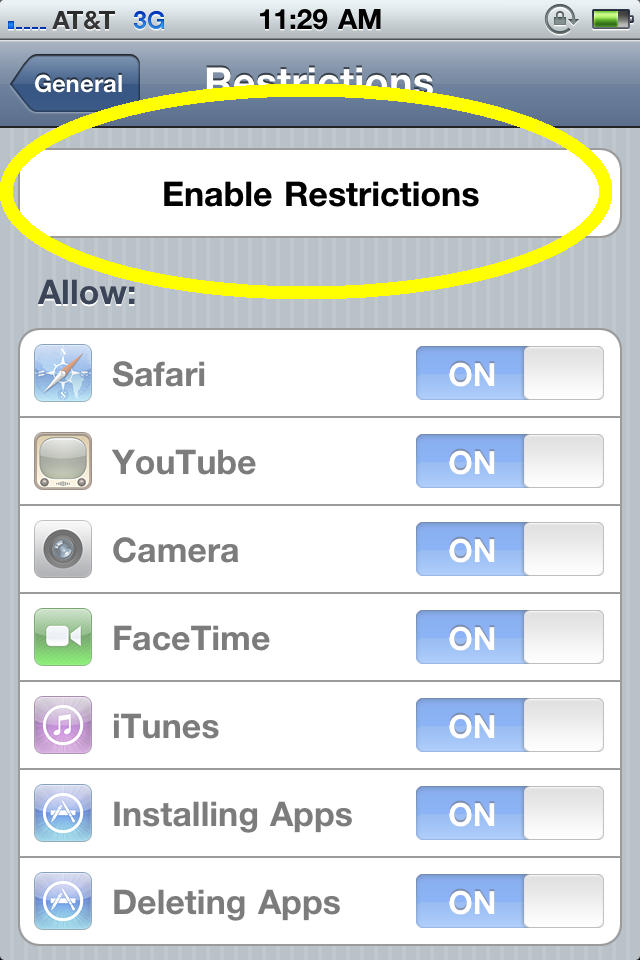
Step 5: Select “Enable Restrictions”
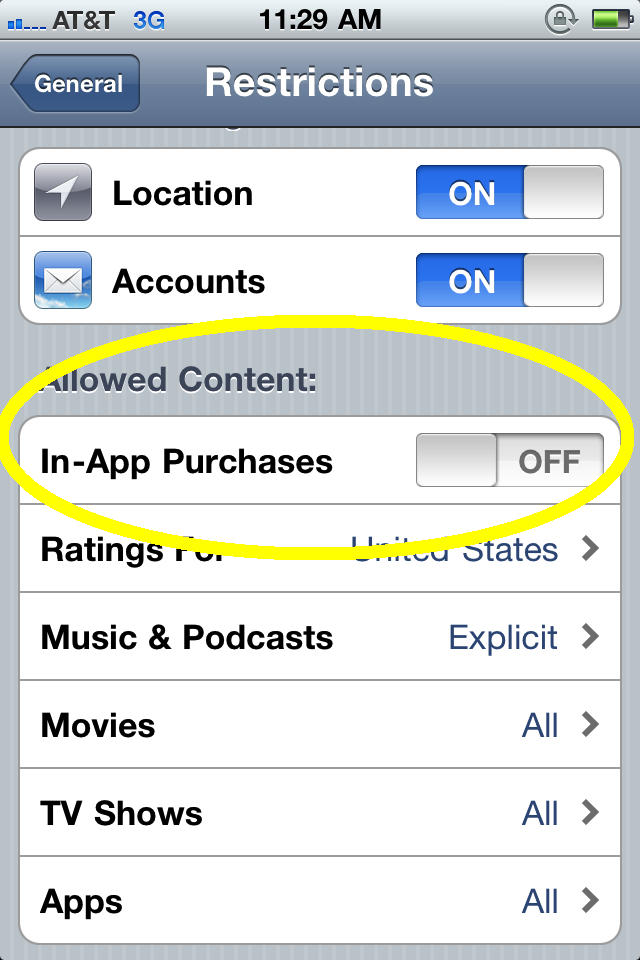
Step 6: Toggle the switch for In-App Purchases to OFF
![Save Yourself the Unwanted Bill and Disable In-App Purchases [How To]](http://cdn.cultofmac.com/wp-content/plugins/lazy-load/images/1x1.trans.gif)
Buster Heine is Cult of Mac's Social Media Editor. Hailing from Roswell, New Mexico, but now spending his days in Phoenix, Arizona, he wastes most of his time eating burritos and reading Spanish romance novels. Twitter: