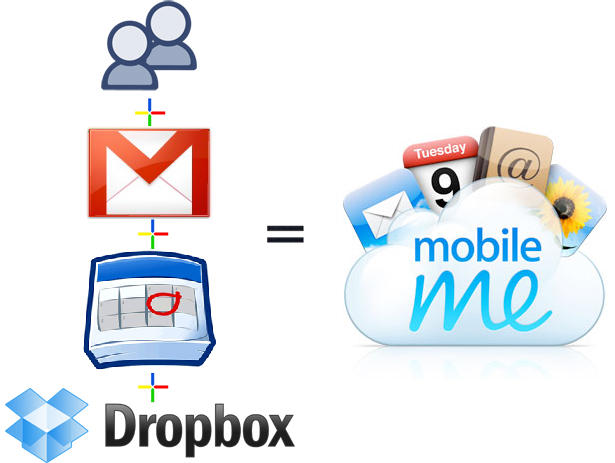
A couple of weeks ago I canceled my MobileMe account. Why? Because it didn’t do the one thing I wanted it to do: share my calendar with my wife so we could coordinate our busy lives. That’s all.
I love MobileMe’s email, calendar, contact syncing (especially on the iPhone) and even iDisk. I gave Apple a year to improve it, but nothing happpened, so I switched.
Here’s how to recreate all of MobileMe’s features for FREE (except one) and how I use it to sync my iMac, MacBook and two iPhones.
After 15 years of loyalty to Yahoo, I made the switch to the evil corporation known as Google. I had a Gmail account before but decided to start fresh. I opened a new Google account and now use Gmail. My wife has been using Gmail for a while now so that part was previously done. Gmail is good, but then again, it’s hard to mess up email.
Contacts
Still in the beta phase, Google Contacts has worked wonders for me. I can edit contacts on my Macs and they show up within seconds on my iPhone. I tried editing on the iPhone but it doesn’t seem to like that. I recommend you DO NOT sync your contacts on your computers. Instead, export your contacts as a vCard and import them into Google Contacts. It will be much cleaner and easier that way.
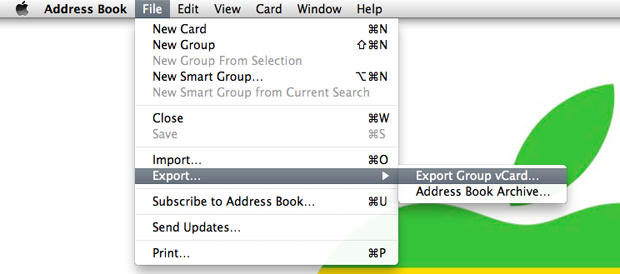
First, export your contacts from Address Book (File>Export…>Export Group vCard). This will create a vCard. Save it to the desktop.
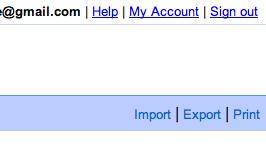
Next, head over to Google Contacts so you can import that vCard. Look in the bottom right-hand corner and click on Import.
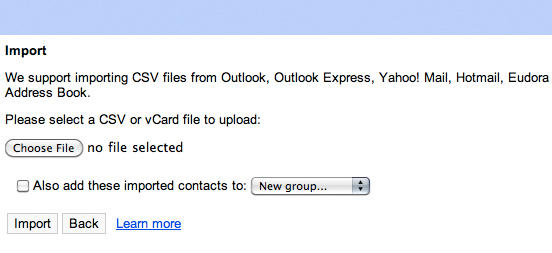
Clicking on Import will bring up an Import dialog as shown below. Click on Choose File and select the vCard on your desktop. Voila! Now all of your contacts will be available via Google Sync. Winner, winner, chicken dinner!
Calendars
Google Calendar makes it so easy to share a calendar. I made a calendar, sent an email to my wife, she added it to her account and presto: shared calendar. Now I can add an event from my work computer, iPhone or any of my Macs, and my wife will see it almost instantly on her iPhone. Magic!
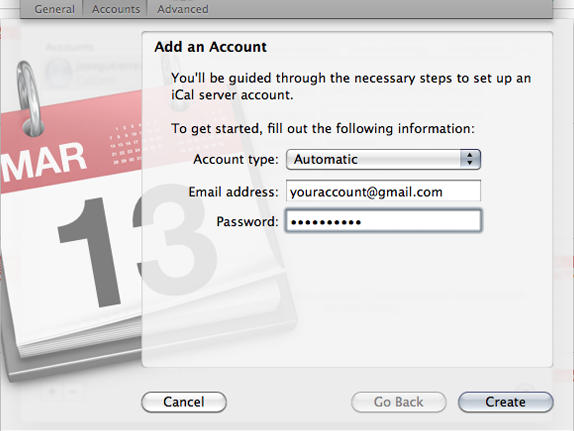
Let’s setup iCal to make use of your brand-spanking-new shared calendar. Open iCal, click on the iCal menu and select Preferences. When the Preferences window comes up, click on Accounts and then the plus symbol to add an account. You should get the window shown below. Enter your Google account information and your Google calendar will be imported into iCal. It will sync automatically and you are ready to add events.
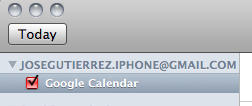
Below is how your new Google calendar will look. Easy huh?
iDisk
While I barely used iDisk, I did want to keep its functionality for the rare times I need it. My solution is Dropbox, an online storage service that offers 2GB of space for free (the same as the basic MobileMe storage solution). Just download the app to all your Macs and don’t forget to download the iPhone app. After that, the setup is a breeze. Dropbox adds a folder to the Finder that looks and works just like iDisk. Here it is below the Applications and Documents folder.
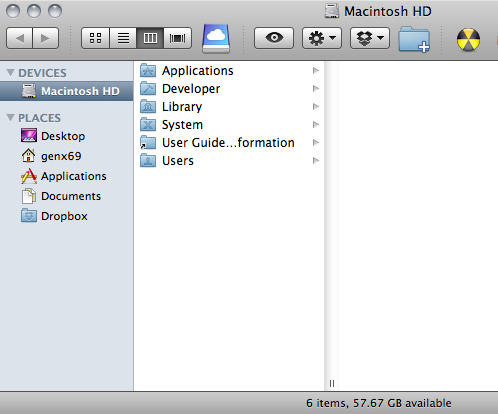
Again, this 2GB solution is free. Need more space? Pay a small fee for more storage. A great application.
Get Everything In Sync
Next, I setup my iPhone to sync with all my Google applications and Dropbox. Dropbox was easy enough. I just downloaded the free app and that was done. As for Google, here is how to setup Google Sync on your iPhone:
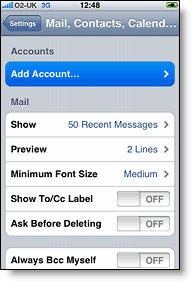
1. Open the Settings application on your iPhone’s Home screen.
2. Open Mail, Contacts, Calendars.
3. Tap Add Account…
4. Select Microsoft Exchange.
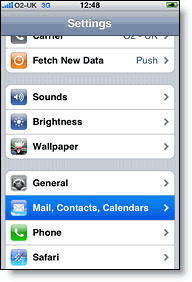
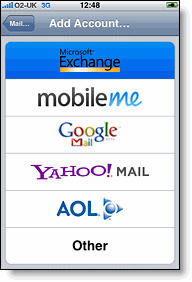
5. In the Email field, enter your full Google Account email address. If you use a Gmail address, you may see an “Unable to verify certificate” warning when you proceed to the next step. Just hit Accept/OK.
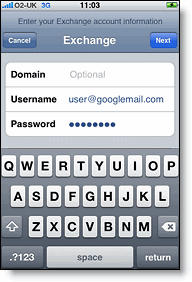
6. Leave the Domain field blank.
7. Enter your full Google Account email address as the Username.
8. Enter your Google Account password as the Password.
9. Tap Next at the top of your screen.
9a. Choose Cancel if the Unable to Verify Certificate dialog appears.
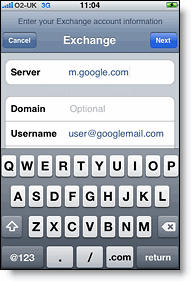
10. When the new Server field appears, enter m.google.com.
11. Press Next at the top of your screen again.
12. Select the Google services (Mail, Calendar, and Contacts) you want to sync. You want to use them all, trust me!
13. Choose to Delete Existing Contacts during the Google Sync install when prompted. If you choose to keep existing contacts, it will sync the contents of the “All Contacts” group instead. That will just make a big mess. Remember, Google Contacts already has all the contacts you need since you imported them already.
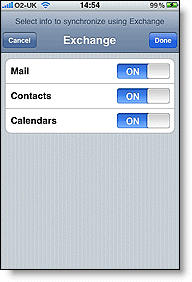
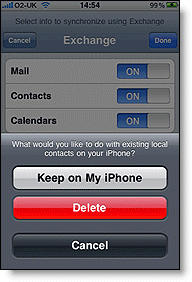
14. Lastly, visit https://m.google.com/sync on your iPhone and login. You should see your device there. Select your device and then select which calendars you wish to sync (should be all). Select “Save” and now you are done. Give your calendar a few minutes to fully sync before you check it. You should be good to go now on your iPhone.
Now you have all the functionality of MobileMe (with the exception of Find My iPhone) for FREE, thanks to Google and Dropbox!
It took me a couple of days to work out the bugs in my system but so far I have no regrets. It is even easier if you have an email forwarding system setup. Then all you have to do is change the email address you want your email forwarded to. Otherwise, you just have a lot of email settings to update.
If you have any problems, please post them in the comments below.

Jose Gutierrez is a San Diego-based Submariner who loves technology, specifically anything Apple. When he’s not jailbreaking or unlocking a device, you can find him on Facebook. Follow Jose on Twitter.

