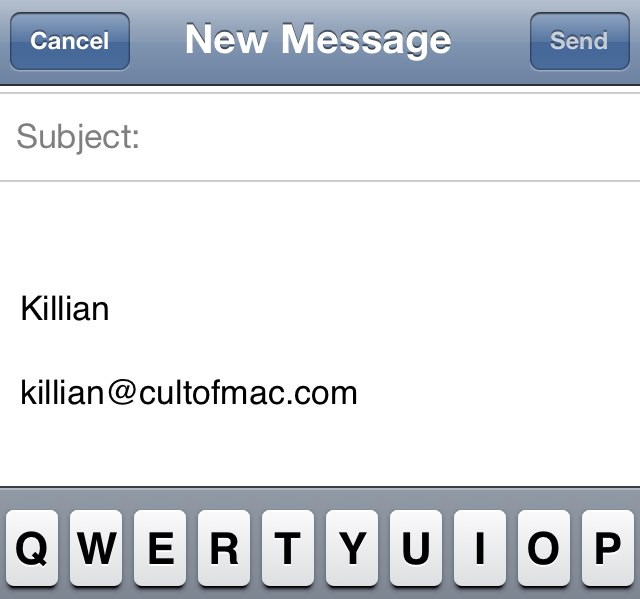

Apple’s iOS devices come with a default mail signature that reads “Sent from my iPhone/iPod/iPad.” It was a nice novelty in 2007 when the iPhone was first released, but over the years, it’s gotten a little boring.
But did you know that it’s incredibly easy to customize your Mail signature and remove Apple’s default? Here’s how to change your signature on your iPhone, iPod touch, or iPad.
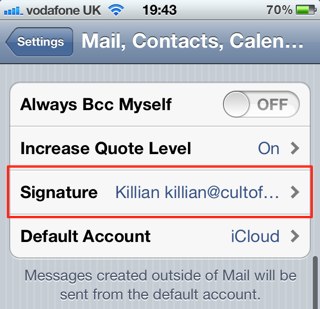
First, open up the Settings app on your device and tap on the ‘Mail, Contacts, Calendars…’ tab. Then tap the ‘Signature’ tab.
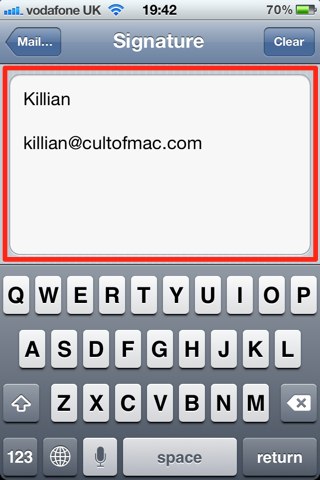
You’ll be presented with a text box that will include your device’s default signature. Now it’s time to delete this and enter in your own. Tap the ‘Clear’ button in the top right-hand corner and then enter your new signature into the text box.
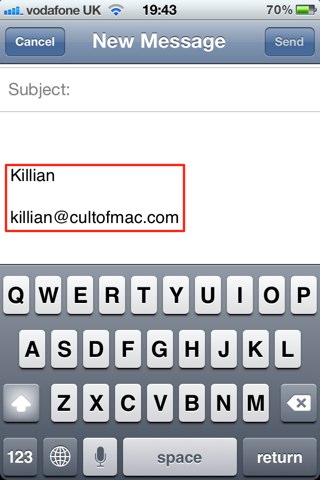
Once you’re happy with it, go back into Mail settings to ensure your signature saves. Now, when you being a new mail message, your custom signature will be there.

Killian Bell is a freelance writer based in the U.K. He has an interest in all things tech and also covers Android over at CultofAndroid.com. You can follow him on Twitter via @killianbell.

