0:00
What's up guys, Stephen Cult of Mac here back with another great quick tips video and
0:07
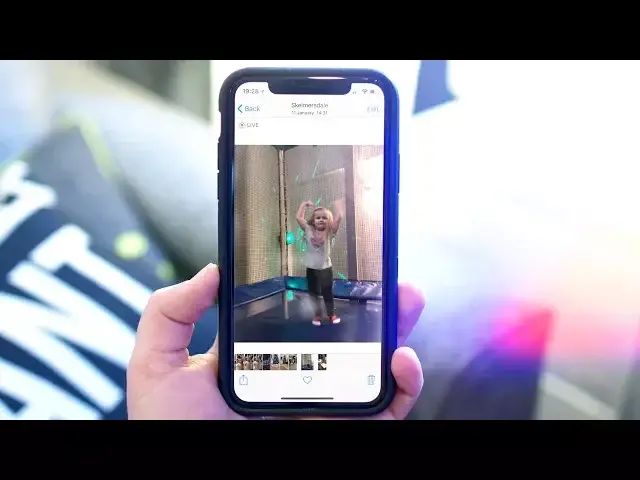
in this one I'm going to show you how to convert live photos into gifs so you can share
0:11
them more easily with non-iOS users and on social platforms. Luckily iOS 11 makes this super easy so let's throw 60 seconds on the clock and get started
0:23
Firstly find the live photo you want to convert into a gif. Either swipe through your library and look for this icon or go into albums and then
0:30
live photos. Once you've decided on a photo which will work for your gif, swipe up to reveal the
0:35
animation options. Then choose one of the animations that works best for your photo whether it's loop or bounce
0:42
then swipe back down to save your changes. You can however go back any time to change your animation style
0:48
The photo will then be duplicated into another album called animated. Once it's in there the photo has now been converted into a gif and can be shared to
0:55
Android users and social platforms that support gifs. If you then want to post that to Instagram you'll need to convert it back into a video
1:03
so make sure to check out one of our previous quick tips videos showing you how to do just that
1:08
I'll make sure to leave a link in the description down below. Stop the clock and that is it for this video
1:14
Hopefully you found it useful, if you did though go ahead and hit that like button
1:18
subscribe if you haven't already and I'll catch you in the next one