0:00
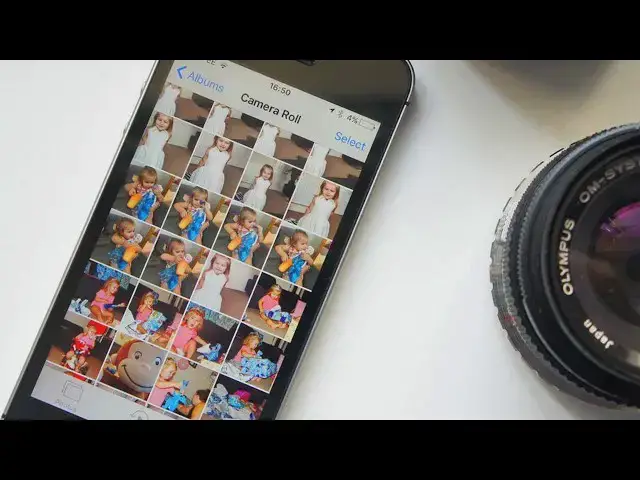
Apple stole a great idea from Google for its improved Photos app in iOS 10, and that's
0:10
the ability to search for people, places and things. It makes it immensely easier to find the images you're looking for in large libraries, and
0:17
it's so simple to use. Here's what to do. Start by opening up the Photos app, then tap the search button, which is the little blue
0:24
magnifying glass, that appears at the top of the screen when you're in the Photos, memories and album tabs
0:30
Once you're inside the search interface, you can type keywords that will help you find the things you're looking for
0:34
They can be names, places or things like dog, cat, iPhone or car
0:38
In a flash, Photos then returns all of the images you have in your library that are a match
0:43
As you can see, it also tells you exactly how many images match your keyword. Once you have found the photo you are looking for, you can then select it to add to an album
0:50
or to share it. You also have all the other options you would expect to see with images, like copy, duplicate
0:56
hide, assign to contact and more. Well that's it for this video, but if you found it useful, go ahead and smash that like
1:02
button, and don't forget to hit subscribe for more great iOS 10 tutorials like this one
1:08
I'll see you next time