0:00
If you feel like notifications just
0:01
won't stop building up on your phone,
0:03
you have options. You can swipe left on
0:06
any notification, tap options, and you
0:09
can turn off all notifications for that
0:11
app right then and there if that app is
0:16
Or you can be a little more judicious.
0:17
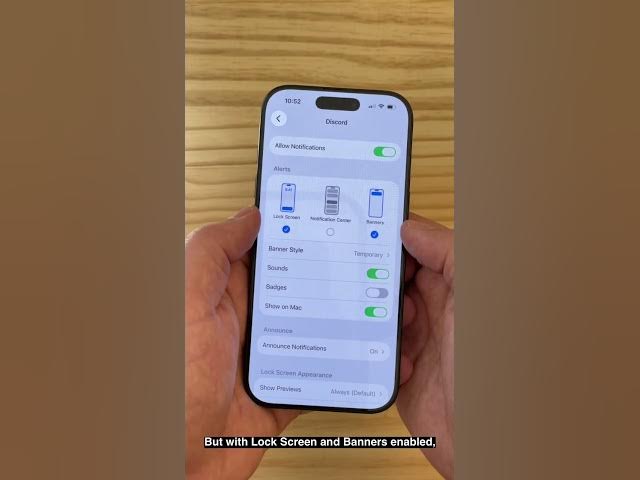
If you tap view settings, it'll take you
0:20
right there and you can change what kind
0:22
of notifications you receive. To start,
0:25
I always turn off notification center to
0:27
keep it from building up with a bunch of
0:29
clutter. I also sometimes turn off
0:31
badges because those tend to bother me
0:34
as well. But with lock screen and
0:36
banners enabled, I'll still see the new
0:39
stuff as it comes in. If you have
0:41
AirPods, I might recommend turning off
0:44
announce notifications as well since
0:46
that interrupts your music or podcasts.
0:49
And turn off show on Mac so you're not
0:52
interrupted when you're working at your
0:54
computer. And going forward, when you
0:56
first install an app and it asks for
0:58
permission to send you notifications,
1:00
you can just say no. You're allowed to
1:02
do that. Those are my tips for keeping
1:04
your notifications clear. I'm Digger
1:07
Finn Jones with Cult of Mac.