Welcome to MacRx, a new category dedicated to some common setups, problems and headaches of All Things Mac. As we all know, how things should work isn’t always how they do work. Sometimes a little assistance can be in order.
This week an issue I’ve seen many users struggling with, Managing Bookmarks in Safari. As a Mac consultant I frequently run into clients who can’t find the bookmarks they’ve added to their systems, or have so many bookmarks saved that the list is virtually endless and unuseable.
Getting to know the ways in which Safari stores bookmarks, and coming up with a simple organizing scheme you can follow, will go a long way in preserving your sanity – or at least help save some time occasionally.
There are several places to save your bookmarks (aka Favorite Sites) in Safari. The Bookmarks Bar and the Bookmarks Menu are the two primary areas. These two locations are meant to help organize, but are often a common source of confusion and clutter.
The Bookmarks Bar is the strip of links shown at the top of your browser window underneath the address bar; these links are meant for quick, regular access and are placed in an easily accessible location:

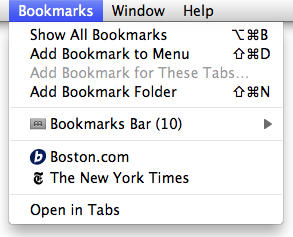
The Bookmarks Menu is (not surprisingly) in the Safari menubar. The Bookmarks Menu can accommodate a longer list of items and with many web browsers has historically been the place where the majority of your bookmarks get saved:
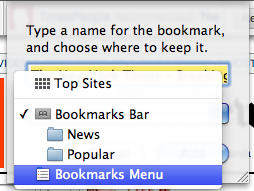
You add a bookmark in Safari using Command-D (aka Apple-D) on the Mac (or Control-D using the PC version), using the Bookmarks Menu –> Add Bookmark, or via the small + sign next to the address of the site in the browser’s Address Bar. When you add a bookmark you need to specify where the bookmark is stored. A small dialog box pops up that gives you the opportunity to shorten or rename a link, and select where to store it (this behavior is common among most web browsers):
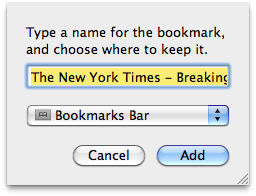
By default Apple sets Safari to store links in the Bookmarks Bar. As such most Safari users just hit Return or click Add in this dialog box, resulting in a bookmark (typically with a very long name) being added to the Bookmarks Bar. This kind of organization can quickly become a mess.
After only about a half dozen links are added, the list of items in the Bookmarks Bar gets too long to display in the browser. The list then spills off the edge of the Bar and the dreaded double arrow >> symbol appears on the right hand side. If you’ve ever wondered what this does, clicking on it displays the rest of your Bookmarks Bar list:
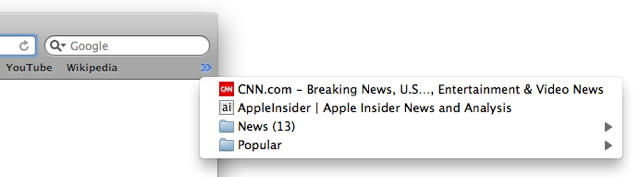
My example list is unrealistically small. Most Macs that I see have dozens or hundreds of bookmarks in the Safari Bookmarks Bar. I’ll bet many of you are nodding or sighing right now…
To add a link to the Bookmarks Menu instead of the Bookmarks Bar, click the popup menu in the Add Bookmark box and select the appropriate location:
Renaming and Rearranging Bookmarks
Once you have bookmarks stored on your system, you can rearrange, rename and delete items using the Bookmarks Editor. From the Bookmarks Menu choose Show All Bookmarks, or click on the book icon on the left hand side of the Bookmarks Bar. Once in edit mode, you can easily see how your bookmarks are stored:
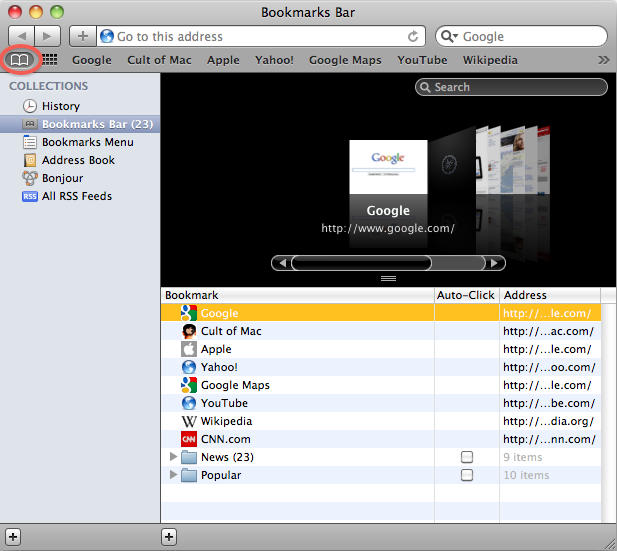
Items in the Bookmarks Bar are listed together, separate from the Bookmarks Menu and other defined folders. To rename a bookmark, click on the bookmark’s name in the list and hit the Return key. The name will become editable and you can shorten or rename as needed. Hit Return again when done.
To delete a bookmark, select the bookmark and hit the Delete key.
To rearrange the bookmark ordering, drag bookmarks up or down in the list to change their positions. You can also drag bookmarks into or out of any folders you may have created (more on this below).
To move a bookmark from the Bookmarks Bar to the Menu (or vice versa), select and drag the bookmark directly onto the Bookmarks Bar or Bookmarks Menu item in the COLLECTIONS pane (just like dragging an item to a playlist in iTunes, or an album in iPhoto).
Organizing the Mess
The last step in bookmark management (and an ongoing one) is to Prune and Categorize. Probably in that order the first time, then typically done interchangeably.
Every few months (or when killing time at work) go through your bookmarks and delete those you don’t need. Sites you only visit occasionally, say less than once a year, can be Googled again if needed. Sites you haven’t visited in years should go. Thinning the herd helps to keep things under control.
For the bookmarks that are retained I organize as follows:
- Bookmarks Bar: links you use every day or week
- Bookmarks Menu: less used links by category, and temporary item storage
To help with organization folders can be added to either the Bookmarks Bar or Menu using the Bookmarks Editor. Simply click the + button at the bottom of the list of bookmarks, and name the new folder which appears:
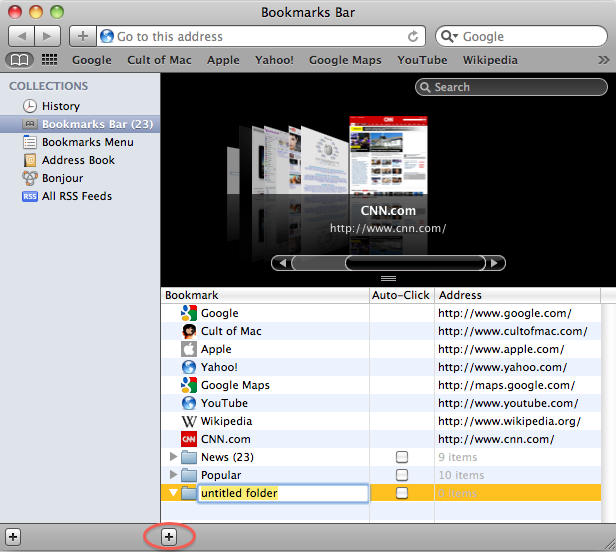
You can drag bookmarks in and out of folders, move folders up and down your list, and place folders inside other folders to help organize as needed.
So what are these categories for organization? Whatever make sense for your needs. My Bookmarks Bar contains the sites I check regularly: daily news sites, Mac-related sites, business vendors I use often, and links to my banks and other online accounts, etc..
My Bookmarks Menu contains primarily a list of folders, including: Boston Area, Tech Support, Business Related, Travel, Medical, Finance, Cats & Dogs (I’m a sucker for cute furry things), Miscellaneous and Items to Buy. Some of these folders contain sub-folders for further clarification. Generally if a list is more than 10-15 items long it gets unwieldy, and adding folders can help.
At the bottom of the list are temporary items which I typically only bookmark for a few days, then delete when done.
I’m pretty organized, but you don’t need to parse this finely. Bottom line: a few minutes spent pruning from time to time, and a bit of planning when saving new bookmarks, will go a long way to keeping your links under control.