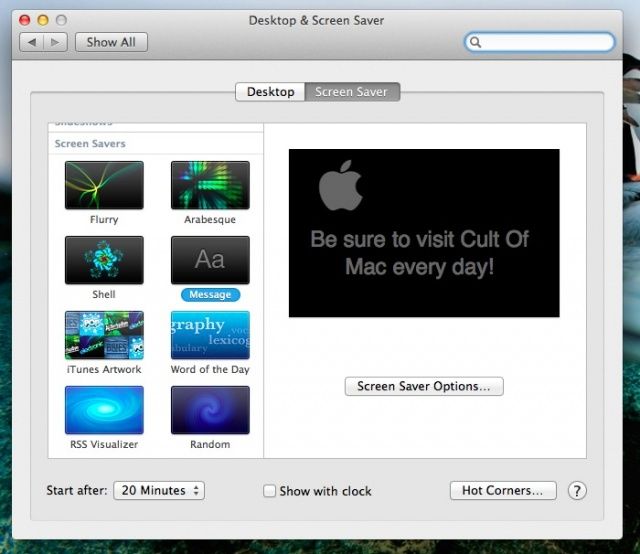
Apple has had a basic screensaver in OS X from way back, but it’s now possible to add a custom message to it, to leave valuable information for someone who might see it. It used to be called Computer Name, as it defaults to the name of your computer that’s set in your Sharing preferences. These days in Mountain Lion, it’s called Message.
Launch your System Preferences from the Apple menu, the Dock, or the Applications folder, and click on the Desktop and Screensaver icon. Click on the Screensaver tab at the top, and then scroll down past the fancy screensaver modules to the Message module. Click on it in the side panel on the left, then click on the Screen Saver Options… button. Type in your message and you’re good to go.
You could put info in about your favorite Mac site, or you could put in info like your name, address, phone number to contact if someone finds your Mac laptop somewhere. You can put in a snarky or fun message, or leave a note for a co-worker or family member who might be looking for you at your computer. Why would they think to look there, I wonder?
Whatever the reason, the message you choose will float around on the screen until you move the mouse or hit the spacebar. If you have it set to require a password upon waking from the Screen Saver, you can be sure no one will see your stuff; just your message.
Via: OS X Daily

Rob LeFebvre is an Anchorage, Alaska-based writer and editor who has contributed to various tech, gaming and iOS sites, including 148Apps, Creative Screenwriting, Shelf-Awareness, VentureBeat, and Paste Magazine. Feel free to find Rob on Twitter @roblef, and send him a cookie once in a while; he’ll really appreciate it.

