Up next in 10



How to use a Bluetooth keyboard with your iPad: https://www.cultofmac.com/568793/connect-external-keyboard-ipad/
How to use a Bluetooth mouse or trackpad:
https://www.cultofmac.com/695057/how-to-customize-ipad-mouse-pointer-control-settings/
How to customize the Apple Pencil:
https://www.cultofmac.com/597236/apple-pencil-settings/
More Apple news: http://www.cultofmac.com
Produced by Extra Ordinary for Cult of Mac
Music composed by Will Davenport, arranged by D. Griffin Jones
Chapters:
0:00 The Basics
1:18 Multitasking Gestures
3:14 Stage Manager
Follow us!
Twitter: https://twitter.com/cultofmac
Facebook: https://www.facebook.com/cultofmac
Instagram: https://instagram.com/cultofmac/
Show More Show Less View Video Transcript
0:00
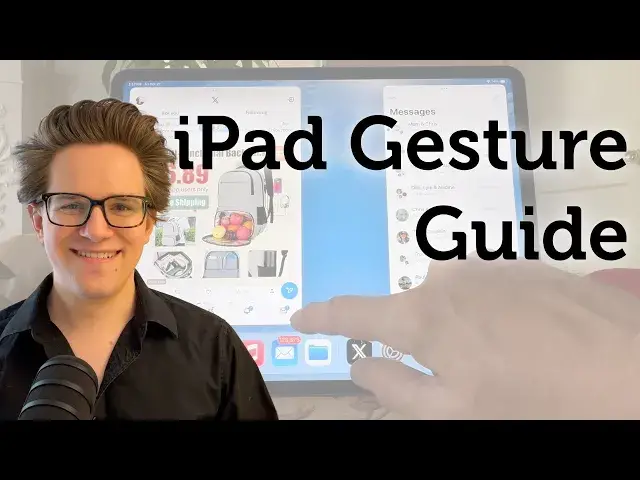
The iPad is a huge canvas for touch input
0:02
Unlike the iPhone, you can run multiple apps on screen at once. All of these multitasking features are still powered by touch input
0:10
I'm going to show you how all of these gestures work. So I'm going to start with some of the basics, but feel free to skip forward to some of the
0:17
more advanced stuff. First, tap to wake. Any iPad without a home button has this feature
0:23
Just tap anywhere on the screen to wake it up. Swipe up to go home
0:27
Swiping up from the bottom of the screen will always take you back to the home screen
0:30
You can also use a five finger pinch gesture. If this doesn't work for you, make sure it's turned on first
0:36
That's in settings, multitouch and gestures, turn on four and five finger gestures
0:41
You can swipe down from the top of the screen to show the lock screen again
0:45
This is a quick and easy way to look at your notifications or check your widgets
0:49
Swipe down from the top right corner of the screen to show control center
0:52
Control center has a bunch of these system wide controls. You can customize these controls, add more, remove the ones you don't use and settings
1:00
control center. So I've been from the bottom right corner towards the center of the screen to take a
1:04
quick note. It'll be saved inside the notes app. Quick notes are great for jotting down things like shopping lists and phone numbers
1:10
If you find yourself triggering this all the time when you don't mean to, you can turn it off in settings, notes, corner gestures
1:18
Now let's talk about some of the multitasking gestures. With one finger, swipe up on the home bar, pause for a moment and let go to see all your
1:25
running apps. You can also pinch with five fingers and pause if you have four and five finger gestures enabled
1:31
You use the app switcher to quit unresponsive apps. Swipe left on the home bar to switch to the next app over and you can swipe right to go back
1:40
This works much faster than bringing up the app switcher as a middle step and you can
1:43
also swipe left and right using the five finger gestures. Swipe up just a little bit to show the dock
1:49
It'll stay on screen so that you can tap on another app or for multitasking
1:54
This way you don't have to go all the way back to the home screen. While you're inside another app, bring up the dock and drag an app icon out of the dock
2:01
and drop it into the middle of the screen to keep it in a floating window
2:04
If you have a keyboard connected, you can also hit command space, search for an app
2:08
name and drag it out from there. If you're watching a boring TV show on your iPad, you don't have to bring out your phone
2:14
You can distract yourself on the very same screen. Swipe left and right to switch between apps in SlideOver
2:20
Now the app running in SlideOver has its own home bar. You can swipe left and right on that to switch between apps there, too
2:26
You can also drag an app to the edge of the screen to open it in a side-by-side split view
2:31
Drag an app out of the dock and hold it against the side of the screen and both of them will
2:35
be open side-by-side. On the top of the screen you'll see each app has a little three dot icon
2:41
That's a grabber you can use to drag apps around. Drag the right app over to the left to switch sides
2:47
You can also tap on the button and do these from a menu as well. You can resize the split view
2:52
Tap and hold on the black bar in the middle of the screen. Maybe you want a big safari window and a skinny little notes window while you're doing research
2:58
or studying. Maybe you want a big YouTube video and a skinny little messages window for looking at your
3:04
incoming texts. Drag the black bar all the way off the edge of the screen to close it
3:09
If you have an app in SlideOver, you can just grab it and throw it off the corner as well
3:14
Now let's talk about Stage Manager. This is an advanced mode where all of your apps are running in free-floating windows
3:19
You can even plug your iPad into an external display with a keyboard and mouse for a full
3:24
desktop experience. Now Stage Manager is only available on newer higher-end iPads, but if you have any of these
3:30
models this is how it works. Open Control Center and tap the Stage Manager button
3:36
It's this square with three dots next to it. With Stage Manager you can group multiple windows on screen together
3:43
Add another window to the group by dragging a window from the stack on the left or dragging
3:47
an icon in from the dock. You can also go to the app switcher and hold on a window to add it to the group
3:53
If you have a hard time doing the gestures you can also add a window to the group by tapping the three dots menu in the top and selecting add another window
4:00
If you tap on an app icon in the dock, it'll switch to whatever group that app is in
4:05
Tap on a group of windows to the left to switch it out. All the windows in that group will come forward
4:10
To rearrange them you can just drag an app by the top title bar to move it around
4:15
Drag the bottom corner of an app, whichever side has the rounded grab handle on it, to
4:19
resize it. Other apps on screen will shuffle around so that they aren't ever totally hidden
4:24
If you drag an app to cover up the dock or the stacks of windows to the left, you can
4:28
always drag in from that edge to show them again. So that is how to use multitasking and Stage Manager on the iPad
4:35
If you learned something from this video remember to like and subscribe. You can find a bunch more articles on how to get the most out of your iPad linked in
4:41
the video description. Thanks to Ed Hardy for the video footage. I'm Dekerfin Jones with Cult of Mac
#Computers & Electronics
#Consumer Electronics
#Consumer Electronics