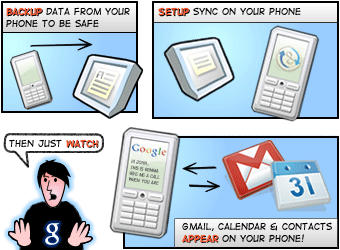
Google has added push Gmail to the iPhone/iPod Touch via its Google Sync service.
“Using Google Sync, you can now get your Gmail messages pushed directly to your phone,” says the Google Mobile Blog, which announced the change. “Having an over-the-air, always-on connection means that your inbox is up to date, no matter where you are or what you’re doing.”
Google Sync also syncs contacts and calendars, or any combination of contacts, calendars and Gmail.
Push Gmail works in the iPhone’s/iPod’s native Mail app, but you have to set up your Gmail account as an exchange account. Full instructions after the jump.
Instructions courtesy of Google.
Google Sync: Set Up Your iPhone or iPod Touch
To set up Google Sync on your iPhone or iPod Touch device, please follow the steps below.
Requirements and Upload
1. Google Sync is only supported on iPhone OS versions 3.0 and above. You can check your current version by going to Settings > General > About > Version. To upgrade, follow the instructions at https://www.apple.com/iphone/softwareupdate/. Please upgrade to iPhone OS 3.0 before setting up Google Sync.
2. Perform a sync with iTunes to ensure that Contacts and Calendars from your iPhone are backed up to your computer.
Getting Started
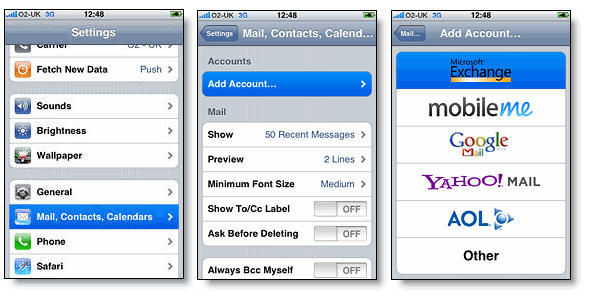
1. Open the Settings application on your device’s home screen.
2. Open Mail, Contacts, Calendars.
3. Tap Add Account….
4. Select Microsoft Exchange.
Enter Account Info
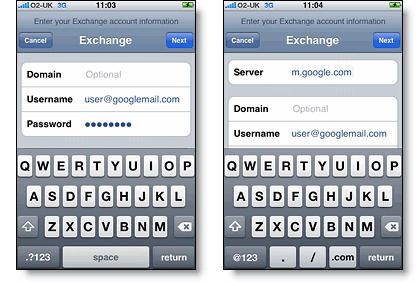
5. In the Email field, enter your full Google Account email address. If you use an @googlemail.com address, you may see an “Unable to verify certificate” warning when you proceed to the next step.
6. Leave the Domain field blank.
7. Enter your full Google Account email address as the Username.
8. Enter your Google Account password as the Password.
9. Tap Next at the top of your screen.
9a. Choose Accept if the Unable to Verify Certificate dialog appears.
10. A new Server field will appear. Enter m.google.com.
11. Press Next at the top of your screen again.
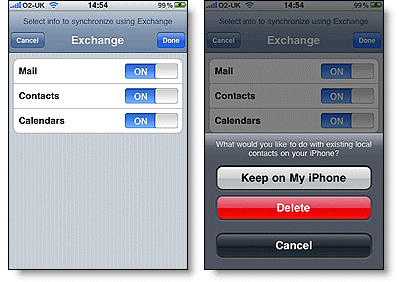
12. Select the Google services you want to sync.
13. Unless you want to delete all the existing Contacts and Calendars on your phone, select the Keep on my iPhone option when prompted. This will also allow you to keep syncing with your computer via iTunes.
If you want to sync only the My Contacts group, you must choose to Delete Existing Contacts during the Google Sync install when prompted. If you choose to keep existing contacts, it will sync the contents of the “All Contacts” group instead.
You’ve set up Google Sync for your iPhone. Synchronization will begin automatically if you have Push enabled on your phone. You can also open the Mail, Calendar or Contacts app and wait a few seconds to start a sync.
Next learn how to choose which calendars to sync, if you’d like to enable multiple calendars.
Tip: If your business, school, or organization uses Google Apps, your administrator will first need to enable Google Sync before you can take advantage of this feature.