0:00
It's the end of the spend-heavy holiday season, so what better way to kick off 2017 than to
0:06
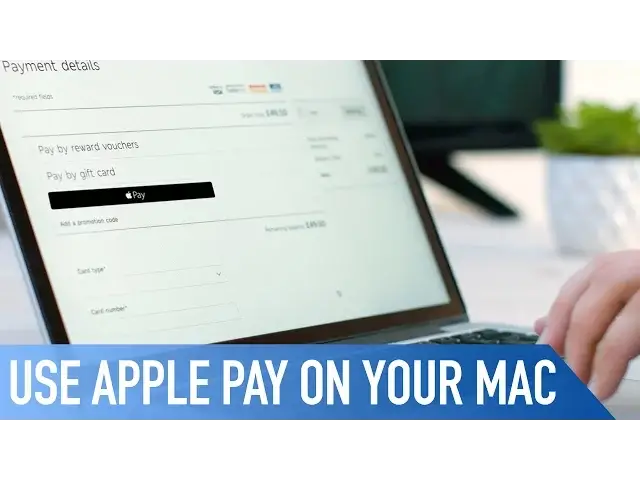
show you how to use Touch ID and Apple Pay to buy things on your Mac
0:11
Okay so it's not our best timed how-to guide from the point of view of your bank account
0:14
but it's a pretty nifty feature that we think is worth talking about
0:18
So how do you do it? Well let me show you. The easiest way to use Apple Pay on your Mac is with the fancy new MacBook Pro with Touch Bar
0:29
You don't have to use your iPhone to do it, as you can confirm payments using just your
0:33
new MacBook. However, if like me, you're using the older MacBook Pro, that's no problem either
0:38
To start with, you'll need to activate the feature using your iPhone or iPad
0:42
To do this, go to that device and tap on settings, and then wallet and Apple Pay
0:46
Then turn on the allow payments on my Mac option. Remember that in order to do this, you'll have to have both your Mac and iOS mobile device
0:53
using the same iCloud account. You'll also have to make sure you've got Bluetooth switched on
0:58
To do this, you can go to your Mac and start shopping. Apple Pay is only available on certain participating websites, although with upwards of 200,000
1:05
sites accepting it, you shouldn't struggle to find one offering the products you want on Apple's mobile payment service
1:11
This only works on Safari, so unfortunately, if you're a Google Chrome user, or even a
1:15
Firefox user, you'll have to temporarily revert to Apple's browser to use Apple Pay
1:19
To make your payment, you just add items to your basket as usual, and then select the
1:23
Pay with Apple Pay button. Simple right? Well, that's it for this video
1:28
If you found it useful, go ahead and hit that like button as it really does help us out
1:32
And don't forget to hit that subscribe button so you don't miss a single video from Calls of Mac
1:37
I'll catch you in the next one