On Windows, you might have got used to right-clicking on a file and clicking “Properties” to see the meta information about the file itself – such as its size, and so on.
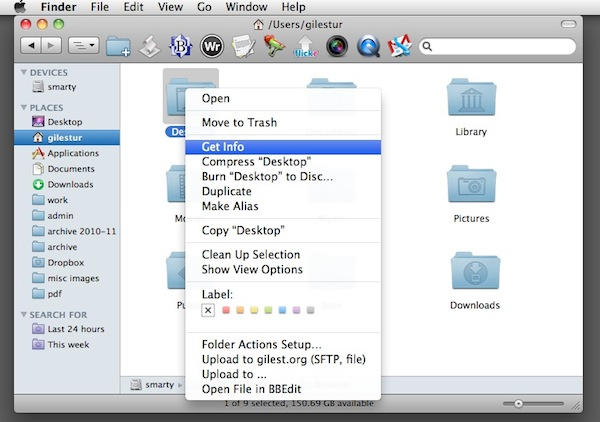
On Mac OS X, you can do the same thing by choosing the “Get Info” command.
You can get to it in a variety of ways:
- Select the file in a Finder window, and hit Command+I
- Select it, and click on the File menu, then Get Info
- Select it, then click the Action button in the Finder toolbar, and choose Get Info
- Control-click or right-click on it, and click Get Info from the popup list
You can use Get Info on anything you see in a Finder window, whether it’s a file, a folder, a drive, anything.
What you’ll see is something like this:
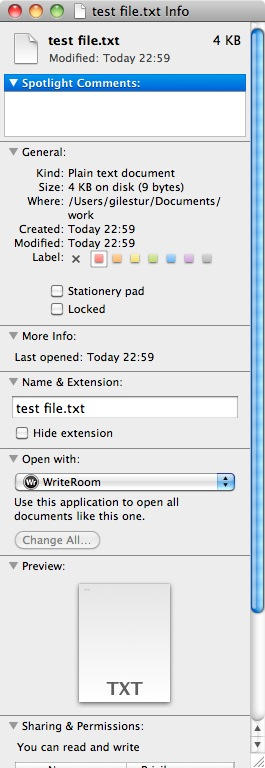
The info pane contains stuff you’d expect to see, such as metadata about the file you’ve chosen. But it has other features you might not expect.
For example, you can add your own comments or text tags in the “Spotlight comments” box, and these will be picked up by the built-in Spotlight search system. So if you want quick access to your todo list file, you can add an unusual string like “ttt” here – then you’ll be able to quickly find that file by typing “ttt” into the Spotlight search box.
You can apply a label by clicking on one of the little colored squares (we’ll look at labels in more detail soon). You can Lock a file completely – in other words, prevent it being edited – by clicking the Locked checkbox.
Further down, the Open With section shows you which application will normally open this file when you double-click on it. If you want this file to open in a different application by default, you can change that here. Just choose the application you want from the drop-down list. (Why is this useful? Let’s say you have a Word document that you edit frequently, but you don’t want it to open in Word every time – you can set it to open in TextEdit instead. You’ll still be able to open it in Word when necessary.)
There’s lots of useful features packed into the Info panel. If there’s something about a file or folder’s behavior that you want to change, it should be the first place you look.
(You’re reading the 25th post in our series, 100 Essential Mac Tips And Tricks For Windows Switchers. These posts explain to OS X beginners some of the most basic and fundamental concepts of using a Mac. Find out more.)

Giles Turnbull is a freelance writer in England. He also writes for the Press Association and The Morning News. You can find out more at his website, and follow him on Twitter @gilest.

