0:00
Ever wonder what all of these buttons in
0:01
Apple Music do? Well, I'll give you a
0:04
quick guide. This button is the shuffle
0:06
button. It randomizes all of the music
0:09
in your queue. Tap it once to shuffle.
0:11
Tap it again to unshuffle. This is the
0:14
repeat button. Tap it and it'll repeat
0:17
all of the songs in your queue when it
0:19
gets to the end on a loop. Tap it once
0:21
to turn it on. Tap it again and it'll
0:23
only repeat once. Tap it a third time
0:28
This is the autoplay button. So when you
0:31
turn it on and it gets to the end of
0:33
your playlist, it'll find similar songs
0:35
to keep the music going. This button is
0:38
called automix. It'll intelligently
0:41
blend the end of one song with the
0:43
beginning of the next song. It'll cut
0:46
out long silences at the end of the
0:48
music. And like a DJ, it'll even blend
0:51
the key and the tempo so that you never
0:53
skip a beat. So this is the continue
0:56
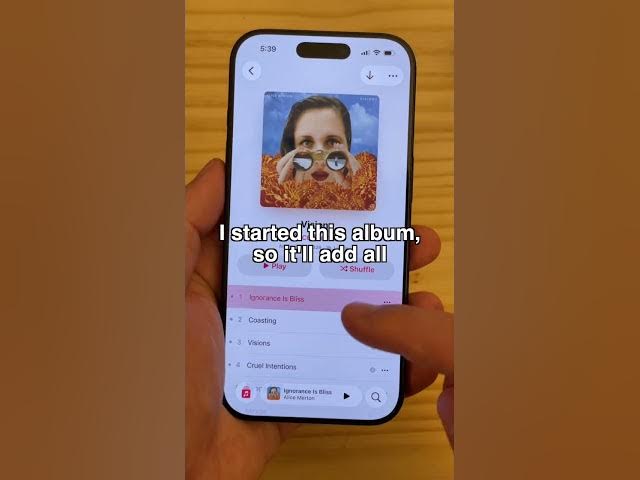
playing cue. I started this album. So,
0:58
it'll add all of the rest of the songs
1:01
from the album next. Now, if I manually
1:04
add something to the queue, like maybe
1:06
next I want to play this album and
1:10
actually before that I want to play this
1:12
song. Songs that I've manually added
1:15
will go to the queue. I can swipe left
1:18
on a song to remove it from the queue,
1:21
or I can clear the whole thing with this
1:23
clear button at the top. And then next
1:25
it'll go back to playing the album I
1:27
started before. This button turns on the
1:30
lyrics. So it'll live animate the lyrics
1:33
and show you the words as you're going
1:35
along. This microphone button will turn
1:38
down the volume of the lyrics if you
1:41
want to sing along. In other words, it's
1:43
a karaoke mode. You can hide the lyrics
1:45
by tapping the album artwork in the
1:47
upper left. This button at the bottom is
1:49
the AirPlay button, so you can switch
1:52
between playing out of your speaker,
1:54
AirPlaying to a nearby Mac or Apple TV
1:57
or your AirPods. If you have a TV nearby
2:01
that's active and playing music, you can
2:03
tap all speakers and TVs to switch your
2:07
phone to start controlling the playback
2:09
there. Or if you want to switch back,
2:12
you can tap iPhone speaker on the bottom
2:15
and switch back to the music that's
2:16
playing on your phone. To favorite a
2:18
song you like to get similar songs
2:20
recommended to you, just tap the star to
2:22
favorite it. And that's my quick guide
2:24
to the Apple Music interface. I'm
2:26
Driffin Jones with Cult of