Up next in 10



How to customize what you see in the Dock
Show More Show Less View Video Transcript
0:00
so when you get a new Mac or when you've
0:02
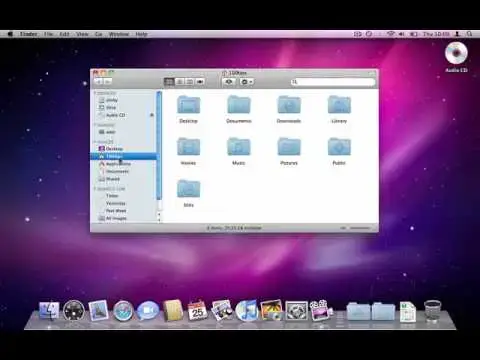
just installed Mac OS 10 the default doc
0:04
looks like this and you've got all these
0:06
application icons down the bottom here
0:08
but you don't have to leave them there
0:10
and you don't have to leave your dock
0:12
looking like this if there's stuff down
0:14
there that you never use you can get rid
0:16
of it so look photo booth get rid of it
0:19
all you do is just find the icon that
0:20
you don't want and drag it out of the
0:23
dock and it will disappear in a puff of
0:24
smoke um we don't need iMovie down there
0:27
so let's get rid of that we don't need
0:29
garage fand we'll get rid of that we
0:31
don't need time machine we'll get rid of
0:32
that now it's important to understand
0:35
that we're not actually deleting the
0:37
application here we're just taking it
0:39
out of the dock if we go to the finder
0:43
to the applications folder here we go
0:46
and we can find that the photooo that we
0:49
just took out of the doc it's still
0:50
there it hasn't been deleted or removed
0:53
or anything like that it's just not in
0:54
the dock anymore now also from here we
0:57
can put applications that we do want
1:00
uh to have easy access to down in the
1:03
dock so let's uh let's find something
1:06
that might come in useful here we go
1:07
let's go into ey workor for example
1:10
there's pages that might come in handy
1:12
we'll stick that in there I think and
1:14
maybe we're going to be doing a lot of
1:15
spreadsheets so numbers we'll stick that
1:18
down next to
1:20
it and anything that you can find up in
1:23
the applications folder you can stick
1:26
down here scrier I use that quite a lot
1:28
so I'm going to stick that down there
1:31
and there you go
#Computers & Electronics
#Software