Up next in 10



More Apple news: http://www.cultofmac.com
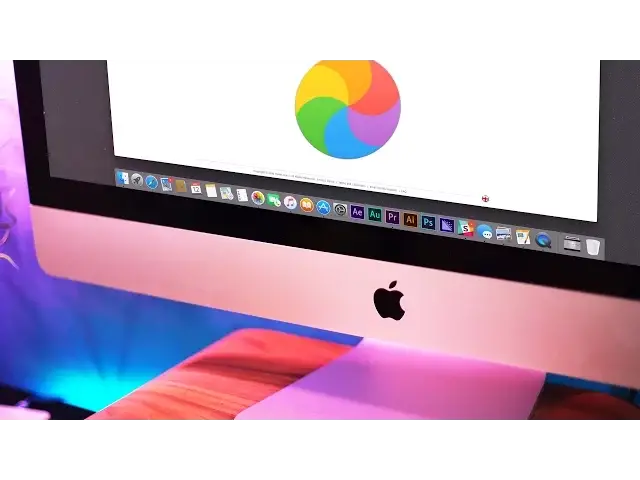
one of our most popular videos is how to speed up your Mac. Well it’s now over 5 years old, which means it’s time for a new update with new speed-boosting tips.
A lot of the tips in that video still stand true today, so If you haven't seen it already, go and check it out here
https://youtu.be/BR7FGiIMz2E
In this video I’m going to show you 8 more great tips to speed up your Mac.
Follow us!
Twitter: https://twitter.com/cultofmac
Facebook: https://www.facebook.com/cultofmac
Instagram: https://instagram.com/cultofmac/
Show More Show Less View Video Transcript
0:00
Hey, what's up guys? Stephen Cult of Mac here and I recently noticed that one of our most popular videos ever is how to speed up your Mac
0:08
Well, that video is now over 5 years old, which means it's time for a new update with new speed boosting tips. Let's get started
0:15
My first tip is one you would think is pretty obvious, but I find myself guilty of this time and time again
0:21
And it's to remove unused apps. If you're anything like me, you'll have at least 2 or 3 apps on your Mac which you've not opened since downloading
0:28
And they're just not needed. Drag any unwanted applications into the trash or use an app such as AppZapper to ensure you remove all associated files to the apps
0:37
Another obvious one is to restart your Mac. Because Macs are so power efficient and stable, a lot of the time we don't even think about restarting or shutting them down
0:45
We just leave them turned on all the time so they're ready to go when we need them
0:49
But regularly restarting your Mac speeds up your computer by shutting down applications and clearing caches
0:55
Next up is to check your preference panes. Open system preferences and check the bottom row
1:00
As you can see in mine, I've only got 3 custom items that have been added to my system preferences
1:05
But when installing drivers for different products, this can become full pretty quickly
1:09
And if you're not using them, they're taking up space. Right click on any items you don't need and choose remove from preference pane
1:16
Finder is awesome, especially in El Capitan. You can find pretty much anything you need in seconds
1:22
There's just one problem. Whenever you open a new Finder window, what shows up
1:26
All my files. All of them. If you've got a lot of files, especially videos and photos as I do
1:32
this could slow your Mac down by trying to generate previews for all of those files
1:36
To save time and speed up your Mac, choose which folder is displayed when you open a new Finder window
1:41
Head to Finder preferences and under the general tab, use the drop down menu to choose a new folder to open on
1:46
Your web browser could be the culprit to sluggish speeds when browsing the web
1:50
Especially if you use Chrome on your Mac. You can minimize the number of browser extensions you use and have fewer tabs open at once to save CPU and memory
1:59
If you're using Safari, make sure to clear your cache every now and then. Go to Safari, then preferences and click on the advanced tab
2:06
Choose show develop menu in bar and now that it is active, go to develop and clear cache
2:14
If you're using an older Mac that is still supporting one of the latest OS X versions such as El Capitan
2:19
it may feel slower than before you got the latest update. This could be due to your Mac struggling to keep up with how beautifully animated OS X is
2:26
To disable those animations and make your Mac feel snappier, go to system preferences
2:31
dock and untick checkboxes for magnification, minimize windows into application icon, animate opening apps, hide and show dock and change the minimize windows from genie to scale
2:42
Also, reducing transparency in your dock and Finder can help speed up older Macs
2:46
To do this, go to system preferences, accessibility and check reduce transparency
2:51
As well as speeding up your Mac, resetting your system management controller can fix startup issues and Wi-Fi hardware problems
2:58
This won't delete any of your data, but it will perform a lower level reboot of your Mac
3:02
To reset your SMC, ensure any MacBooks with non-removable batteries are plugged into a power source
3:08
If your MacBook has a removable battery, Google the steps as they're slightly different
3:12
Close all of the applications, then press and hold control, shift, option and power for two seconds
3:17
Release the keys and power on your MacBook. If you're using a Mac Pro, Mini or iMac, reset your SMC by simply shutting down and unplug from the wall
3:27
Wait 15 seconds, plug it back in and turn it on. Simple
3:31
My final tip is to stay up to date. A lot of recent OS X updates have been less of a design overhaul and more performance updates
3:38
increasing battery life for MacBooks and performance all around. You can turn on automatic updates by going to system preferences, app store
3:47
then check the tick box for automatically check and install OS X updates
3:51
Well, that's it for this video. Hopefully your Mac is speedier than ever
3:55
but if you need five more great tips to speed up your Mac, I'll leave a link to the previous video in the description down below
4:00
But if you found this video useful, go ahead and smash that like button as it really does help us out
4:05
And if you haven't already, hit subscribe so you don't miss a single video from Cults of Mac
4:10
I'll catch you in the next one
#Consumer Electronics
#Consumer Electronics
#Software Utilities