Up next in 10



Omnidisksweeper can help you find large files on your computer and delete them.
Show More Show Less View Video Transcript
0:05
everyone today I'm going to show you how
0:07
you can find the big files on your hard
0:09
drive and delete them so that you can
0:10
free up some more space now I'm sure
0:13
that after time this happens to everyone
0:15
their hard drive starts to fill up and
0:17
the more you have on there the slower
0:18
your Mac's gonna get and if you don't
0:21
need the files on there why bother
0:22
having there so there's easy utility
0:25
that lets you delete the unused big
0:28
files that you don't need and it helps
0:30
you figure out which files are taking a
0:31
low space on your hard drive and that
0:34
tool is called disk sweeper so if you go
0:37
to my group at comm you're gonna see
0:40
this webpage and what you can do from
0:42
here you just can click on the products
0:44
tab at the top and then you scroll down
0:47
and under free products it's a free
0:50
download it I'm nadeska looper so if you
0:53
click on this and you click on download
0:56
up here towards the top it's going to
0:59
bring you to a download page where you
1:01
can download the file once it finishes
1:05
downloading can open up the disk image
1:09
for you to the License Agreement and
1:12
just drag on the disk sweeper to your
1:15
Applications folder then you can launch
1:19
it and it's gonna show you right here a
1:22
list of all the drives connected to your
1:24
computer so you can see I have my
1:27
Macintosh HD hard drive here and then my
1:30
Time Machine backups so what do you want
1:32
to do is you want to take your main hard
1:34
drive for whatever disk that you're
1:35
looking to get big files off of selected
1:38
and then click sweep the drive what it's
1:43
gonna do is it's gonna bring up this
1:45
window and on the left hand side you're
1:47
gonna see a list of all the folders that
1:50
are in the root of your hard drive both
1:52
hidden and not hidden
1:55
now it's gonna look through your hard
1:57
drive and it's going to scan over all
2:00
the files on your drive and categorize
2:03
them based on size and it'll show you
2:06
once it finishes the folders that have
2:08
the side listed in red aren't finished
2:09
indexing yet and the ones that are in
2:12
green
2:13
and once it's in purple like you see
2:16
applications it's finished and it's
2:20
gonna look through it's gonna figure out
2:21
how big each file is and how big each
2:23
folder is and it classes them in lists
2:26
of size so now you can see it's finished
2:29
sizing my hard drive and everything is
2:30
categorized in lists of size and my top
2:33
folder is my users folder which of
2:36
course is going to be the biggest
2:37
contains all my documents and movies and
2:39
photos and music things like that at 104
2:43
gigabytes so from here you can click on
2:45
any folder that's in your hard drive
2:47
let's say the system folder and it's
2:49
going to tell you your it goes in a list
2:53
order so that I could click on library
2:54
and then I have everything in from here
2:56
and every single file on your hard drive
2:59
has the size next to it and folder so
3:03
let's say there's something big in this
3:04
frameworks folder I can look and see
3:06
what's taking up the most room in there
3:07
and down here below it gives you some
3:11
details about it it's as part of
3:12
packages update that security that 2009
3:14
dot 0 0 1 so you can see a little more
3:17
information about it now just a little
3:19
general warning things that are in your
3:21
system folder you probably don't want to
3:24
delete just kind of a warning it's
3:27
safest not to delete things that are in
3:29
your system folder or in private or you
3:33
know in anything that's a folder that
3:36
you don't regularly use you probably
3:38
don't want to delete stuff from even
3:39
your Applications folder you know if you
3:42
delete your main apps that you live
3:44
let's use all the time that could be a
3:46
problem just because it's a big file
3:48
doesn't mean that you should delete it
3:49
so let's just look at my users folder
3:51
you can see it's a rather large folder
3:53
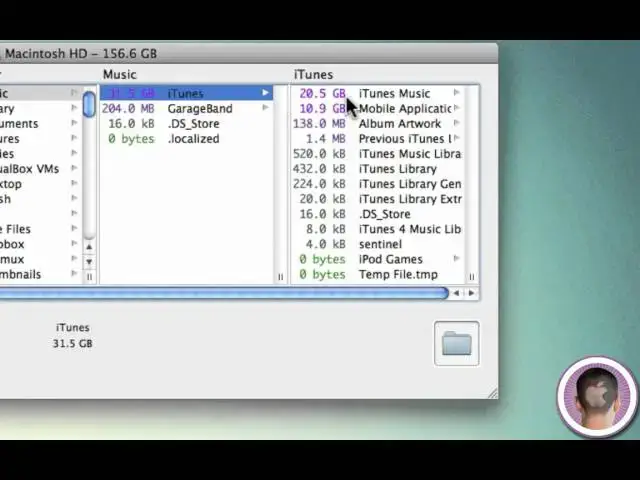
and maybe there's something in music I
3:56
don't want let's say for some reason I
3:58
want to give over my entire iTunes
4:00
library I could do that from here now
4:02
once again not recommended all I have to
4:05
do is select the folder right here I
4:07
have my iTunes folder selected and I
4:09
could go down to the delete button right
4:11
here click on it and it's going to say
4:13
destroy the selected files you aren't
4:15
getting them back so make sure you
4:17
really want them gone so kind of a
4:18
warning and then of course click destroy
4:20
and it says destroy for a reason because
4:23
it really is just destroying everything
4:25
so
4:26
always be careful so I'm definitely not
4:29
going to destroy this now if I double
4:31
click on the folder down in the corner
4:33
here it's going to open up that folder
4:35
in a Finder window so that I can see
4:37
where it is in a more traditional view
4:39
if I wanted to now let's say I don't
4:41
want to size my entire hard drive
4:43
because it does take a while I can go to
4:45
the file menu and click size folder and
4:48
from here it's gonna give me a menu
4:51
where I can just choose to size a
4:54
specific folder so let's say I want to
4:57
just size my documents folder and I can
5:01
click open and from here it's going to
5:05
just size that folder and you can see it
5:08
rather quickly I didn't have to waste my
5:10
time sizing everything else and it you
5:12
can see that I do have some pretty large
5:14
files in there too now I can also just
5:17
size my home folder from my file menu
5:21
right here and that's probably the
5:23
safest option because most of the stuff
5:25
in your home folder isn't gonna really
5:27
hurt you that bad if you would
5:29
accidentally delete something with the
5:31
exception of like your iTunes library or
5:34
things like that so basically as long as
5:36
you're careful and you don't delete
5:38
things that you shouldn't be so just you
5:39
know take fair warning and look what
5:41
you're doing before you do it I'm this
5:44
sweeper can be a very helpful utility
5:46
and very useful in saving you space on
5:49
your hard drive
5:50
I know I've probably gained at least 50
5:52
gigabytes of space back after using this
5:54
tool and it's very useful and it can
5:57
really help you out a lot so I hope your
5:59
phone that's very useful and thank you
6:00
for watching
#Computers & Electronics