Up next in 10



From The CultCast 713: https://www.youtube.com/watch?v=agGGX_kJWGo
More Apple news: http://www.cultofmac.com
Produced by Extra Ordinary for Cult of Mac
Follow us!
Threads: https://www.threads.net/@cultofmac
Mastodon: https://mastodon.social/@cultofmac
Instagram: https://instagram.com/cultofmac/
X: https://x.com/cultofmac
Facebook: https://www.facebook.com/cultofmac
Show More Show Less View Video Transcript
0:00
[Music]
0:01
iOS 26's uh best new feature which is
0:05
spatial scenes.
0:06
So this is a feature where you can uh
0:10
hit a button and convert one of your
0:12
pictures and it'll do a cool little 3D
0:14
scan and you can sort of look at a 3D
0:17
picture even on a 2D screen. Uh so I I
0:20
have a few examples here. This is a
0:22
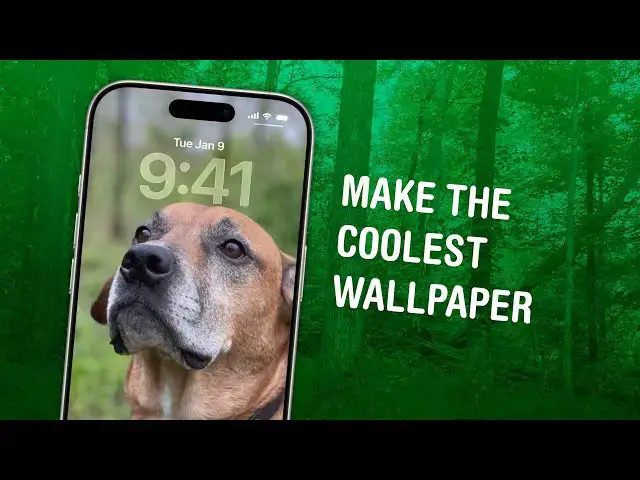
picture of my dog I took a few years
0:24
ago. You hit this hexagonal button in
0:27
the upper right corner.
0:30
And then you can just move it around.
0:32
Oh wow.
0:33
And look at the perspective. This is
0:34
this is a great example because, you
0:36
know, you've got you've got a subject in
0:37
the foreground, a big clear like, you
0:39
know, blurry background. I think I used
0:41
portrait mode for this, but it even like
0:43
sort of tries to figure out like some of
0:46
the contours of my dog's face. So you
0:48
see,
0:48
yeah, it's adding information there,
0:50
isn't it? I mean, it's
0:51
Yeah. Yeah.
0:52
This is almost This is You know what
0:54
this looks like is Bladeunner. that uh
0:55
incredible scene in Bladeunner when he's
0:58
you know he's zooming into that
0:59
photograph which is completely
1:00
impossible because it was a 2D picture
1:01
but uh yeah like it's actually adding
1:04
information there isn't it because in
1:06
the original it's the dog's ear is
1:09
oluded
1:09
yes
1:10
but here but here it around you can see
1:12
his his his you move his nose to the
1:14
side and you can see the see the ear
1:16
behind it like you can see a little bit
1:17
of the the foliage behind him that you
1:19
wouldn't normally be able to see
1:21
and that's how it's able to like you
1:22
know shift the perspective get that
1:24
parallax effect. So, this is a good
1:26
example of uh what's different about
1:29
this because Apple does have a very
1:31
similarly named feature called spatial
1:33
photos, which is when you take a 3D
1:36
picture on a Vision Pro or on an iPhone.
1:39
And what that does is it has, you know,
1:42
the picture has much more depth to it
1:43
than this, but because it's a fixed
1:46
perspective, you can't see behind
1:48
anything. And so a spatial photo uh just
1:52
looks like a normal photo when you're on
1:53
an iPhone because it can't simulate any
1:55
perspective. It has no way to show it. A
1:57
spatial scene, which is, you know, what
1:59
I'm showing here, is where it tries to
2:02
like fill in like little edges around
2:04
the background so that you can you can
2:06
you can wiggle it around like that. Um I
2:08
have a few other example pictures here.
2:10
Here's one of Craig Federigi. And you
2:13
can see it's it's got a lot of
2:15
perspective there. like it, you know, in
2:17
this picture of Craig Federiki on a
2:18
stage, he's giving a talk and he has his
2:20
hands up in front of him kind of like at
2:22
shoulder level and you can see as I move
2:24
the photo around like it's it's giving
2:26
like different layers of perspective for
2:28
his hands versus even the contours of
2:31
his hair versus the background behind
2:33
him. And
2:35
yeah,
2:36
you can really if you really pay
2:37
attention to the background, you can
2:38
see, oh well, you know, there are some
2:40
words on the stage behind him and it
2:41
hasn't really filled those in very well.
2:45
There's like a grid line on the stage
2:47
behind him and it, you know, kind of
2:49
muddles that up a little bit, you know,
2:52
but you're not you're not supposed to be
2:53
looking at the details. You're supposed
2:54
to be looking at the Wow. I can move it
2:56
around and it moves.
2:57
Yeah. In the foreground.
2:58
Yeah.
2:59
It's just like those what those what
3:01
were those goggles we used to have as
3:02
kids. The um slideshows 3D goggles.
3:06
Yeah.
3:08
The view masters back. Got any dinosaur
3:09
pictures?
3:10
I I haven't photographed any. Oh, I have
3:12
close. I have a picture of some buffalo.
3:14
Uh I think this is a picture that I
3:16
haven't yet converted to a spatial
3:17
scene. So you'll see what it looks like
3:19
uh when you do it on a new photo. Uh you
3:22
just tap the uh little hexagon button in
3:24
the upper right corner. It It's really
3:26
small. It's right under like the three
3:28
dots menu. You tap it, it'll do like a
3:31
little multicolored wave
3:33
and then you can see its perspective
3:35
again. And sometimes if you get like a a
3:38
good landscape shot like this where the
3:39
camera's really close to the ground,
3:41
it'll even do like, you know,
3:43
perspective on like the flat plane of
3:46
ground in front of you as it's done
3:47
here. So that that really sells it like
3:50
you have a you have more foreground to
3:51
to play with. Sometimes if you have like
3:54
a a big like sweeping like landscape
3:57
background, it does kind of look like
3:59
you know cardboard cutout effect like
4:02
there's there's like hills and sky in
4:05
the background but you know you wiggle
4:06
your phone around like the clouds would
4:08
not be moving in perfect sync with the
4:10
ground you know. So you can play with
4:13
this as much as you want uh in the
4:15
photos app but the real special thing is
4:18
when you do it as a lock screen. So, you
4:22
set up a photo shuffle lock screen and
4:25
just like a regular photo shuffle, you
4:26
know, as it always has been since iOS
4:28
16, you know, you can pick different
4:30
categories. It'll intelligently choose
4:31
photos for you. You can switch how
4:34
frequently it grabs new photos. You have
4:37
a new option when you're setting up a
4:38
photo shuffle lock screen. You have the
4:39
same hexagon button. You tap it and
4:42
it'll generate spatial scenes of all of
4:46
your wallpapers
4:47
and you can tap through them. Here's
4:49
some rolling hills of houses in Italy.
4:53
It looks like an earthquake.
4:55
Yeah.
4:55
Well, so you just you just tap it once
4:56
and it does it for all of them.
4:58
Yeah. Yeah. It'll it'll generate them in
5:00
the background. It's so it's generated a
5:02
preview of like, you know, 10 or so of
5:04
them and then before your iPhone
5:06
switches your wallpaper for you, it'll
5:08
generate the next spatial scene. Here's
5:11
a kind of terrible shot that I took on a
5:13
bridge in Chicago. I don't know why it
5:15
thinks this is a good picture. It's
5:16
pretty blurry, but
5:18
that's a great long screen picture.
5:20
Yeah. Yeah, some Chicago style in there.
5:22
The Grand Canyon,
5:24
you know, you have some some foliage in
5:25
the in the foreground and you can see
5:27
the canyon wiggle around in the
5:28
background. This is also a great way to,
5:31
you know, see the liquid glass clock,
5:34
which is a new effect on the iOS 26
5:37
because you can
5:38
and if you get if you get a really good
5:39
3D scene, it h it oludes the clock,
5:41
doesn't it? It um and that's a really
5:43
striking effect.
5:44
Yeah. Yeah. Or this one, this building,
5:47
I don't remember where I took this. Uh
5:49
it it's a really like striking red
5:51
church or something. And as as you
5:53
wiggle it around, you can see the the
5:55
the glass of the clock like you know
5:57
oluded. And
5:58
look at those power lines though.
6:00
They're disappearing.
6:01
It's good when you have like both like a
6:02
dramatic like perspective that you can
6:05
show like a city street, cityscapes,
6:07
shots of nature.
6:08
What happens to the original photograph?
6:11
The original photo is still there. You
6:12
can turn it back off again and then
6:14
it'll just be a static shot.
6:15
It doesn't create a duplicate or
6:16
anything like that. It's It's like a
6:18
dynamic effect that you can turn on and
6:20
off.
6:20
Yeah. Yeah. The thing is when you have a
6:24
uh normal flat photo, like a wallpaper,
6:26
it has to be really tall and skinny and
6:28
the clock like covers the upper 40% of
6:30
the image. So, on most normal photos,
6:34
when you're setting a normal photo uh
6:36
lock screen, you have the ability to
6:38
sort of unccrop it and your phone will
6:40
like intelligently blur the top of the
6:43
screen and like automatically fill in
6:45
to, you know, to make sure the subject
6:46
of the photo is below the clock. Um, but
6:49
you can't do that with a spatial scene,
6:51
which is a somewhat frustrating limit if
6:54
you want to have like a a spatial scene
6:56
of like, you know, your partner or your
6:57
kids or a dog or something like that. uh
7:00
you need it needs to have like a lot of
7:01
headroom above the subject of the photo,
7:04
but it's really great with the photo
7:06
shuffle because then you just get, you
7:07
know, to try it over and over again.
7:08
Like I haven't gotten to the end of
7:10
these yet. Oo, that's one of the Sears
7:12
tower.
7:12
Look at that liquid glass effect there.
7:14
Yeah,
7:15
spatial scenes. It's a pretty cool
7:16
feature. It's I think it's maybe a after
7:18
you get bored of like the liquid glass
7:20
thing for a week or two, this is this is
7:22
another feature that you can use to wow
7:24
people. So, it's pretty cool. I don't
7:27
use a uh photo as my wallpaper, but um
7:32
for the people who do, this is going to
7:33
be a pretty exciting feature. All right,
7:35
nice one. Yeah, that's a great little
7:36
tool there.