Up next in 10



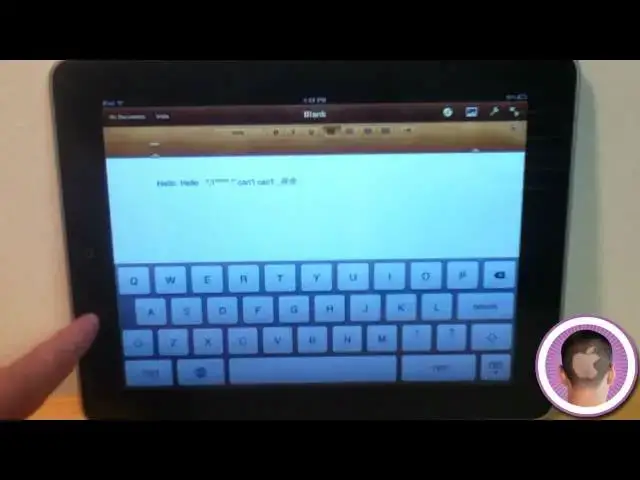
A few little tips to make typing on the iPad more efficient and easier.
Show More Show Less View Video Transcript
0:05
hey everyone today I'm going to show you
0:07
a couple ways you can make your iPad's
0:08
virtual keyboard even more useful than
0:10
before and these are couple different
0:12
tips uh things that people don't really
0:14
know about for the most part and they
0:17
really can really streamline how you
0:19
type things like that so to enable some
0:21
of these features first of all you're
0:22
going to go into
0:24
settings and then from there you're
0:25
going to scroll down and click on
0:28
keyboard and in here you have a couple
0:30
different options Auto capitalization
0:32
auto correction check spelling enable
0:34
caps lock and the period shortcut and I
0:37
have these all turned on and if you want
0:39
to really fully take advantage of what
0:41
I'm going to show you here you'll need
0:42
all these on so the next thing I'm going
0:44
to do is bring up the keyboard and I'm
0:45
going I'm going to go into Pages for
0:47
that but it works with the Notes
0:48
application you know whatever you have
0:51
first thing is on the iPad when you want
0:53
to put in a capital letter you either
0:55
hit shift and then type your capital
0:56
letter or if you're typing in everything
0:58
in all caps you'd have to to hold down
1:00
the shift button and then type what you
1:04
want uh but say now once you have that
1:07
uh shortcut turned on in settings all
1:10
you have to do is double tap the shift
1:12
key and you can see it highlights it
1:14
blue and now you can type everything in
1:18
capital letters and when you're done
1:19
just hit it again and it'll go back to
1:21
normal so that's a real Handy feature uh
1:23
it's a lot easier than having to hold
1:24
down this button and then trying to type
1:27
that can be kind of cumbersome you know
1:29
and it's it's not the easiest way to do
1:31
things another thing you can do if
1:33
you're typing a sentence so hello and
1:35
you want to put in a period instead of
1:37
hitting this period button what you can
1:39
do is you can hit double tap the space
1:41
bar it adds a period and puts in a space
1:44
for you so then you can keep typing you
1:46
know like you were before and it's it's
1:49
that easy it really saves time you don't
1:51
have to hit period and then space bar
1:53
you can just double tap and you're on
1:55
your way now let's say you're in a word
1:57
and you want an apostrophe normally
1:59
you'd have to hit the one two 3 button
2:02
out in the corner and then hit the
2:04
apostrophe key uh but with these
2:06
settings enabled what you can do is if
2:08
you flick up on the comma it'll insert
2:10
apostrophe for you so normally I'd hit
2:12
comma Now if I flick up there's an
2:14
apostrophe there so just the easy way to
2:17
insert apostrophes very easily and with
2:19
the period key here you can do the same
2:21
thing but uh with quotation marks if I
2:24
flick up it'll give me quotation marks
2:27
and that's one I think most people don't
2:28
know at all it's probably the most
2:30
hidden one apple never really talks
2:32
about now the other thing is you don't
2:34
really need to type apostrophes at all
2:36
if you don't want to if you if you're
2:37
fine with it then you know you can swipe
2:39
up uh but there is an even easier way um
2:42
you don't even have to put an apost so
2:44
Sam typing can't I don't have to insert
2:47
the apostrophe at all you can see the
2:50
auto correct will take care of it and I
2:51
can just hit space bar and it'll insert
2:53
it for me so if you're used to going you
2:56
know
2:58
can't you don't really need to to do
3:00
that you can just insert apostrophes
3:03
with auto correct now there's another
3:06
cool thing you can do here with symbols
3:08
so normally if you wanted to do let's
3:10
say an at symbol you'd be on your
3:12
regular keyboard here and then you'd
3:13
press the little one two three button
3:15
and then hit at and then press the ABC
3:18
to get back to your regular keyboard
3:20
what you can do though is you can hold
3:21
down the one two three button slide your
3:23
finger over to the at and then it jumps
3:25
right back for you to your regular
3:27
keyboard this works for everything so
3:29
one uh you know
3:32
slash colon everything like that it
3:35
works and you don't have to do all that
3:37
extra work of going back and back for
3:39
everything you do and that's really
3:41
handy and this works for capital letters
3:44
too so if you press on the shift key and
3:46
slide up to a it'll put in a capital A
3:48
for you and then go back to lowercase
3:52
now for the next thing I'm going to show
3:53
you I'm going to head over to
3:55
Safari so here I am on a blank page in
3:58
Safari and I'm in the URL bar going to
4:00
type a web
4:01
address let's say I'm going to go to
4:03
Cult of Mac so Cult of Mac now normally
4:07
here I would hit the com key and then go
4:10
to the website but let's say the website
4:12
doesn't end with well instead of having
4:14
to type out.edu
4:17
oops or you know net or whatever you
4:20
normally type in if you hold down the
4:22
com key you get a whole bunch of
4:24
different options and I can go to
4:26
org.net us or.edu just by holding
4:30
down.com and then sliding up to whatever
4:32
I wanted to so now.org and that's easy
4:35
way to insert other things other
4:37
thanom now the com key is not the only
4:40
thing you can hold down for other
4:41
letters let's say you wanted to type an
4:43
a with an accent over it if you hold
4:45
down the letter A you're going to see
4:46
this little menu pop up and you have all
4:48
these different options for letters of a
4:51
so if I just hold up and slide over to
4:54
the a with the accent it inserts that
4:56
character for me automatically uh this
4:58
works for all Vols so
5:00
e
5:02
i uh let's see let's put in that
5:05
one
5:08
o and youu and we can put in that one so
5:13
there's a whole bunch of different
5:14
options these are for vs s works as well
5:16
there's a couple different things any
5:18
keys that have special variations like
5:20
accents or anything uh they have you can
5:24
hold any keys that have accents or any
5:28
letters that have accents or or things
5:30
like that if you hold down on the key
5:32
it'll pop up a menu and you can just
5:34
slide to what you want of course this
5:36
doesn't work for all letters like if I
5:37
hold down R nothing's going to happen
5:39
because there are no variations of R so
5:42
this works with other Keys as well so I
5:44
if I hold down the dollar sign key
5:46
you're going to see I can get cents and
5:48
you know the regular dollar sign pounds
5:51
all different things uh different forms
5:53
of
5:54
currency I can hold down the zero and I
5:56
can hit get degrees and I can hold down
5:59
quotation marks for different styles of
6:03
quotes and a lot of keys have this like
6:06
and or the dash and these are symbols
6:10
that you normally have to go into your
6:11
third keyboard to find and a lot of them
6:13
are listed here it's just shortcuts and
6:16
an easier way to navigate on your
6:19
keyboard with the iPad can save you a
6:20
lot of time when you're typing if you
6:22
know what you're doing so those are some
6:24
iPad keyboard shortcuts that can make
6:26
your typing faster more efficient and
6:29
quite a bit easier once you know what to
6:31
do so I hope you found this video useful
6:33
and thank you for
6:38
watching
#Software