Up next in 10



Just a quick tip.
Show More Show Less View Video Transcript
0:09
hey everyone today I'm going to show how
0:10
you can change the default Mac OS 10
0:13
login wallpaper now just like with other
0:15
versions of Mac OS 10 the wallpaper on
0:18
the login screen can't be changed by
0:20
default and there's no option to do so
0:23
and after a while you might start to get
0:24
bored with it so today I'm going to show
0:26
you how you can change that so first of
0:28
all what you're going to need is is an
0:30
image that you want for your new login
0:32
wallpaper background and in this case
0:35
I'm going to be using the same exact
0:36
image that I have as my desktop
0:38
background and it's important that you
0:40
have a wallpaper that's the same
0:42
resolution as your screen now if you
0:44
don't know what your screen resolution
0:46
is you can actually just Google it so
0:49
you can type in what's my screen
0:53
resolution and you should see this link
0:55
on the top to what is my screen
0:57
resolution.com and it's going to tell
1:00
you right here this case 2560 by 1440 so
1:04
I know that I need images of that size
1:07
so if I go to my wallpaper here and I
1:09
right click on it and select get info
1:12
over on the side here you can see that
1:13
it's actually 2560
1:16
x600 which is actually larger than the
1:18
resolution of my monitor but I'm going
1:21
to go with it anyways because as long as
1:22
the resolution is at least what your
1:26
monitor is you're okay anything over is
1:28
fine as well so next you're going to
1:30
need to open up a new finder window and
1:33
from here you're going to have to go to
1:34
Macintosh HD now inside Macintosh HD
1:37
you'll find the system folder you can go
1:39
in there then library and then if you
1:42
scroll down you'll see Frameworks and
1:45
from there appkit that framework
1:48
versions
1:50
C and finally
1:52
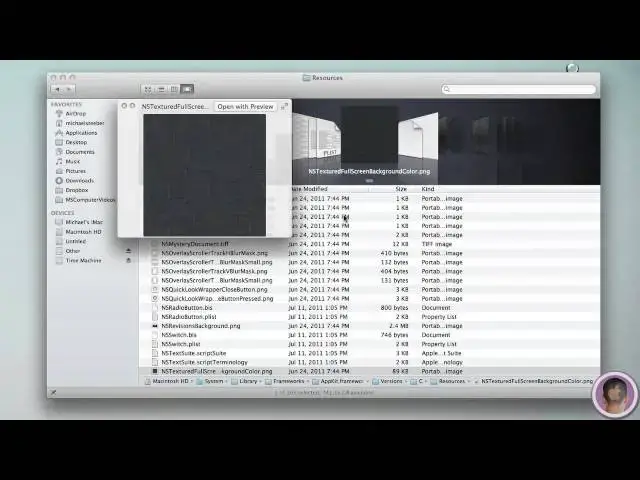
resources now it's in this folder that
1:54
you're going to find the default image
1:57
so if you scroll down to NS textured
1:59
full screen back backround
2:01
color.png this is actually the image
2:03
that it uses for the login screen
2:06
wallpaper and it just tiles it so what
2:08
you need to do first is you need to make
2:10
sure that you back up this wallpaper
2:12
just in case you lose it so I'm just
2:14
going to right click and copy
2:17
this and I'm going to paste it to my
2:20
desktop so that I have a copy of it
2:22
backed up and I'll put this in a folder
2:26
so now what I need to do is I need to
2:27
make sure my regular wallpaper image is
2:29
is the correct format for using for my
2:33
login screen so if I open up in
2:35
something like preview I need to make
2:36
sure that this image is a PNG and mine
2:39
already is but I'm going to show you the
2:40
process that you need to go through to
2:42
make it one so if you go up into preview
2:44
and go to the file menu and select
2:47
export this menu will pop down and you
2:50
have to make sure that the format
2:52
selected is
2:53
PNG now from here you're also going to
2:56
have to change the name and you need the
2:57
name to be the same as the the name of
3:00
the image that you just backed up so
3:03
make sure you have the Correct
3:04
capitalization and everything I'm going
3:06
to call this NS textured full screen
3:09
background
3:11
color.png and then all I have to do is
3:13
hit save so this will save and now I'll
3:16
see it on my desktop right here so now
3:19
all I have to do is go and drag this
3:21
file into the resources folder and it's
3:24
going to ask me to authenticate this
3:26
because it needs to replace the item
3:29
that's already in there so I hit
3:31
authenticate I have to type in my
3:32
password and once again make sure you've
3:34
backed up that other image otherwise
3:36
you'll never be able to revert to the
3:38
old one and then hit okay so you can see
3:41
here now that the new image has replaced
3:44
the old linen image that was in there
3:45
already so now we're all good there and
3:47
you can close this finer window so now
3:49
from here if you log out you'll be able
3:51
to see the new
3:53
wallpaper and it's really as simple as
3:55
that now if you ever want to revert this
3:58
back to the original linen textured
4:00
wallpaper all you're going to have to do
4:02
is navigate back to that folder that we
4:04
were in before and drag back in the
4:07
linen textured wallpaper and replace of
4:10
the one that you put in there and then
4:12
it'll have returned to the default state
4:17
so there you go that's how to change the
4:18
default login wallpaper in Mac OS 10 as
4:21
always if you have anything that you'd
4:22
like to see me do a how to on make sure
4:24
to send me an email I hope you found
4:26
this video useful and thank you for
4:27
watching
#Computers & Electronics
#Software
#Skins, Themes & Wallpapers