Up next in 10



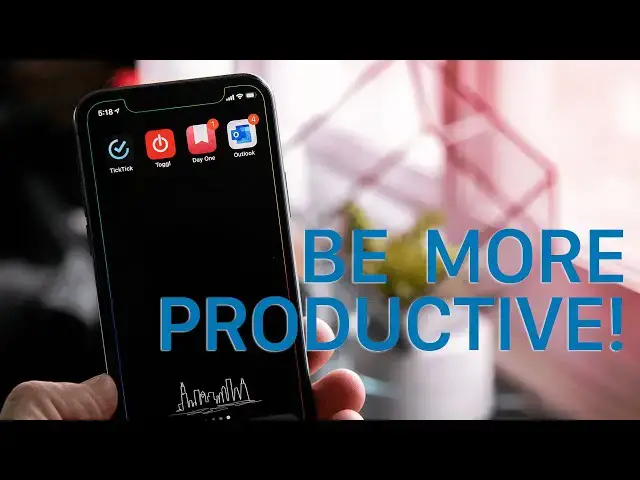
Things are weird and challenging right now... But I've found a few apps and services that have made it easier to feel more productive while working from home.
This is NOT a sponsored video, these are just apps and services I've found useful. The apps included here are all available on just about any device or platform you use.
TickTick: https://apps.apple.com/us/app/ticktick-things-tasks-to-do/id626144601?mt=8
Toggl: https://apps.apple.com/us/app/toggl-time-tracker-work-log/id1291898086?mt=8
Outlook: https://apps.apple.com/us/app/microsoft-outlook/id951937596?mt=8
DayOne: https://apps.apple.com/us/app/day-one-journal/id1044867788?mt=8
More Apple news: http://www.cultofmac.com
Follow Ian!
Twitter: https://twitter.com/ianfuchs
Instagram: https://instagram.com/IanRedFox
Follow Cult of Mac!
Twitter: https://twitter.com/cultofmac
Facebook: https://www.facebook.com/cultofmac
Instagram: https://instagram.com/cultofmac/
Show More Show Less View Video Transcript
0:00
What's going on, everybody
0:06
Ian here for Cult of Mac. And we're definitely in a different sort of time right now
0:11
We're all dealing with the added stress of figuring out how to work from home, deal with kids at home, order groceries
0:17
and worry about whether or not we have enough toilet paper to last us the next couple weeks. And because of that, it's really hard to feel successful or accomplished
0:24
as we go through our regular work week. And for the last week or so, I finally started to find my groove
0:30
And a lot of that's thanks to a couple apps and services that I've been using to keep me more on task and feel a little bit better about what I'm doing
0:37
So that I'd share some of those apps and services that I've been using to hopefully help some of you feel a little more productive or successful in your quarantine isolation time
0:46
Now, as a reminder, these are apps and services that I've personally found that I like
0:50
This is not a sponsored video. No one's paying me to talk about these apps or services. They're just things that I've found that I personally enjoy
0:57
If you have ones that you like or you want to share or things that have made all of this a little bit easier for you
1:02
feel free to let me know down in the comments and I will be happy to share whatever I can about those apps and services that might make it easier for anyone else
1:10
Now, one of the biggest challenges I found since this whole thing started is staying organized and keeping track of all my tasks
1:15
With everyone's varying schedules, different responsibilities, you know, phone calls and text messages and emails all asking for different things and everyone's sense of urgency right now
1:25
having one central place I can put all the tasks I need to work on is super important
1:29
So I've been using a task manager for the last month or so to really kind of keep all those
1:34
things together and in one place so I know what I needed to do next, what is done, what isn't
1:39
done, how long things will take and be more effective and more efficient at getting things done
1:44
Now for me, I've been using TickTick as my Reminders app or my task management app, which is a little
1:49
bit more advanced than the iOS 13's reminders. Now, for many of you, iOS 13's reminders may be enough
1:55
because it does have a lot of really great ways to just keep a running list of things you need to do
1:59
but I like some of the more power user features of Tick-Tick as a way to keep track of my tasks
2:05
First and foremost is the smart date parsing, which allows you to, as you're creating a task
2:10
type in a date either relative to today or a date as in a physical date
2:16
and assign a task to be due on that day or even at a specific time
2:19
It's super convenient, and it's a really fast way to enter tasks, especially as I'm getting phone calls
2:24
or text messages to do certain things, I can just quickly punch those into Tick-Tick
2:28
know that it'll remind me when I need to, and I can take care of those tasks when it comes time to do it
2:34
A second really great feature of Tick-Tick that I really enjoy is the robust nature
2:37
of the actual tasks themselves. So instead of just being a simple piece of text with maybe a location or a timestamp on it as to when it due I can actually append notes images links other tasks other projects tags
2:54
all kinds of different things that allow me to keep my tasks grouped, keep all the important information inside of the task
3:00
And ultimately, that makes it more useful as a single place to go to see what I have to do
3:05
and what information is relevant to whatever that task is. Best of all, TickTick is free to use
3:11
It works on iOS, Android, Mac, and Windows, and for a $3.99 a month or $28 a year subscription
3:19
you can unlock some kind of power user, extra power user features, but most of them aren't
3:23
even necessary for most people. Now, another thing that I've been using while all of this craziness has been going on is
3:27
a time tracking app. Now, if you're a freelancer or a contractor, you probably are already doing this, but even
3:32
as a regular kind of employee, it's important to keep track of the time you're spending
3:37
on your work so that at the end of the day, you know, yes, I've put in my time, I've done
3:41
my work for the day or at the end of the week, you can look back and say, yes, I have spent this
3:46
much time working. I feel a little more accomplished, that sense of accomplishment
3:50
Because you're not getting up, going to the office and being at the office all day, you're
3:54
probably, you know, if you're like me, you're probably waking up wearing a sweatshirt and
3:58
sweatpants most of the day. You're really not going through the whole day quite the same
4:01
And so having something that says, you know, at the end of the day, yes, you did do some work
4:05
is a really nice feeling. And for me, I've been using toggle as my time tracking app
4:09
And there are a couple big reasons for that. The biggest one for me is the fact that it works on the web
4:15
It works on iOS. It works kind of everywhere I need it to be. So no matter what device I'm on or what I'm working on
4:20
I can quickly just pull up toggle and start a timer. I can create clients. I can create tasks
4:25
I can create all kinds of different things within toggle that allow me to quickly
4:30
you know, say I'm working on this thing. And then at the end of that time, I just stop my timer
4:34
move on to the next task, start another timer, and I can quickly keep track of where my time is going each day
4:39
The second feature of toggle that I really enjoy is the fact that their reports are really, really robust
4:44
which means that I can quickly go in and say for the last week, the last month, even this year
4:48
how much time did I spend on this one task or this one project? And it allows me to quickly look at how much time I'm spending where to see if I'm effectively using my time so that I know how much of my week is going to, you know, this one thing versus this other thing
5:02
Maybe I need to shift my priorities a little bit because I'm spending too much time here or not enough time here
5:06
And it allows you to get a really good view of how you're actually spending your. time each day
5:10
Now in the past I've reviewed other time tracking services and even had recommended another
5:14
one at one point, but after finding toggle, I found that it's much better at the reporting
5:19
feature and it's super easy to use and on top of that, most of the really great features
5:23
of toggle are available completely for free. Another benefit of using a time tracking service like toggle is that it does help you kind of create a good work life balance When you hit whatever your number of hours per day is you know that it okay to close your laptop to stop looking at your work stuff and go back to being a normal person and not focusing on the work stuff It really
5:42
easy right now with everybody kind of in this weird situation where you end up working 10, 11, 12
5:48
hours that you're constantly logged into work or constantly doing things for work and it
5:52
becomes distracting or becomes something that's hard to keep up with. So by having a time tracking
5:56
service to help you know the day is done, here's my cutoff point, I've spent my time for the day
6:02
this can wait till tomorrow, is really, really convenient. Another great way to have that good work-life balance split is to use a separate email app
6:11
And for me, I've been using the Outlook app on my phone and on my laptop and on my iPad
6:16
as a way to kind of delineate between this is my personal stuff, this is my work stuff
6:21
I know for a lot of people, they're probably already doing this because of features of one service or another or the way that it integrates with their work accounts like using Outlook for
6:29
Exchange or the Gmail app for Google Apps. Now it's super easy when your personal life and your work life start happening in the same space
6:36
for those two things to kind of start to become one with one another. And by using a separate email app, you can actually kind of create a separation, a hard separation
6:44
between work and personal allowing you to only look at work stuff at work time and look at personal
6:49
stuff when it's personal time and not see the work stuff when you're looking at personal
6:53
and vice versa, meaning that you have a better mental separation between work and personal
6:59
Now, if you wanted to take this whole idea a step further, you could actually only put your
7:03
work stuff on one device and put all your personal stuff on another, even if you normally
7:07
keep the two on the same device just to create some of that four separation. So maybe putting
7:12
your work email on your laptop and not on your phone means that when you walk away from
7:16
your computer, you're no longer looking at your work email. But for me, even just having a
7:19
separate apps is enough to keep a nice separation and remind me that in the evenings, when I
7:24
see Outlook has new messages, just don't look because that's work stuff. There's nothing important
7:29
in there for personal right now. If it was super important, they'd probably call or send a text
7:34
Now on the topic of your personal life, another great thing to do when we're all kind of in this
7:38
weird situation is to keep track of the positive things that are happening right now. And for me
7:43
I've been doing that with the app day one, which is a journaling app. And it's a great way to just
7:47
capture a few sentences each day or a picture from each day about what happened today that made
7:53
me feel a certain way. Now, with day one, I've been using it for a long time as a way to capture photos of my daughter
7:59
but now with all this craziness happening, I've also been writing down things like this is what
8:03
I worked on today. This was a big win for the day. These are just kind of things to remember so that later on when I want to go back and say
8:10
man, I was really feeling a certain way during all of this. How can I make this better
8:14
I can go back and look at day one and say well here the thing that I did and kind of uplift yourself by looking back at the positive things that have happened Now the final app slash service slash neither of the above that I been using to really
8:27
help me feel and be more productive while all this is going on has been a feature built into
8:31
iOS, and that's screen time. Now, as I've mentioned on previous videos, I kind of have a Twitter addiction, and so because
8:39
of that, I've been trying to spend less time looking at Twitter. By using screen time, I can actually limit my time that I'm able to look at Twitter
8:46
both in the number of hours a day that I can look at it, as well as the times of day that I can look at it
8:52
So by using app limits, I can say it only allow me to look at Twitter for an hour each day
8:57
only allow me to look at Instagram for 15 minutes each day, and then I can also set limits on when I can look at certain apps by using the downtime feature
9:05
Now, with that, I can basically go in and say, you know, from 8 a.m. to 4 p.m
9:09
don't allow me to look at these few apps or these select apps
9:13
but allow me to use everything else on my phone. So during those times, if I try to open one of those apps or use it
9:18
it will simply block me out of using that app or service at that time. Now doing this is kind of using a fairly blunt instrument
9:24
to solve a fairly simple problem that I could probably handle with just some better self-control
9:29
But ultimately, by not being distracted by social apps, I can get more accomplishing the day
9:34
which means that I have better results in my time tracking, I can check more things off my task list
9:38
I ultimately feel better and the end result is feeling more accomplished without wasting all this time on social media
9:45
And then when it comes time for personal time or my free time, I can then open up those social media apps
9:50
I can look at Twitter, catch up on the news, whatever it is. Now again, using downtime especially is a bit of an overkill solution
9:56
But even just putting in things like the app limits is a great way to make sure you're not spending too much time each day on whatever apps tend to draw you in or distract you from your productivity
10:06
You know, if you're the type of person who spends a lot of time on social media, on Snapchat, on Instagram, whatever
10:11
you can actually put limits in to limit how much time you can spend on those during the day
10:15
Sure, the limits can be turned off or overridden by a simple tap of ignore for the rest of the day
10:20
but it is at least that little nudge at some point during the day that says, hey, you spend a lot of time here today
10:25
Maybe for your own mental health, take some time away. Let me know what you guys think in the comments down below
10:30
While you're down there, also get the thumbs up button, subscribe to the channel if you're not already
10:34
Hit the notification bell if that's something you're into. We've got a lot of kind of interesting content coming over the next couple of weeks
10:40
We've got reviews of some new products. So until next time, I'm Ian for Cult of Mac
10:44
I'll catch you in the next one
#Consumer Electronics
#Monitoring Software