0:00
What's going on everybody, Ian here for Cult of Mac and whether you're new to the Apple
0:10
Watch or you've been wearing one for a long time, learning how to send messages or write
0:14
on the Apple Watch can be a huge pain. It's not like a normal iPhone where you can type out on a keyboard and if you're not used
0:22
to the methods of input on an Apple Watch, both by voice or by touch, it can be really confusing
0:30
So these are a couple of different ways to type an iMessage or send text on an Apple Watch
0:35
First and foremost, the most direct way to send a message or write on the Apple Watch
0:41
is with your voice. You can simply tap the little microphone icon both in Mail or Messages or any other app
0:47
that supports writing text and start speaking. The Apple Watch then will take your dictation and transcribe that into text, allowing you
0:57
to speak whatever it is the message is and have it turned into text to send in your email
1:02
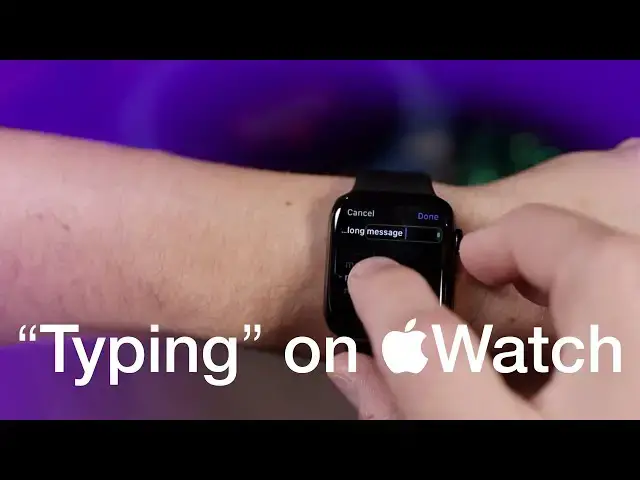
or text message. The second way to write messages on your Apple Watch and one of my favorite ways to write
1:06
messages on the Apple Watch is with the scribble feature. Scribble is indicated by the little finger touching a screen icon and from there, it'll
1:15
bring up a little grid that you can physically write on with your finger, similar to the
1:20
way the Newton and old Palm Pilots used to work with their styluses
1:25
Simply take your finger and just start drawing letters on that screen and it will transpose
1:30
those letters you're drawing into actual text. From there, you can write out your message, add punctuation, again, just scribbling it
1:38
on the screen for question marks or periods or whatever, and add spaces as needed or backspace
1:44
if you need to remove something with those little on-screen keys. Now one thing that is worth keeping in mind with scribble is you don't have to wait for
1:51
each letter to disappear before you write the next one. This is what makes scribble really, really great
1:57
You can actually continue to write each letter right on top of the letter that was already
2:00
there and the Apple Watch is smart enough that almost every single time, it will get
2:06
it perfect and understand a new letter has started or this letter is different than that
2:10
or this is part of this and know exactly how to handle it
2:15
You can also save a ton of time if you get the digital crown involved in scribbling out messages
2:20
So basically, as you're writing your word and the word starts to show up, you'll see a little up and down arrow up at the top of the screen where the word is actually being written
2:28
If you turn the digital crown, that'll actually scroll through a list of auto-complete words
2:33
based on what you've started to write. This makes it really quick to write out a long word and only a few characters right
2:39
on your wrist, meaning you don't have to spend as much time writing out your message
2:44
and you can still get the point across quickly. Scribble can save you tons of time and awkwardness by being able to send messages quickly from
2:51
your wrist. If you're ever in a situation where you need to send a message and Siri isn't an option
2:56
or dictation isn't an option, try out Scribble. It's really fun to play with and as you get the hang of it, it becomes something that
3:02
you really enjoy doing. I use it all the time for sending messages on my watch, which is one of my most common
3:07
uses for the watch in general. Let me know what you guys think of the video in the comments down below
3:12
Give it a thumbs up if you've never tried Scribble and you're excited to give it a shot
3:16
or if you've tried Scribble and really enjoy it. Be sure to subscribe to the channel as we're going to do more of these Apple Watch tips
3:22
and tricks over the next coming months. I'm Andru Edsburg for Cult of Mac. Thanks for watching and I'll catch you guys in the next one