Up next in 10



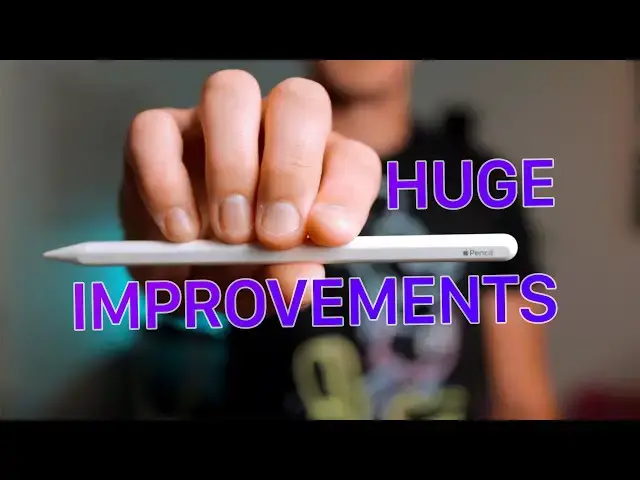
Ever since iPadOS 14 was announced, one of the biggest, most useful changes has been to what Apple Pencil can do. Now, Scribble and Smart Selection make it possible to turn your handwriting into text for more accessible input and less mode-shifting.
More Apple news: http://www.cultofmac.com
Follow Ian!
Twitter: https://twitter.com/ianfuchs
Instagram: https://instagram.com/IanRedFox
Follow us!
Twitter: https://twitter.com/cultofmac
Facebook: https://www.facebook.com/cultofmac
Instagram: https://instagram.com/cultofmac/
Show More Show Less View Video Transcript
0:00
What's going on everybody, Ian here for Cult of Mac
0:07
And back when Apple launched the Apple Pencil, they positioned it primarily as a tool for artists
0:13
And, well, as much as I've tried, I've never been particularly great at drawing
0:18
That didn't stop me from picking one, actually one for the first generation and the second
0:22
generation pencil up, just for things like editing photos, annotating documents, and
0:27
generally navigating the interface. So when the Magic Keyboard came out earlier this year, I kind of ditched the Apple Pencil
0:34
in favor of the trackpad experience on my iPad. But now with iPadOS 14, Apple has completely rewritten the story on what Apple Pencil can
0:42
do in iPad and added some really cool features that make it far more useful for a lot more things
0:47
In iPadOS 14, Apple has added two new features to Apple Pencil to make it really useful for
0:52
things like text entry and taking notes. The first of which, and the one that's most useful for me, is the feature called Scribble
1:00
And Scribble basically emulates what you have on your Apple Watch. It allows you to handwrite text and have that text converted into typed text
1:07
So you can open up the Notes app, you can open up Safari, you can open up Messages
1:11
any app that has a text field of some sort, and simply start writing in a text field and
1:15
it will convert that handwritten text to something that's typed out. And the fantastic part about Scribble is that it works everywhere and it's not restricted
1:23
to just that skinny little text bar that you have in most apps
1:26
You can color right outside the lines, write whatever the text is, and it will just simply
1:30
turn it into the type text to fit onto your screen. And I personally really like the fact that you can color outside the lines because it
1:37
means that you can be a little sloppy, you don't have to be as careful, and you have room to write things, whatever is comfortable for you
1:44
Now Scribble also works for things like editing text. Simply by circling a word, you can highlight it, or circling a whole sentence, you can
1:50
highlight it, you can scratch out a word by just scribbling through it, or you can even
1:54
insert a word between two other words or insert a space between two other words by drawing
1:58
a little line right where you want that space to go. Now the second huge improvement to the Apple Pencil is with a feature called Smart Selection
2:05
Smart Selection basically lets you take handwritten notes in the Notes app and then later on select
2:11
that handwriting and have it converted into type text. This is really cool for things like taking notes in a meeting, so if you're simply handwriting
2:18
notes and you want to be able to refer back to your handwritten notes, or you're working
2:22
on a document that involves drawing a bunch of shapes and having arrows and typing out
2:26
things or writing down measurements, you can then go back, select that text later, and
2:31
copy it out to another place. Now as somebody who likes to take notes in meetings by hand occasionally, especially
2:36
if it's a virtual phone call, then I can take notes by hand and later on select that text
2:42
to share in an email or upload to some type of document service as my own personal backup
2:48
Now as somebody who often has a hard time reading their own handwriting after it's been
2:52
a little while, I've actually been really impressed with both Scribble and Smart Selection and how they're able to convert my sloppy handwriting into some form of text that's
3:00
almost entirely readable. Very few things have actually tripped it up through these early betas, so it's really
3:05
reassuring to know that even if you have kind of bad handwriting, you'll be able to either
3:10
take notes or write with Scribble and have that text later on turned into text should
3:14
you need and not have to worry about having tons and tons of errors
3:19
So while Apple originally had positioned the Apple Pencil more as an implement for artistic
3:24
endeavors, now with iPadOS 14 they've made it a far more useful productivity tool for
3:29
a ton of other people. And as somebody who's always admired the technical features of the Apple Pencil, now Apple has
3:35
made it something that I can use in my everyday life, which is something that I think is really
3:40
great. Let me know what you guys think in the comments down below. While you're down there be sure to give the video a thumbs up, subscribe to the channel
3:45
if you're not already, hit that notification bell if that's something you're into, and
3:49
until next time, I'm Ehan for Cult of Mac, and I'll catch you in the next one
#Consumer Electronics
#Business & Productivity Software
#Technical Reference