Up next in 10



More Apple news: http://www.cultofmac.com
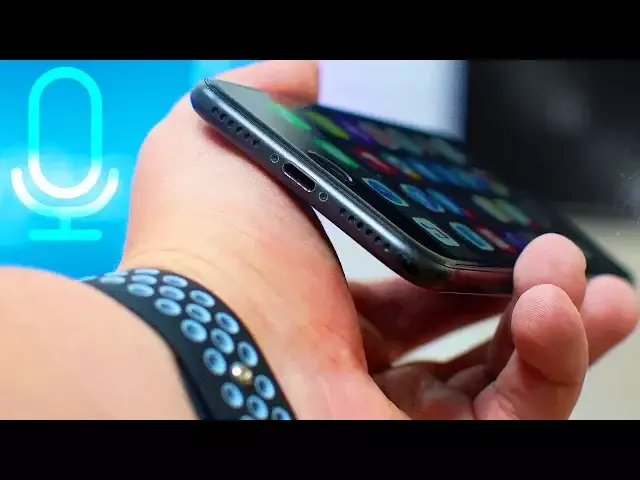
If you've been having problems with your iPhone's microphone, try out these 3 tips before taking it to be prepared.
Follow us!
Twitter: https://twitter.com/cultofmac
Facebook: https://www.facebook.com/cultofmac
Instagram: https://instagram.com/cultofmac/
Show More Show Less View Video Transcript
0:00
Hey what is up guys, Stephen Coles of Mac here
0:06
Now if you've been experiencing problems with your iPhone's microphone, in this video I'm going to give you three tips to solve all of your problems and avoid the cost of
0:13
getting it replaced. So let's get started. Firstly you need to check if your microphone is working at all
0:20
For example, this is my friend's phone which during a phone call, the person on the other
0:23
end of the line wasn't able to hear him. But if you put it on loudspeaker it would work
0:27
Or for example, Siri would work no problem. So we know that the microphone isn't a write off and doesn't have to be replaced completely
0:34
With the iPhone being placed in your pockets or bags, it's easy for a lot of dirt to get collected within the headphone jack and the microphone itself
0:40
When on a call, adjust the volume to see whether it says speaker or headphones. If it says headphones, then there's dirt collected within the headphone jack itself
0:48
In this phone's case, the issue was with dirt in the microphone
0:52
To fix this is really easy. Simply get a can of compressed air which you can pick up from your local DIY shop or online
0:58
Then shake well and spray within the holes. This will force out any dirt or grime that's collected within, which will then free up
1:03
the microphone or headphone jack. In this phone's case, this solved the issue
1:07
But if that's not the case for you, if you've got an older iPhone such as the iPhone 4
1:12
4S, 5 or 5S, it could be an issue with the microphone being grounded with a particular screw
1:18
For this fix, we'll need to remove the case on the back of the iPhone. So if you're not comfortable doing this, perhaps take it to your local repair shop or an Apple store
1:25
Remove the back of the phone by unscrewing the two screws at the bottom. Make sure you have the correct screwdriver, for example the iPhone 4 and 4S use Phillips
1:33
whereas the iPhone 5 and 5S use pentalobe screws. If you wear these down using the wrong screwdriver, you'll be well, screwed
1:40
Once they're removed, slide up the back panel so you can take it off. Then find the screw between the camera and the chassis and either loosen or tighten this
1:48
Each case is slightly different, so you may have to play around a little until you find the best result
1:52
There's also multiple cases where microphone issues with the iPhone 4 and 4S have been
1:55
fixed by placing a small cardboard cutout to add more pressure just below the camera
1:59
I'll leave a link to a great video that shows you how to do that in the description down below
2:04
Finally, if those tips haven't solved anything, it could just be down to a software glitch
2:09
You can try turning off noise cancellation under settings, general and accessibility
2:14
You can try restarting the phone, as this can solve this issue if it's caused by a bug or an app that's causing issues in the background
2:20
Or go to reset all settings, which is at the bottom of the general screen
2:23
If none of those have sorted it, the last result is resetting the phone back to factory settings
2:28
Just make sure to make a backup of your iPhone first. Well that's it for this video, but let me know in the comments section down below how
2:35
you got on. Did it solve your problems? If not, let me know and I'll try and find some more solutions
2:41
Also if you enjoyed this video or found it useful, go ahead and give it a big thumbs up and don't forget to hit subscribe so you don't miss a single video from Kult of Mac
2:48
I'll catch you in the next one
#Consumer Electronics
#Consumer Electronics
#Other