Up next in 10



More Apple news: http://www.cultofmac.com
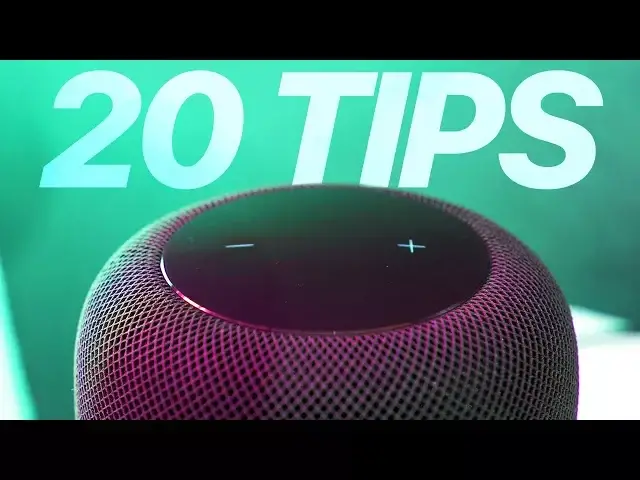
In this video, we’re going to show you 20 tips you need to know for your HomePod. The HomePod is getting a lot of flack for being the dumbest smart speaker, but it can do more than you think.
Follow us!
Twitter: https://twitter.com/cultofmac
Facebook: https://www.facebook.com/cultofmac
Instagram: https://instagram.com/cultofmac/
Show More Show Less View Video Transcript
0:00
What's up guys, Stephen Clot of Mack here
0:02
Firstly, I need to apologise if I sound funny than usual in this video
0:06
as I'm not currently feeling 100%, but today I'm going to show you 20 awesome tips for your HomePod that you need to know
0:12
The HomePod is getting a lot of flack at the moment for being the dumbest smart speaker
0:16
but it can do more than you think. Just a quick heads up, I'm going to be saying
0:20
Hey Siri a lot in this video, so just want to warn you of that, but let's get started
0:27
HomePod is designed for music, but it's also great for music. for giving you information on what you're currently listening to
0:32
You can ask who's playing certain instruments, who wrote the song, what year it came out
0:37
what album it's from, and more. Hey Siri, who wrote this song
0:43
Brian Holland and John Hill wrote the Portugal The Man's song, Feel It Still
0:49
Hey Siri, what year did the song come out? Let It Be by the Beatles was released on March 6th, 1970
0:57
It doesn't have all of the info for every song, but it's still impressive and can help end any arguments you might have about what you currently
1:03
listening to. Speaking of settling arguments, if multiple people will be playing music on your home pod
1:09
you can stop it from affecting your recommendations in Apple Music. To do so, head into the home app, tap on edit in the top right, and then on the home pod
1:17
Within the settings, scroll down until you see the listening history option and toggle it off
1:23
If you hear a song that you're enjoying and want to hear similar tracks, you can ask Terry to play more songs like this, make a state of your music, make a statement
1:29
from the current song, or play the whole album that the song is from. On top of that, if you're listening to recommendations from Siri and you like the song it's playing
1:38
you can add it to your library simply by asking Siri to do so. Hey Siri, add this to my library
1:46
Okay, I've added it. Fighting over what song comes next Well you can add any song to Up Next simply by telling Siri For example hey Siri add Say Something by Justin Timberlake to Up Next
2:02
Got it, I'll put on Say Something, featuring Chris Stapleton by Justin Timberlake a bit later
2:09
You can see what your home pod is currently playing from Control Centre. Simply swipe down Control Centre and long press on the music widget
2:16
You'll then see the controls for music on your phone, and then you can scroll down to see the now
2:20
playing on your home pod. Got young kids in the area of your home pod
2:25
Well, it might be a good idea to turn off explicit content as I found out recently when
2:29
playing River by Eminem and Ed Shearren whilst my three-year-old daughter was in the room
2:33
To do so, head to the home app, go into the HomePod settings and scroll down to the
2:37
allow explicit content option and toggle it off. HomePod isn't just great for listening to music
2:44
It's also grateful listening to podcasts. You can listen to your favourites simply by saying, hey Surrey, play the newest episode
2:50
of the cult cast. Okay, here's the newest episode of the cult cast
2:54
The HomePod can retrieve news briefings for multiple sources by just saying
3:01
Hey Siri, what's the news? Here's the latest news from Sky News
3:05
And you can also change the source by saying, Siri, switch to the BBC or switch to LBC instead
3:12
Bill Gates is going to appear in an episode of the Big Bang Theory. One of the characters Penny will be hosting the Microsoft founder at her work
3:19
That's the latest. I'm Barry Weir. When listening to podcasts or news, you can get through it quicker by simply asking Siri to play faster
3:27
John Sirius have ruled two of speed up. Okay, I'll speed it up
3:32
Two of John Warboys's victims were failed by the Metropolitan Police. Once you've had your fun, you can revert back to normal by just asking
3:38
Okay, I'll slow it down. To see a balance of result. If the audio on your TV isn great you can use HomePod to give it that home cinema edge The only downside is this is only for those of you who use an Apple TV From your Siri remote press and hold the play button whilst on the home screen to choose the audio output
3:58
You can then choose the home pod to play the Apple TV audio. If you like to do the same thing from your Mac, simply click on the volume icon in the menu bar at the top right, and then choose your HomePod
4:09
If you can't see the volume icon, head to system preferences and then sound to enable it
4:13
Another way to control your HomePod from your Mac is through the iTunes app
4:18
You can choose to play music by clicking the Airplay icon next to the volume controls
4:22
Just keep in mind this will only play audio from the iTunes app, not anything else from your Mac, such as Safari
4:29
If you have HomeKit enabled accessories such as thermostats or smart lights, then HomePod
4:33
is great to control them with your voice. You can use it to control them individually or turn on scenes you've created
4:39
Hey Siri, turn downing room lights on. Okay. Okay, there you go
4:44
While the HomePod can't make or receive calls yet, you can transfer a call over to it
4:49
the same way you would with a Bluetooth speaker. Once on a call, you can tap on the speaker button and choose your HomePod
4:54
You'll then hear the call through the speaker, and it'll use the microphones within to hear you
4:58
Should you need to turn off the Hey Siri function, you can do so by simply asking
5:03
Hey Siri disable Hey Siri. I can turn off, Hey Siri, but if I do, you'll need to press the top of the device to get my attention
5:10
Is this what you want? Is this what you want? You can still speak to the HomePod by pressing and holding on the touch surface
5:16
Hey Siri, turn on Hey Siri. Okay, I've turned on Hey Siri
5:22
Just like your iPhone, HomePod can take notes and reminders. So if you need to remember to buy something or make a note, you can just say, hey Siri, remind me to buy another HomePod
5:32
Okay, I added by the HomePod to the reminders. Or, Hey Siri, make a note
5:39
What do you want it to say This only works though if you have personal requests enabled While HomeBod can set multiple timers you can tell it to remind you with as many things as you want
5:51
So you can say, hey Siri, remind me to take the bins out in 10 minutes
5:55
Okay, I added take the bins out to the reminders. It's due in 10 minutes
6:00
Hey, Siri, remind me I need to pick up my daughter in an hour. Okay, I added pick up my daughter to the reminders
6:07
It's due in one hour. It's a workaround, but it's good enough for now
6:10
HomePod can create its own alarms by simply saying, Hey Siri, set an alarm for 2pm
6:16
The alarm set for 1,400 hours. The alarms you create with HomePod won't be synced to the iOS device is connected to
6:23
but you can edit and set the alarms on the HomePod via the Home app by force pressing on the HomePod tile and clicking on alarms at the bottom left
6:31
If after you've set up your HomePod, you end up moving it to another room
6:35
you can change its name and room within the Home app. Click edit in the top right of the HomePod
6:39
Click edit in the top right of the app, click on the HomePod you want to rename, and then tap on the name field to enter a custom name, or you can click on the room to pick another
6:46
option or enter a custom one. Last for not least, should you have any issues with your HomePod or you've decided to pass
6:54
it on, you can reset it super easily from the Home app by scrolling down to the very bottom
6:58
of the options and choosing Remove Accessory. If your issues are more serious and wonder with the app, or you simply don't have your iOS
7:05
device with you, you can reset it on the HomePod itself. First, unplug the HomePod and plug it back in
7:11
Then press and hold on the touch surface on top until you see the serial lights turn red and
7:15
here three beeps. Then you can set it up again as you did originally
7:20
Well, that's it for this video, but let me know in the comments section down below what your favourite tips and tricks are for the HomePod, I would love to check them out
7:27
Also, as usual, if you enjoyed this video, go ahead and hit that like button, subscribe if you
7:31
haven't already, and I'll catch you in the next one
#Music & Audio
#Music Streams & Downloads
#Consumer Electronics
#Podcasts
#Media Streaming Devices