Up next in 10



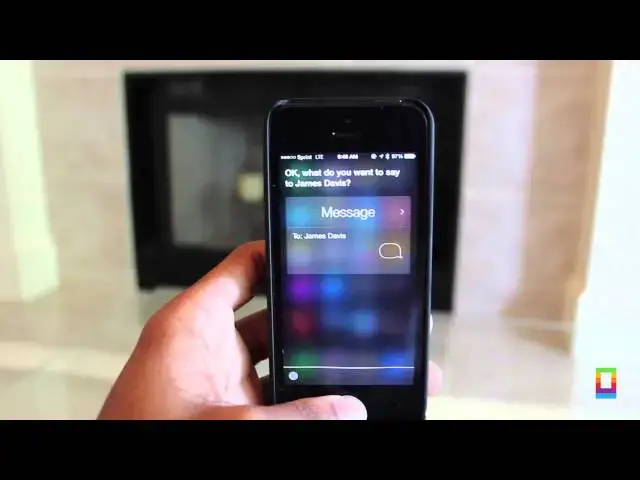
While Apple's personal assistant Siri may be irritating to use at times it comes stocked in iOS with thousands of uses. In today's how-to find out how to usefully use Siri in your life with 5 quick and simple tips.
Take a look at the video to see what to do.
Show More Show Less View Video Transcript
0:00
hi I'm Joshua Smith and you're watching
0:02
a cult toac howto video though Apple's
0:05
personal assistant Siri can be
0:06
irritating to use there are thousands of
0:08
useful ways that it can help you if you
0:09
take the time and patience to test it
0:11
out so I thought I'd share with you five
0:13
useful Siri tips that can help you
0:14
become more productive and get the
0:16
things done in your life quicker so stay
0:18
tuned to check it out
0:21
[Music]
0:32
first up James Davis is my best friend
0:36
Siri can remember your contacts by
0:38
labels like mom sister and tons more you
0:40
want me to remember that James Davis is
0:42
your best friend this way whenever
0:43
you're using Siri later on you can just
0:45
say text my sister or my grandpa and it
0:48
will automatically know who you're
0:49
talking about customize your contacts by
0:51
voice or by going into your contact page
0:53
and you can choose and add the labels
0:56
yourself number two text my best friend
0:59
that it's time to go now that you have
1:01
contact save with labels you can use
1:03
them naturally with Siri like when
1:04
sending texts Siri send a text to my mom
1:07
saying I'm on my way or send a text to
1:09
my boss saying sorry I'm running late a
1:11
lot faster than typing it all out tell
1:13
my dad that Siri is a lot more useful
1:15
than you think and definitely convenient
1:19
ready to send
1:21
it tip number three read my messages
1:24
from James Davis while you can always
1:26
unlock your iPhone and open up your
1:28
messages app to read your text you you
1:30
could always just have Siri do it for
1:31
you yeah it wasn't worth 9 and even if
1:34
you want to send a reply just say it and
1:36
you can send it so whether you're in
1:38
your car I just need to send off a
1:39
message really quick Siri got you back
1:42
okay I won't send it number four check
1:45
my email you can have Siri pull up your
1:48
email wow you have at least 25 emails
1:52
since last Friday without having to
1:54
Fumble with opening an app and going
1:55
through different boxes Siri can pull up
1:57
what you've missed in seconds and you
1:59
can even have it read them to you last
2:01
Tuesday at 3:32 p.m. so when you're on
2:03
your way to work you can turn down the
2:04
radio and listen to your inbox and even
2:06
send emails out by voice which is pretty
2:10
cool and last but not least tip number
2:13
five instead of holding down the home
2:14
button Siri has a setting where you can
2:16
activate it by raising your phone to
2:17
speak just slide it on and you're good
2:19
to go how are the Miami Heat doing a
2:23
quicker way to get the info you need
2:24
just raise your phone the heat face the
2:27
Pacers in game three of the Eastern
2:28
Conference Finals on Sat Saturday at
2:30
7:30
2:31
p.m. there you have it use these five
2:33
steps on a daily basis and get things
2:35
done faster and easier than before okay
2:38
I found this on the
2:41
web hey thanks for watching this episode
2:44
of C toax howto feel free to comment or
2:46
tweet at us other things you'd like us
2:47
to show you how to do we want to know
2:50
and don't forget to subscribe to see
2:51
more awesome how-tos and other great
2:53
videos posted every single day this has
2:55
been Joshua Smith and I'll catch you
2:57
later
3:01
[Music]
#Software
#Intelligent Personal Assistants