Up next in 10



A first look at iOS 6 Beta.
Follow me on Twitter: http://www.twitter.com/MichaelSteeber
Follow Cult Of Mac on Twitter: http://www.twitter.com/cultofmac
For more iOS 6 coverage, check out http://www.cultofmac.com
Show More Show Less View Video Transcript
0:04
hey everyone this is Michael with culac
0:06
here and today I have a first look for
0:08
you at iOS 6 running on the iPhone 4S
0:12
now this is a beta so it's only
0:13
available to developers uh so most of
0:16
you won't be able to download it but
0:18
here's just a little feature preview uh
0:20
if you want to see what it's like before
0:21
it comes out so first of all you might
0:23
notice a couple different changes here
0:25
uh most notably the maps application uh
0:27
it's been completely redone and it's now
0:29
built on on Apple's own custom mapping
0:31
interface so you can see here we have a
0:33
map and if we pinch to zoom in you can
0:36
tell that it looks a lot different
0:37
already uh there's a lot of changes and
0:41
a lot of yeah the maps basically look
0:43
different because they're no longer
0:44
based on Google Maps so let's go to New
0:47
York for example to see what the new
0:49
maps really look like uh if we switch
0:51
over here to satellite and bring it back
0:53
it'll reload in a new satellite view and
0:56
we can zoom in here and zoom in uh but
0:58
now if we switch over to 3 view which is
1:00
the new view you'll see the new maps in
1:02
3D and this is really actually pretty
1:05
remarkable uh you can see maps just as
1:08
they would look in 3D and this isn't the
1:10
best example here and the connection is
1:12
a little bit slow so it's hard to tell
1:14
uh but you can really pan around here
1:16
looking at something like Apple's
1:17
headquarters here is a little bit more
1:18
remarkable you can really see the detail
1:21
around the buildings and just how
1:23
everything is in 3D and it looks really
1:26
great there's a ton of detail uh and
1:28
it's very nice so that's pretty much the
1:30
maps application now we also have this
1:32
new app called passbook and passbook I
1:35
haven't really set up yet or played with
1:37
around but basically you can store all
1:39
different types of things in your pass
1:41
book so like it says boarding passes
1:43
tickets store cards and coupons uh so it
1:46
doesn't really let you do anything yet
1:47
and there's nothing you can do with the
1:49
application uh so it's not really
1:50
functional at this point but it will be
1:52
in the future and you kind of get an
1:54
idea of what it might be like if you go
1:55
into settings here you can see that uh
1:57
the title bars here are a slightly
1:59
different blue color and the status bar
2:01
is also blue uh so there's some user
2:04
interface tweaks like that that are seen
2:06
around the OS if we happen to Safari
2:08
here we can also see the same thing it's
2:10
slightly different user interface uh now
2:12
there's a also a full screen mode so if
2:15
we switch on a landscape we can hit this
2:16
button here and go full screen now Siri
2:19
has also received some tweaks so now for
2:20
example I can
2:24
say what was the score on the last
2:26
Giants game
2:30
the Giants were vested by the Rangers
2:33
yesterday the final score was 5 to Z so
2:36
something like that you know it's just a
2:38
lot of different tweaks with Siri and
2:39
I'll have another video coming up soon
2:41
that'll have more in-depth look at Siri
2:44
and also with it on the iPad so that's
2:47
the kind of the tweaks of Siri there's
2:48
also Facebook integration so what I'm
2:50
going to do here quick is take a quick
2:53
snapshot with the camera app here and
2:56
you can see the camera interface has
2:57
been redesigned as well and now if I go
3:00
into
3:01
photos I'm going to go into the camera
3:03
roll and select here and now you'll see
3:05
this new sharing menu and I'll hit
3:07
Facebook and what I'll be able to do
3:09
from here is log into Facebook and I'm
3:12
not going to do that at this point but I
3:13
can log into Facebook and share it from
3:14
there and you can see how the menu would
3:16
look Photo Stream can also be shared now
3:18
so if I hit the share button once again
3:20
and I select Photo Stream you can see
3:22
that I can share this photo stream with
3:24
somebody and I can make this a public
3:26
website and I can put in a name like
3:27
that and I can share the photo stream
3:29
weather is also been redesigned you can
3:30
see it looks slightly different now it's
3:32
a little bit cleaner and the interface
3:34
is a little bit nicer Game Center has
3:36
also been slightly changed around a
3:37
little bit it looks a little bit
3:38
different you have a couple more tabs
3:39
down here uh not only do you have
3:41
friends in games now you also have
3:43
challenges I don't have any challenges
3:44
set up I haven't really quite looked
3:45
into that yet uh but you'll be able to
3:47
do challenges uh between different
3:49
players another new thing apple is
3:51
toting is redesigns to the App Store as
3:54
well as the iTunes Store so if we go
3:56
into App Store here you can see that
3:57
there's a black user interface now it
3:59
looks looks a little bit different uh
4:01
the content is m mostly the same uh but
4:04
things
4:06
like things like the title bar and the
4:08
navigation is slightly changed around
4:11
and you can see that it has a new black
4:13
interface another thing I noticed within
4:15
the phone app the dialer is different
4:16
it's now white so just a little tweak
4:18
but something interesting mail now has
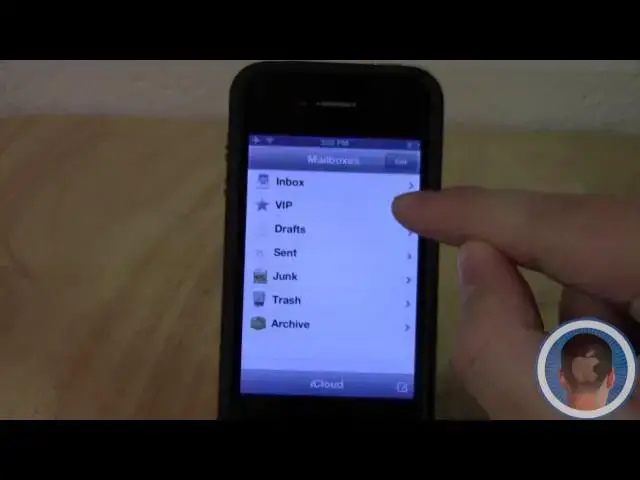
4:20
this VIP feature and if I go into here I
4:22
can add a VIP now unfortunately if I
4:24
show you how that process works I'll
4:26
have to reveal all my contacts so I'm
4:27
not going to show you that but basically
4:29
you just select items from your contacts
4:31
list to make VIPs uh so that you can
4:34
identify important people the music app
4:36
now looks a lot like it does in the iPad
4:38
with that white user interface a lot of
4:39
people don't necessarily like it but it
4:42
does look a little bit nicer in my
4:43
opinion and it's something different
4:45
from the stock interface we've always
4:46
seen songs also look a little bit
4:48
different you have a new volume slider
4:50
down here and the pause and fast forward
4:53
skip controls are a little bit different
4:55
uh the album art is still in the same
4:56
place but everything looks a little bit
4:58
cleaner a little bit different you can
4:59
also do airPlay from here as well as
5:02
write songs just like you normally would
5:03
be able to there's also a couple new
5:05
features that I really can't show you
5:06
here mainly FaceTime over 3G as well as
5:10
a couple of different enhancements to
5:11
the phone app and I can't really show
5:13
you cuz I don't have a person that I can
5:14
call right off hand or FaceTime uh that
5:16
I can show you these new features with
5:18
but if you go to Apple's website you can
5:20
look at some of the screenshots they
5:21
have there and kind of get an idea of
5:22
what the new features are another thing
5:24
I forgot to mention in Safari is that
5:26
there's iCloud tabs now so if I go into
5:28
here and and I select iCloud tabs I can
5:31
see all the tabs I have open on my iMac
5:34
and when I do open a new tab it takes a
5:37
little while uh but it does show up
5:39
after a few seconds once you're open up
5:42
the tab on the computer and you'll see
5:44
it as well show up on the iPhone that
5:47
you can open up the tab from there too
5:49
so if I just close Safari and I go back
5:51
into it and I go under iCloud tabs you
5:54
can see here now that iCloud has popped
5:56
up that I have that open as well there's
5:58
also some increased accessibility
6:00
features so if I go into settings here
6:02
and I go under General and accessibility
6:06
I have some more support for hearing
6:07
aids as well as guided access there's a
6:09
lot of stuff here and I'll take a
6:11
separate video to go through all of this
6:13
uh but for right now you can just see
6:14
there's a ton of new features if I turn
6:17
on guided access there's a lot of stuff
6:19
I can do here I can
6:20
restrict parts of the screen I can
6:22
enable screen sleep setting passcode all
6:25
different kinds of stuff I'll have a
6:26
separate video dedicated just to that so
6:28
that's about all that I've
6:30
just for right now but if you see
6:31
anything that I missed or anything like
6:33
that make sure to leave a comment about
6:35
it this is just kind of a first look at
6:37
iOS 6 beta this is Michael with camac
6:40
thank you for watching
#Mobile & Wireless
#Mobile Apps & Add-Ons
#Online Goodies
#Social Network Apps & Add-Ons