Use Three Fingers And Revolutionize Using Your Mac [OS X Tips]
If your Mac has a multitouch trackpad, there’s a simple but amazing tweak you can make that could revolutionize the way you use your computer.
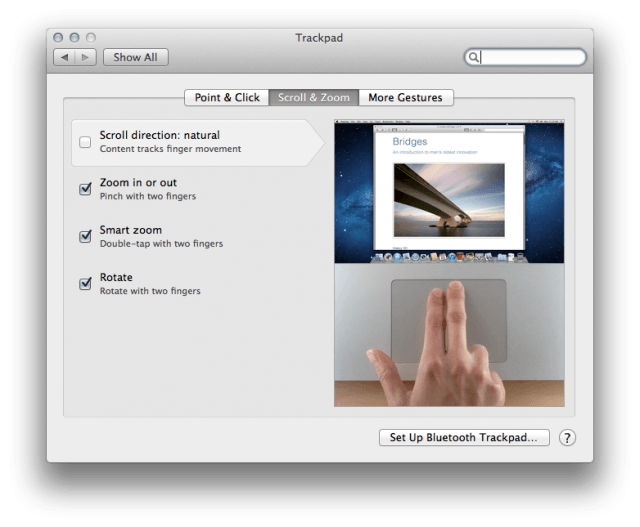
One of the most noticeable changes in OS X Lion is Apple’s reversal of traditional page scrolling. In Lion, Apple has adopted an iOS approach to scrolling by changing the way that the user scrolls up and down; instead of moving the window around the content, you actually move the content itself.
This method of scrolling works great when you’re on a touchscreen device like an iPhone or iPad, but a more traditional desktop experience doesn’t lend itself to what Apple calls “Natural Scrolling” in Lion.
If you’d like to go back to the old way of scrolling in Lion, here’s how to do so.
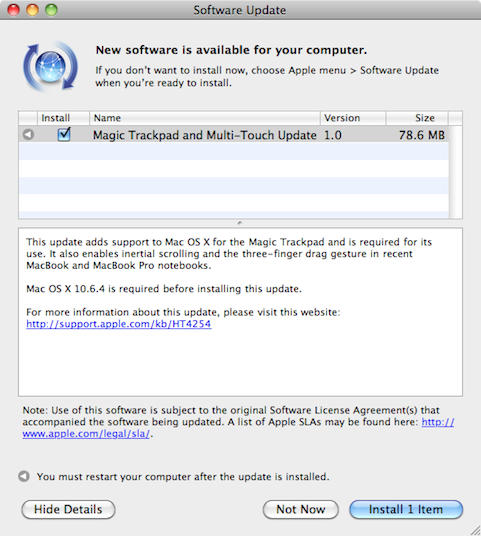
Amid all the new product news on Tuesday Apple quietly shipped a driver update titled: Magic Trackpad and Multi-Touch Update 1.0. I discovered the 78.6MB update last night via Software Update on my Macbook Pro and promptly installed it.
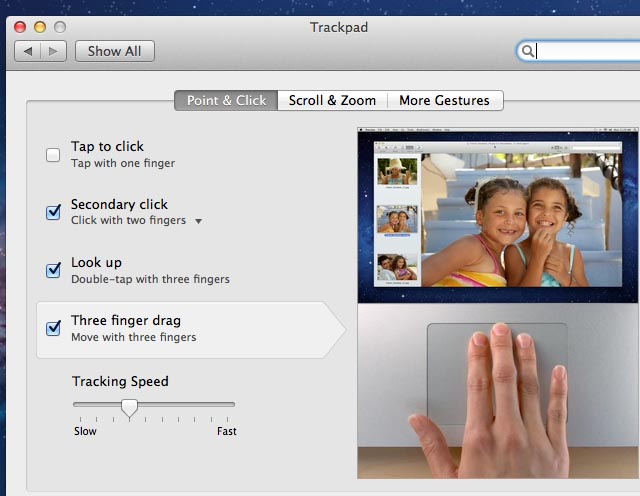
I highly recommend this update for most recent Macbook and Macbook Pro notebooks since it adds support of the new $69 Multi-Touch Trackpad as well as adding gestures for inertial scrolling and three-finger dragging. The three-fingered gesture is my favorite since it allows me to quickly drag windows around.
A complete list of notebooks that support the new gestures can be found in this Apple support document http://support.apple.com/kb/ht4254.
Also Tuesday, Apple released updates for Windows that add support for the Magic Trackpad hardware. A 6.62MB update is available for 32-bit versions of Windows and another for the 64-bit versions of Windows is 3.98MB. It works with Windows XP, Windows Vista, and Windows 7 as well as Macs running the operating system via Boot Camp.