All items tagged with "time machine"

Two Ways To Try And Recover Replaced Images On Your Mac [OS X Tips]

Time Machine

Cult of Mac reader, Richard, emailed us today with the following issue:

I was trying to move my photos from my Mac to an external drive and during the transfer it kept asking me if I wanted to cancel or replace the image because that image was already there. I didn’t want to stop the process so I kept saying cancel. Afterwards, I realized that I was probably replacing images with the same number (e.g., img. 18) but that the images were probably different because, for example, I had simply reused sd cards from my camera and created a whole new set of images. Does this make sense? If I did indeed do that, are those images gone forever?

Yikes! We’ve all done this at some point in our Mac lives, some of us (looking right at myself) more than once. How can we get these replaced files back? There are three options that I know of.

Read the rest of this post »

Mastering The Terminal To Use New Features On Unsupported Macs [OS X Tips]

Finder-Terminal

So far this week, we’ve spent time hacking our Macs via the Terminal, the best darn behind-the-scenes app you can find in Mac OS X. We’ve talked about tweaking the Finder, the user interface, security and privacy, and the Dashboard.

Today, let’s look at a few of the newer features of the OS X world, and how to make them work on older, unsupported Macs using some Terminal magic.

Read the rest of this post »

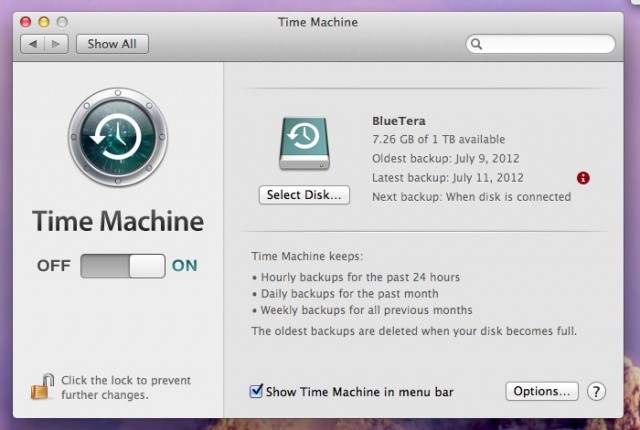
Mountain Lion Updates Time Machine With Better Multi-Disk Backup Support

Mountain Lion Updates Time Machine With Better Multi-Disk Backup Support

Time Machine, Apple’s amazingly simple backup solution, debuted in Mac OS X 10 Leopard and changed the way a lot of us kept our Macs backed up. No longer were we tied to complex software like Retrospect, or easily forgotten manual backup systems. Time Machine made backing up our Macs easy and automatic. Even more importantly, it just worked.

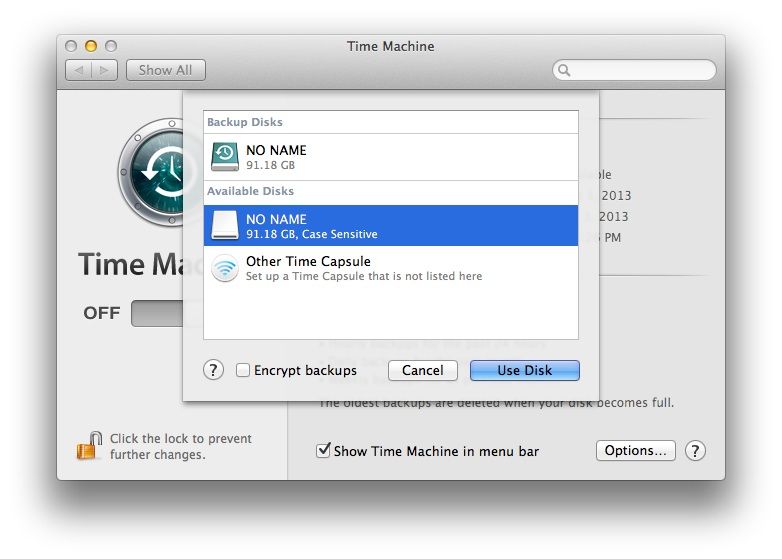
Flash forward to today’s release of Mountain Lion, and Apple has quietly added a feature many of us have been wishing for, whether we knew it or not – multi-disk backups. One of the best practices in data backup plans is to create more than one backup, and then take one of them off site (if at a business, say) for safekeeping. At home, having more than one cheap, capacious hard drive to backup to is added peace of mind, considering how often those cheap, capacious drives can fail.

Read the rest of this post »

Turn Off Requests To Use New Disks for Time Machine [OS X Tips]

Turn Off Requests To Use New Disks for Time Machine [OS X Tips]

If you don’t use Time Machine, you might notice that every time you attach a new and/or blank hard disk to the computer you get asked if you want to use it for backups. Here’s a simple trick that will stop that happening.

Read the rest of this post »

How Can I Get That ‘New Mac’ Feeling On My MacBook? [Ask MacRx]

New Mac Feeling

Sometimes when our computers have been in use for many years it can help to clean house and start fresh. Restoring from a Time Machine backup via Migration Assistant doesn’t allow for picking and choosing which data you put back, but hard drive clones can help in a situation like this:

I have been putting off this for some time… but I am finally motivated to do a clean boot on my now getting older Macbook. Over the years I have collected many extraneous files, documents, apps etc. and am looking for a fresh start with that “new mac” feeling. I was wondering if you could provide a step by step procedure on how to best prepare for doing this. Obviously there are certain files, photos, music and applications that will need to be transferred or reinstalled, but beyond that everything can pretty much go.

Read the rest of this post »

Subscribe to the Cultcast

Can I Merge Mac User Accounts After a Time Machine Restore? [Ask MacRx]

Time Machine User Accounts

Ask MacRx took a hiatus for a few weeks in December but we’re back for 2012 and here to help try and answer more of your Mac and iDevice questions. Today we hear from a reader who has more user accounts than desired after restoring from a Time Machine backup:

I recently replaced the drive in my Macbook, upgrading to a larger capacity drive. For the first time I used Time Machine to restore my applications, settings and data files. I was surprised to find that I had to name the restoration differently than the account named on the destination drive. I followed the on-screen prompts and successfully transferred the data from my old drive to the new one.

Read the rest of this post »

This Guy Walked Away From The Genius Bar With A Drive Full Of Apple’s Retail Secrets [Exclusive Pics]

This Guy Walked Away From The Genius Bar With A Drive Full Of Apple’s Retail Secrets [Exclusive Pics]

After news broke yesterday that Apple had, for the second time in two years, lost an iPhone prototype at a San Francisco bar, the general reaction was one of incredulity. How could Cupertino carelessly misplace their prized corporate secrets twice in a row?

It happens more than you might think. In fact, we’ve got the exclusive scoop on how one guy walked out of his local Apple Store recently with something unique… a complete Time Machine backup of the Apple Store’s internal file server, filed with top secret and confidential Apple Store documents.

Even weirder? Apple just gave it to him.

Read the rest of this post »

Third Party NAS Time Machine Backups Killed in Lion

Third Party NAS Time Machine Backups Killed in Lion

Among a slew of other changes and upgrades in OS X Lion, it has been confirmed that the new version of Time Machine in Lion temporarily kills the option to backup to a third party NAS server.

Apple stresses the importance of the Time Machine mentality in Lion, with the Versions feature working in the same way to keep backups of your documents and other files. Killing the ability to backup to a third party NAS (Network Attached Storage) drive reflects Apple’s desire to, well, have you buy more Apple hardware.

Read the rest of this post »

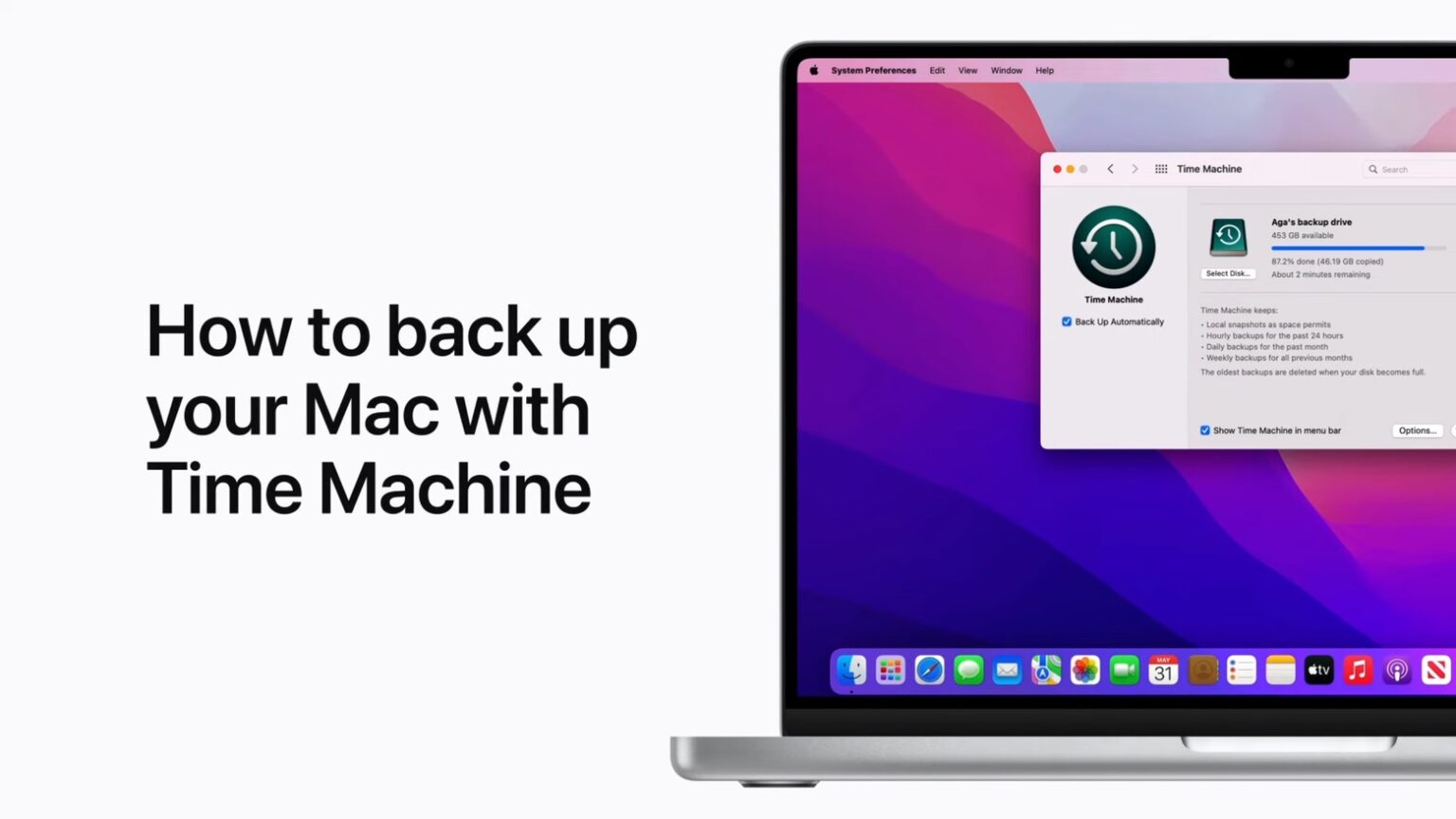
How To Easily Back Up Your Mac With Time Machine [Video How-To]

How To Easily Back Up Your Mac With Time Machine [Video How-To]

Imagine this scenario: your Mac crashes and all of your files are gone forever. Do you want this to happen to you? If not, Time Machine is the perfect solution. It automatically backs up your Mac every hour, so you can always have the peace of mind that your files are safe. The video below describes how you can set up Time Machine quickly and easily.

Hello Dolly! Put Time Machine Backups in the Cloud with Dolly Drive

dollydrive.png

SAN FRANCISCO, MACWORLD 2011 — Dolly Drive, a new cloud-based storage solution specially tailored to Mac specifications, launched Thursday from the Indie Spotlight at Macworld in San Francisco and looks to be one of the smartest plays — and best values — to come out of this year’s show.

Remote storage accessible from anywhere, any time, Dolly Drive is designed to work exclusively and specifically with Apple’s Time Machine, giving Mac users an inexpensive, seamless method for creating secure, redundant (in some cases, perhaps, primary) backups that can be accessed to restore digital files from any location with an Internet connection.

With tri-level security including authentication encryption, data transmission over secure tunnel and multi-leveled, complex authentication protocols for third-party access to data at Dolly data centers, a Mac user can feel confident in the security of data stored for as little as $10 per month for 250GB. Other pricing plans prove Dolly Drive is serious about delivering value for a service that should be attractive to computer users of any sophistication level.

No other remote storage solution we’re aware of is engineered to work directly through Time Machine, nor is any so dedicated to serving Mac users.

This is definitely one of the nicest finds we’ve seen at Macworld 2011 and well worth further exploration.