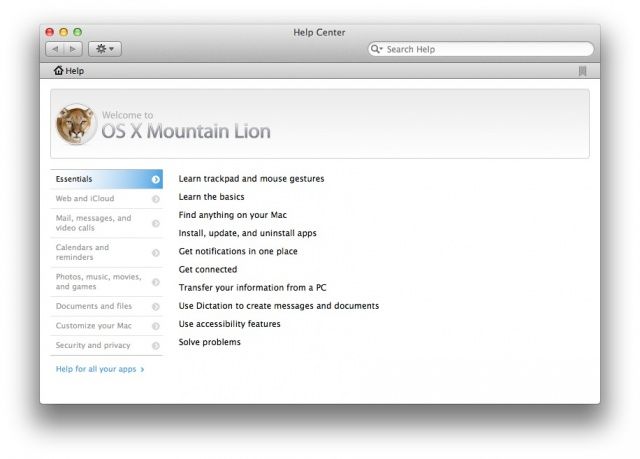
OS X’s Help menu is fantastic, if underrated. It even lets you find menu commands by highlighting them when you search within the Help search field. If you hit enter after typing in a search term, however, you’ll get the Help Viewer, a useful little hyperlinked app windwo that just, well, hovers over all your other app windows. This is good to start, but when you want to hope back into the app you’re trying to learn more about, the Help Viewer stays on top, even when it’s not the mouse focus.
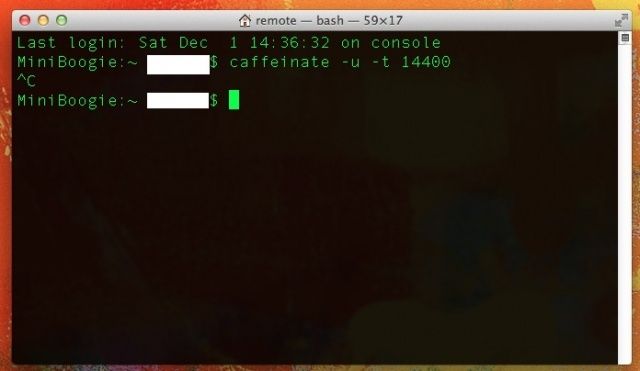
There are bound to be times when you would like your OS X Mountain Lion Mac to not go to sleep. You can set you Mac to Never sleep in the System Preferences, Energy Saver preferences pane, but that’s not always going to work. Even when it’s set to Never, your Mac may still, in fact, go to sleep. The other problem with the Energy Saver preference is that you only have the ability to set the sleep action to hold of foor three hours, or never. What if you wanted to keep it from sleeping for four hours? Or four and a half hours? Or eight hours?
With a neat little Mountain Lion-only Terminal command, you can set it to whatever you like. Here’s the scoop.
Apple loves to hide little surprises, or “easter eggs,” within its software — such as the memorable quotes inside its OS X icons, or the temporary date (Jan 24, 1984 — when the first Macintosh was unveiled) given to apps downloaded from the Mac App Store. A new one has been discovered that’s sure to please Lord of the Rings fans.
Typing a simple comment into Terminal reveals a Lord of the Rings timeline that Apple has hidden in OS X. Here’s how to access it.
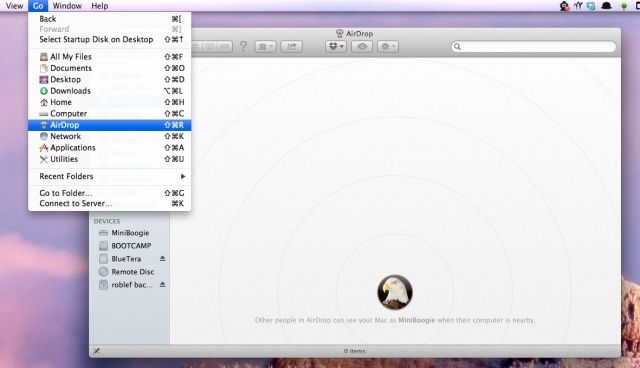
Not to beat up on AirDrop or anything, but not all Macs can use the zero-configuration file sharing technology from Apple. In order to use AirDrop, you must have a a newer Mac, like a MacBook Pro from 2008 or later, a MacBook Air from 2010 or later, or a Mac Mini from mid 2010 or later (full list below)
Luckily, if you can connect your older Mac to an Ethernet cable and network, you can enable AirDrop on an older Mac. Here’s how.
The iconic Mac startup sound has evolved over the years, but it is a distinctive part of being a Mac user. Sometimes, though, you just want to boot your Mac up silently. You can keep it from sounding out if you hold down the audio mute key on modern Macs (it’s that F10 key on my Macbook Air), but what if you want to disable it completely?
You can drop into the command line to do just that, it turns out. Here’s what to do.
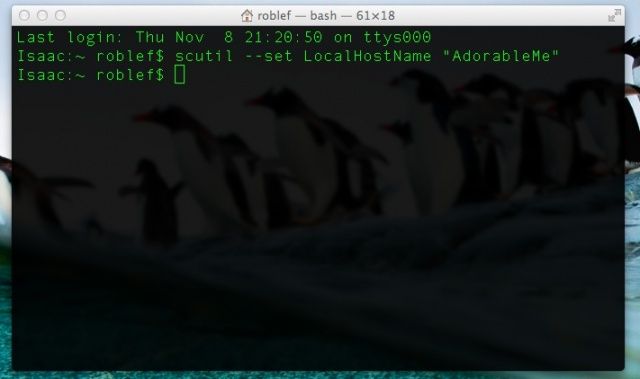
So, your Mac has a name, and it identifies itself as such when other computers connect to it via Apple file sharing, the command line (like when using Terminal), or via Bonjour or AirDrop. Typically, you can set this name in the Sharing Preferences panel in the System Preferences app. If you put your name into the setup wizard when you set up a new Mac, the networking name will default to “Firstname Lastname’s MacintoshModel.” So, on my Macbook Air, it said, “Rob’s Macbook Air.”
However, you can set these three networking names to display differently, so that your IT support staff sees one name when she logs in via SSH protocols, your boss sees a different name when they connect to your hard drive to grab that important file, and your coffee shop buddy will see an entirely different name when sending you a funny picture via AirDrop.
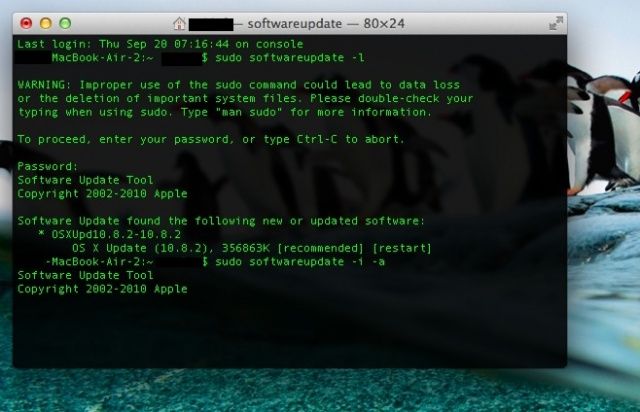
The Mac App store provides a nice, simple, graphical way to keep your Mac updated with the latest software, letting you know when system updates as well as Apple and third-party apps have a new update to be downloaded and installed.
If you don’t want to use the Mac App store, though, you can use the Terminal app along with some Terminal commands to do the same thing. When would you use this? Well, maybe when the Mac App store gets wonky, or if you’re not at the current Mac, and want to securely and remotely administer the Mac in question, that’s when.
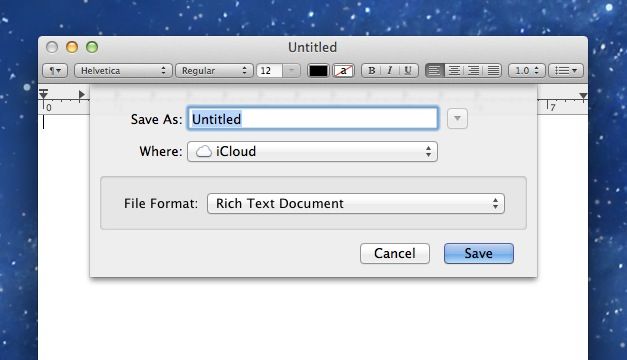
For me, one of the most annoying tweaks in OS X Mountain Lion was the change of the default save location for many of apps I use on a regular basis. Any app that uses iCloud now displays its save dialog box differently than it would have before its integration into OS X. Due to this, upon saving files in many applications, instead of being presented with a view of the filesystem, the default save location is now just “iCloud”, and saving the file anywhere else has become somewhat of a chore. Thanks to some Terminal commands, though, this behavior can be reverted to its pre-Mountain Lion state, as i’ll show you in this video.
PC games: they can be the bane of a Mac gamer’s existence. The Mac may be a better computer than a windows box, but even so, most games don’t support OS X. Even on Steam, the leader in cross-platform computer game support, most games run only on Windows. The reasons for this are manifold, including mid-level integrated graphics chips and less customizable hardware, but it shouldn’t be this disparate.
There are a few options for running those PC games on Macs, of course. There’s Boot Camp, which allows you to run a full copy of Windows right on your Intel-based Mac, but it requires a reboot to switch between OS X and Windows environments, which can be tedious. There are emulators you can buy, like Parallels and VMWare Fusion, but these never quite pan out, in my experience, as they always seem to be fraught with issues when connecting peripherals, mice, etc. They also cost a bit, and require a full copy of Windows, which will run you some money, too.
I just want a way to play a game that is created for the Windows operating system on my Mac, without a reboot, without buying a new program or new copy of an operating system I really don’t want to use.
Note the missing Notification Center menu bar icon and a distinct lack of linen-backed Notifications.
Tired of OS X Mountain Lion notifying you of things? Sick of the little menu bar icon in the upper right corner of your Mac’s screen? Do you not even use Notifications at all on your Mac? You might, then, want to get rid of the entire thing, disabling it completely and removing the icon from the menu bar.
We’ve got two ways to show you, one that’s more permanent than the other. Check it out.
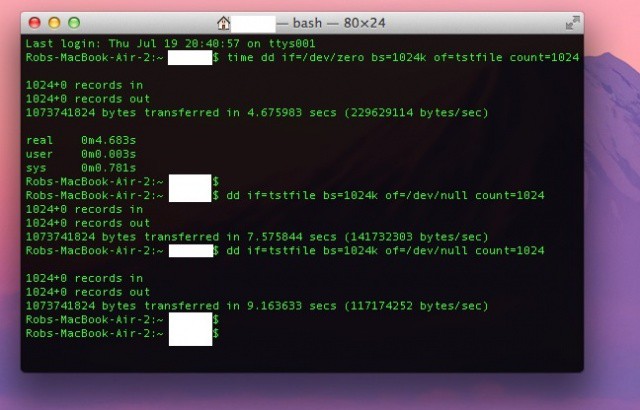
Sometimes, it’s just fun to compare scores with your friends. Without the urge to compete, we wouldn’t have sports, national videogame competitions, or reality television. Now there’s a new way to measure up against those around you – Solid State Drive (SSD) speed.
Ok, so it’s not really a thing, but here’s how you can benchmark your own SSD to compare it with other SSD devices, if you need to know how much faster one computer you own is than another. In fact, it’s a ton of fun to compare the speed of an SSD, say in this here Macbook Air, and that of a hard drive, like in my Mac Mini. Here’s how.
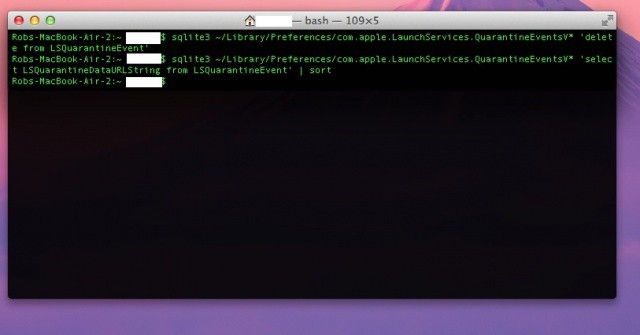
Ever need to find a download from a while back, but can’t seem to figure out where it went? You’re sure you’re downloaded it, of course. Heck, I’m sure you downloaded it. But where is it?
Or what if you just want to track down a specific file you downloaded just before your Mac developed some issues? Or you need to make sure that nothing personal has been downloaded on a work Mac? The following Terminal command should help.
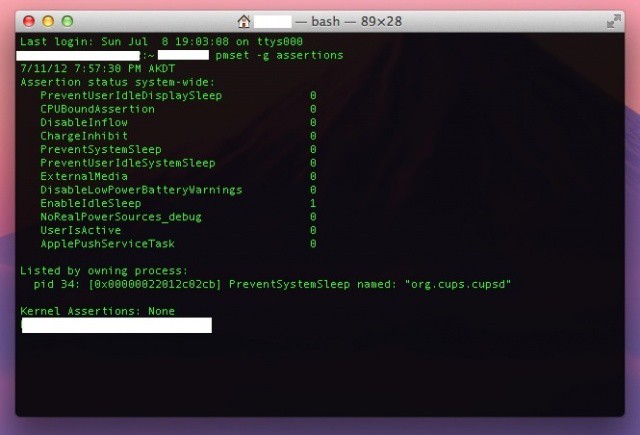
It can be seriously annoying when you want your Mac to sleep but it wants to stay up late, playing video games, eating cheese doodles and generally not doing “lights-out.” Wait, maybe that’s my kids. Anyway, when it’s your Mac that won’t get to sleep, today’s tip should help you get to the bottom of it.
I keep my Mac Mini at my bedroom desk, and it’s always spinning up and waking up when I don’t want it to, so maybe today’s tip is more about me than you, but that’s ok, right?
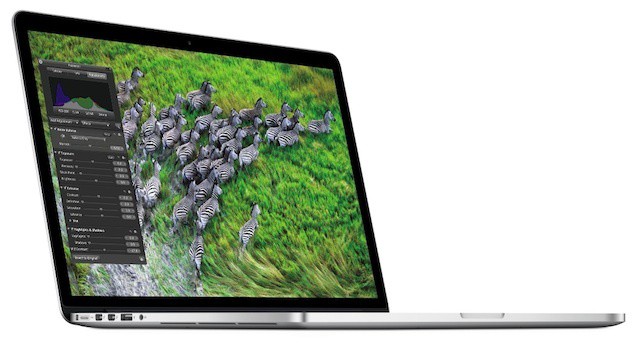
If your Retina MacBook Pro isn't delivering the battery life you expected, try this simple fix.
Is your Retina MacBook Pro seeing less than half the seven hours of battery life that Apple promised you? Well, this may not be because you keep watching high-resolution videos over and over again on its Retina display (though that is certainly not helping). Instead, it could be thanks to a corrupt file created by Migration Assistant that needs removing with a simple terminal command.
Here’s how to do it and boost your Retina MacBook Pro’s battery life.
Terminal is one handy app, I’ve got to say. There are a ton of amazing things you can do with it, as it’s essentially the back end control room of your Mac. All the Unixy underpinnings of your operating system can be accessed in here, and while it’s possible to completely hose your system with the wrong command (rm * comes to mind, for one), there are a lot of helpful things you can do with it as well.
RAM is the type of memory your Mac uses to run active applications in, as opposed to the kind of memory on your hard disc or SSD drive. The more memory you have, the faster memory-dependent apps (like Photoshop or Final Cut Pro, for example) will seem to run, and the more everyday apps you can run at once. While old-school Mac users will remember needing to close all the applications to free up memory, that’s really not as necessary as it used to be with the advanced memory handling routines in Mac OS X. However, on occasion, you might want to try the purge command in the Terminal.
Purge frees up the RAM on your Mac, telling each running app to release all the RAM it was given at launch that it is not currently using. It’s like a mini reboot without the stress.
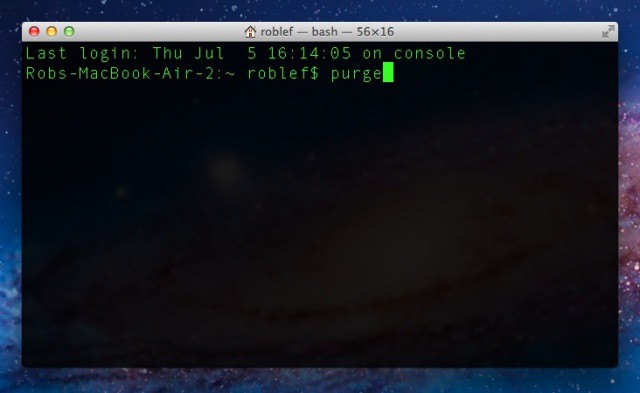
Launch Terminal from the Utilities folder in the Applications folder. Once launched, type
purge
then hit Return on your keyboard and your Mac will force all your running apps to release the RAM they don’t need. This means you have more free RAM to run more apps, or to let heavy RAM using apps grab a bit more, running just a bit faster. You Mac may take a second or three to complete the purge task, but don’t worry – this is safe, and won’t bork your machine.
If you use your MacBook with external displays, you might want to use it with the display off but the lid open at some point. If so, today’s tip should help you accomplish this goal, with not one, not two, but three different ways to do so.
You can do this with the laptop lid shut, but with ever more powerful MacBooks out there, avoiding the heat that might build up in there is probably worth leaving the screen up, right? Leaving the screen up with the display off will let heat leave the Mac through the keyboard, and will allow the graphics processor give all of it’s power to the external screen, which is helpful if you’re working on graphics-intensive applications.
Terminal has tons of great applications on the Mac. By accessing the Unix underpinnings of Mac OS X, Terminal allows power users and newbies alike to do things with their Mac that may not be enabled out of the box.
Code monkeys and script jockeys frequently use Terminal to run longer processes than typical, like compiling code (the process of making all those little lines of code into an app that will run on your Mac) or running scripts. When they finish, they finish. There’s no built in way to know that they’re done.
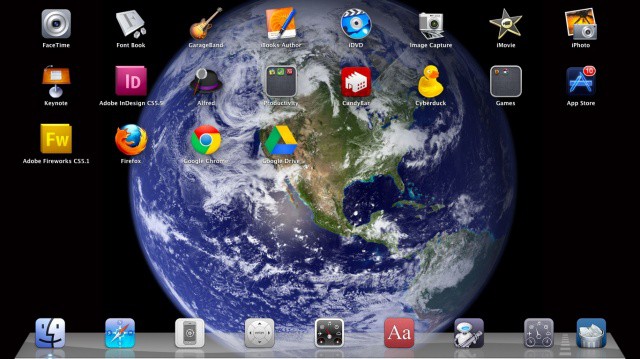
Launchpad brings the iOS Home screen look to the Mac.
When Launchpad first rocketed (sorry) onto the scene in Mac OS X Lion, most people were firmly in the “hate it” or “love it” camp. There didn’t seem to be much in between, but maybe that’s just due to the contentious nature of the internets. Regardless, today’s tip is firmly in the “love it” camp, showing you how to clean up Launchpad, add in just the Apps you want to use, and then a quick trick for clearing the background to show off that cool iOS-like Earth from space picture.
If you’ve ever clicked on the Ping menu next to a song you have selected in iTunes, you’ll have noticed the option to Like or Post via Ping. You may have also noticed the option to show the song, the artist, or the genre of the currently selected song in the iTunes Music Store. But what if you want to find all the songs by that artist in your own iTunes library? Today’s tip shows you how, with a little bit of Terminal magic.
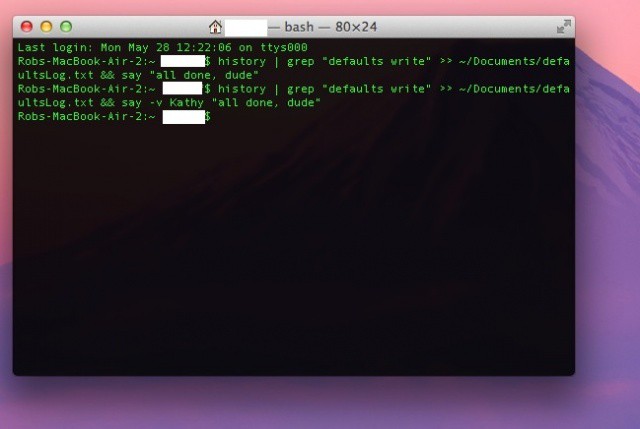
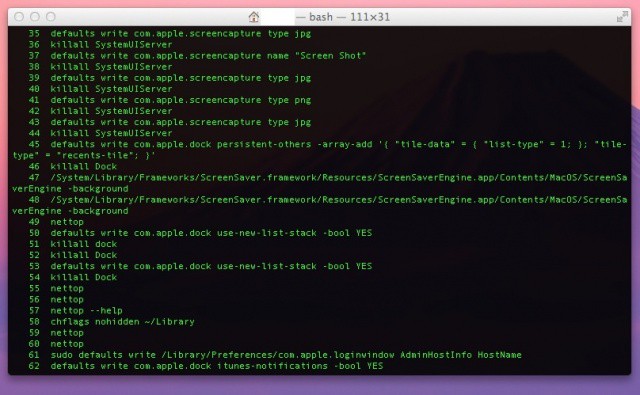
If you’ve been following along at home, you’ll have made several changes to your Mac via the Terminal app. Surely you’re tracking all these changes on a spreadsheet, right? I mean, what if you wanted to go back and find out what changes you’ve made? How else would you track it than by laboriously typing out each change by hand in some sort of database? Well, today’s tip will show you how to automate this process and put all your changes into a text file automatically.
Good heavens there are a lot of warnings in modern computing operating systems, am I right? Yes, I totally did want to close that window. Honest.
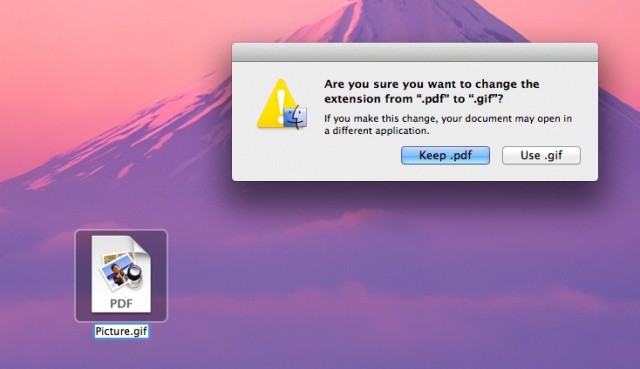
One of the more annoying warnings in OS X is the one that pops up when you try to change the three letter extension on a file, like changing an image file to something else, say, .jpg to .gif or whatnot. Honestly, I should be able to do this. Usually, I do it when I get a file from another person who may not have such a great handle on how the file extensions work. If you want to get rid of the standard warning when you do this, today’s tip should help.
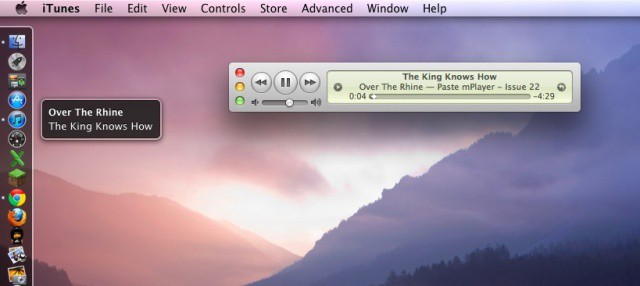
Playing music through iTunes is something we do every day. It’s great to be told what track is playing when it starts, but not everyone wants to run a system notification app like Growl. If you still want to be see what the current iTunes track is, check out today’s tip.
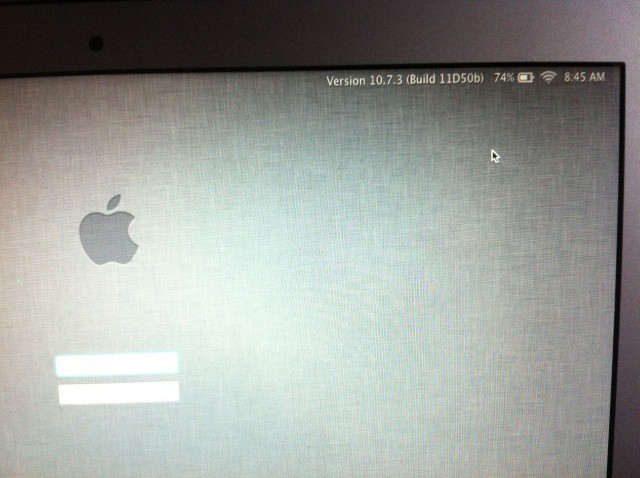
It used to be that clicking on the computer name in the login window would give various bits of system information. Sadly, Mac OS X Lion has done away with this useful little feature. Lucky for us, though, there is a Terminal command that can bring back some of the same feature to Lion.
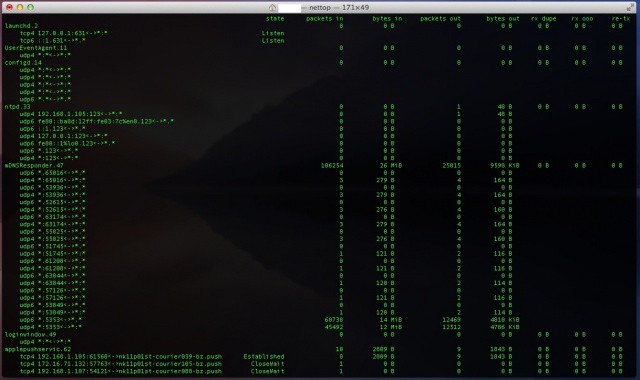
Every once in a while, you might wonder what’s happening on your home network. It’s at those times you might wish you’d have known about today’s tip, a dead-simple way to access the network activity on your network via OS X Lion’s Terminal app.
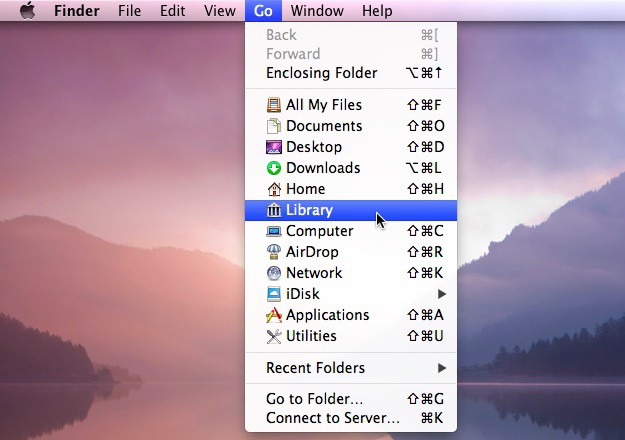
In Mac OS X 10.7 Lion, Apple set things up so that the user Library folder isn’t available to the casual user. This is probably to keep less savvy folks from getting in there and messing about with files they shouldn’t be. For the rest of us, however, today’s tip is all about freedom of information, power-user style.