No more buying batteries for your Xbox 360 remote.
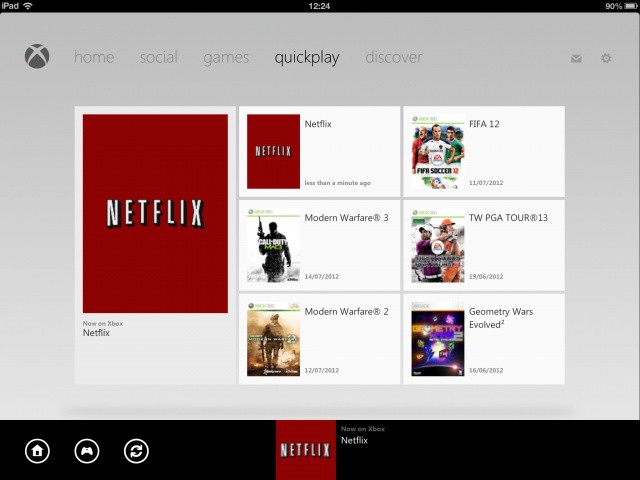
Microsoft’s free My Xbox LIVE app for iOS just got a brand new update that introduces the ability to use your iPad as a remote control for your console. You can use it to navigate your way around the menus, control media playback, and to “find fresh entertainment” in the new Discover section.
Let me count the ways that I have killed so many successive sets of earbuds, whether from Apple or otherwise. Rain, sweat (ears), sweat (general, dripping), wet ear canals from insufficient after-shower toweling. More rain.
You get the idea.
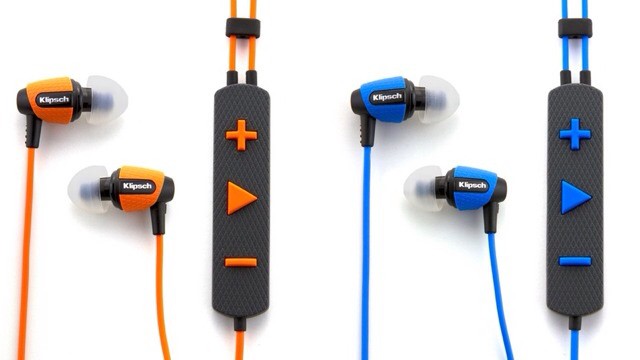
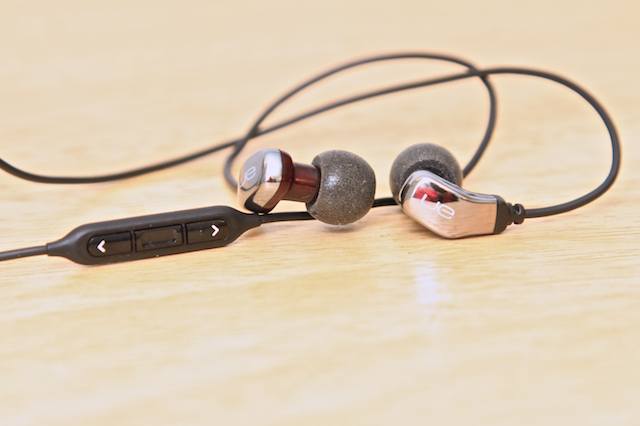
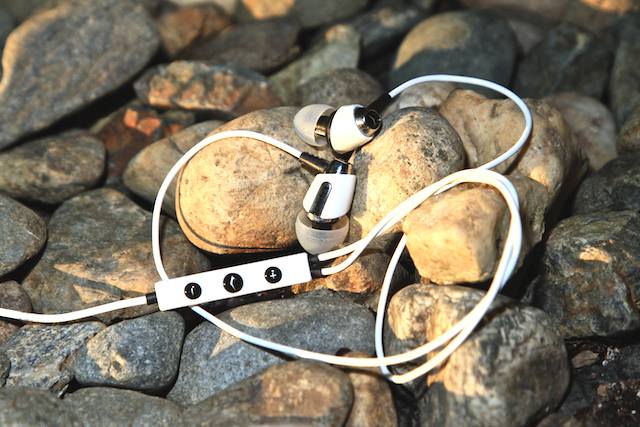
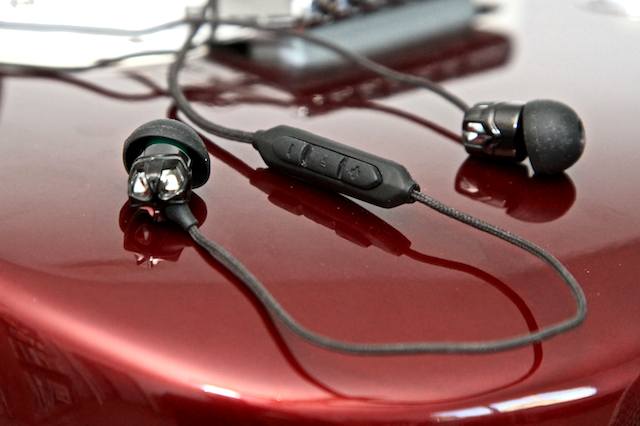
If only I’d had a pair of Klipsch’s new rugged S4i earbuds, which are rubberized against both the elements and also my deadly perspiration.
The earbuds are also fully iReady, with a mic for calls and a three button remote for play/pause/answer and volume control. The specs say that the sensitivity (a good measure of how loud they are) is 110dB and the frequency response goes from 10Hz to 19kHz – a respectable range for a ‘bud.
But the toughness is the thing, and these multicolored cans can put up with most exercise and outdoor activity.
I doubt they can resist my single most common way to break a pair of headphones though – the Tug. The Tug can be achieved in many ways, but has one common element: you forget about a dangling cord and catch it fatally on an immovable object, or your own body. I have ended the life of a pair of Porta Pros by standing from a crouch and catching the cable on a knee. And I butchered a pair of retro Panasonic over-the-ear headphones when the cable snagged on a post in the street.
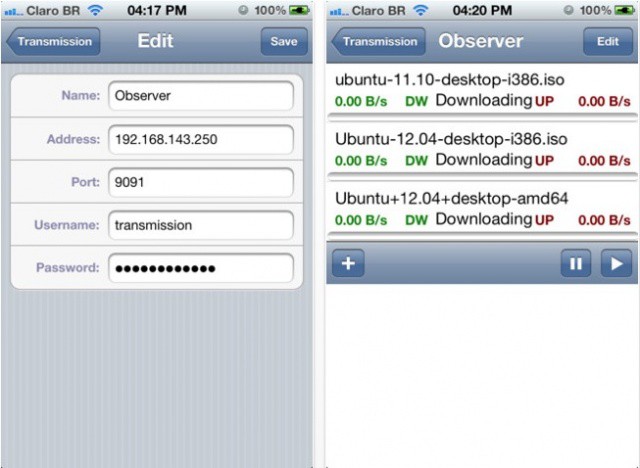
Transmission RPC allows you to control your BitTorrent downloads remotely.
Apple has been pretty strict on BitTorrent clients — or anything related to torrent downloading — for iOS, and it does its best to keep them out of the App Store, meaning you must jailbreak your device if you want to install one. However, the Cupertino company appears to have let one slip through its net. Transmission RPC, although not a full-fledged BitTorrent client, is a $1.99 app that allows you to control Transmission for Mac OS X from your iOS device.
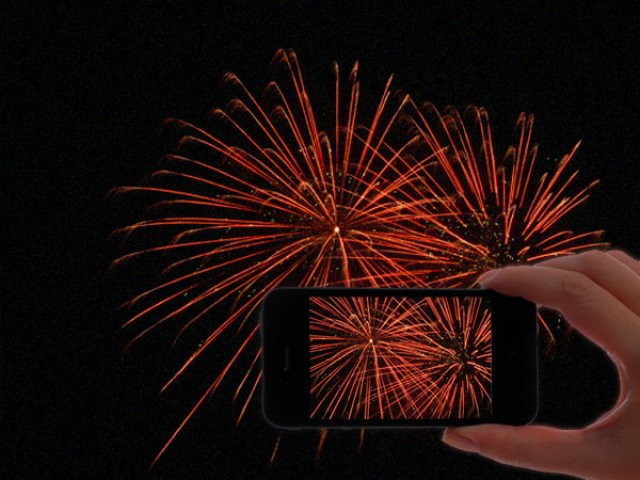
A few simple tips that will help you take better firework photos on your iPhone this Independence Day. Photo:
Apple’s latest iPhones take some pretty incredible images during the day, but it’s a different story when the sun goes down. Despite its LED flash, the iPhone’s performance in low-light still needs significant improvement. But if you’ve already abandoned a dedicated point-and-shoot, and you were hoping to snap some images at the firework display this July 4, here are some tips for taking great firework photos on your iPhone.
Years ago, I worked out a way to remote control my home’s lamps from my iPhone: just record the sound of somebody clapping, and play it back when you want to switch a light on or off.
Now, though, there’s a much higher-tech way to do the same thing. It’s an iPhone-controlled lightbulb from Insteon.
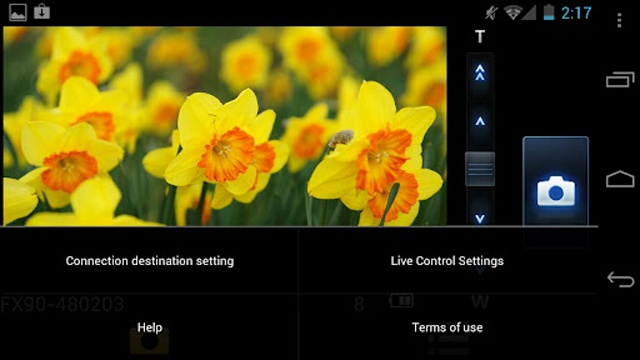
If you happen to own a LUMIX DMC-FX90, you might be interested to know Panasonic has dropped an app into both the Play and App Store to allow users to view and control certain aspects of their camera remotely. The LUMIX remote allows your Live View screen to be displayed on your smartphone. As long as you perform a firmware update to your FX90, the LUMIX remote app will provide you with:
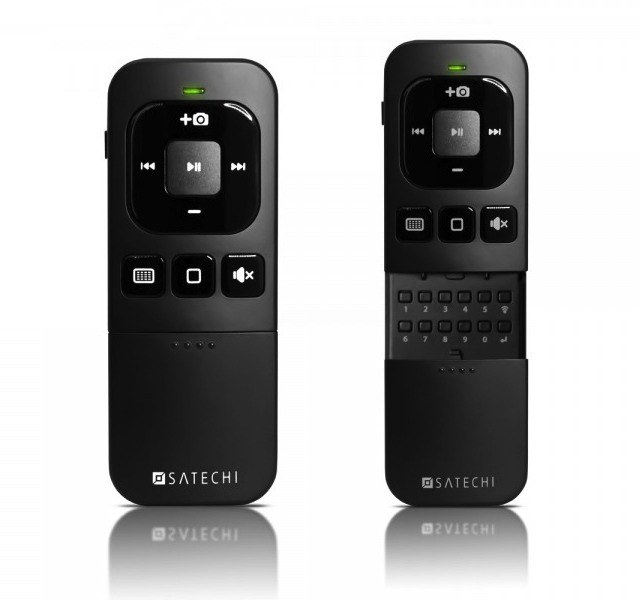
Don't laugh: This iPhone remote is actually really useful
I scoffed whan I first saw the PR e-mail for this Bluetooth iOS remote. Literally: I made a weird, half-snoring, half LOL-ing noise into my coffee. If that doesn’t count as a “scoff,” I don’t know what does.
Anyhow, after my initial (and messy) reaction, I quickly changed my mind. This thing packs in so many useful funcions, and does it in such a (fairly) handsome package that now I’m considering buying one.
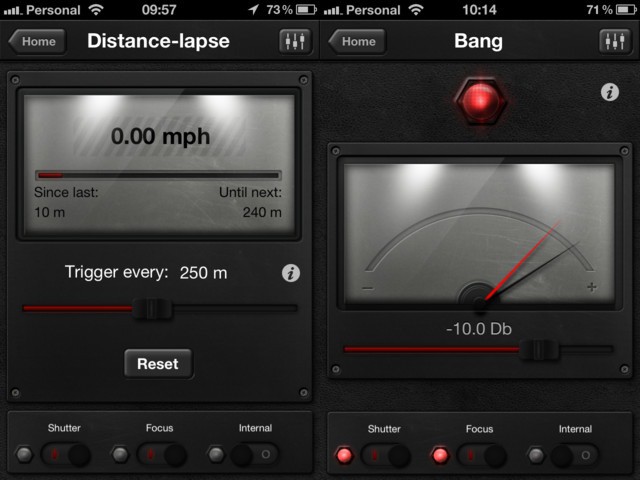
If you can think of a way to trigger your camera, you can probably do it with TriggerTrap
TriggerTrap is another app which works with an accessory cable to remote trigger you DSLR. Compared to other trigger app/cable combos, TriggerTrap distinguishes itself by also triggering the iPhone’s own camera, should you wish, and by its crazy range of triggering modes.
Using the iPhone's headphone jack, you can control your camera any which way you like
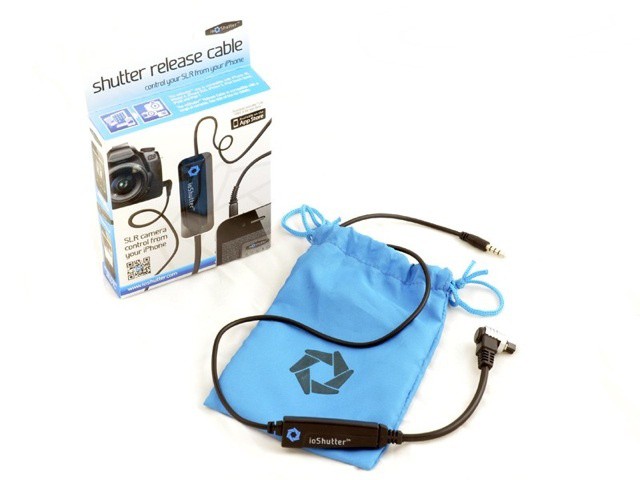
After years of tweaking and improvement, ioShutter is finally here. ioShutter is a simple cable that connects your iPhone to your camera and allows you to control it using an app. Remote shooting, time-lapse sequences and even photos triggered by sound can all be programmed in easily using the free companion app. And best of all, no fancy dock connectors are required: ioShutter connects through the headphone jack.
Imagine a world where your iPad or iPhone controls everything in your living room.
With all the rumors surrounding Apple’s intense negotiations to acquire licensing agreements with Hollywood studios for its upcoming television, it can be easy to forget about another aspect of the equation that needs to be reinvented: the remote. When Apple does unveil its long-awaited ‘iTV’ to the dismay of cable providers, you can bet that it won’t come with a clunky clicker like every other TV on the market. If there’s anything that needs to be changed about the industry, it’s the tool we use to communicate with our TV sets.
How would Apple do its own remote? Some have speculated that the iTV will be completely controlled by Siri, but there’s more to the puzzle than just voice control. In fact, you probably already use the future iTV’s remote every day.
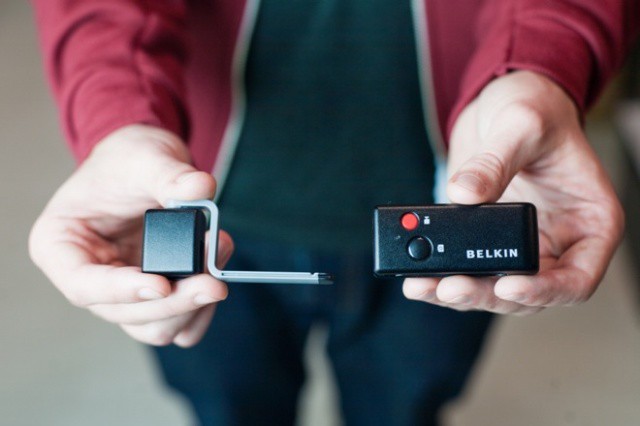
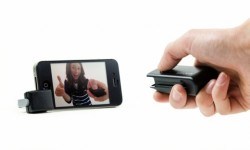
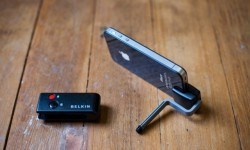
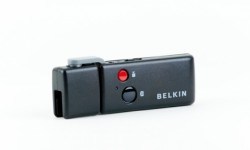
I start to feel twinges of separation anxiety when I get more than a few meters away from my iPad, so I can’t really imagine why anybody would want to use a remote shutter release for their iPhone that can trigger the camera from up to 30 feet away. But here it is, for you braves souls who can manage to cut the iApron stings: the iPhone Shutter Remote, from Photojojo and Belkin.
Stream any screen or app by double-tapping the home button and swiping right
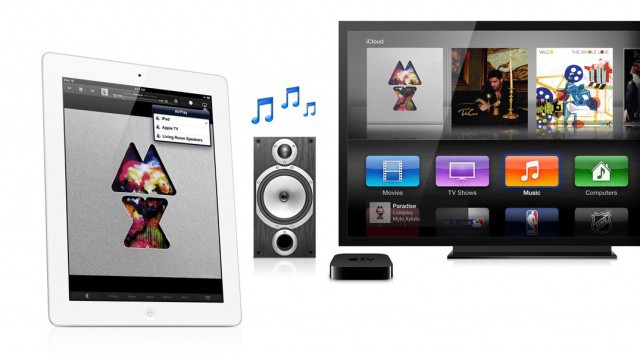
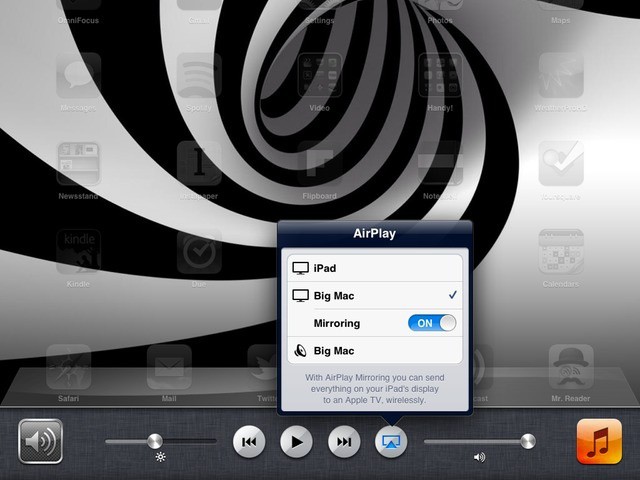
With an update to v4.0, the Mac AirPlay server AirServer has gotten the ability to mirror the display of your iPad on your big-screen Mac. This is pretty big, as you can now not only send video and music to your Mac as you could before, but you can make presentations and even play games, wirelessly.
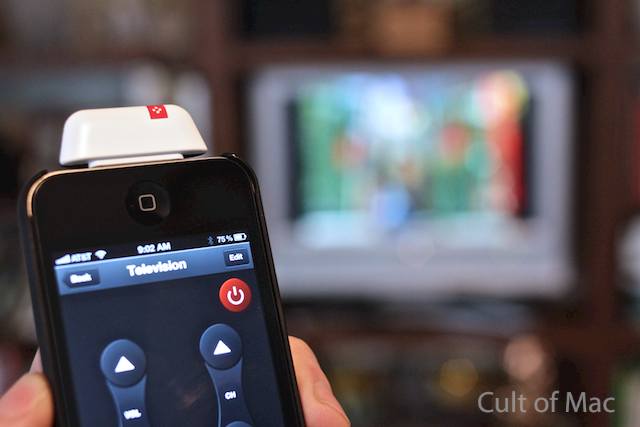
Oh, sure. The idea of being able to reach out from across the room and dramatically direct your mighty will to zap stuff on, off, up, down, or cause the very Air to shimmer with Play is intoxicating — that is, until those nine remotes you’ve been using to control all your magical devices become horribly unruly; perhaps they no longer bow to your commands, or maybe they’re off chasing hobbits under a couch somewhere. Whatever the reason, it’s time to harness the VooMote Zapper ($70), and make them all submit to your will!
(WARNING: Tossing the Zapper into a giant pit of lava under a mountain is not advised and will undoubtedly void the warranty, ‘mkay?)
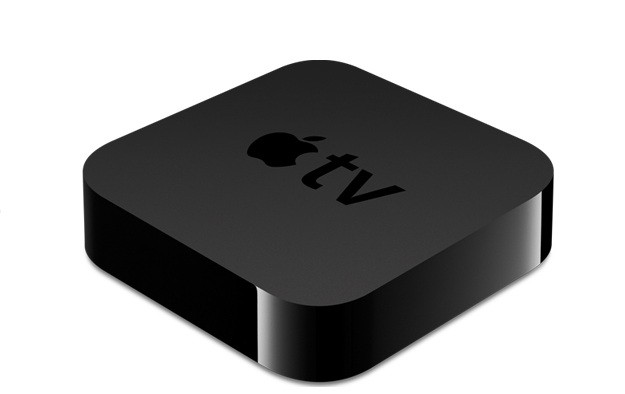
So Santa stuffed an Apple TV in your stocking? That’s pretty freaking awesome. We’re jealous. Well actually, we already had one so I guess we’re not that jealous, but congratulations on joining the club of Apple TV owners. We’re stoked to have you with us, and we want you to get the most from your new gagdget so we’re going to help you get it setup the right way so you can skip through all the menus and side features and dive straight into the good stuff.
In this handy guide, we’ll take you through initial setup; show you the best features of Apple TV and teach you some awesome tweaks that will take your television experience to the next level so you can cuddle up in next to your flatscreen wearing those new pajamas your kids bought you and go into a week-long tv-coma.
Here’s our guide to setting up your new Apple TV the right way.
Apple TV's new app could give us the interface we've dreamed of. Photo: Jim Merithew/Cult of Mac
The latest iTV rumor is hitting the web today as Gene Munster told the crowd at IGNITION: Future of Media that the new Apple Television Set has been in the works for sometime now but should be released next year.
Munster is so certain that the new device is coming that he told everyone to wait before buying a new TV because Apple’s is going to be awesome.
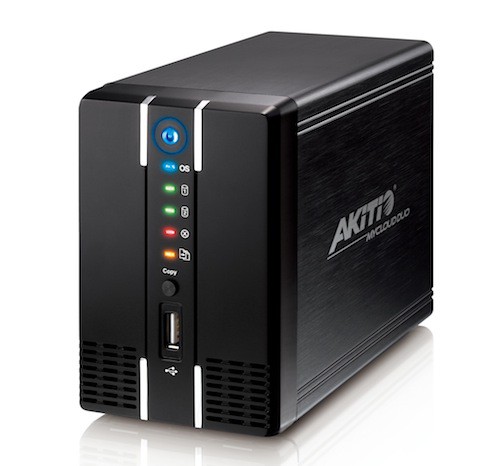
Yes, cloud computing is all the rage these days; question is, d’you plonk all your stuff down on a distant server, or keep your digital junk safe and dry inside your own home, with your own personal cloud? If you picked the latter, Akitio’s new NAS device might appeal to you.
Almost all mic-equipped canalphones that can be had for about $100 use moving-coil drivers to produce sound, as is the case with all the previous IEMs in this review series. But the Ultimate Ears 600vi ($120) are different — this set employs a single tiny armature in each ear. Armatures generally allow for a more neutral sound with better definition than their moving-coil brethren, and that’s exactly the case with the 600vi. In fact, this set uses pretty much the same excellent drivers as in the now-discontinued, $180 SuperFi 5vi we reviewed early last year.
And yes, apart from the V-Moda Vibrato, the 600vi is $20 more than the other earphones in this review series — but we think the extra Jackson is worth it.
Maybe you’re not going to buy a pair of earphones based on the way they look; maybe you’d rather spend your moolah on a pair that came with exquisite performance. What if you could have both? In spades? Here you go: With their deep, bone-tingling bass and blue-blood looks and manners, the Klipsch Image S4i earphones ($100) is the Prince…of Spades.
I always feel like I should be wearing diamond-studded sunglasses, walking around in a silk bathrobe or drinking Cristal from actual Bohemian crystal whenever I sink a pair of V-Moda’s babies into my ears. This doesn’t have anything neccessarily to do with how they sound, but rather because V-Moda has a knack for creating earphones with exotic looks and a luxurious feel to them that also appeal to the other senses. And so it goes with the V-Moda Vibrato Remote earphones ($130).
The one guy at Apple who programs their fantastic iOS Remote.app seems to have been busy before Christmas break: a new update was pushed live yesterday, adding AirPlay control on the AppleTV to the app’s already great list of features.
The new Remote.app is now at version 2.1 and, as usual, is available on the App Store as a free download. You can now use it to control iTunes on your Mac to stream videos directly to your new AppleTV, as well as play rented Movies and TV shows on your Mac without ever getting up from a supine position.
Internet Radio support is also new, and there are a slew of new stability and performance improvements as well, as well as some bug fixes for issues connecting to an iTunes library or Apple TV.
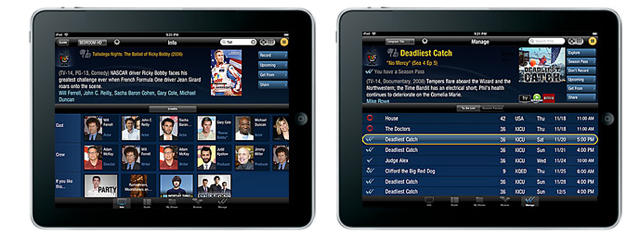
If you still rely on your TiVo more than your new AppleTV for watching television, TiVo’s soon to come out with a new app that will make it even easier to use their service from a supine position on your couch, using an iPad as an advanced remote control.
That one programmer slaving away on Apple’s iOS Remote app has been working overtime, lately: he’s just issued an update to the app, fixing a number of bugs that showed up after the last major revision.