You ever do that thing where you have to move your mouse around, jiggling the little thing just to find the dang cursor? I do it all the time these days, with my smaller screen Macbook Air and the Mac Mini that’s connected to the HDTV across the room from me, since there’s so much going on onscreen that I often lose track of it.
There’s an easy way to fix this problem, and it involves the Accessibility options that come built right in to your Mac OS X system.
One of the things that was fantastic about vintage PCs is the way your hands never had to leave the keyboard: everything was just a command away. The graphic user interface first introduced to the world with the Macintosh is obviously a big step forward when it comes to general accessibility, pointing an onscreen at an object to click on it can often be a step backwards when it comes to speed for die-hard power users.
If that sounds like you, Shortcat is a new, free app that you should download which aims to bring the command line to the GUI.
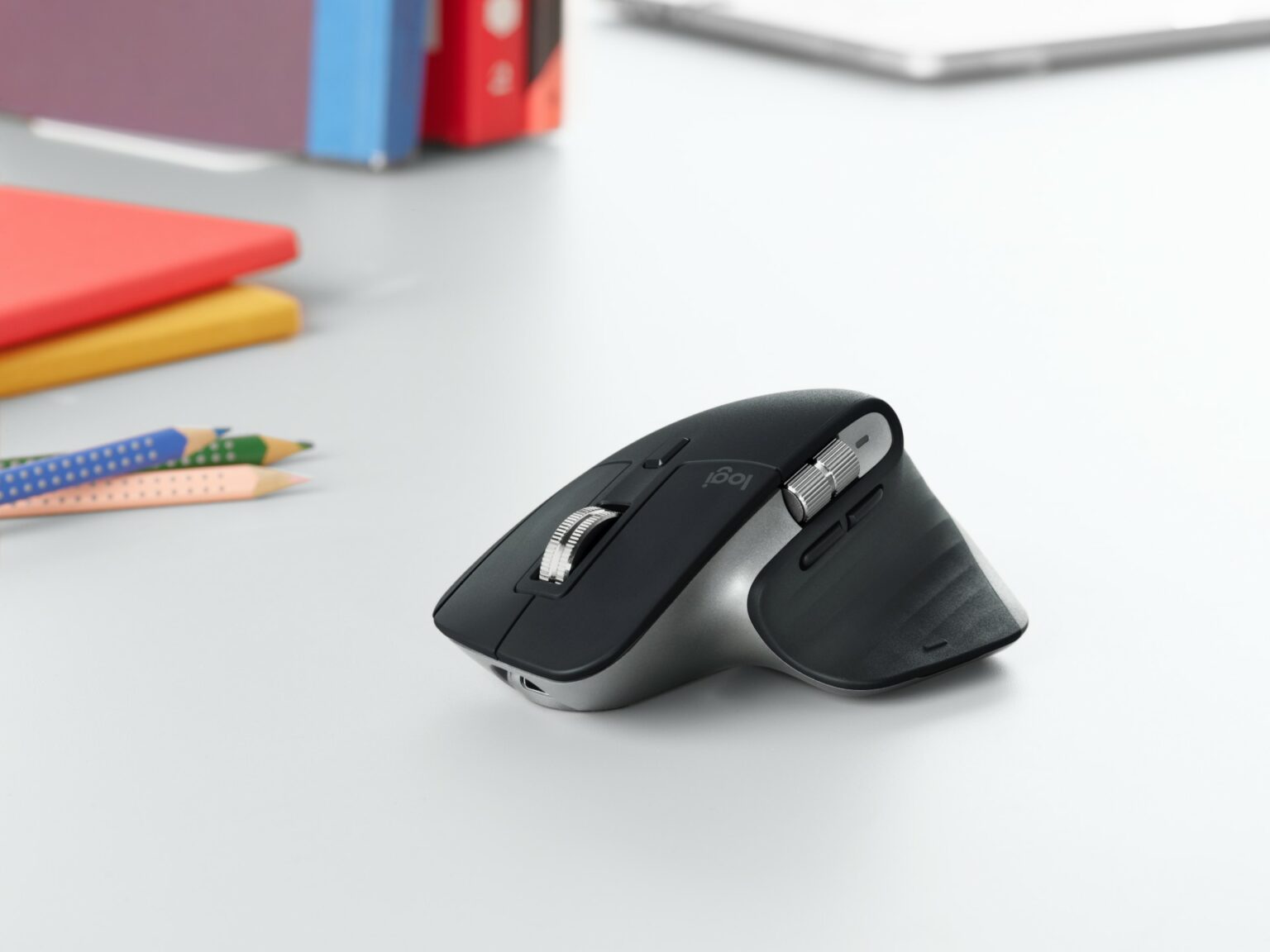
Boy, can press releases be deceptive. When we recieved the email and photos from Logitech earlier this year unveiling the outfit’s cool new mouse/presentation device, we had the impression the little brick was much bigger than it actually is. In fact, the $70, wireless Cube is tiny — so tiny that it almost seems designed for the hands of a five-year-old.
Sometimes, we need to speed up the response of our mouse or our trackpad, like for a First Person Shooter game. Other times, we might need to slow it down, so we can work with more detailed graphics files in a drawing program. SmoothCursor, from the folks at leftbee apps, is a simple little utility that does just that.
Here’s a basic but essential trick that Windows users take for granted—making the mouse cursor bigger, which can help on larger screens of if you simply prefer it that way.
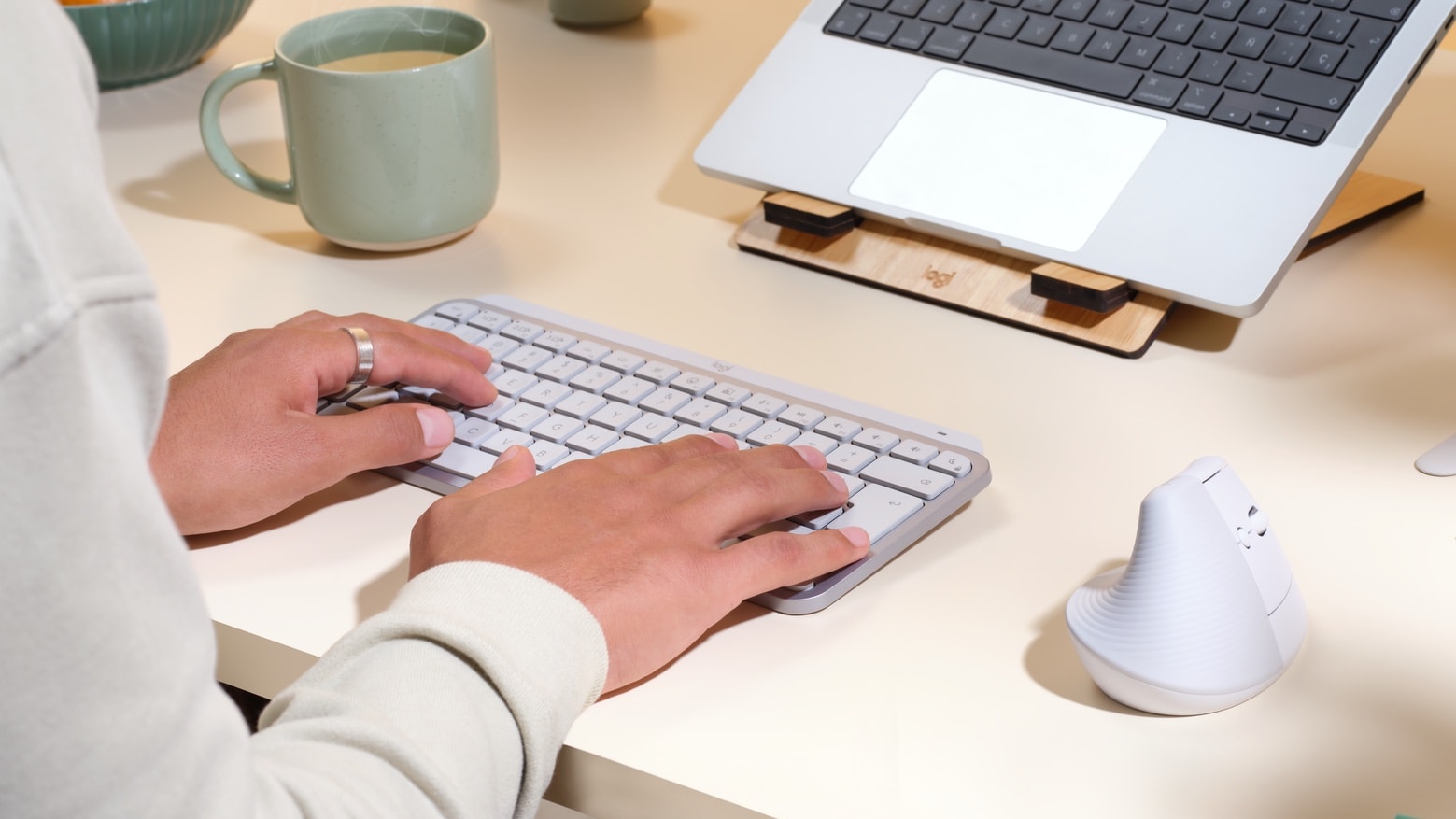
The Magic Feet from Mobee looks set to become the perfect accompaniment to Apple’s wireless peripherals, by introducing an inductive charging system that wirelessly charges the batteries in your Bluetooth keyboard, Magic Mouse, and Magic Trackpad, without you having to remove them.
It charges three accessories simultaneously, with just 6 hours required for a full charge. It also introduces four more USB ports to your Mac.
Apple changed many things on the Finder sidebar with the release of Mac OS X Lion. Probably one of the better changes was how Apple locked down the sidebar. It is now harder to accidentally remove an item from the Favorite section on the sidebar.
If you work in AppleCare or any other kind of support organization you probably want to hug someone for this change, because it probably generated a lot of calls for support in earlier versions of Mac OS X.
The Microsoft Explorer Touch mouse invites you to “explore” its unique, touch-sensitive scroll wheel. While the Explorer Touch doesn’t offer multitouch gestures like Apple’s Magic Mouse or Microsoft’s own, flagship Touch Mouse, the Explorer does sport an attractive form factor and quality build.
The Explorer Touch Mouse ($50) gives you a scrolling experience that’s unusual to say the least. It’s pretty cheap, and it’s portable.
One of the most noticeable changes in OS X Lion is Apple’s reversal of traditional page scrolling. In Lion, Apple has adopted an iOS approach to scrolling by changing the way that the user scrolls up and down; instead of moving the window around the content, you actually move the content itself.
This method of scrolling works great when you’re on a touchscreen device like an iPhone or iPad, but a more traditional desktop experience doesn’t lend itself to what Apple calls “Natural Scrolling” in Lion.
If you’d like to go back to the old way of scrolling in Lion, here’s how to do so.