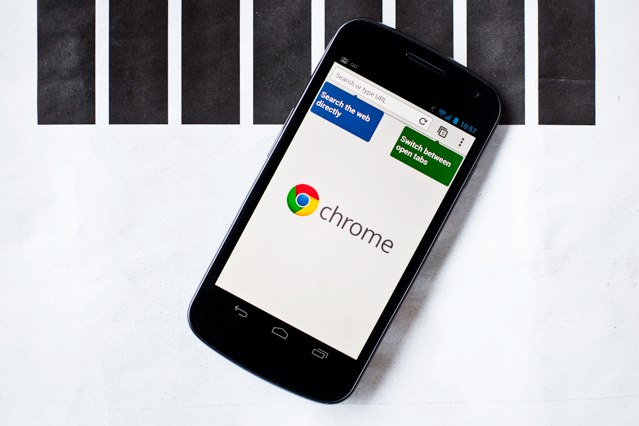
Chrome is in beta on Android, and it's coming to iOS, too. (Image courtesy of Wired.)
Google Chrome is quite possibly the best web browser you can install on your Mac or PC, and it could soon be the best browser on your iOS device, too. According to one analyst, Google is “definitely” bringing Chrome to the App Store this year — possibly before the end of this quarter — which is bad news for Apple.
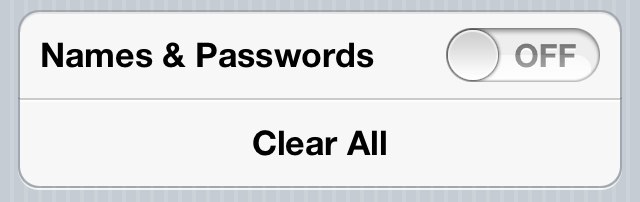
The ability to have mobile Safari save the usernames and passwords that we enter frequently on our iOS devices can be hugely helpful, especially for the forgetful minds amongst us. But not everyone feels comfortable having these details saved on their device. After all, if it gets into the wrong hands, anyone can login to our favorite sites at the tap of a button.
So what if you save these credentials accidentally, or you decide that you no longer want these details saved on your device. Well, fortunately, it’s very simple to delete them without having perform a complete restore on your device. Here’s how to delete saved usernames and passwords in mobile Safari.
The mobile Safari browser that comes baked into Apple’s iOS devices is quite possibly the best mobile browser there is. But what if you want don’t want to load mobile web pages? What if you want to enjoy websites in their entirety?
Unfortunately mobile Safari doesn’t let you do this, but a free third-party browser called Dolphin does. Here’s how to ditch the mobile web and load full, desktop websites on your iPhone.
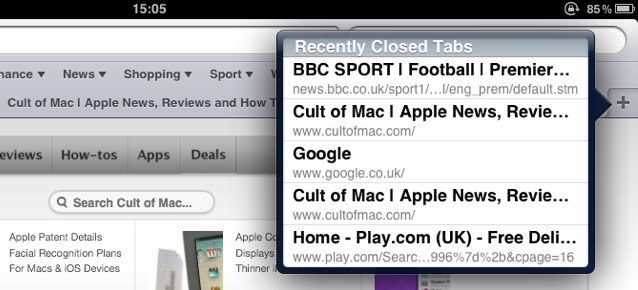
Today’s tip is a simple one, but it fixes one of the most frustrating things that can happen when you’re browsing the web — especially on an iOS device. Have you ever hit your iPad’s display accidentally while browsing the web and closed a tab that included an article you were halfway through reading?
Thankfully, mobile Safari on the iPad has a handy feature that allows you to quickly access recently closed tabs.
When it comes to Mac hacking, there are few security experts more dangerous than Charlie Miller, who can hack a Mac in mere seconds. Luckily, Miller only uses his hacking powers for the forces of good, so his hacks often lead to more secure systems for you and me.
Let’s hope that’s the case for the latest vulnerability Miller identified for the iOS platform. He has discovered a huge bug in iOS that allows malicious devs to write innocuous looking apps that slip by the App Store review process, only to phone home to a remote computer and repurpose all of iOS’s normal functions for malicious ends.
Apple is reportedly working on a brand new new online diagnostics tool that could solve problems with your iOS device through your mobile Safari browser — saving you a trip to your local Apple store.
For those of us with snoopsome inamoratas who just can’t seem to understand that a man has needs of the flesh that simply can not be met by the conventional and must needs be profane… Mobile Safari under iOS 5 has a new Private Browsing option, which is more colloquially known as ‘Porn Mode!’
Considering the depths that Apple fans will plump into a new version of iOS even before it’s released — let alone a month later — we’re amazed to hear that developers are still stumbling upon new features of iOS 4.2… especially when those features are as buzzworthy as augmented reality. Yet that’s just what Occipital has discovered lurking in the firmware of Apple’s latest iteration of its popular mobile operating system.
Google’s Docs service is meant to make office documents easier, more accessible and more collaborative by bringing them into the cloud. Instead of needing to purchase or download an office software suite, you just go to a URL, load up the web application and you’re good to go.
It’s a fantastic product, but as the desktops and notebooks we used to compute on have gradually been replaced by mobile products like smartphones and tablets, Google Docs has fallen behind.
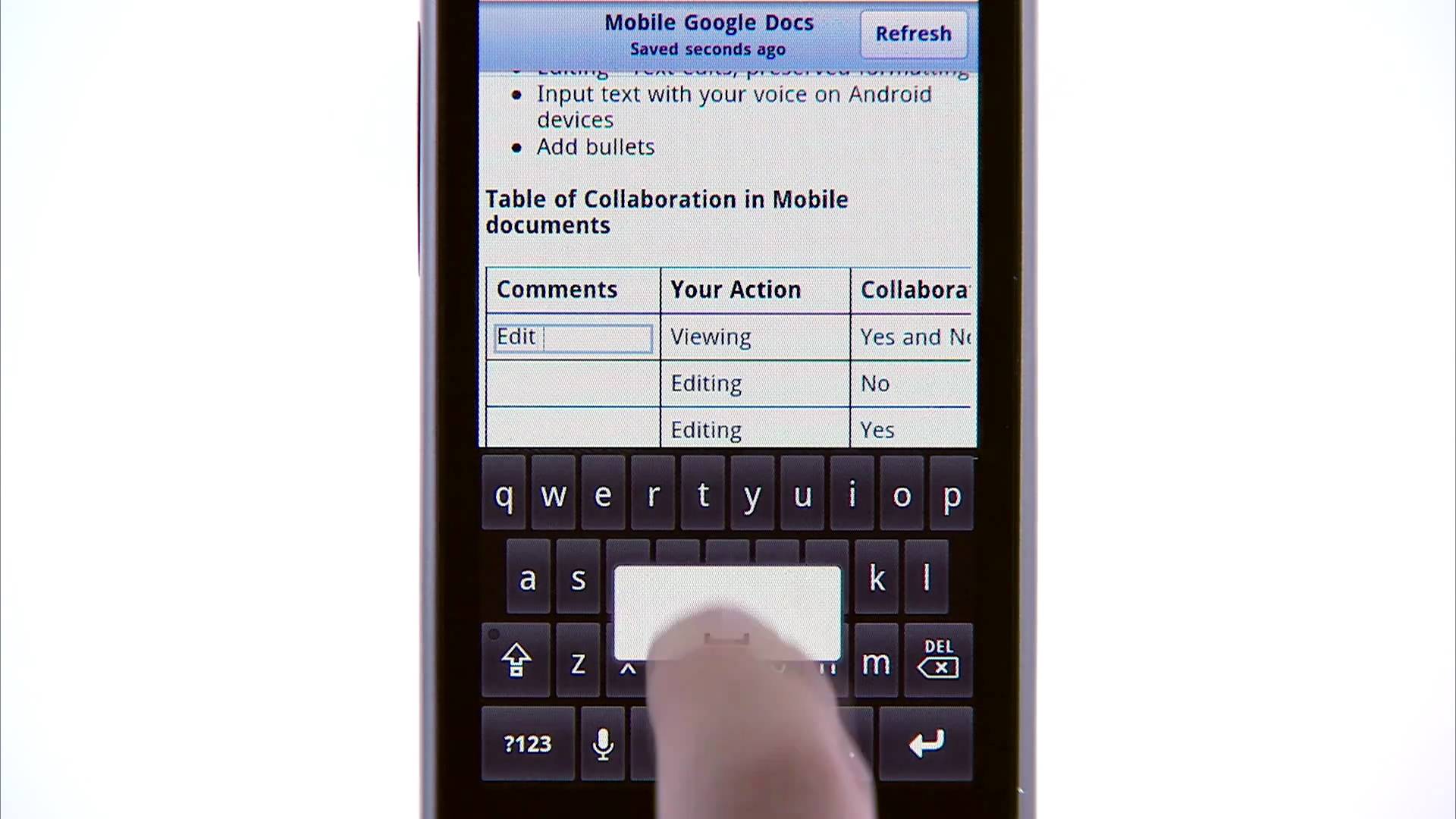
There’s great news today for users interested in bringing their Google Docs with them on their iPhone, though: Google has just announced that they’ve vastly improved the functionality of Google Docs on iOS, and you can now even edit your documents on your iPhone or iPad.
The secret sauce is Google’s new document editor, which supports editing within Mobile Safari, albeit with a few limitations. They’re in the process of rolling out the new document editor, and it’ll work on iOS 3.0+ devices, as well as Android 2.2 Froyo… now downloads required..