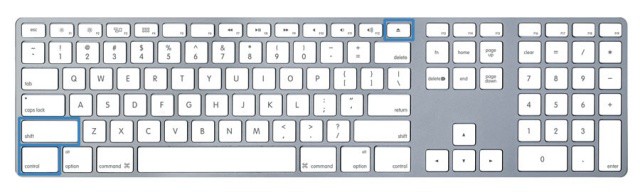
Recent keyboards for both desktop and laptop versions of Macintosh computers come with media buttons across the top of the keyboard where the F keys are. For example, my 11’ Macbook Air has F1 and F2 assigned to brightness, and F11 and F12 assigned to volume. When pressed, they increase or decrease the volume or the brightness one little tick mark at a time. But what if you want finer control?
If you’re a Mac user of some length of time or experience, you know that there are a ton of keyboard shortcuts laced throughout the operating system. In addition, every application you run on your Mac has a ton of these same shortcuts.
One easy way to see them is to click on a menu in a running application. To the right of each menu command, you’ll see the Keyboard shortcut for that particular menu selection. For example, clicking on the Edit menu in most applications on the Mac will give you the Cut (Command-X), Copy (Command-C), and Paste (Command-V) shortcuts.
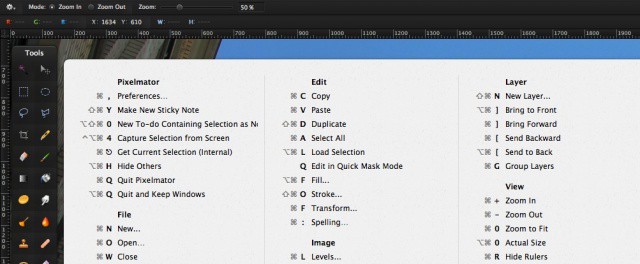
There’s an easier way, however, to see all the application’s associated keyboard shortcuts, in the form of an application you can download right now.
Just think of all that time you spend managing your monitor. There are Energy Saver preferences, Screen Savers, and the like to keep your energy usage lower and less costly. Today’s tip is the most easy and least time consuming way to do so that we’ve seen.
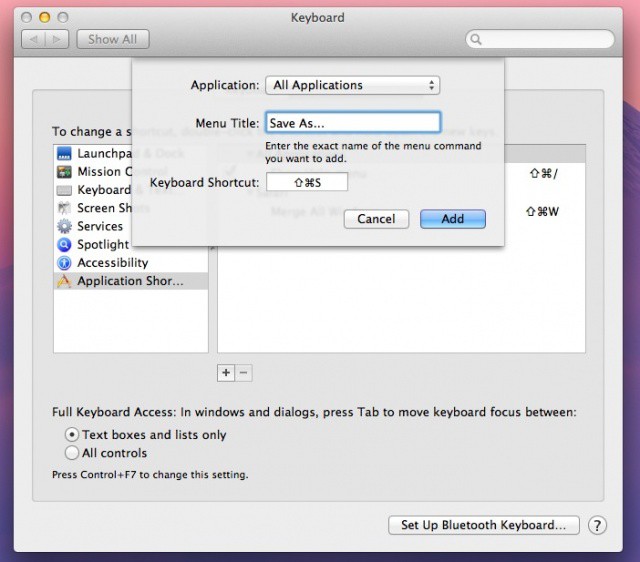
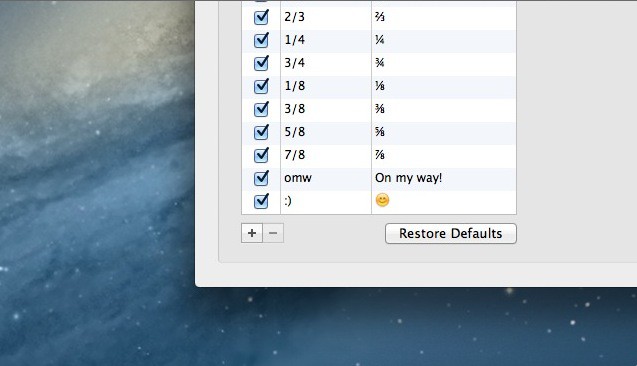
One of the new features introduced in iOS 5 was the ability to create keyboard shortcuts for common and often used phrases. This feature was embraced by many iOS users, and for some has become the most useful feature in Apple’s latest release of iOS. Many don’t know it, but OS X actually includes this same feature. In this video, I’ll show you how to find it and set it up.
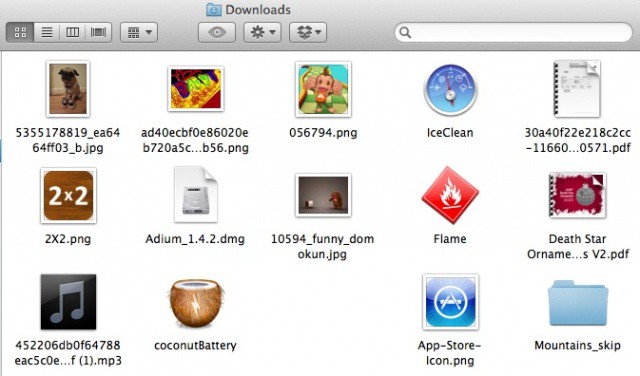
Can’t find that file you just downloaded? Keyboard shortcuts are for power users, right? Well, not ONLY them. Even relative newcomers to OS X tend to know about Command-C (Copy), Command-X (Cut), and Command-V (Paste). They might even know how to open the Applications Folder (Command-Shift-A) or the Utilities Folder (Command-Shift-U). But This one was new, even to me, a relatively seasoned user of Mac OS X. Popping open the Downloads folder from the Finder is simple, with a Command-Option-L. Be sure to thank us later. (Update: Or thank the ever vigilant folks in the comments for their good catch – we’re nothing if not responsive.)
If you’ve written a book full of Mac tips, as I have, it’s inevitable people ask what my favourite tips are. So here they are, for one-time only—the top 10 tricks I use every day. They’re not all barnstormers, and they’re not guaranteed to be mind-blowing. They’re just the little things I do to make life easier and more efficient when I’m using my Mac. Please share your own in the comments!
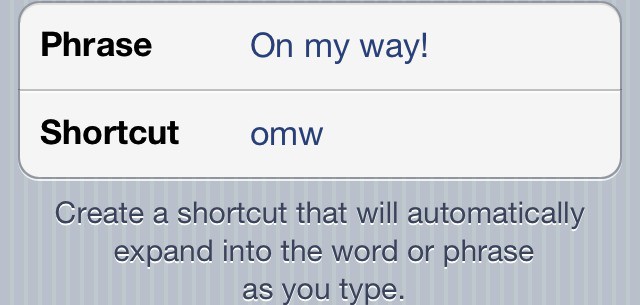
One of iOS 5’s hidden gems is the ability to create custom keyboard shortcuts, a feature that works like TextExpander on the Mac. In this video, I’ll show you how to create and manage keyboard shortcuts from any iOS 5 device.