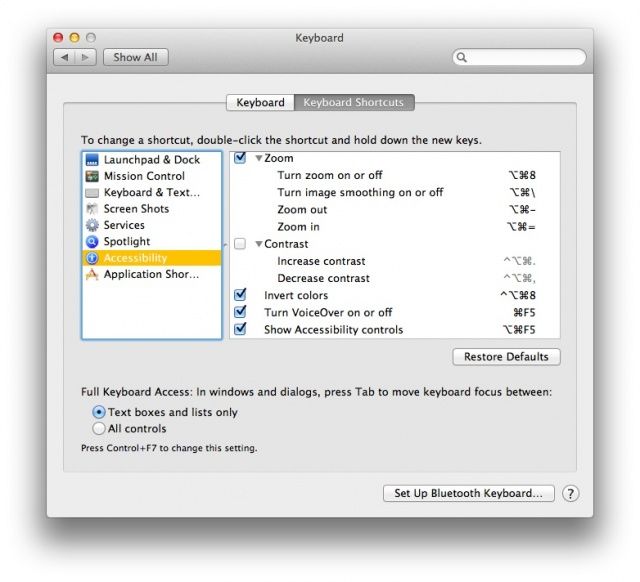
If you were used to inverting the colors on your Mac with a Control-Command-Option-8, you might have noticed that this has changed in OS X Mountain Lion. The older keyboard shortcut doesn’t work any more, and has been replaced with the less simple Command-Option-F5 shortcut to bring up an Accessibility Options dialog box. You have to then manually click the checkbox next to Invert Display Colors.
Here’s how to get the old shortcut back, for a quick invert.
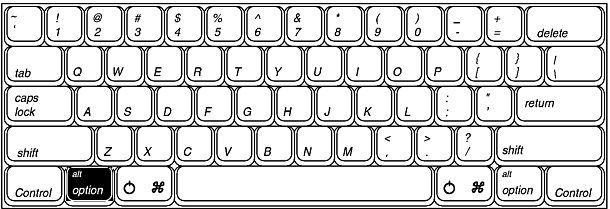
The Option key is a powerful ally in your transition from new, beginner user of OS X to the power user that you want to be. There are a ton of features in the Menu Bar that are hidden behind this underrated and unassuming Option key.
We showed you a handful of fantastic, instant keyboard shortcuts to shut down, reboot, or sleep your Mac, but an even safer way is to bring up the Power button dialog box that happens when you hit the, well, Power button on your Mac. That’s the one in the upper right corner of the keyboard on most modern Macs, while some older Macs have it as a separate button integrated into the body of the Mac itself.
Either way, hit that Power button and then you can use the following keyboard shortcuts to activate the different options in the dialog.
I’ve been a Mac user since the Performa 638 CD I purchased in 1994, and I had no idea these shortcuts existed. While I wouldn’t recommend them to every Mac user, if you’re comfortable with the potential issues of immediately shutting down your Mac, you’ll want to learn these post-haste.
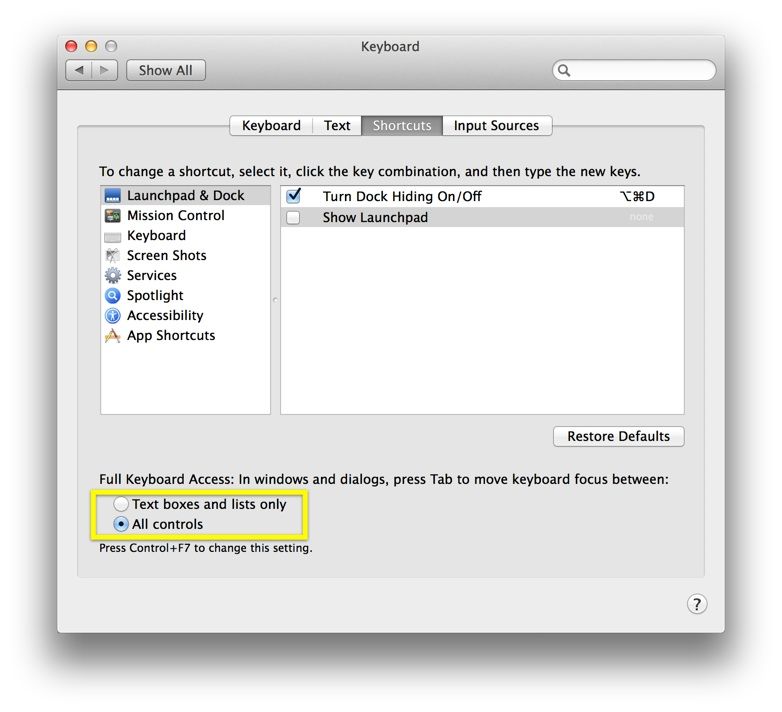
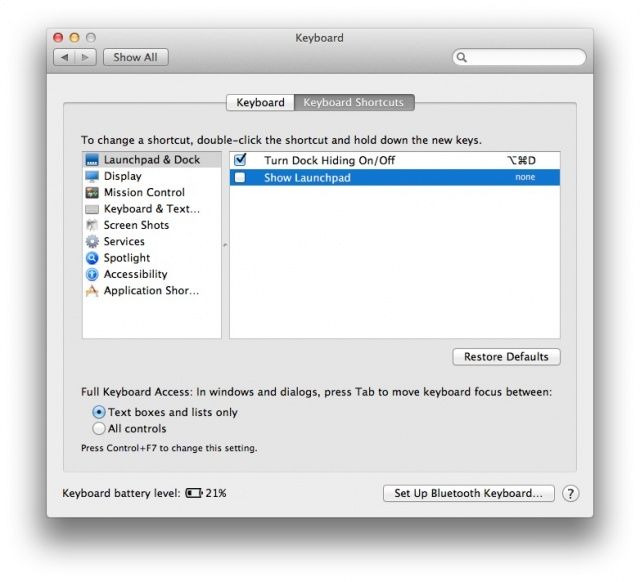
Launchpad, the iOS-style apps launcher feature that appeared in OS X Lion, showed up without a keyboard shortcut enabled for it. Later Macs, of course, have the F4 key assigned as a Launchpad, well, launcher. You can use the dock icon, of course, and you can double click the Launchpad icon in the Applications folder, but if you have an older Mac keyboard, here’s how to enable the F4 key (or any other shortcut you want) to access Launchpad easily, with the touch of a keyboard button.
So, now that you’re becoming quite the iTunes 11 power user, it’s time to take that one final step: keyboard shortcuts.
Everyone knows that using the mouse when there’s a keyboard shortcut to be had is tre uncool. I’ve been on some friends’ case for years to get them to actually use Command-C and Command-V to cut and paste their text, sometimes to no avail.
But not you, no. You’re a power user in training. You’re ready to control iTunes 11 with the power of the keyboard. Here’s a few of them to get you started.
So, we take a lot of screenshots here at Cult of Mac. Especially here in the Tips section, it seems like I’m always hitting Command-Shift-3 for a full screen picture or Command-Shift-4 for a selection of the windows I can drag across to select the image area.
Turns out that there’s a modifier for Command-Shift-4 that lets you take a screenshot of an individual window, or even one of those sheet things, a window that drops down from another window and is attached to it, as in the screenshot above.
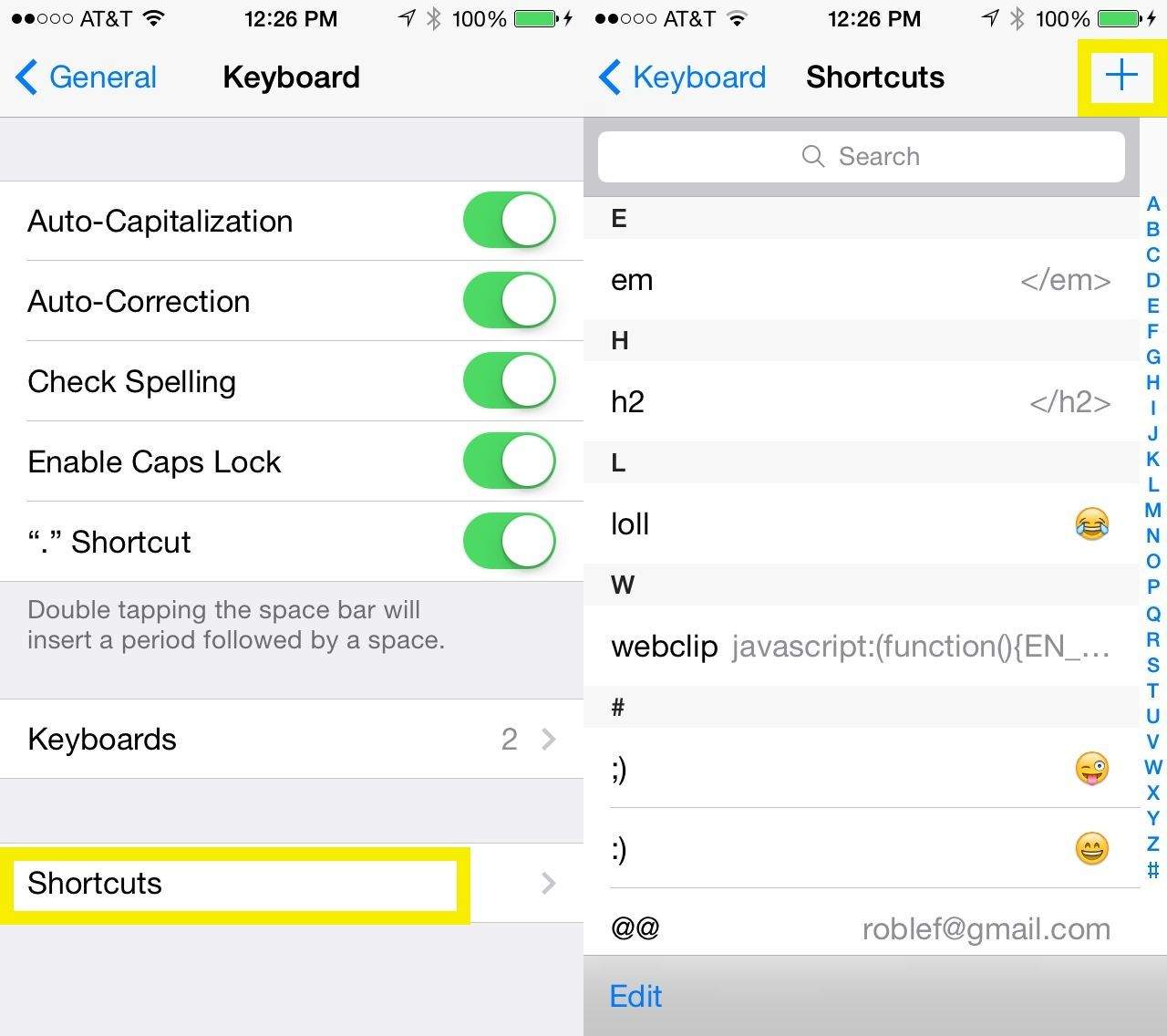
Shortcuts were a nightmare to manage across iOS devices… until now.
After being introduced in iOS 5, keyboard shortcuts is a feature I could no longer live without on my iOS device. I use it for all kinds of things, including email addresses and usernames, so that I never have to type out the full thing 30 times a day. There is one thing the feature has been lacking, though, and that’s the ability to sync your keyboard shortcuts across all your iOS devices.
That is until now; the feature was finally added to iOS 6, which was released to the public yesterday.
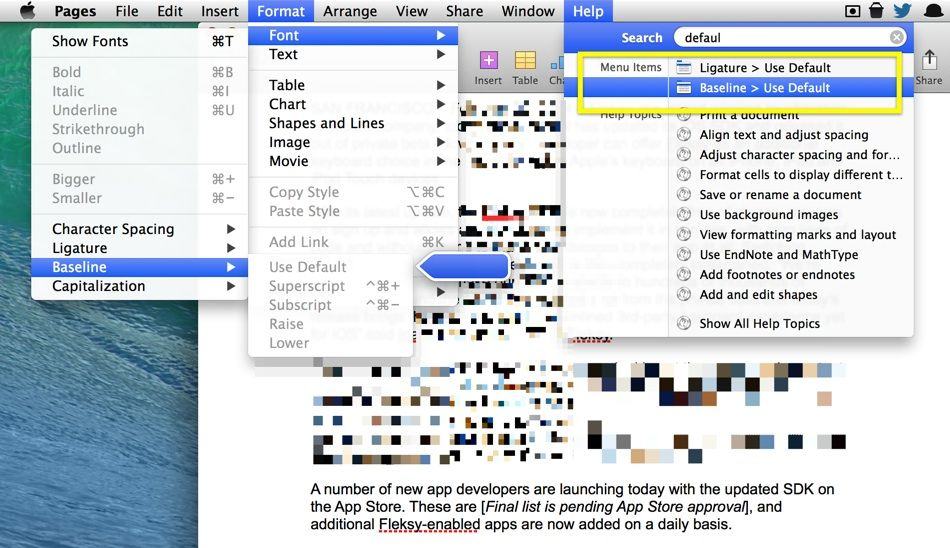
When OS X Lion debuted, our old-friend Save As… had been sent packing for a new imposter, Duplicate. We tried to like this new one, but wow was it not the same. Luckily, Mountain Lion has brought Save As… back, only in a sneaky, less than obvious way.
We want to share how to see the Save As… command, of course, with a simple key press, but we’ll go even one step further, clueing you in on how to return good-old-Save As… to its former glory, in the exalted spot it used to reside in. Here’s how.
One of the joys of being a power user is when you use keyboard shortcuts to shave precious seconds off of your workflow routines. While you may know all the system shortcuts there are (⌘ + C for Copy, ⌘ + V for Paste, etc.), you may not be as familiar with those in the Open or Save dialog windows that you encounter every day.