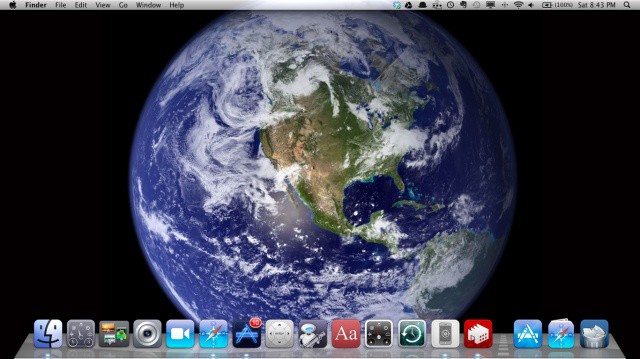
Convergence. It’s all the rage, lately, and what better two items to converge than your Mac, running OS X, and your iPad (or iPhone, or iPod touch), running iOS? IT’s two great tastes that taste great together, to quote an old commercial that mostly no one has heard of any more.
With these five tips, you’ll amaze your friends with a Mac that looks more like your iPad than it does your Mac. So, read on, intrepid souls, and follow our steps to make that sweet Apple computer into something resembling the post-PC magical device we all love.
Yesterday, we reported that Apple’s new Messages app icon looked pretty shamelessly similar to that of HipChat‘s. Now HipChat has spoken out about the maybe-theft-probably-concidence, and while they don’t have any hard feelings, they still think it sucks they’re about to get steamrolled by Apple.
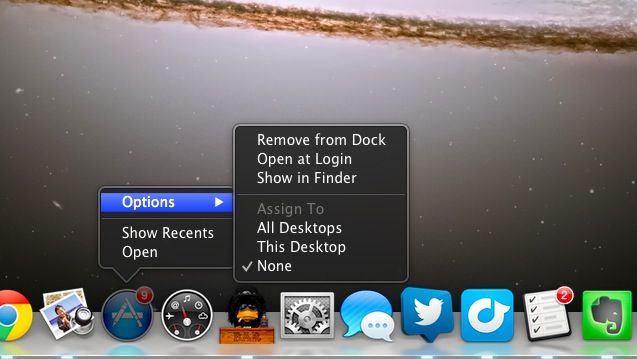
Here at Cult of Mac, we’re a big fan of HipChat, a phenomenal team calibration tool based around group chat and IM, which works on any platform with dedicated apps for Mac and iOS. In fact, it’s how we keep in touch with each other throughout each work day. The app is a mainstay in our docks.
So when we woke up this morning and found out Apple was announcing a new version of OS X including a brand new Messages IM app, the first thing we thought was: “Hey! That icon looks familiar!” Very familiar.
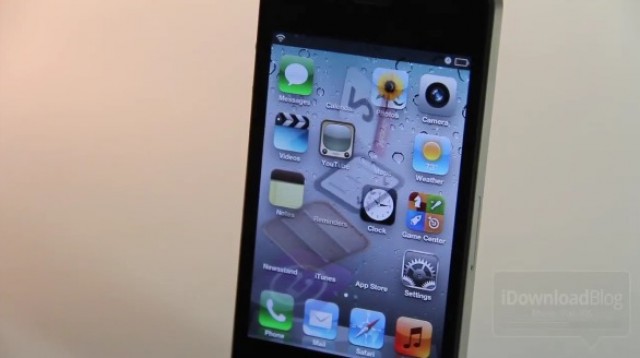
iOS devices receive a lot of criticism for their static app icons, which, although often pretty, are a little boring to look at. Other than the Newsstand icon, which changes depending on which publications you have installed within, iOS icons do nothing.
If you’ve got a jailbroken iPhone, however, you can make them a little more exciting. Motion is a nifty tweak available from within Cydia, which will animate the app icons on your home screen with all sorts of fancy effects.
If you’re using your Mac to give a presentation, you might not want everybody to see your messy desktop! If so, you can run a quick command that will hide your desktop icons.
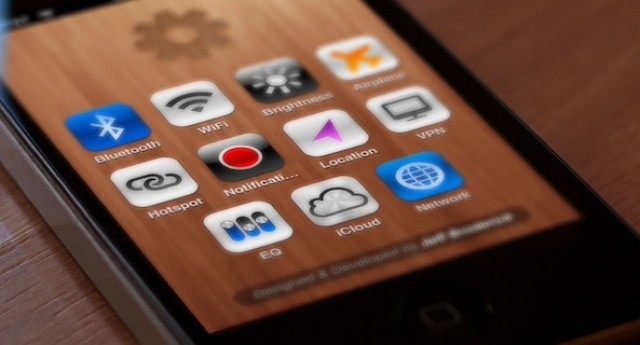
While we all eagerly await an untethered jailbreak for iOS 5 and the iPhone 4S, many of us are using custom settings shortcuts on our iOS homescreens to duplicate the functionality of a more robust Cydia hack like SBSettings.
The only problem? While the shortcuts work really well, some of the icons can be ugly and distinctly un-Apple-like.
Why settle for some puked-up icons, though, when you can have icons sexy enough to lick? Just go over to http://brdrck.me/settings/ on your iDevice and get downloading. Follow our previous how-to if you need guidance on setting these up.
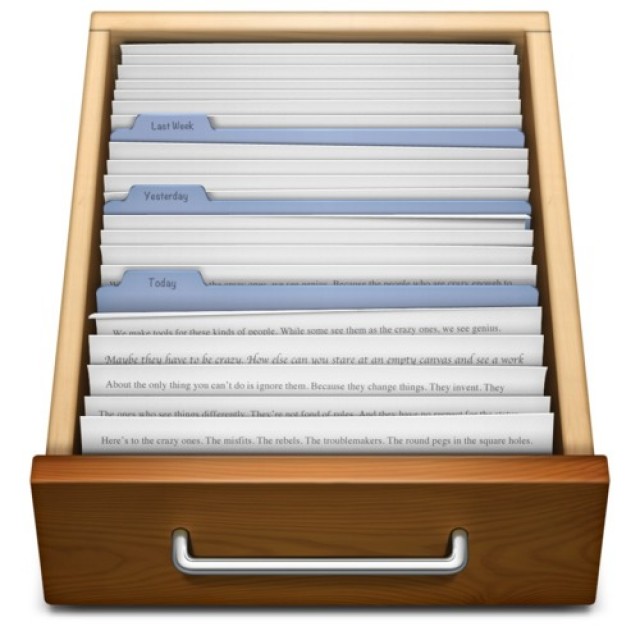
We’ve mentioned before that TextEdit’s icon under OS X has Apple’s entire “Think Different” essay written on it, if you blow it up big enough.But this one’s new to us: it also appears in its majority on Lion’s new All My Files icon.
Here’s to the crazy ones indeed… crazy to write an entire essay on an icon meant to be rendered in less than 80 pixels squared. Very cool.
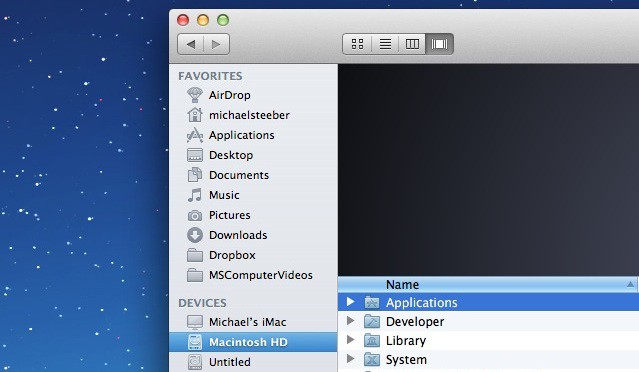
OS X Lion’s Finder is noticeably more drab than its predecessor. The once-colorful sidebar icons have now turned a rather flat shade of gray. In this video, I’ll show you how to restore color to your Finder sidebar icons.
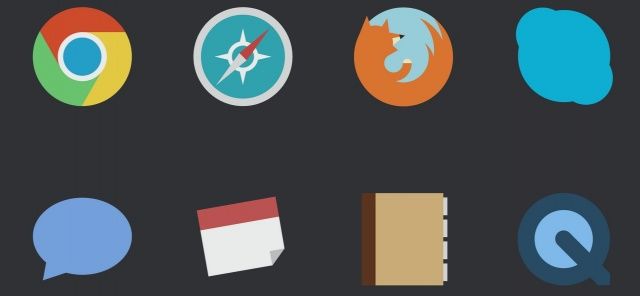
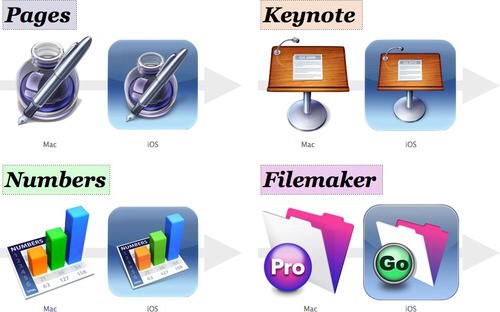
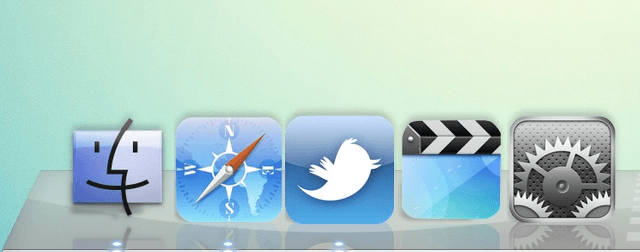
Have you ever had the desire to change how your applications look your Mac? Perhaps you want them to look like the icons found in iOS, as seen in the picture above? Although fairly unknown, it is possible in Mac OS X. All you’ll need to get started is img2icns. While there is no plain and obvious way to go about it, it’s actually fairly simple once you know what to do, as demonstrated in this video.
High resolution artwork discovered in the latest build of Mac OS X Lion has generated rumors that Apple could be planning to bring a Retina display to the Mac. Preview 2 of Lion, which was released in late March, features icons in sizes up to 1024×1024, and a desktop background at a resolution of 3200×3200.
The new Lion wallpaper was discovered at the beginning of April by OSXDaily, and was noted for its ultra-high resolution which no Apple display has ever supported. The new icons – which are double the size of the current 512×512 Mac OS X icons – were discovered over the weekend by MacMagazine.com.br.
Considering there is currently no need for icons or wallpapers of this size, these discoveries would suggest Apple is working on bringing a better display to the Mac. MacRumors notes that Apple has built-in Support for HiDPI display modes in Lion:
Taking cues from iOS, Apple has reportedly built in support for what it calls “HiDPI display modes”. These HiDPI modes allow developers to supply 2x-enlarged images to support double-high resolution displays. Like the iPhone 4’s Retina Display, this means that user interface elements will remain the same size, but everything will be twice the resolution and therefore twice as detailed.
While a Retina display Mac would be pretty neat, I would much prefer one in my iPad first.