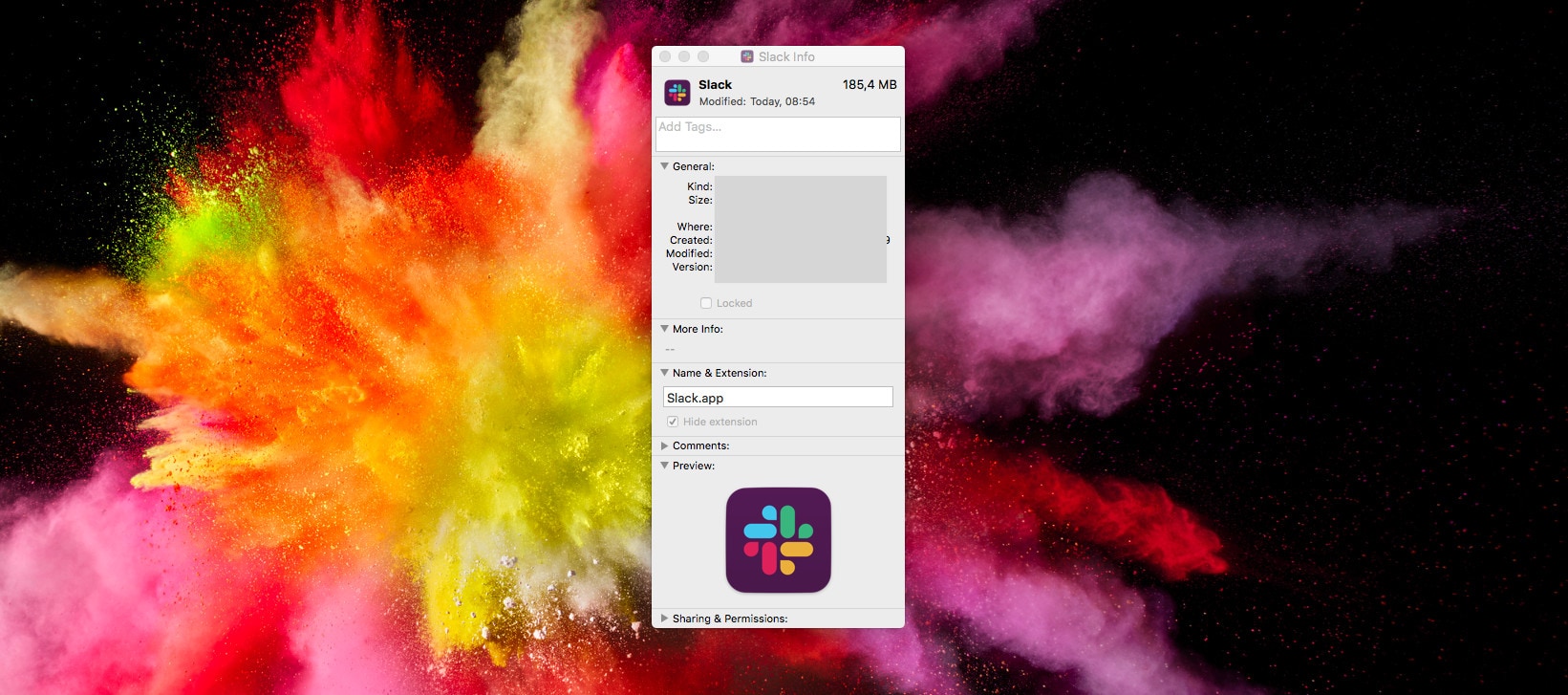
USe Brett’s script to avoid crappy jaggy image files like this one.
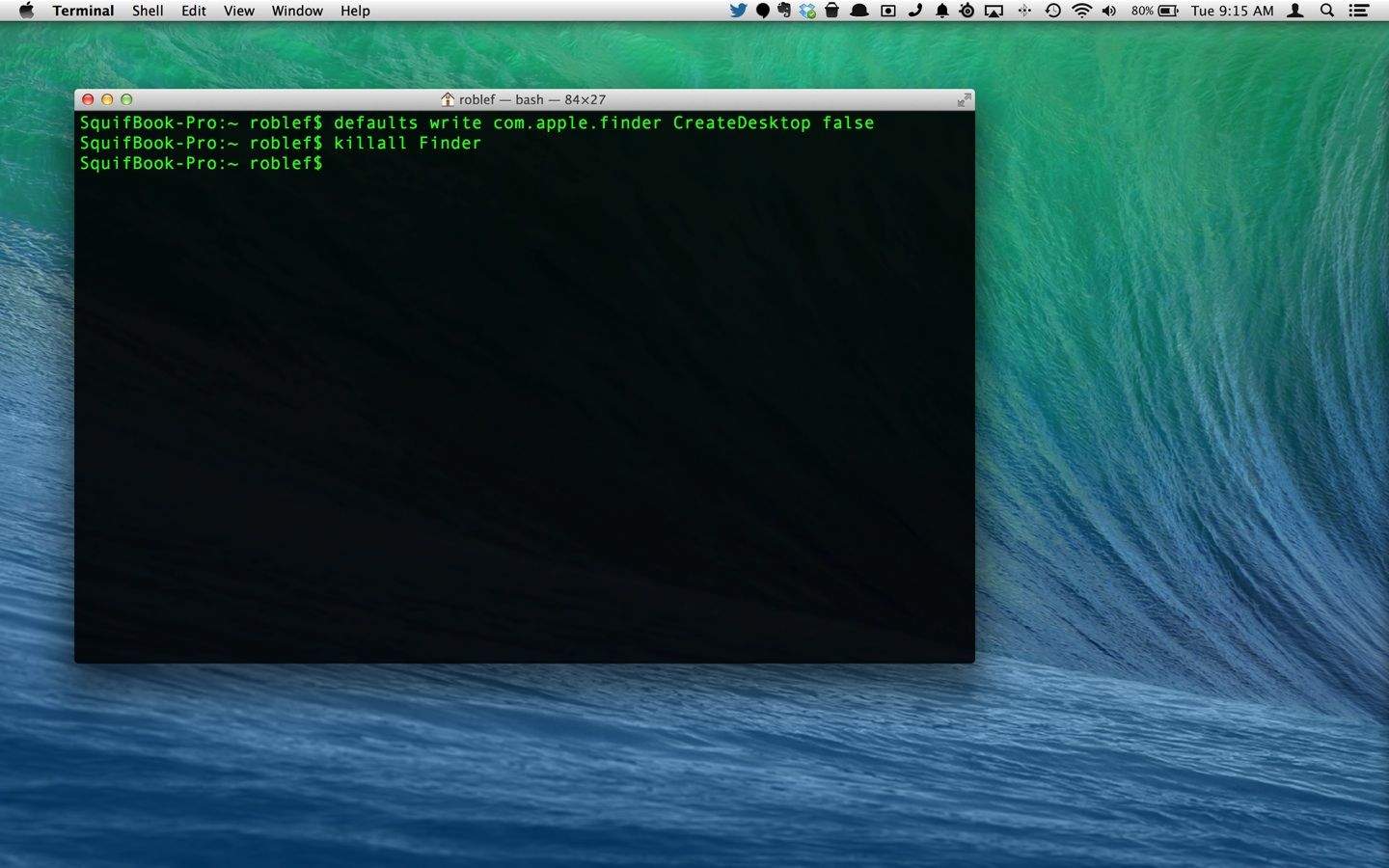
This post is a little “inside baseball,” as it’s about a new tool for grabbing high-res app icons direct from the command line (or using an app), and this is the kind of thing that is most useful to writers like me. Then again, it’s by Brett ‘I just built this’ Terpstra, the Hardest Working Man on the Internet™, and is plain ingenious, so lets take a look.
Personal social networking app, Path, just released a new icon set into its sticker shop today, called “Iconic Bites.” While the stickers are adorable little bite-sized, pixel-chic representations of food and such, what really makes them cool is that they were created by none other than Susan Kare, the designer of the original Macintosh system icons.
The Path blog posted an interesting interview with her, as well, in which she talks about how her long experience in the design industry has influenced her current designs.
iOS and water usually don’t play nicely with each other, but if you freeze it, then it’s a heck of a good time. Gamago’s got a new ice tray that will turn your H2O into little iOS icon ice cubes, so your next beverage can be cooled by iOS.
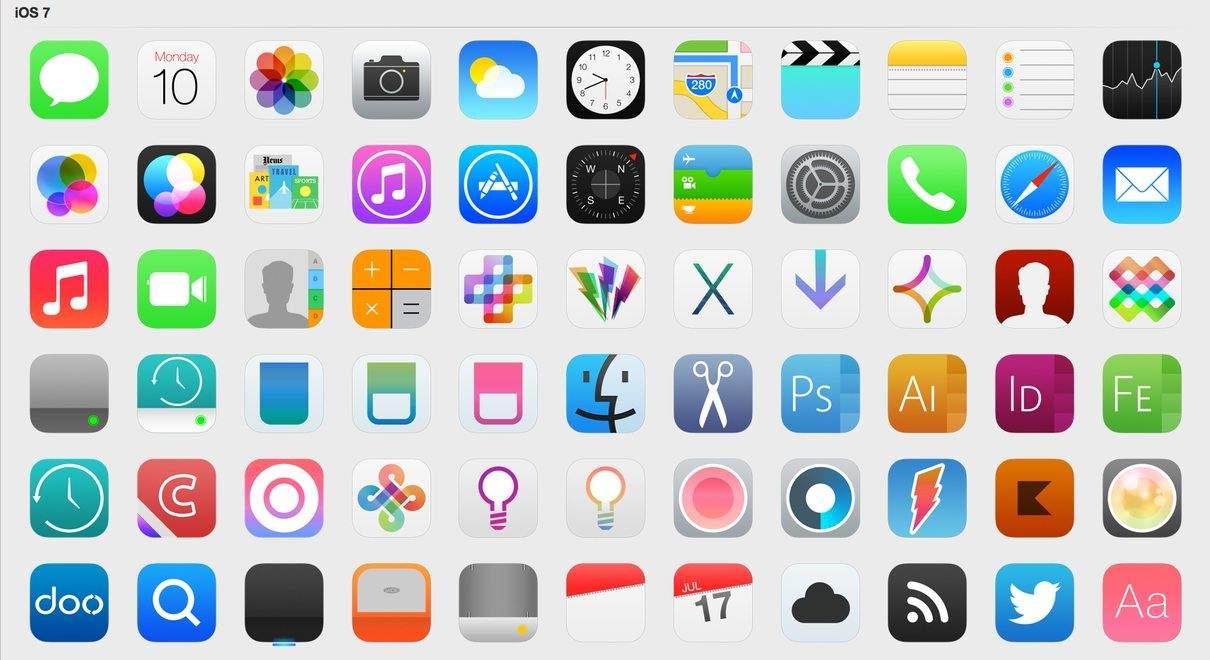
These utterly gorgeous minimalist icons for the Mac are about to get installed on my iMac, and you should do the same. Featuring icons for all of OS X’s core apps as well as popular third-party apps like Spotify, Sparrow, VLC, Firefox and more, this custom icon set can easily be installed using Panic Software’s CandyBar, which is completely free.
You can’t see it here, but one of those icons is TOTALLY wiggling.
Apple has published a Knowledge Base article that shows how to arrange the Apple TV app icons on the main screen. The update, 5.1, also added Shared Photo Streams, AirPlay Send audio, iTunes account switching, Trailer searching, new Screen Savers, support for Subtitles, more advanced Networking options, and the standard stability and performance enhancements.
Arranging the app icons is really very simple, and Apple’s post shows us how it’s done.
CandyBar for Mac is now free, but its days may be numbered.
Panic’s terrific CandyBar tool has just been updated to support OS X Mountain Lion, and if you don’t already own it, you can now pick it up for free. Panic will no longer be charging for the app because of the new restrictions Apple has introduced to Mac OS X, which means CandyBar’s future is now unclear.
Let me paint a scenario for you. You’re a creative type. Maybe professionally or as a hobby or maybe you’re just the go-to person in the office. You need to pull a rabbit out of your hat—again— and you’ve got nuthin‘. Like less than nuthin’. What you need are some creative resources to browse through and use for your project.
Most of us have a few things stashed away to use, but those get old and stale fast. Which is why from time to time you need to pick up some new fonts, textures, graphics, icons, and such. Something like The Creative Design Bundle 2.0.
Or not. In an exhaustive (and for him, probably exhausting) 2,700-word article, Chris Suave has compared the icons of many apps that have moved from OS X to iOS (and sometimes back again). The results show that Apple is one of the worst and laziest offenders in the game.
You know what it takes to step up your game on your Mac? Apps. Great apps. This isn’t really news to you, is it? And one of the reasons that Cult of Mac brings you deals is so you can get a great deal on a great app. Recently we’ve had great-app-one-offs, you know one great app at one great price. Today we’re bringing you a slew of great apps at a fantastic price.
The Mac Productivity Bundle comes with 7 apps, two sets of icons & graphics, 6 ebooks on web development, and 4 WordPress themes for $50. I’ll understand if you don’t finish reading and go buy it.
In an email sent out to iOS developers today, Apple has announced a new rule that requires all apps to be submitted for approval with high resolution 1024 x 1024 icons and artwork. That’s a higher resolution than the display built into the iPad 2 — for an icon.