The iPhone and iPad are magical devices because of one thing: the well-designed hardware and software works in conjunction to make everything just work. The iOS operating system is a thing of beauty, not least of which because there is so much to explore and learn about.
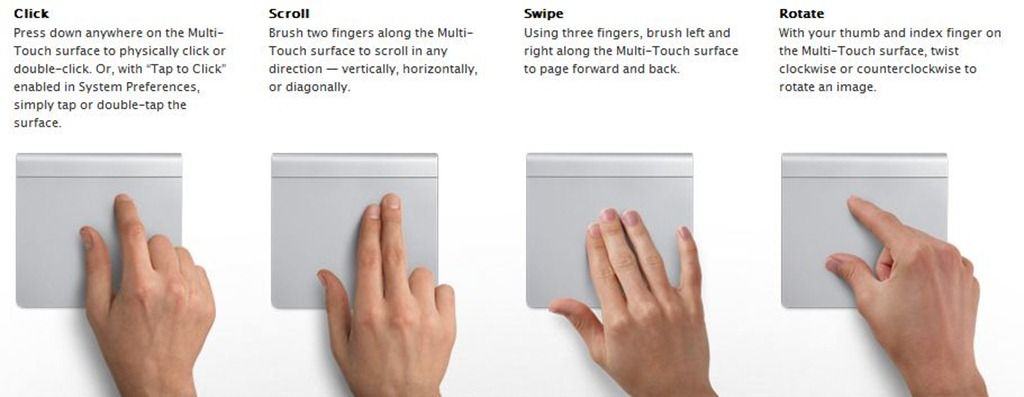
As a touch-based platform, iOS uses gestures like swipes and taps to let you control things with intuitive ease. However, there are bound to be less well-known gestural commands in such a complex set of software. Here are five of the better ones.
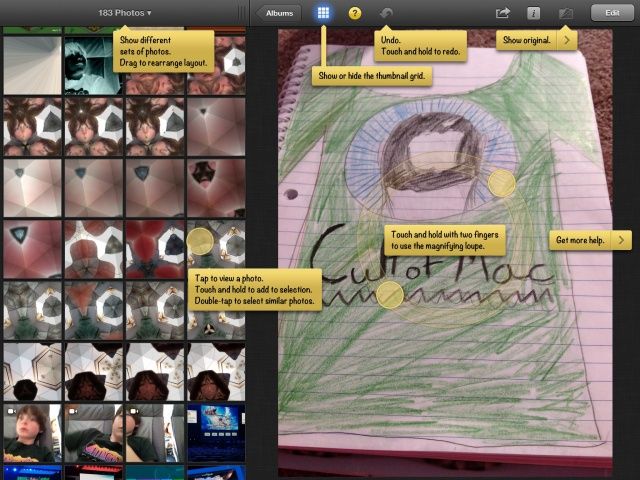
iPhoto for iPad is a fantastic photo editing app with a ton of multitouch gesture support. When editing and looking through your photos within the app on your iPad, all it takes is a bit of learning to get these gestures down and make your time with iPhoto just that much more productive and fun.
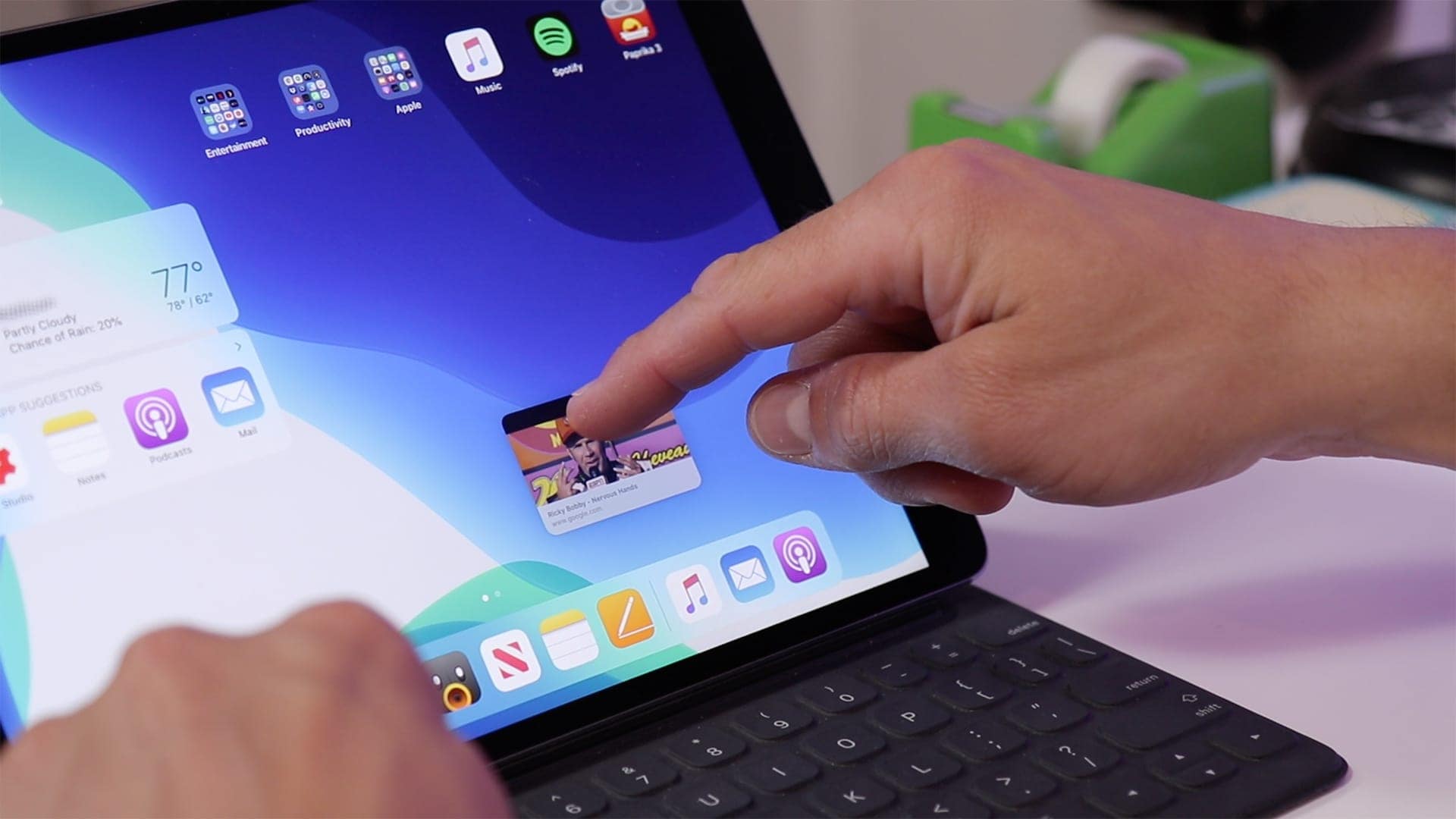
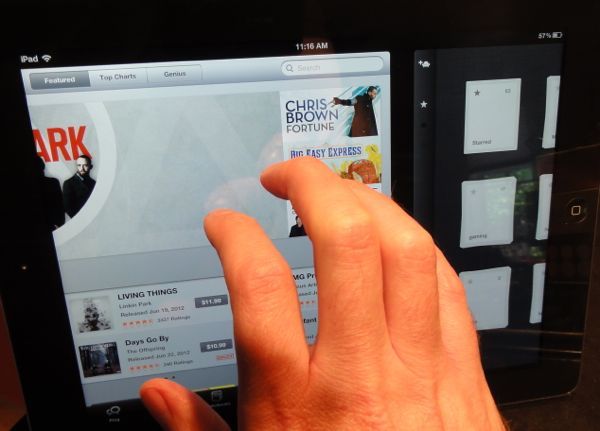
It’s probably true that you’ve learned some great iOS gestures with two or three fingers, like pinching in or out to zoom and the like. But did you know that you can use some multitasking features with just the addition of another finger or two?
Use the claw technique to activate the following swipes on your iPad and you’ll be one step closer to gestural iOS nirvana. Or is that nerd-vana. Either way, I suppose.
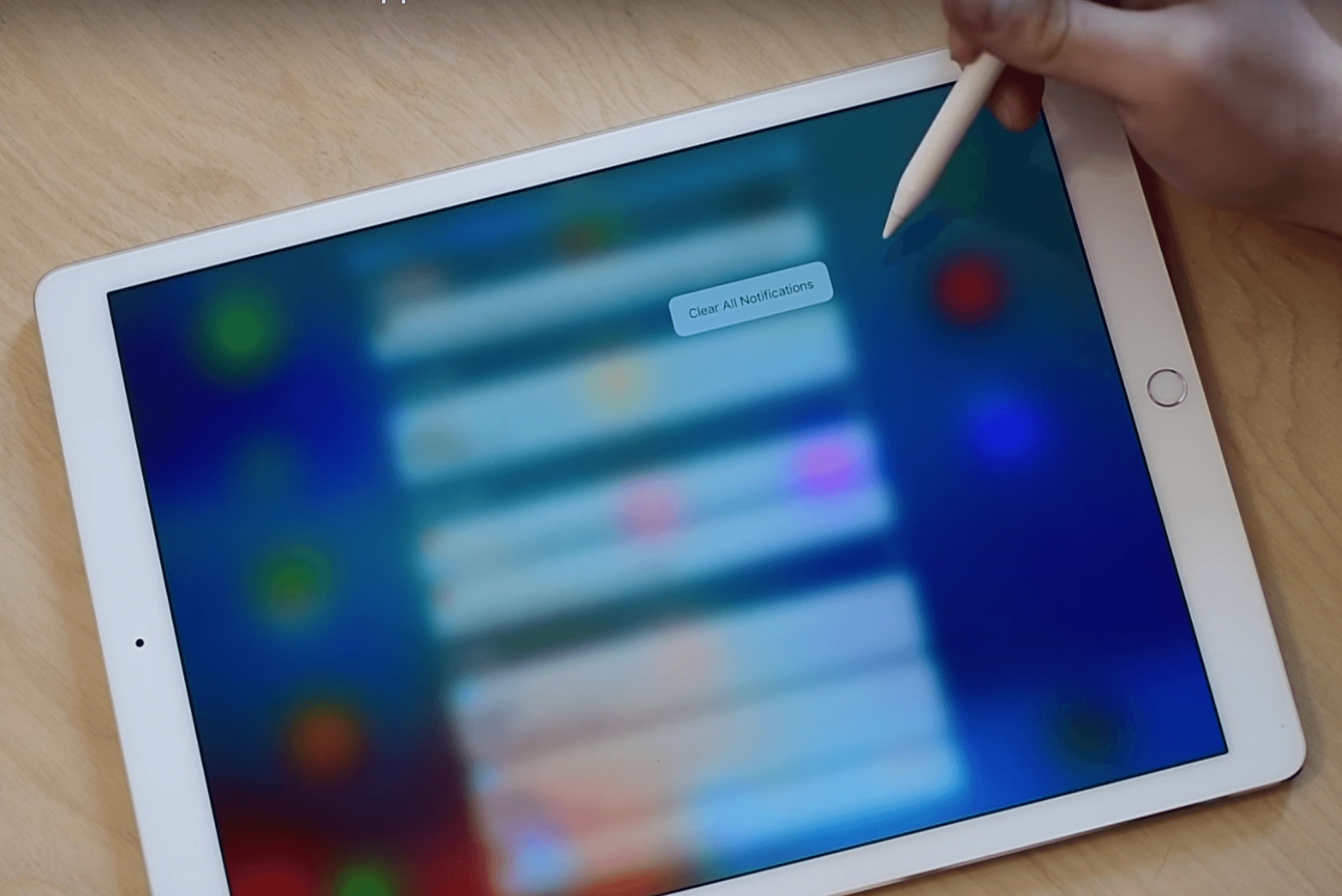
Notifications on the iPhone can be annoying. Right? They drop at inappropriate times, and I always end up accidentally activating them. Of course, my iPhone is more than happy to hop over to the application that sent the Notification in the first place. There are, however, a couple of cool ways of dismissing them without activating them, short of waiting for them to go away, which is what I’ve done since they appeared in iOS 5. Today’s tip shows you how.
Using map apps on the iPhone can be a pain when you’re trying to zoom in to check out some specific detail of where you’re going.
Usually you have to use one hand to hold your iPhone and the other to pinch and zoom, but Google just made an awesome new zooming gesture that only requires one hand and one finger.
It’s not every day that a Mac accessory comes along and promises to give you superpowers, but that’s just what Thalmic Labs is promising with their innovative new armband today. Called the MYO, it’s a Bluetooth-enabled device that allows you to control your Mac, just by flexing your muscles.
LAS VEGAS, CES 2013 – Earlier today we posted a snippet about the Mauz dongle, and how it can turn your iPhone into a remote that can control your desktop through gestures, through either waving your iPhone around, or waving your hand over it. Now the Israeli-designed device has hit Kickstarter, with a funding goal of $150,000.
This is Dolphin. It’s a neat web browser for iPhone. You could easily be forgiven for saying: “What’s the point of having an extra browser? Mobile Safari does everything I need.”
Which is true. Safari does everything you need. But try Dolphin for just a few minutes, and you’ll discover a browser that does everything you need but in a totally different way. A way that’s much better suited to using on your phone while you’re moving around.
I’ve been messing about with this new app, called Listen, on my iPhone 5 for a little while, after the developer hit me up on Twitter about it. Now, I’m not able to jump on on every app, Mac or iOS, that someone asks me to look at, but I gave this one a look-see. Turns out, it’s a pretty neat little app, which does exactly what its name says it does.
The new Notification Center in OS X Lion is pretty cool, you gotta admit. It really integrates the notifications from your iPhone, iPad, and various Macs you might use during the day into one place.
While on a Mac, whether desktop or laptop, you can click on the Notification icon in the upper right hand corner of the screen, causing the whole display to shift to the left, and the dark linen background of Notification Center shows up on the right. There isn’t a keyboard shortcut to make this happen, but we’ve got two different ways you can activate it, even still.