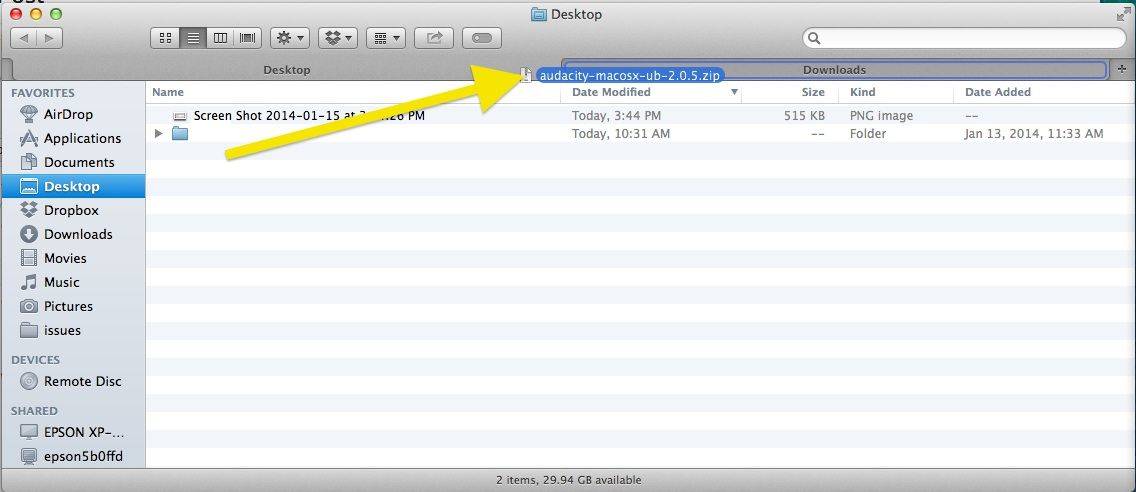
You’ve used Quick Look a lot, right? I know I have. I’ve use it a ton to browse through bunches of images on my Desktop when trying to decide which Screenshot I want to put at the top of these OS X tips.
But there’s much more you can do with multiple files and Quick Look, including a sweet index view that I just found out about myself. Follow along at home, and I’ll show you how.
You may already know that you can right click on any file in the Finder and choose “Open With” from the contextual menu. This gives you a list of all the apps Mac OS X thinks can open that file. An image file, for example, will show Preview (default), Firefox, Google Chrome, and any image editing app that you may have on your system, like Adobe Photoshop or Fireworks.
You may also know that tapping the space bar after clicking on any file in the Finder, Open and Save dialogues, or in Mail app, will give you an instant preview of that file. This feature is called Quick Look, and it’s been in OS X for a while, now. iTunes will play their audio content, images will zoom to their actual size, and videos, if you have the right codex on your Mac, will play in a little pop up window.
What you may not know is that these two features can be combined now in OS X Mountain Lion.
Remember that neat little hack to bring the Save As command back to Mountain Lion? It turns out that it’s not quite as handy as we first thought. Sure, you can now “Save As” instead of being forced to “Duplicate” the file and then save it, but Mountain Lion will not only save your changes in the new document, but write them to the original at the same time.
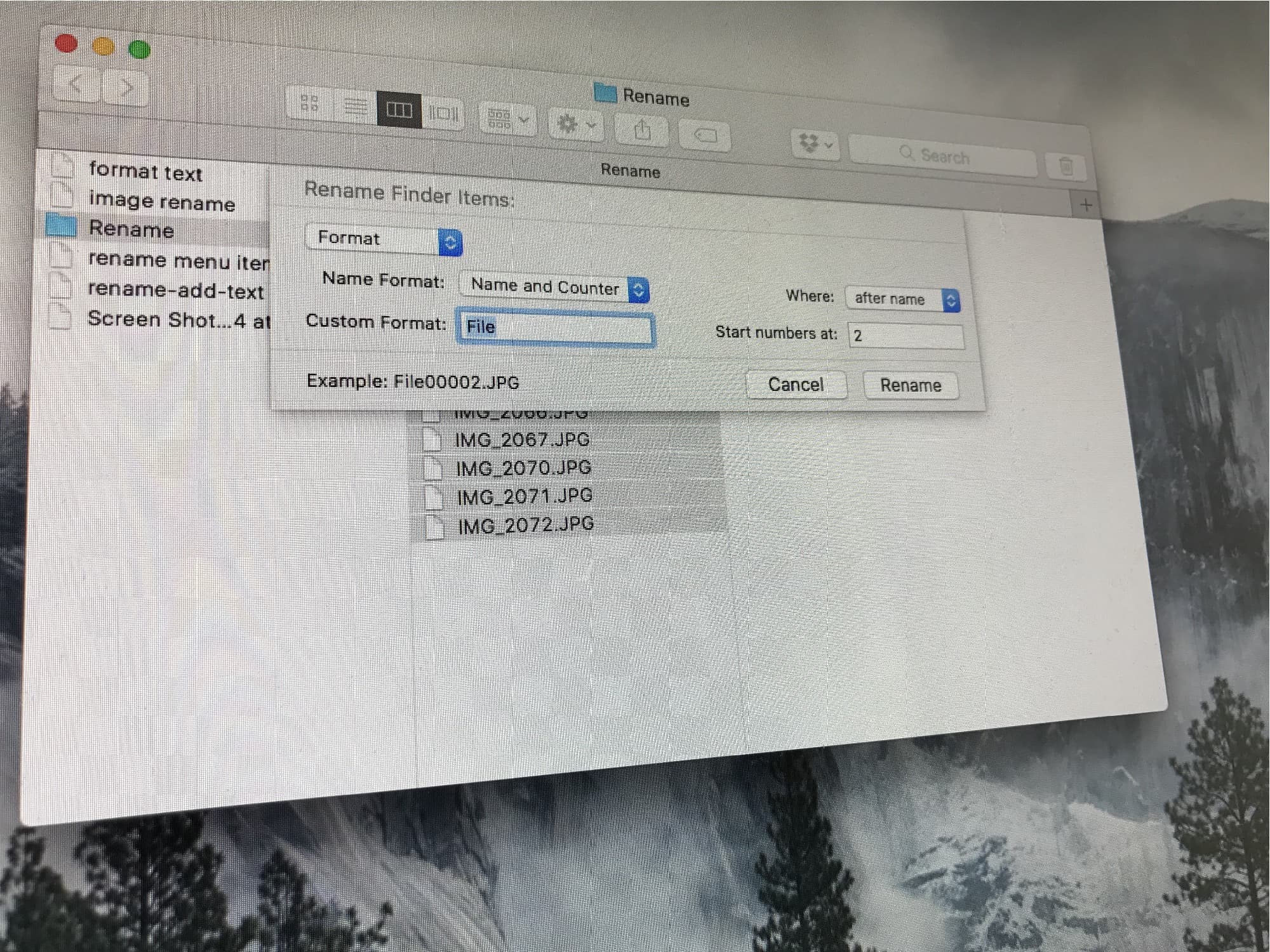
Renaming files in OS X is a fairly simple affair. Simply click a file name to select it, then click again (don’t double click!) to make the name editable. However, when you’re working with a file in your favorite app, a trip to the finder to rename it, or a trip to the Duplicate function may not fit within your workflow. It’s also just annoying. Why not just mess with the file directly from the file itself. Say,t he title bar? Well, in Mountain Lion, you can.
In Mountain Lion, the Finder might even replace iPhoto
Back in the time of the OS X Leopards, the Finder became a whole lot more useful for anyone with photos and videos on their Macs (ie. everybody)/ We got Quick Look, which let us watch slideshows and movies right there on the desktop, and the Finder itself was good enough to use as a lightweight photo viewer.
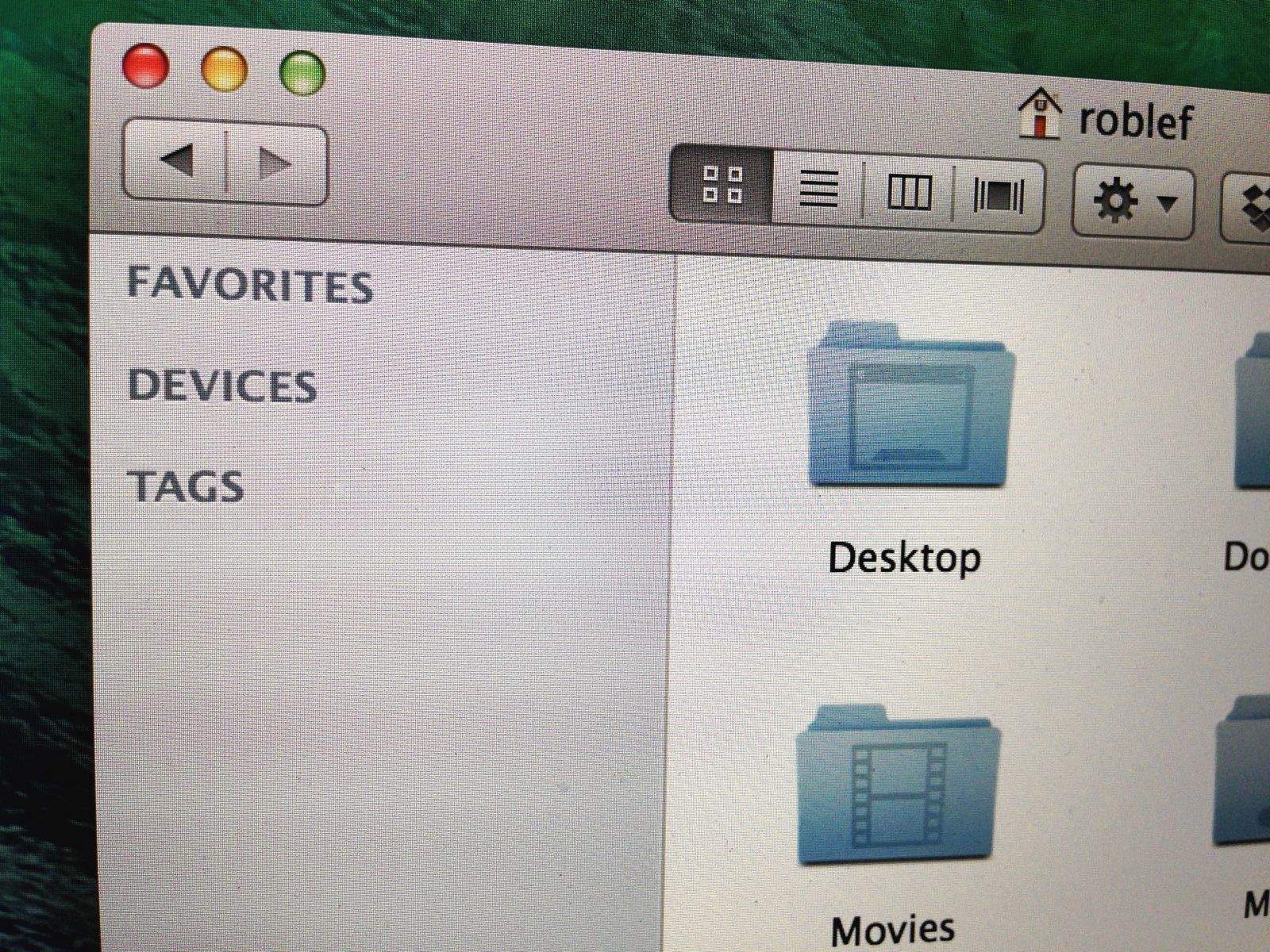
Then Lion came along and broke one essential tool: the little slider in the bottom right of Finder windows had its functionality removed. It used to let you zoom file thumbnails defaults write Finder trackpad zoom, but in Lion the tool remained, but did nothing.
Thankfully in Mountain Lion the slider now works again. And happily for the photographers out there, the Finder has some other new tricks you’re going to love.
One of the joys of being a power user is when you use keyboard shortcuts to shave precious seconds off of your workflow routines. While you may know all the system shortcuts there are (⌘ + C for Copy, ⌘ + V for Paste, etc.), you may not be as familiar with those in the Open or Save dialog windows that you encounter every day.
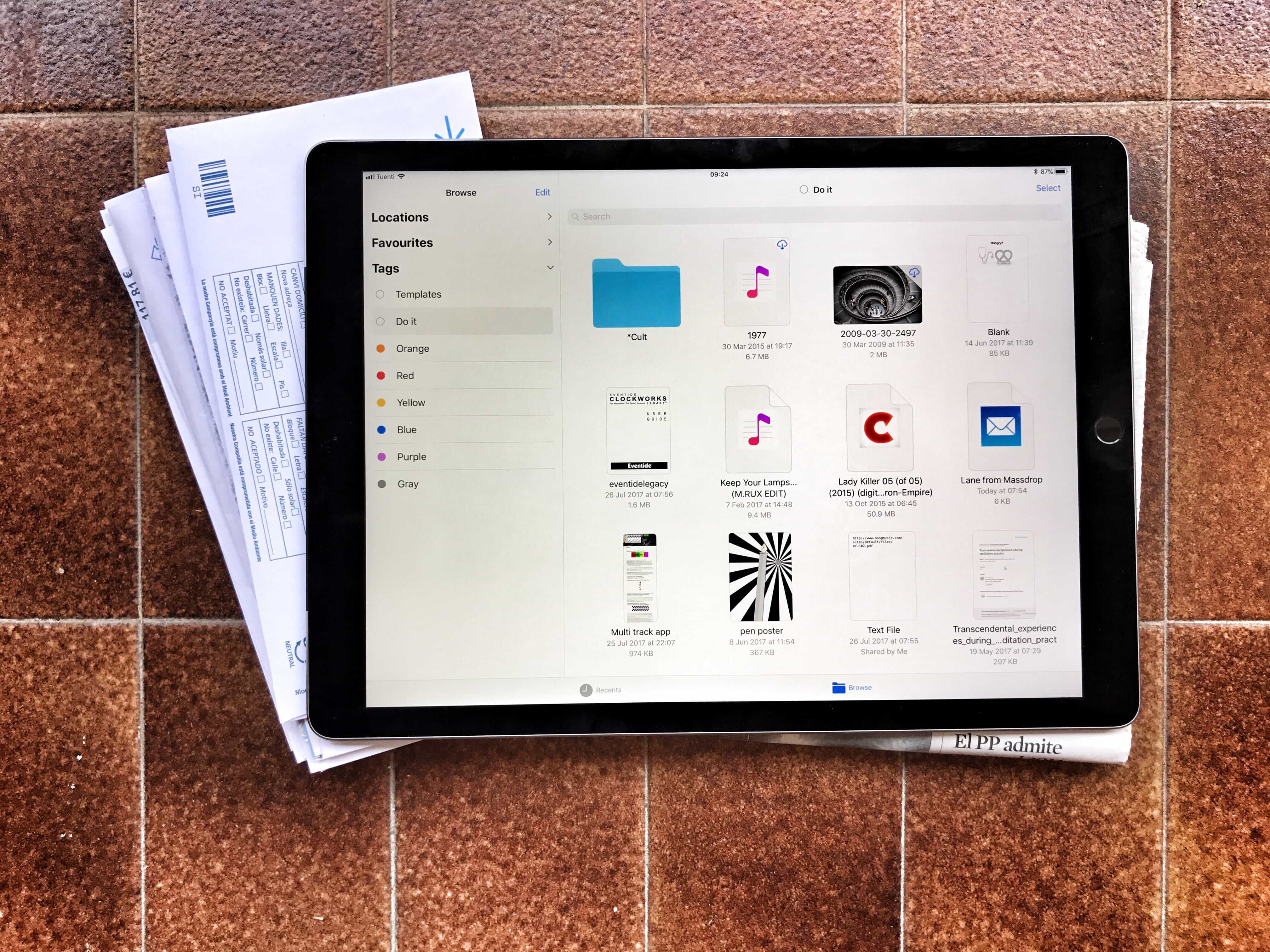
IStorage 2 is the coolest iPad file manager I have yet seen. It has a bunch of missing parts, and a few UI weirdnesses, but this DropBox-and-iCloud-connecting app uses the iPad’s touch interface and graphical horsepower to bring us the iPad file manager we always wanted.
Convergence. It’s all the rage, lately, and what better two items to converge than your Mac, running OS X, and your iPad (or iPhone, or iPod touch), running iOS? IT’s two great tastes that taste great together, to quote an old commercial that mostly no one has heard of any more.
With these five tips, you’ll amaze your friends with a Mac that looks more like your iPad than it does your Mac. So, read on, intrepid souls, and follow our steps to make that sweet Apple computer into something resembling the post-PC magical device we all love.
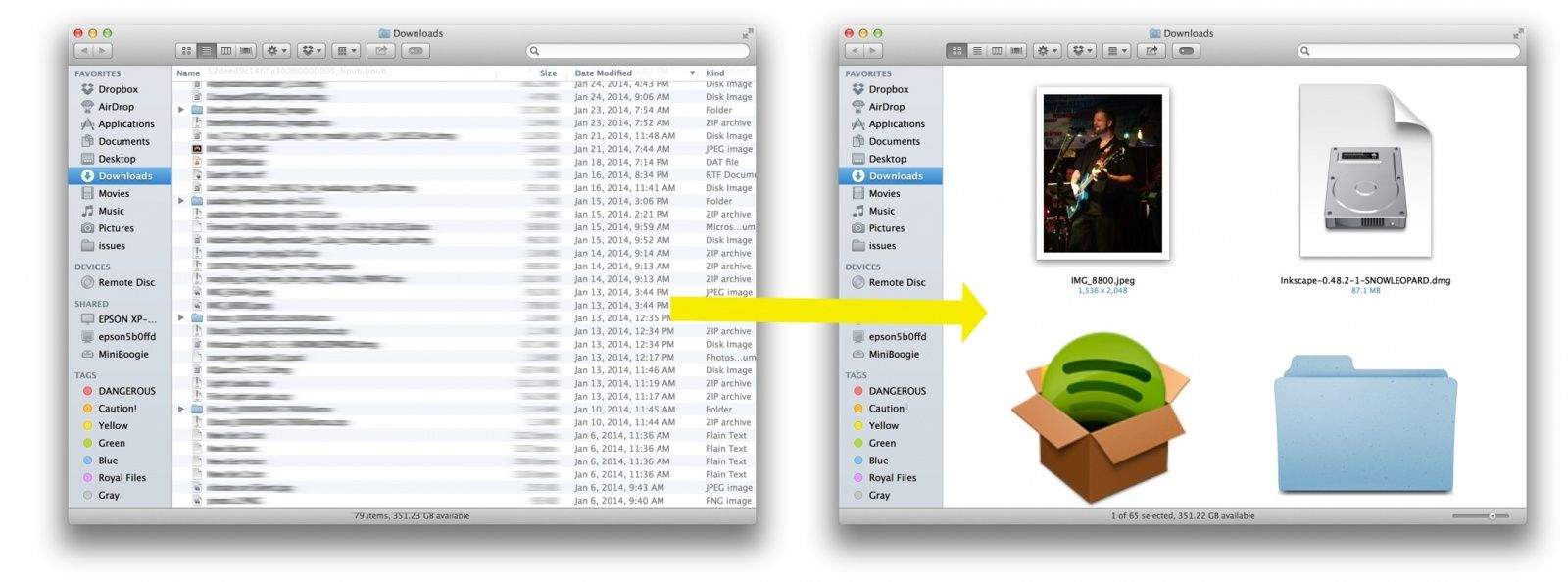
I don’t know about you, but I’m constantly reaching up to swipe or tap on my Macbook Air display, unconsciously attempting to use it like an iPad. While today’s tip may make things even worse by turning the Finder into an iPad-like grid of iOS-style icons, I’m willing to take the risk to make my Mac look that much cooler.
Taking photos is a ton of fun, especially with our nearly ubiquitous iPhones or iPads. I can’t tell you how many people I’ve seen in the last month or so snapping pictures with the big tablet device. Looks silly, but makes sense.
How do you get them to your Mac, though? You could email them, one at a time, or you can connect the device to the Mac and grab them via iPhoto. These days, you can even use PhotoStream in iPhoto to see the latest photos you’ve taken on any PhotoStream-enabled iOS device. Todays tip is even faster than that.