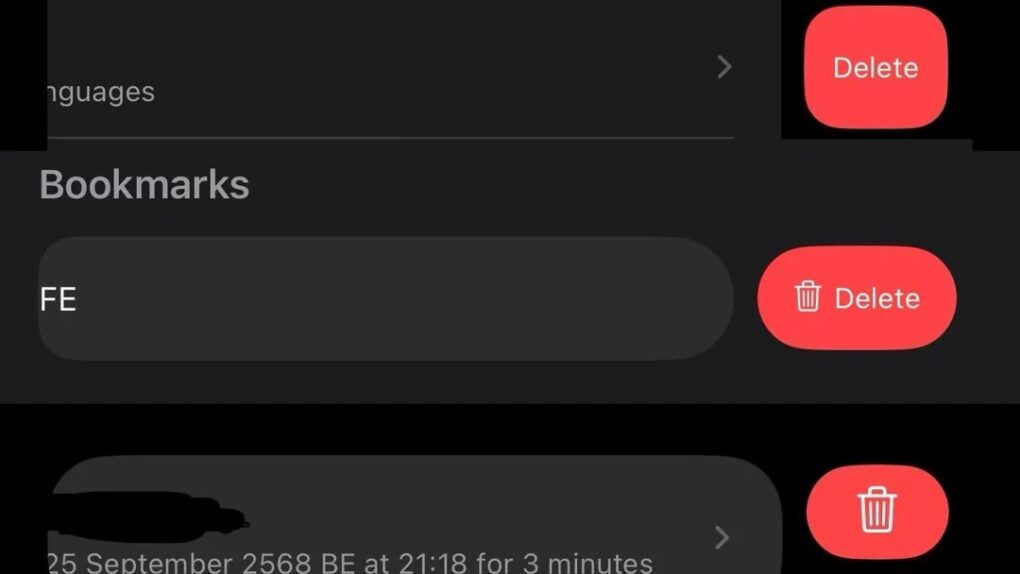
Why does Apple vary delete buttons so much? Image: [email protected]
Apple built a reputation for meticulous design consistency, but a growing number of users keep noticing cracks in that polished facade. A recent social media discussion highlights how longtime Apple fans wonder why delete buttons vary so much across iOS apps.
“Steve Jobs would be absolutely livid about the state of Apple UIs today,” wrote one irate user about the steadily less-consistent state of the iOS user interface.
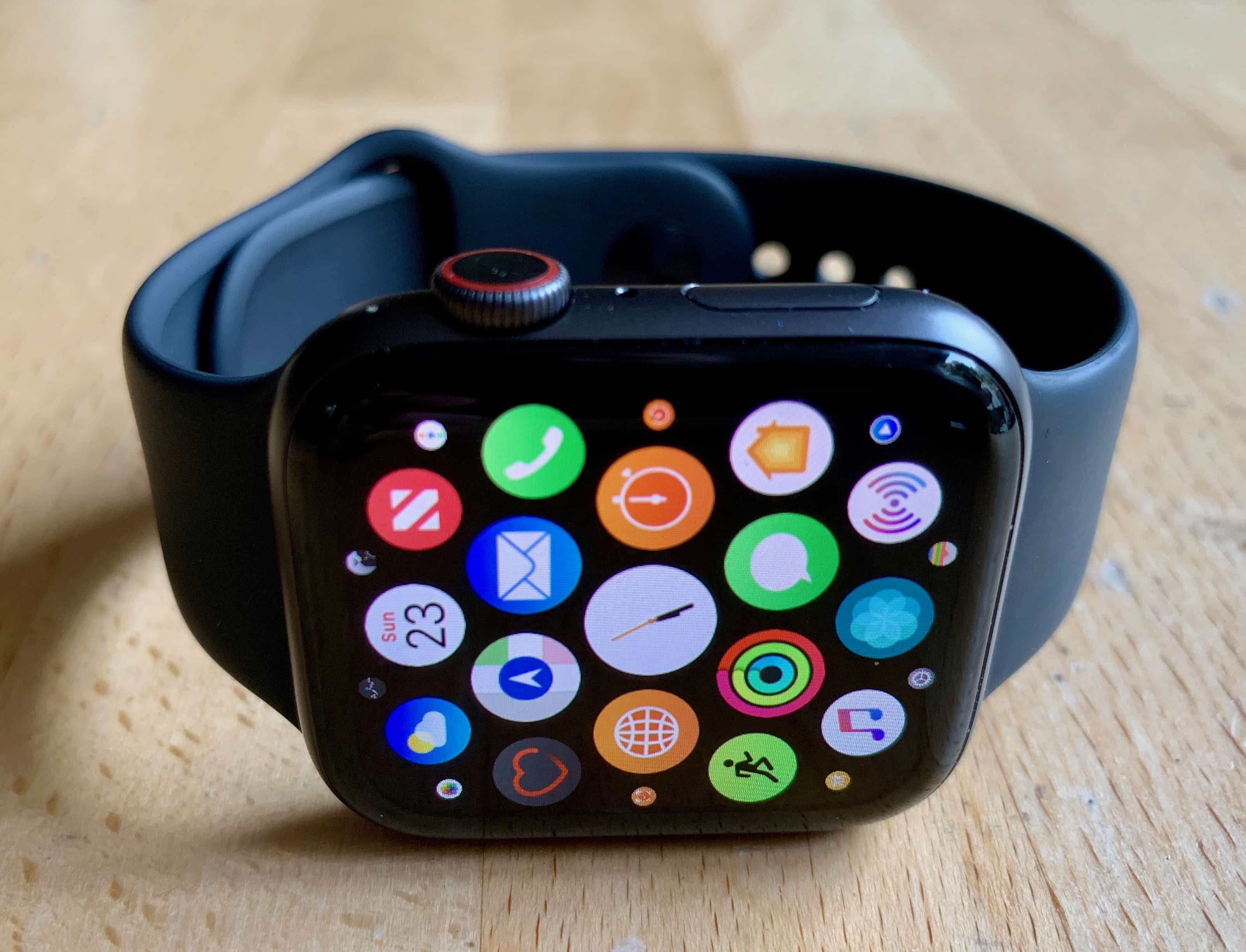
Apple Watch Series 4 Photo: Leander Kahney/Cult of Mac
Apple’s latest watchOS 6 beta, released to registered developers on Tuesday, lets you delete stock Apple Watch apps for the first time.
Alarms, Breathe, Timer, Stopwatch, and Walkie-Talkie are just a few of the many that can now be removed. Any deleted titles can later be re-downloaded from the Watch App Store.
Look out for Messenger's unsend option soon. Photo: Facebook
We’ve all sent messages we regret, which is why many messaging platforms now give us the option to recall a text. Facebook Messenger is finally following suit, but it won’t give you much time to fix a potential disaster.
Get rid of risky messages before they're seen. Photo: Snapchat
Snapchat is making it easier to deal with messaging regret by giving us the ability to delete chats after they’ve been sent.
The new “Delete Chat” feature is available for both group and one-to-one conversations. It can be used to recall text as well as voice notes, stickers, photos, and videos.
Coming soon to an iPhone near you? Photo: Killian Bell/Cult of Mac
WhatsApp’s latest update give users more time to delete accidental messages after they’ve been sent.
Its message deletion feature, introduced last October, previously gave us just seven minutes to undo a potential mess. Now the “delete for everyone” option is available for just over an hour.
We’ve all uploaded Instagram photos that seemed a great idea at the time, and now we regret ever making them public. You don’t want anyone to see them, but you don’t want the memory to be gone for good.
Now you can archive all those embarrassing snaps instead of deleting them altogether.
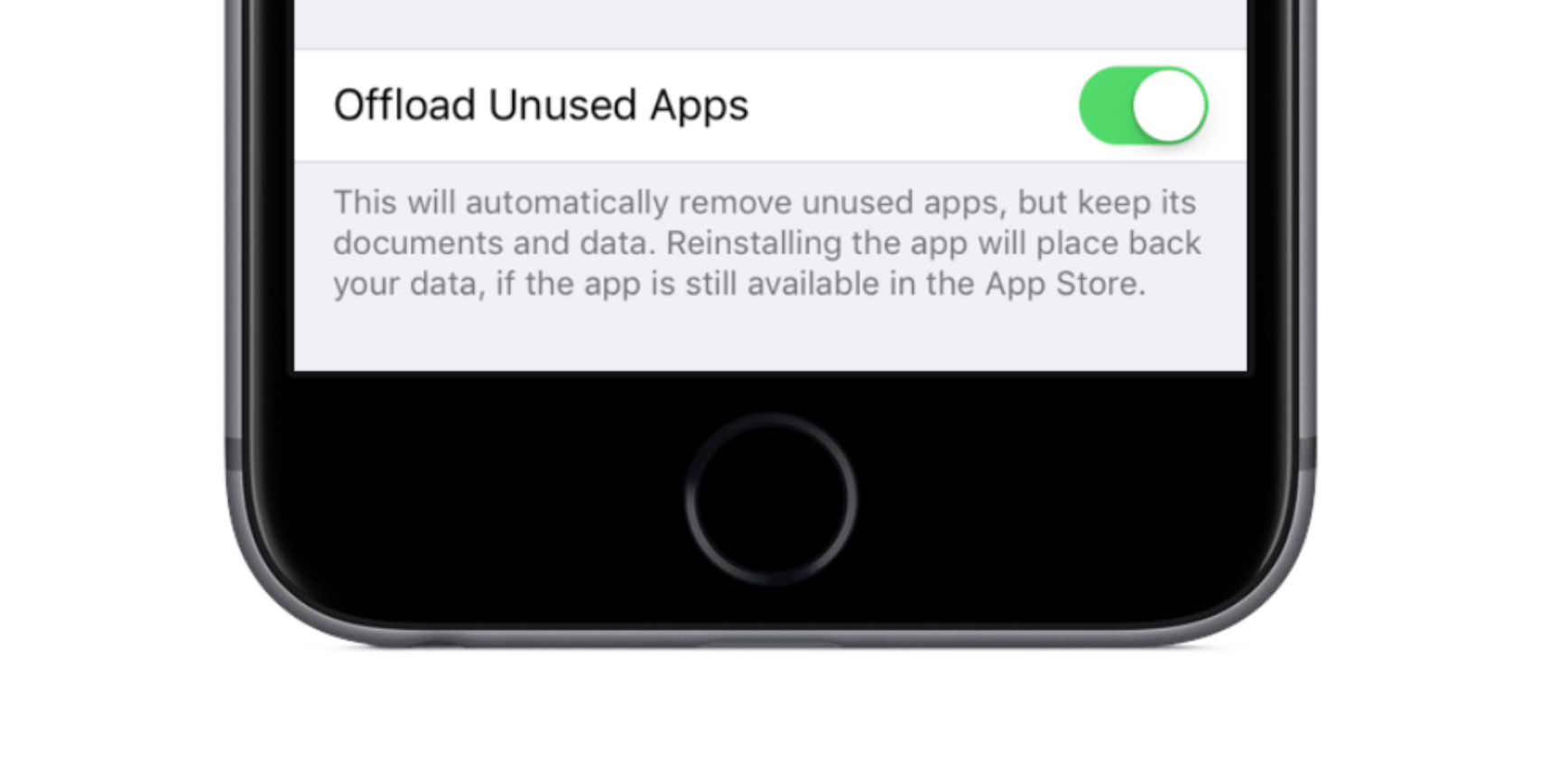
Forgotten apps will be booted to free up storage. Photo: iDownloadBlog
If you’re anything like me, you’ll have a bunch of apps installed on your iPhone, taking up precious storage space, that you never use anymore. When iOS 11 drops this fall, you’ll have the option to get those apps uninstalled automatically.
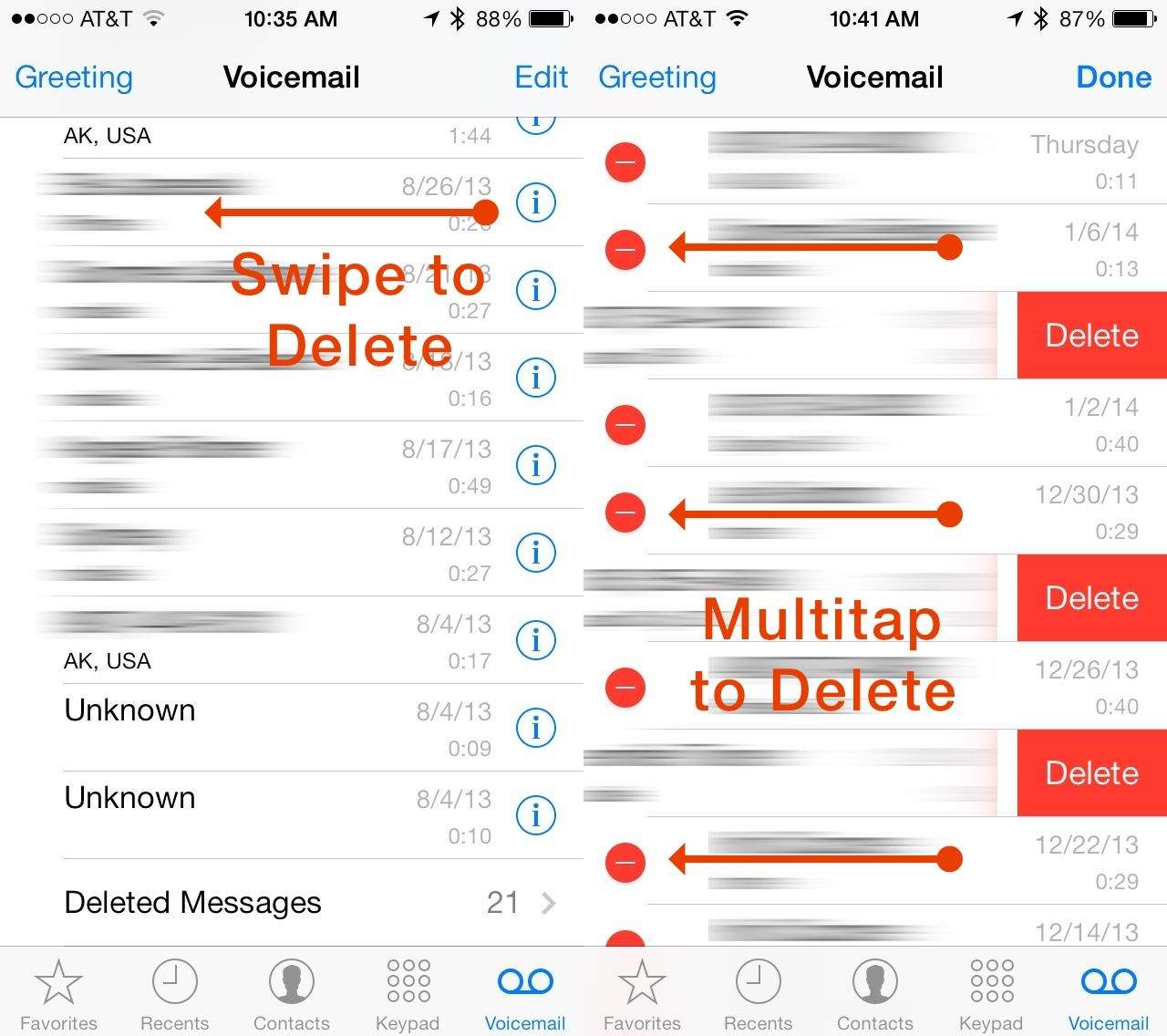
I hate voicemail, I truly do. It’s like a fax machine: outdated and unnecessarily complicated. The introduction of visual voicemail in iOS was a good step toward updating the technology, but I’d still much rather get an email or text message than sit through someone’s verbal ramblings just to hear them say, “call me back.”
Unfortunately, there are still plenty of people who insist on leaving auditory messages for me on my iPhone. Apple has also given us quite a few ways to delete them, and then to clear out the deleted messages (yes, even deleted voicemails stick around). They must hate voicemail as much as I do.
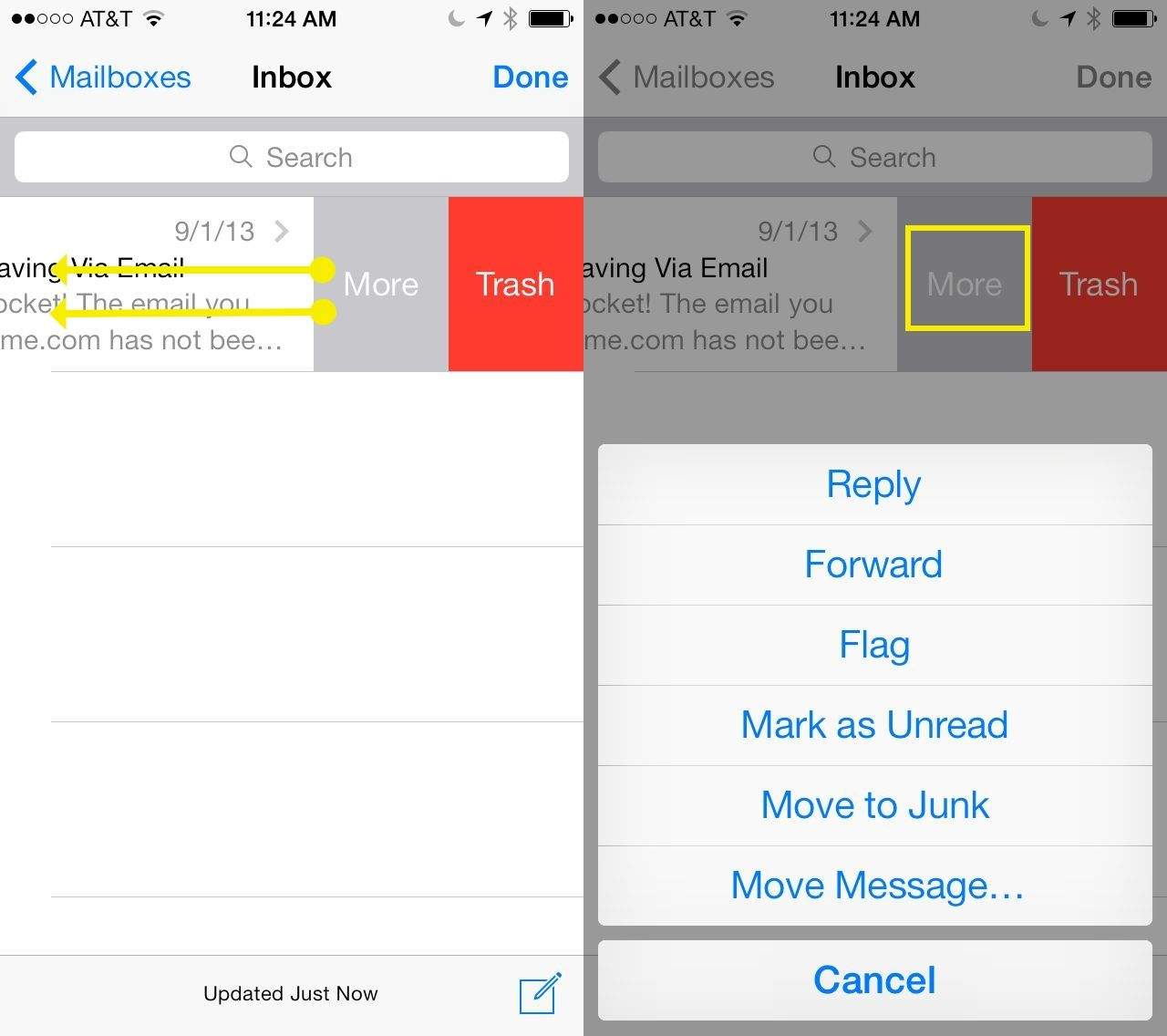
Deleting emails has long been a fairly simple task in iOS. All you’ve ever needed to do to delete one is swipe to the left to pull up the delete button, or tap on Edit to delete multiple messages. Deleting email is such fun, of course, but there are other things you might want to do with your emails.
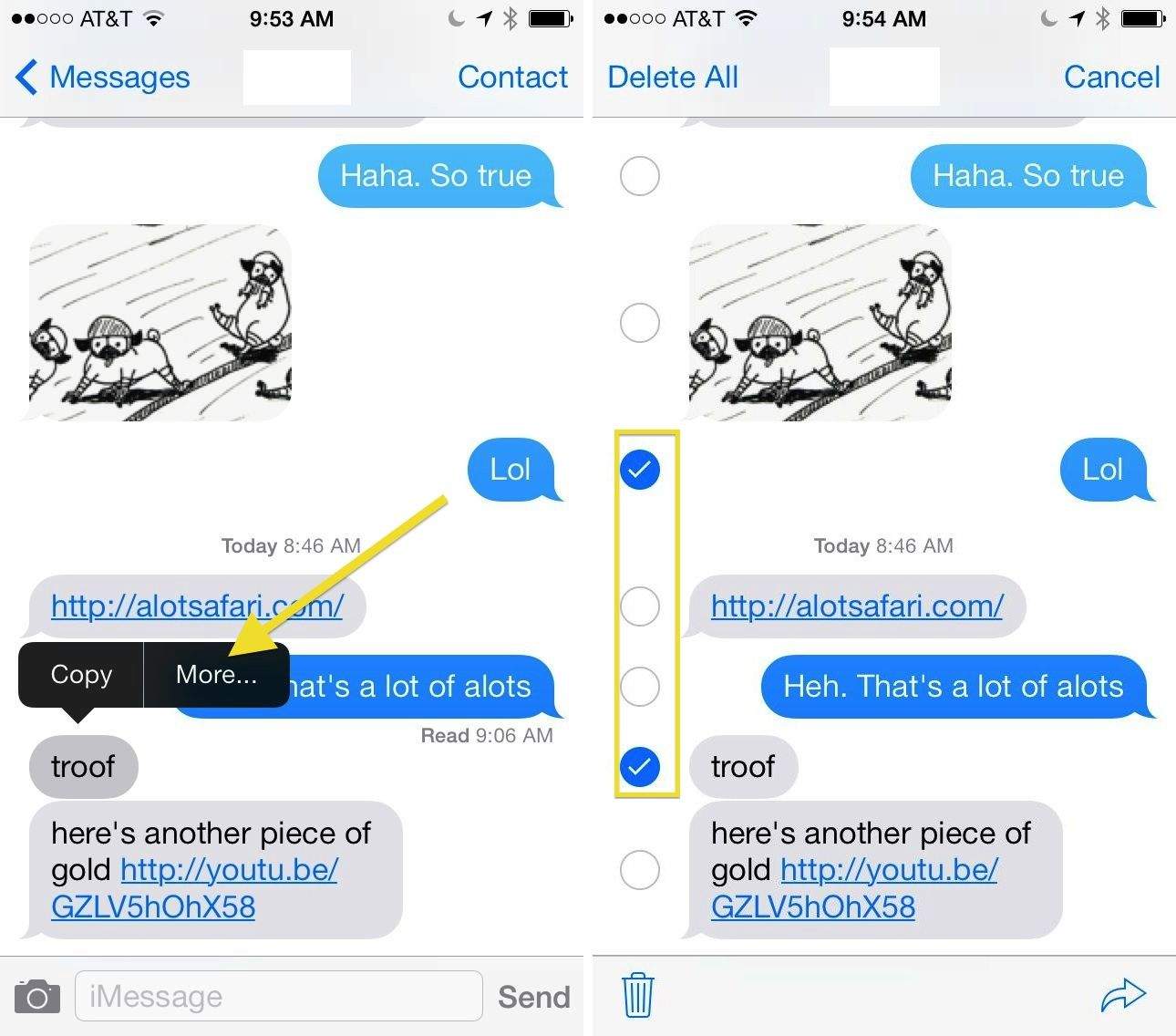
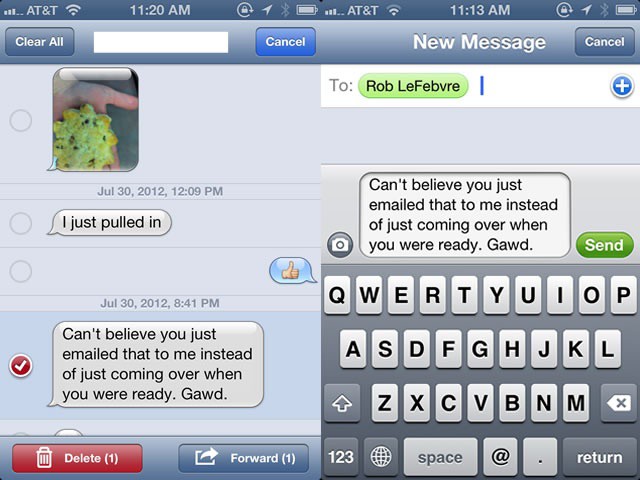
It used to be simple to delete text messages from your iPhone (or, I suppose, your iPad if you use iMessages), but with iOS 7, the cute little Edit button has gone away from the upper right corner. Instead, there’s a Contact button up there, which–while useful–used up the space where the Edit button used to be.
You can still delete entire message conversations by swiping to the left in the list of all your text messages, but how do you delete specific messages within a conversation? Swiping to the left just shows you the timestamps of the messages.
Thanks for the tips on deleting individual episodes of a podcast. However how do you remove the entire podcast icon from ‘my podcasts’ ? Tried unsubscribe but that doesn’t work. If you could let me know that would be great.
It’s a good point, Justin, so I did a little poking around in the Podcast app and figured it out.
Deleting individual episodes from the Podcasts app on your iPad, iPhone or iPod touch is fairly easy if you’re a longtime iOS user. If not, then it might not be as intuitive.
Here’s how to get to, and then delete, individual podcast episodes from your iOS device of choice.
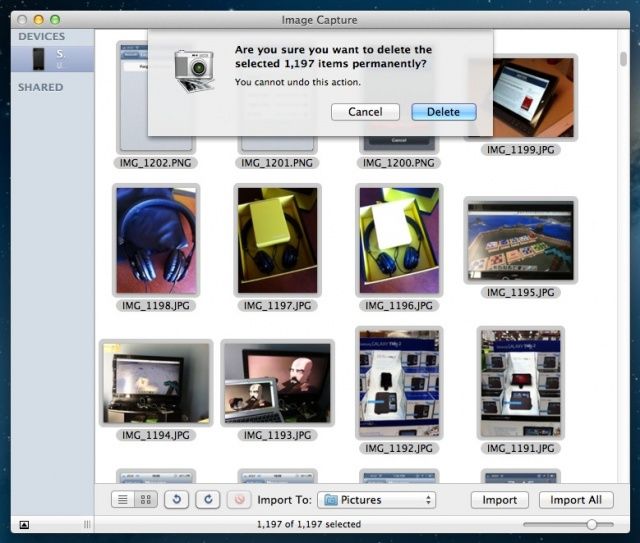
As we mentioned in yesterday’s tip, sometimes you need to just clear out some space from your iPhone or iPad to make room for new photos as they come in, whether you’re taking them on the device itself or using PhotoStream. As one commenter mentioned yesterday, all these different sources of photos tend to make the number of them add up.
But what if you just want to dump a bunch of photos at once, say, while you’re away from the computer? Turns out, it’s just as easy as pie. Or cake. Whatever.
Photos take up a lot of space on our iOS devices. It’s important to many of us with the lower end iPhones to leave enough room on the device to capture new photos, let alone apps and music and books.
With the advent of Photostream, it’s easy to have the photos we take on our iPhone show up on our Macs or iPads, so deleting them from the iPhone makes a lot of sense and is much less of a scary proposition. Here’s how.
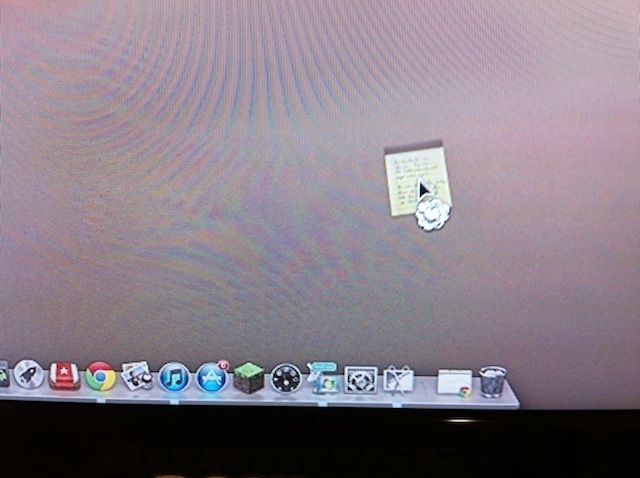
Have you tried to get rid of an application or document from the Dock after an upgrade to Mountain Lion? Before now, it was a simple drag and release: click on the offending icon, drag it away from the Dock, and let go. The little “poof” cloud would appear and the icon would be gone from the Dock. New OS X users would freak out, crying, “You got rid of my app!” and I would laugh. Also, I would show them where the actual app was, and how to put the icon back in the Dock, as the icon is simply a pointer to the real app. But I digress.
In Mac OS X Mountain Lion, this doesn’t work in quite the same way anymore. Try to click, drag, and release just ends up with the icon speeding back to its previous place in the Dock. You want to get rid of it? You have to learn a new, subtly different behavior.
Here’s an obvious yet often overlooked tip – something that I’ve personally looked at every time I use the Messages app on my iPhone, but never really “connected” with.
I’ve often needed to send along a specific text message, to a boss or co-worker, or even to a family member. I’ve often copied an individual message, then pasted it into a message of my own to the new person.
Starting in iOS 5 iOS 4, though, there’s an easier way – forwarding it. Here’s how.
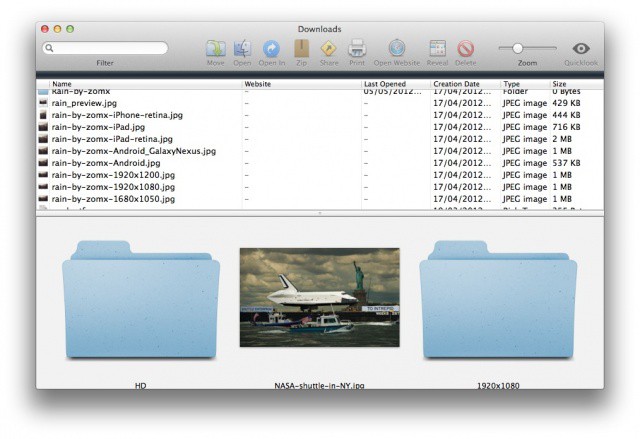
Is your downloads folder out of control? Use Downloads for Mac to tame it.
I don’t know about you, but the downloads folder on my Mac is one that I just cannot keep organized. Every so often I’ll trawl through it and delete all the stuff I don’t want, while filing the stuff I do want into other folders. But most of the time it just includes a heap of documents and images that I’ve picked up over a course of many months.
But Downloads for Mac is a simple app that can change this. It displays each and every item in your downloads folder — whether its at top level or buried deep within other folders — and makes it easier to see what you have going on in there. For those of you with downloads folders like mine, this should make the cleanup process much quicker, and much easier.
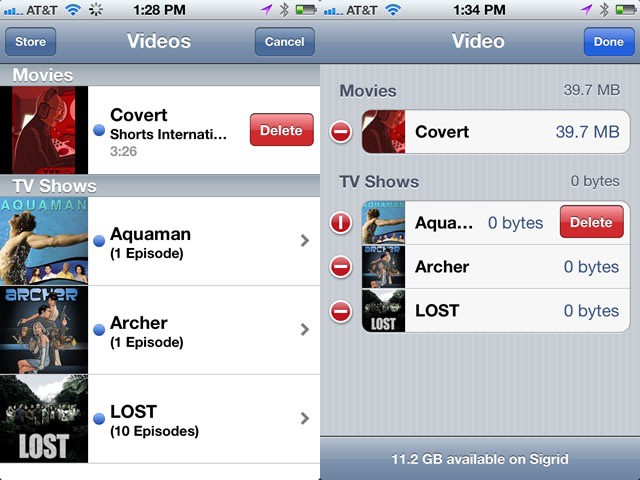
Chances are you’re going to want to get rid of some videos on your iPhone or iPad at some point when you’re not near your trusty Mac at home. Or your laptop. In fact, you might even want to skip the computer and iTunes altogether, and just delete them from your iOS device directly because finding the white connection cord is just too much of a hassle. Today’s tip gives you two ways to do this.
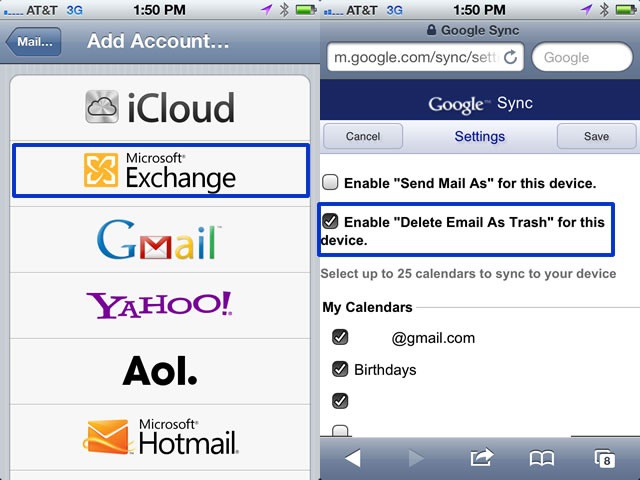
If you use Gmail like a lot of us do, you may have noticed that when swiping across an email to delete it, you’ll only have an Archive option. Well, if you’ve set up your email as a Microsoft Exchange account, you’ll have the option to delete the mail rather than just archive it. Here’s how.
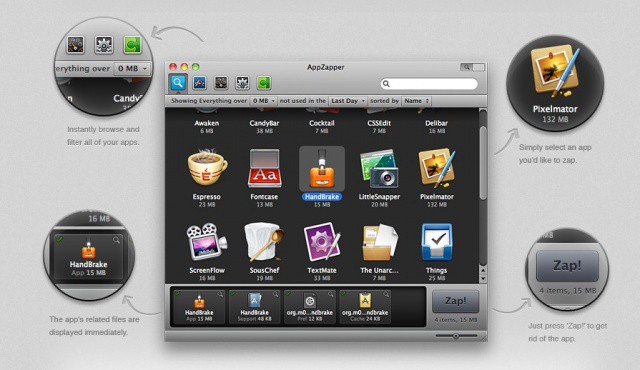
Deleting apps on the Mac has always been an easy affair, with a drag and a drop and a whistle on the wind. Compared to Window’s uninstaller process, Mac users have had it pretty darn easy. These days, however, some apps like to clutter your hard drive up with a bunch of wacky preference and configuration files. What’s an OCD mac user to do? We’ve got one potential answer in today’s tip.
Mac OS X comes with a nice selection of applications, but sometimes you may want to get rid of one. Well, if you’ve tried to delete many of these apps, you’ll notice that you probably don’t have permission to. In this video, I’ll show you how to get around this limitation.
A new jailbreak tweak making its way into Cydia will enable users to delete home screen folders – and return all of the applications within them to the home screen – with a single tap.