Widgets on the Mac are officially dead.
Apple dropped support for Dashboard on the Mac in the first beta of macOS Catalina without saying a word. Now it looks like there’s no hope of it coming back according to a recent changelog.
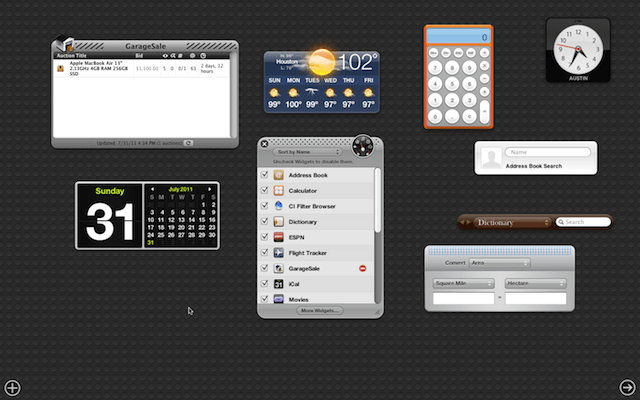
Widgets on the Mac are officially dead.
Apple dropped support for Dashboard on the Mac in the first beta of macOS Catalina without saying a word. Now it looks like there’s no hope of it coming back according to a recent changelog.

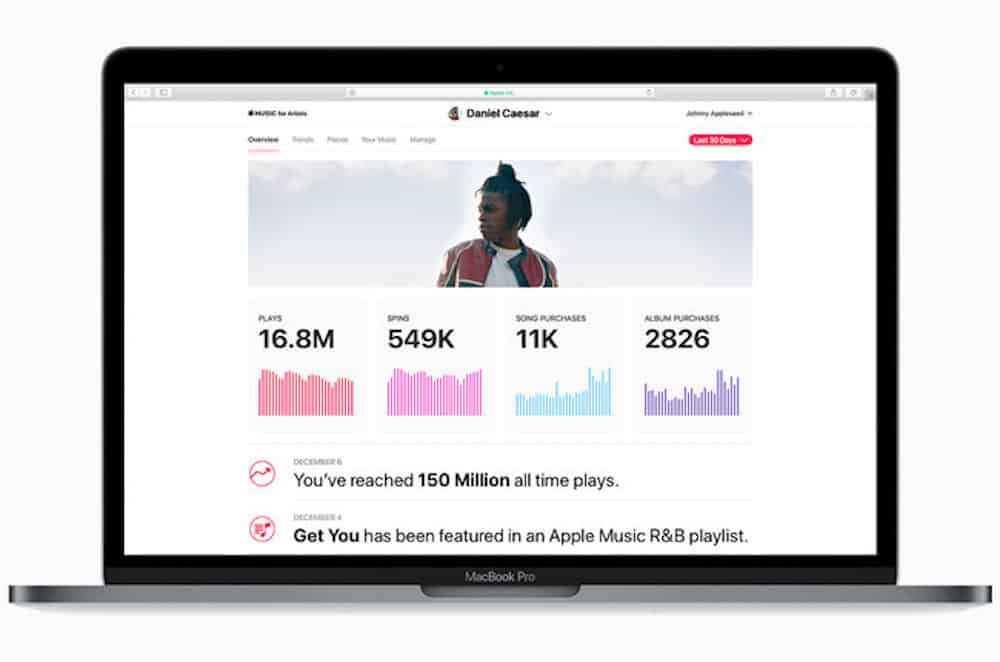
Apple is offering musicians an analytics dashboard through Apple Music for Artists. The new tool provides insight into the listening habits of fans, highlighting the number of track plays, song purchases, and more dating back to when Apple Music launched in June 2015.
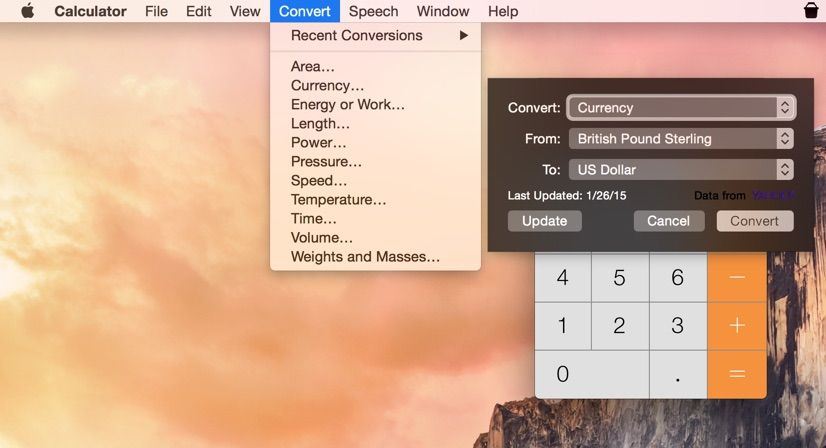
As the world gets smaller and smaller thanks to the global marketplace called the internet, you may sometimes need to know exactly how much your dollar will get you in the wider world. Is that £15 widget really worth it? You’ll only know if you convert it to some form of currency that you understand better.
Your Mac has at least three ways to do this sort of calculation: with a Dashboard widget, the built-in Calculator app, and even with Spotlight. Here’s how to convert currencies into something that makes more sense, right from your handy Mac computer.
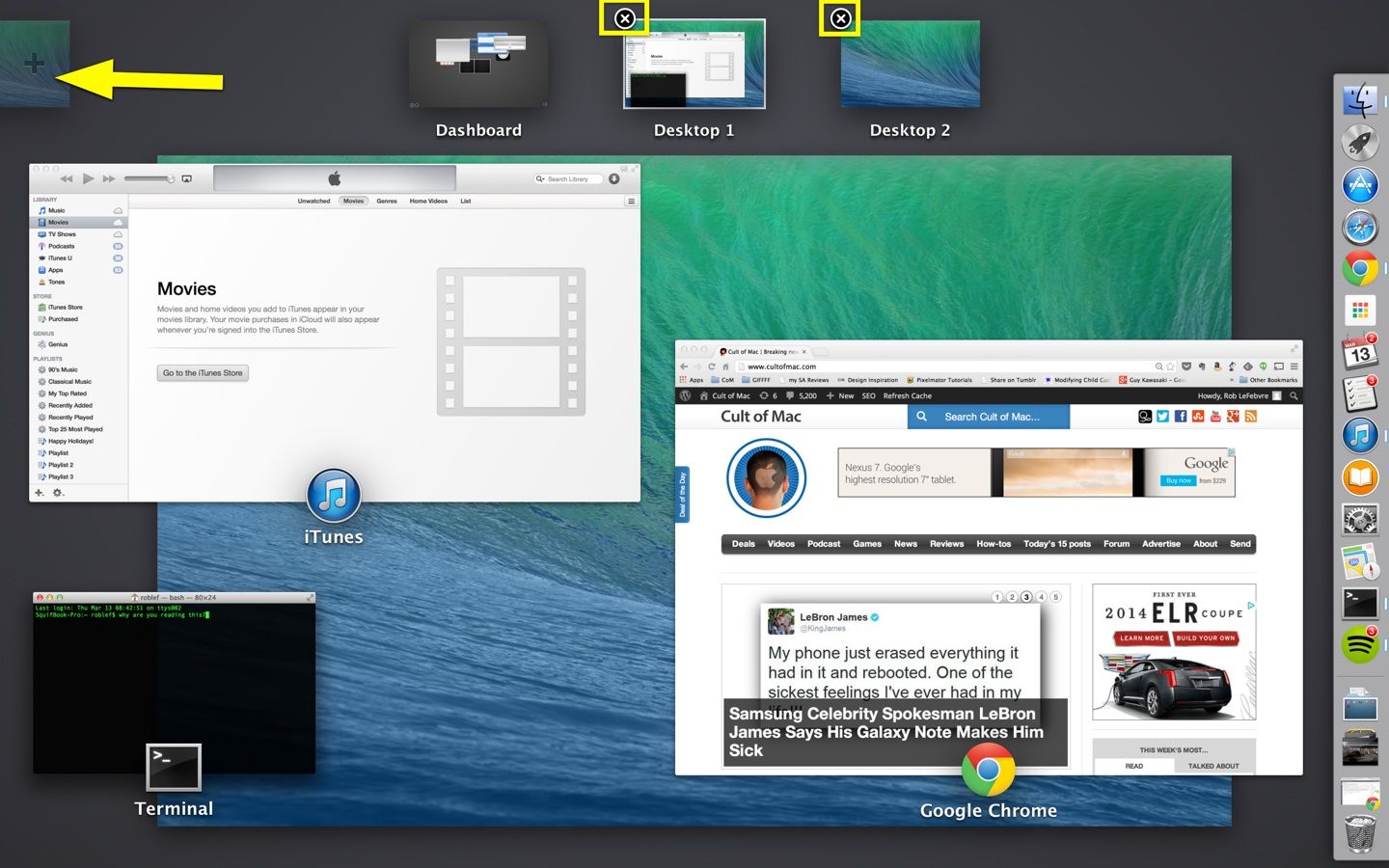
If you’ve been using OS X for any length of time now, you know the special joy of desktop “spaces,” what Apple calls its virtual desktop system. You can switch between them by hitting Command-Arrow (right or left) on your keyboard, or you can activate Spaces with the F3 key on most modern Macs. You can also reorder these Spaces around fairly easily.
But did you know you could add more Spaces? Delete the ones you have?
Well, you can, and it’s pretty simple.
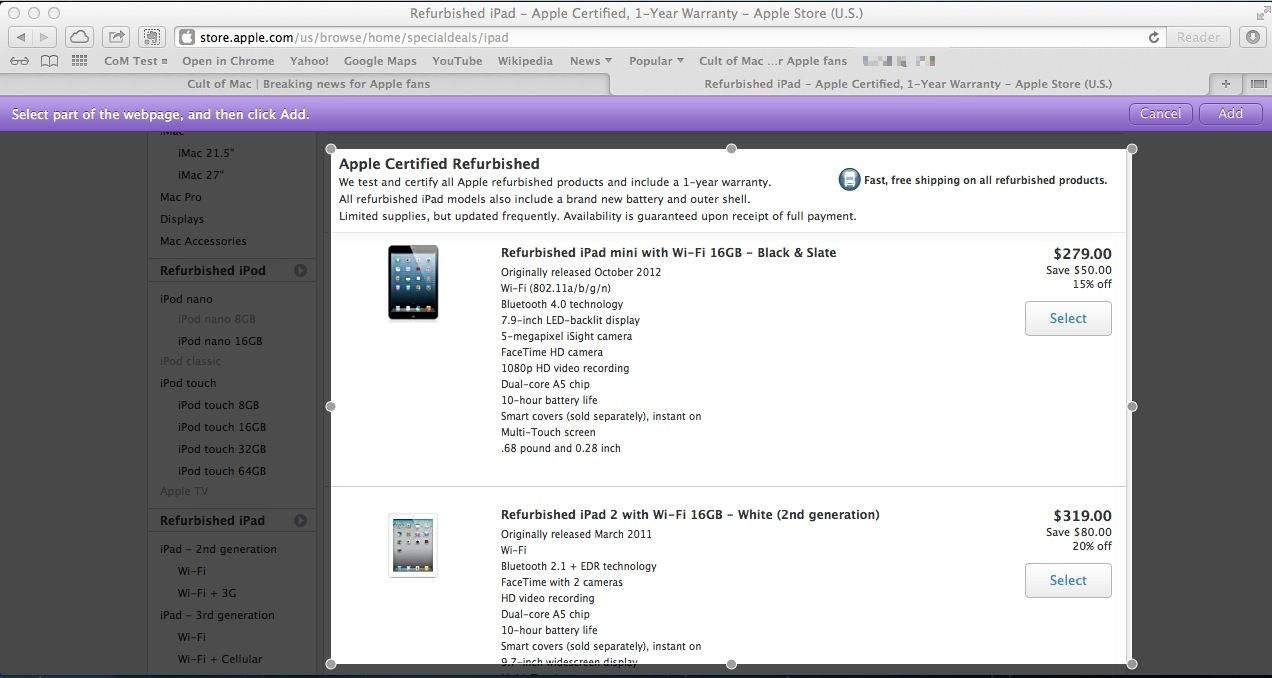
Poor Dashboard widgets. They seem so sad, sitting there, their vast potential wasted by a lack of any good ones.
Luckily, our friends over at OS X Daily have pointed out a pretty slick way to roll your own using Safari. Who knew?
Here’s how to make your own darn widgets in OS X with nothing more than a copy of Safari and any web page you want to keep track of.
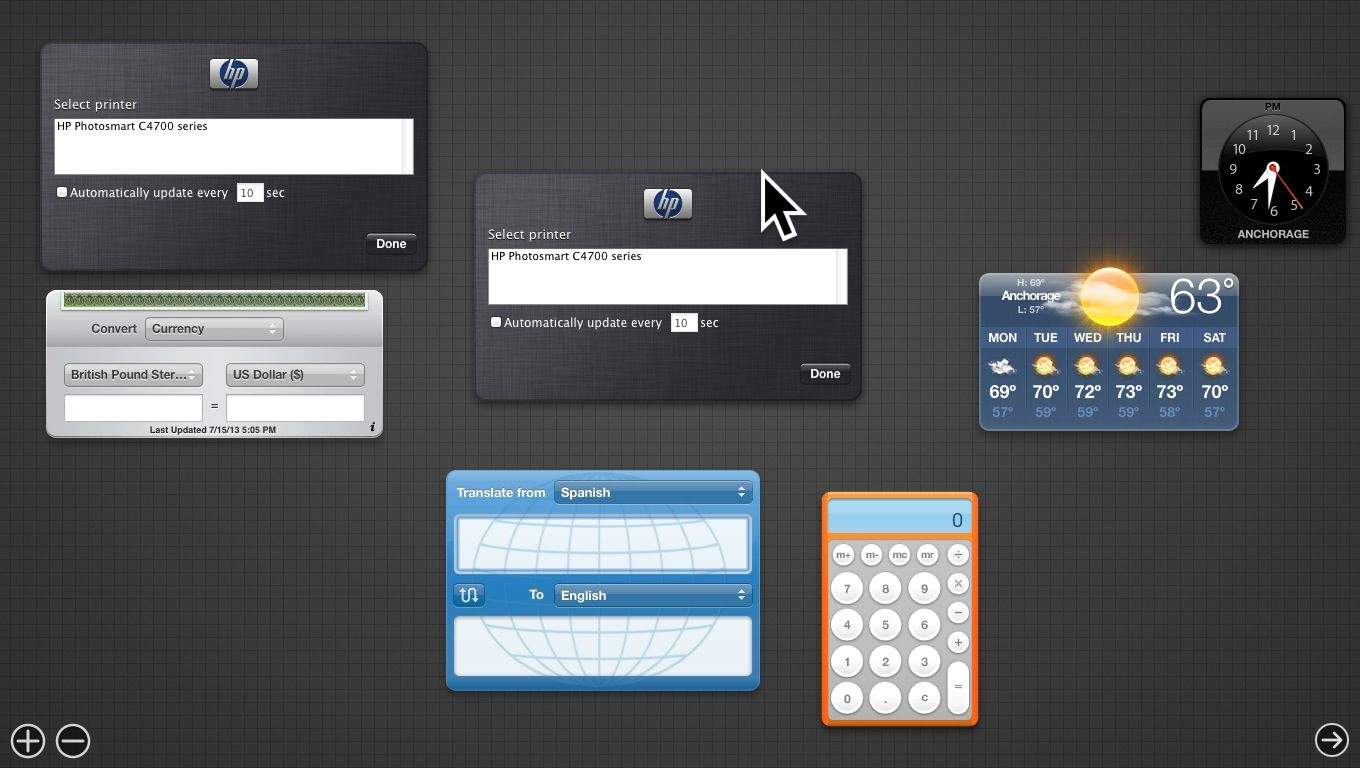
The Dashboard has been getting less and less attention lately, and so it’s surprising that it’s still in OS X Mavericks beta, to be honest.
It does have a nicer background, to be sure, but if you’re feeling like it has outlived its purpose on your Mac, here’s how to get rid of it.
Remember that the OS X Mavericks beta isn’t a final version—it’s meant to be used by developers to ensure that their software will work with Apple’s latest and greatest. With that disclaimer in mind, let’s check out yet another little feature in the beta.
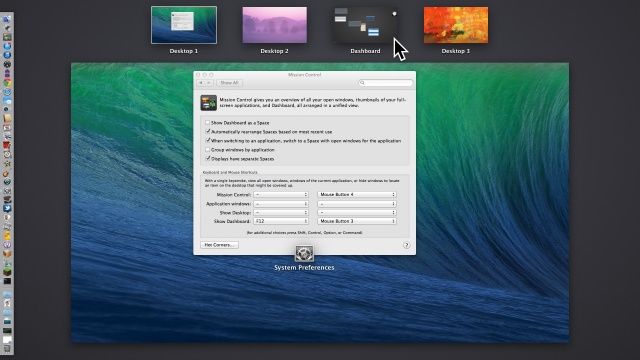
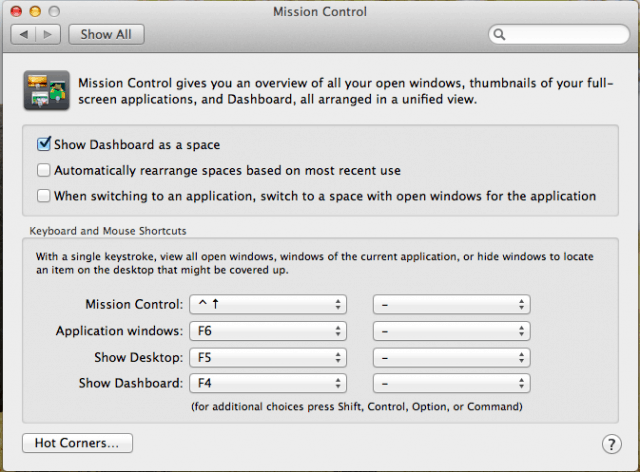
Prior to OS X Mavericks beta, the Dashboard, loaded with useful widgets of all stripe, used to be limited to two states: disabled, or locked to the top left side of the Mission Control screen.
Now, however, with the advent of OS X Mavericks beta, that’s no longer the case. The Dashboard is now treated the same as any other Space when enabled. Here’s how to get it enabled, and then how to move it around.
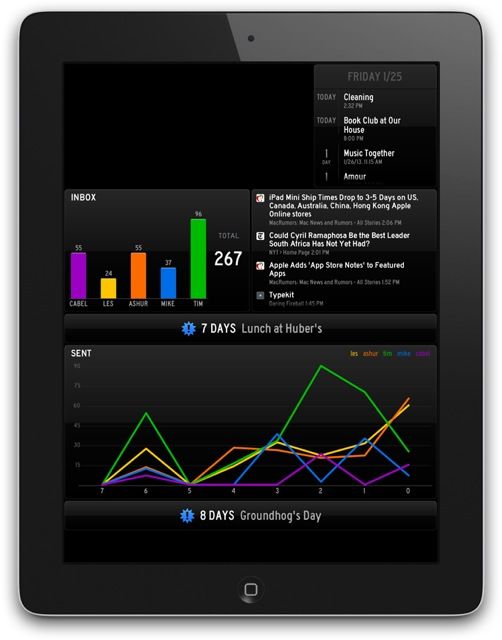
Panic makes some of Cult of Mac’s favorite apps for the Mac. Transmit, Coda, Unison… they’re all classics of Mac app design, and recently, Panic has made the leap into iOS apps with Diet Coda and Prompt.
Now, rumor has it that Panic is about to release a brand new app for the iPad…. and it looks like it’s going to be a super-sexy dashboard app.
Terminal app can be daunting at first, but it’s really the best way to hack into your Mac’s configurations and preferences to customize things to work for you rather than against you. With the right Terminal commands, you can tweak the Finder, mess with the user interface, build a more private and secure Mac, and even enable features that aren’t officially supported on older Macs.
Here are a few of the better ones.
We’ve passed along information on using Terminal, the most useful app on your Mac, to tweak the Finder, change up some User Interface features you may not want or like, and to keep your Mac more secure and your data more private.
Today, let’s look at the Dashboard, with its widgets and things, and see what we can do to hack it a bit.
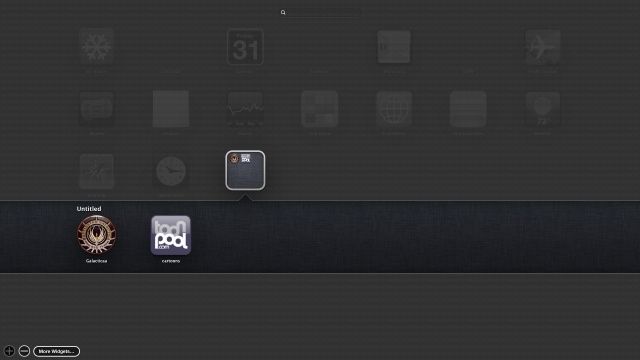
So, when you use OS X Dashboard widgets for a while, chances are you’ll download a few of them that might fit together into categories. In OS X Mountain Lion, Apple set the “Add More Widgets” screen to look a lot like iOS, as we showed you in a previous tip. The cool thing is that you can create iOS-Style folders in here, too, and add a bunch of apps to one slot, thereby organizing your Dashboard in a similar way to that of an iOS device screen.
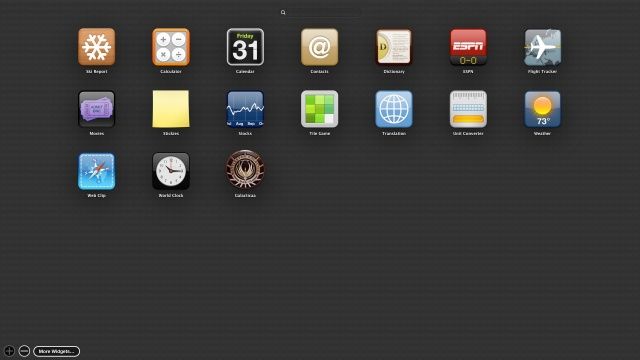
Widgets aren’t new to OS X Mountain Lion, but the way they are presented surely is. If you’re new to the OS X Dashboard, you’re in luck, because adding Widgets is a lot easier than it used to be, and there are a whole lot more of them to choose from.
Notice the screenshot above? That’s what the new Add More Widgets screen looks like. Here’s how to add to the list, until you have more than you can even handle on your Mac, and you need to use that handy-dandy Search field at the top just to find the one you want.
The first thing I disliked about Mac OS X Lion was the way it changed the Dashboard display. It’s nice to be able to see behind the widgets to the stuff I’m working on in the background. Especially if I’m using a widget like the Calculator, or the Weather, or the Conversion widget to see how much that import from Europe might cost me in US dollars.
Mac OS X Lion, however, puts the Dashboard into it’s own separate space, complete with opaque background that looks like an odd mix of linen theme and bubble wrap. Or maybe a non-skid floor tile from a spaceship? I dunno. Regardless, not being able to see through the background was an issue, until now. I no longer have to launch the stand alone Calculator app to do a quick sum, and can go back to enabling the Dashboard, using the Calculator widget, and dismissing it just as quickly.
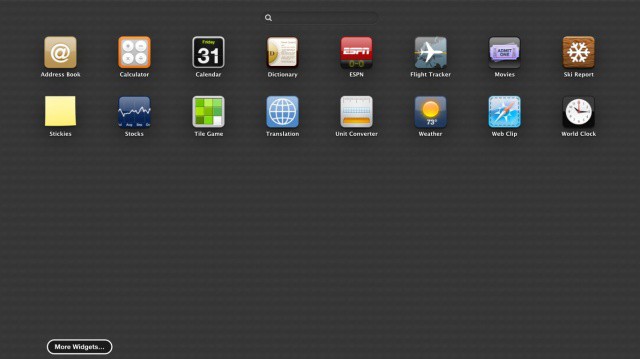
Not a huge change, but we just noticed that in OS X Mountain Lion, Apple has changed the way adding widgets in Dashboard works to be more akin to Launchpad, with a full screen of equally spaced widgets being selectable instead of Lion’s approach, which puts available widgets at the bottom edge of the display.

Many of the complaints I’ve heard about Mac OS X Lion is about Dashboard. It now has its own space (virtual desktop) where all your Dashboard Widgets live. Well those living arrangements aren’t as permanent as one would think. Here is a tip on how you can set your Widgets free!
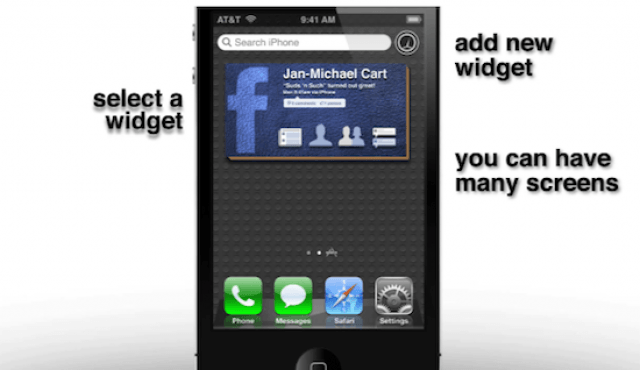
We’ve seen and loved Jan-Michael Cart’s incredible iOS 5 concept videos before, but his latest might be our favorite yet: it shows how Apple could bring OS X’s Dashboard feature to iOS 5.
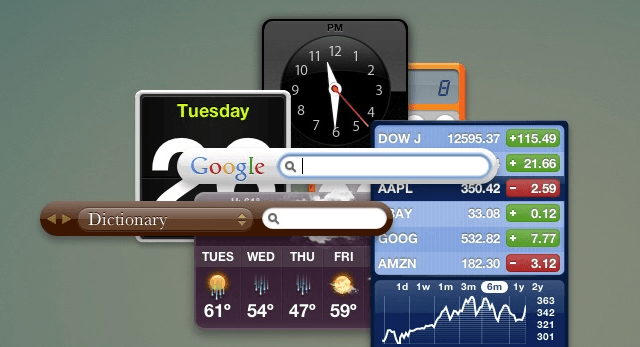
Sometimes Dashboard can seem like a hassle. While it can be very handy for quick tasks, having to open a specific application to access these widgets can become cumbersome. It is also impossible to perform other tasks while using these widgets. Well, a simple command can fix all of that, and let you enjoy widgets alongside Mac OS X applications. Find out what to do in this video.