Cult of Mac Favorite: Snow Leopard’s New Services
6:43 am, September 4th, 2009, Giles Turnbull

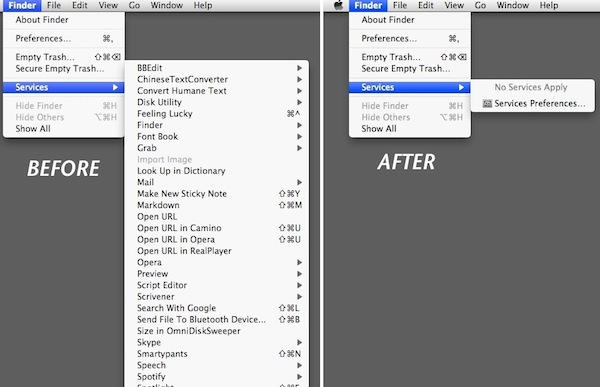
Snow Leopard’s revitalised Services menu is probably my favorite improvement among the many included in the upgrade.
At long last, the user has been given total control over Services. We can choose whether or not they are used, we can assign keyboard shortcuts that suit us, and we can create entirely new Services using Automator.
The crucial difference between Services in Leopard and Services in Snow Leopard is context.
The old Services was simply a mess. The utility of the Service functions was hidden behind the overcrowded and uncontrollable Services menu. New Services were added whether you wanted them to be there or not; and if two Services had conflicting pre-assigned keyboard shortcuts, there wasn’t much you could do about it. (Except delve inside them with a third party app like Service Scrubber.)
The new Services system behaves the way it should have done from the outset, because it’s contextually smart.
Whenever you reach for the Services menu, you’ll only see Services that apply to the object currently selected. If you’ve picked out an image in the Finder, you won’t see dozens of Services for text actions. Snow Leopard knows they’re no use in that context, and simply keeps them out of sight.
What’s more, the Keyboard preferences allow you total control over every Service you have installed. You can switch them on and off, re-assign keyboard shortcuts, and add new ones of your own design or downloaded from elsewhere.
And that – downloading from elsewhere – is is where I think we’re going to see some exciting new ideas in the coming months.
Just as Dashboard ignited a frenzy of widget development, I think Snow Leopard’s Services will spark much more interest in the creation of clever Services, replacing and refining many ideas that used to be delivered as widgets, Menu Bar apps, droplets, and scripts.
Here’s an example that I saw this week:
The S3 Upload Service by August Lilleaas grabs files you’ve selected and uploads them to your Amazon S3 bucket (if you have one, of course), then sends a URL to your clipboard ready for you to paste elsewhere.
It’s neat and simple and, thanks to the contextual smarts, it will always be available when you need it – and out of sight when you don’t.
That’s just one example. If you’ve seen (or made) a cool new Service since the Snow Leopard launch, please share it in the comments.
Posted by Giles Turnbull in Favorites, Opinions, Software, Top stories | Comment on this article
If you enjoyed this article:
Subscribe via RSS or email, or follow us on Facebook and Twitter


I would love to see Service to send photos to the Flickr Uploadr application…
Kate, on September 4th, 2009 at 7:21 am
Yeah. The new services should prove to be very handy indeed.
Go to
http://www.macosxautomation.com/services/index.html
and watch a few of the videos there. They also have some downloads to get you started. While I still don’t get the Automator thing, I will leave that up to the people that do and those that post for download.
They are also easy to edit after download so you can tailor them to your needs a bit more.
brock, on September 4th, 2009 at 9:39 am
Kate: you might be able to create a Service yourself in Automator. Flickr allows you to upload by email, so an Automator workflow along the lines of:
- Get selected images in iPhoto
- New mail message to [your Flickr account's upload-by-email address]
might do the trick.
There are a handful of “upload to Flickr” Automator actions available, too; one by James Pitts, and one by Fraser Speirs. They’re both quite old, now, so I’m not sure if they’d even work on Snow Leopard. Possibly worth trying though.
Giles Turnbull, on September 4th, 2009 at 10:32 am
Does anyone know how to add the pictures found in the menu bar’s service menu to the contextual menu? I really like being able to quickly see what each service relates to but would prefer to access services by control clicking.
Also, has anyone else noticed that far fewer services are displayed in the contextual menu than the other menus? If anyone knows how to fix this I’d be greatly obliged for you help!
Mason Taylor, on September 4th, 2009 at 12:20 pm
Thanks Giles! I don’t use iphoto because of the annoying incompatibilities with RAW files, and I prefer Adobe Bridge as an organizer as it integrates better with my photoshop workflow… I currently use the Flickr Uploadr application but will definitely investigate the email facility as it might be possible to integrate that with Bridge or the finder using a Service.
Kate, on September 4th, 2009 at 7:13 pm
I’ve been trying to find the actual location, of where the Services live in the directory in the light of having found some Services I want to install ?
pcd2k, on September 7th, 2009 at 9:42 am
Here’s an interesting CNET Asia story:
Is Apple afraid of Windows 7?
http://asia.cnet.com/blogs/infochat/post.htm?id=63013443
Alex Ventura, on September 8th, 2009 at 7:54 am
Am I the only one that notices a lot of services options are not available in Firefox. I have the same site opened in Safari 4 and in Firefox on Snow Leopard. In Firefox, I highlight text and go to services, No Services Apply … O.o Ok, so I go into Safari, highlight the same text, what d’ya know, services that apply show up as they should. Anyone else notice this issue?
Andrew Ross, on September 8th, 2009 at 2:41 pm
Speech services are gone (start speaking text, stop speaking text). ;-(
Dan Pouliot, on September 9th, 2009 at 11:11 am
RE: Andrew Ross’ comment -
I believe the way FF is written, it doesn’t support services. On Leopard the services still showed in the menu when in FF but none of them worked (they may have been disabled too, I forget.) I really wish they’d fix this…
Daniel C, on September 10th, 2009 at 3:03 pm
Oh, and Dan, I didn’t notice that, but I did notice that there’s a hotkey setting for speaking the selected text in the speach system pref pane. On the upside, I haven’t tried it yet, but the hotkey sounds like it should work in Firefox, whereas the services did not work there.
Daniel C, on September 10th, 2009 at 3:07 pm
Dan, I’ve found where they put Speech in Snow Leopard. They’ve actually made it much easier to use than before. Simply highlight the text you want read then right-click. One of the options offered is Speech.
Way to go, Apple!
Mari Kaimo, on September 17th, 2009 at 9:17 am
I used to set keyboard shortcut on start speaking text, now I can’t find a way to do. Right-click to select is fine, but better put it in the uppest level in the menu..
I miss leopard..
Jake, on September 26th, 2009 at 6:20 pm

