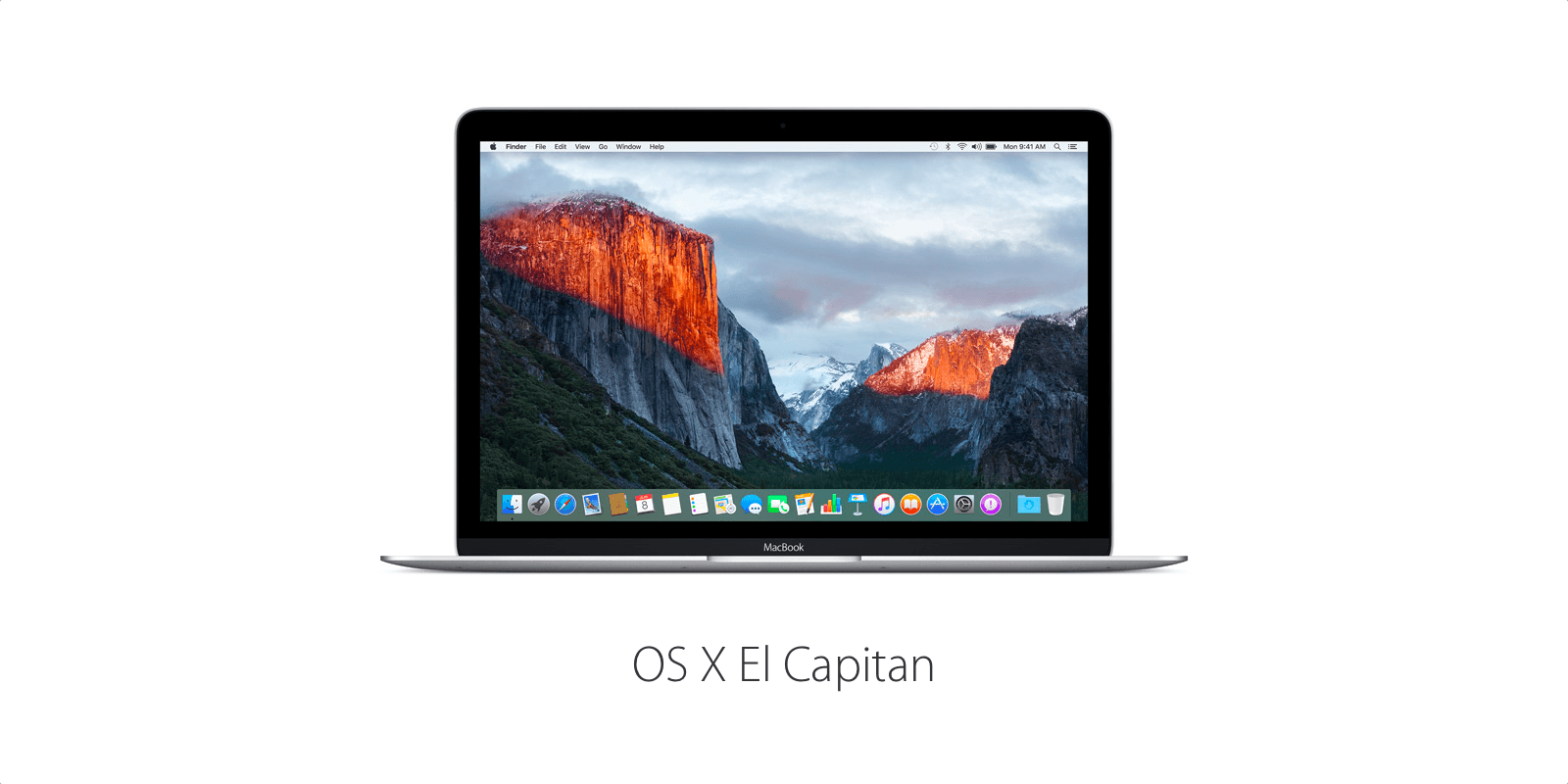
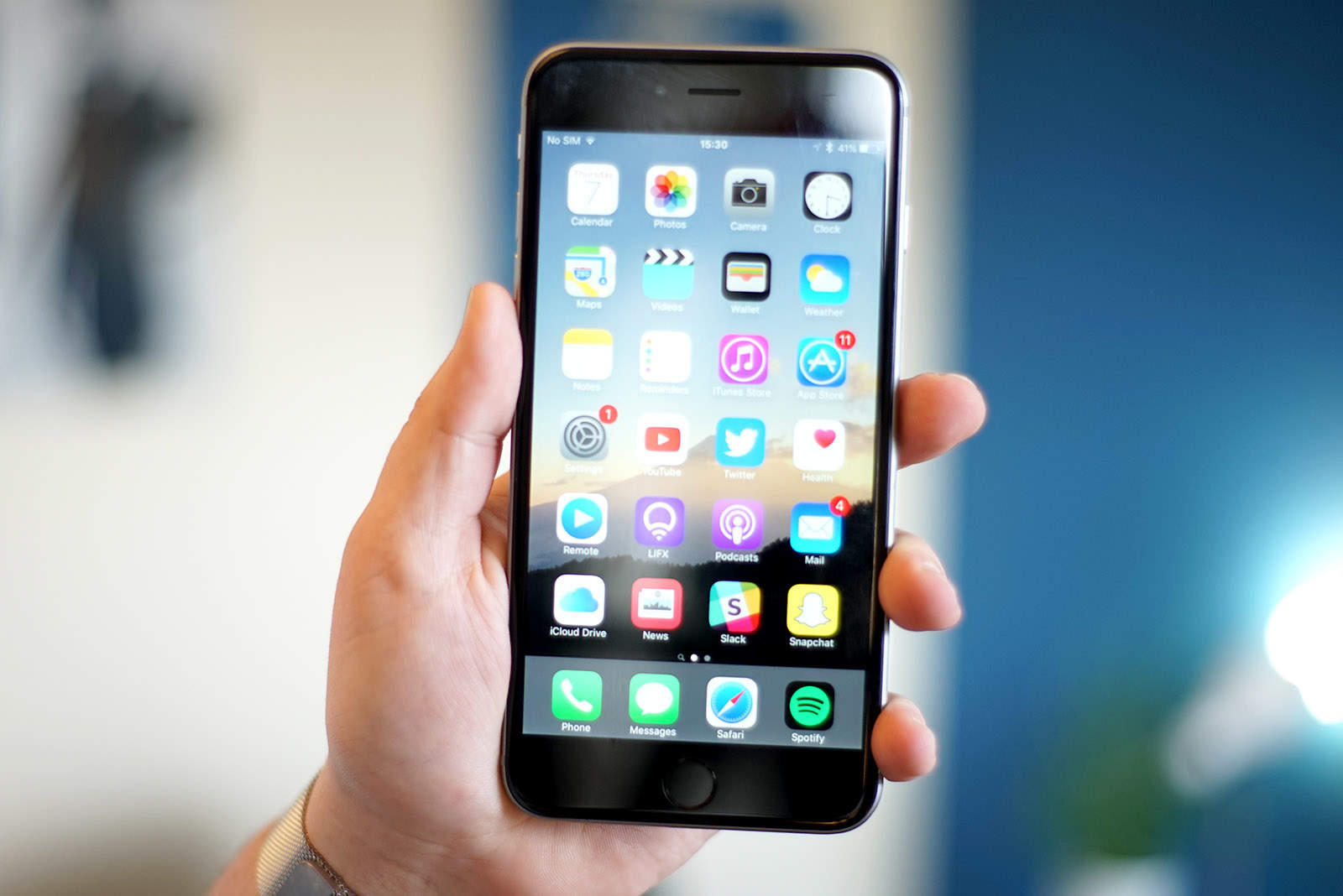
Apple’s latest App Store guidelines again hint at the impending rebranding of OS X to “macOS.” The change is expected to become official at WWDC next week, but Apple has already updated its FAQ to remove all traces of the name.
Get the new iOS beta while it's hot. Photo: Ste Smith/Cult of Mac
Developers were seeded a huge new batch of beta updates for every single Apple platform yesterday, and now Apple is ready to let public testers get in on the action.
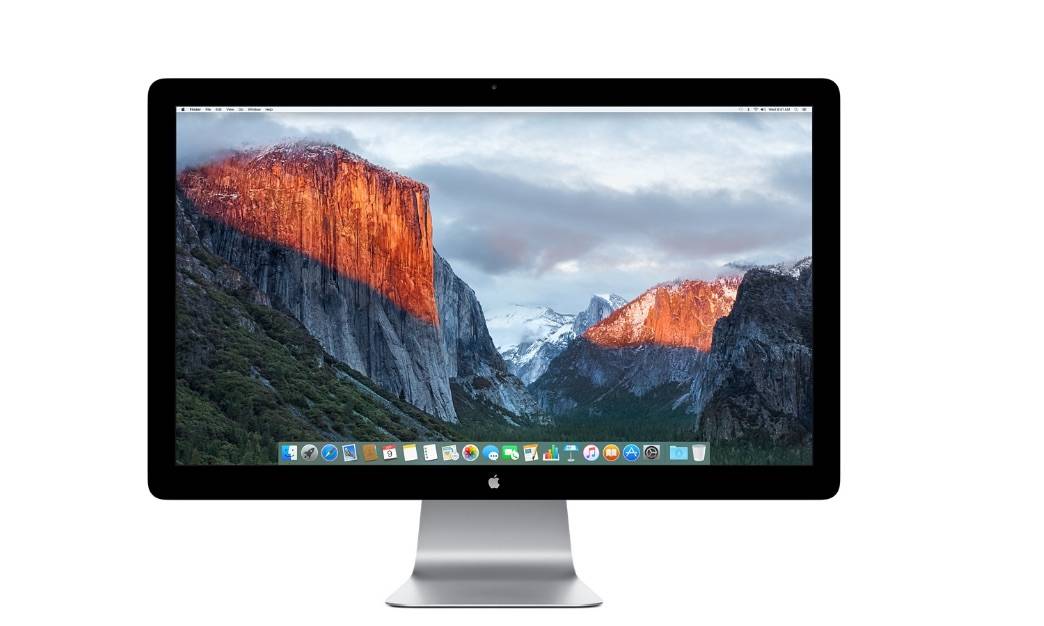
Apple's Thunderbolt display hasn't been updated since 2011. Photo: Apple
Apple will not be updating its old ass Thunderbolt display anytime soon, despite rumors that suggested the company was planning to unveil a new 5K Thunderbolt display with a built-in GPU at this year’s WWDC.
Apple's next Thunderbolt Display won't just be super sharp. Photo: Apple
Apple’s new Thunderbolt Display will ship with a built-in GPU that will provide entry-level and older Macs with enough power to drive its super sharp 5K resolution, according to sources familiar with the company’s plans.
Apple has begun inviting members of the press to its WWDC 2016 keynote on June 13.
The event kicks off at 10 a.m. PT in the Bill Graham Auditorium in San Francisco, and it should deliver our first sneak peeks at iOS 10 and Apple’s next major upgrades for watchOS, tvOS, and OS X.
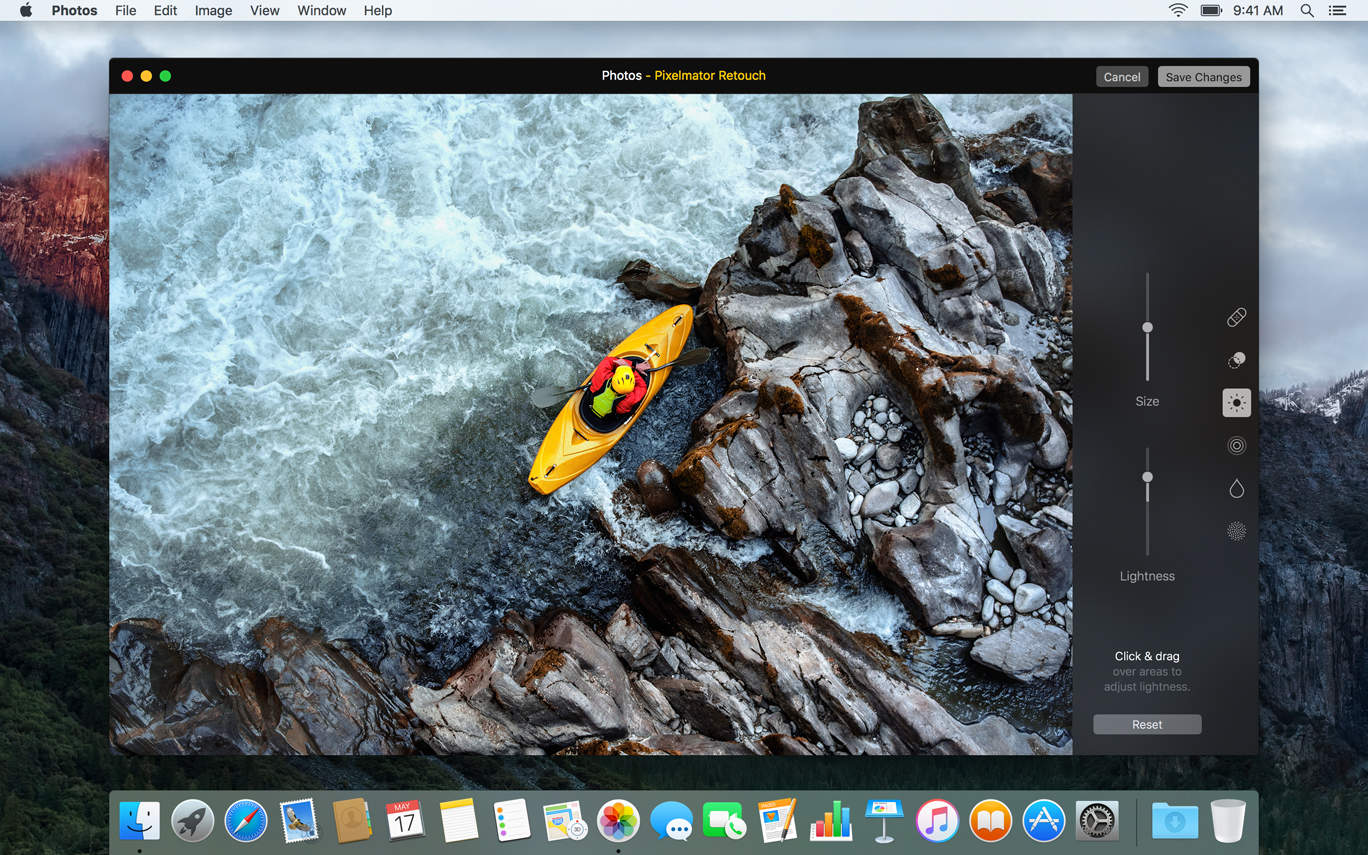
You can now use Pixelmator tools right inside the Photos app. Photo: Pixelmator
Pixelmator, the incredible image editing app for Mac and iOS, now ships with a useful Photos extension on OS X that allows you to make quick edits to your images without leaving Apple’s app. The latest release also brings new selection tools.
Apple is ready to tighten security. Photo: Milo Kahney/Cult of Mac
Renowned practical cryptography expert Jon Callas is returning to Apple to help the iPhone-maker stay ahead of hackers and the FBI in its on going battle with security.
Callas co-founded well known secure communications companies such as Silent Circle, Blackphone, and PGP Corp. This will be his third stint at Apple where he is expected to ramp up security features across Apple’s wide ranging product line up.
Don’t miss out on iOS 13. Ditch your old iPhone now. Photo: Ste Smith/Cult of Mac
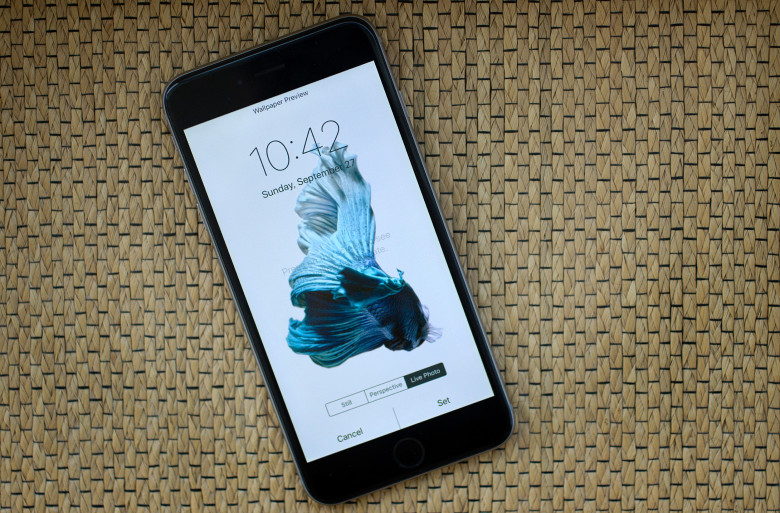
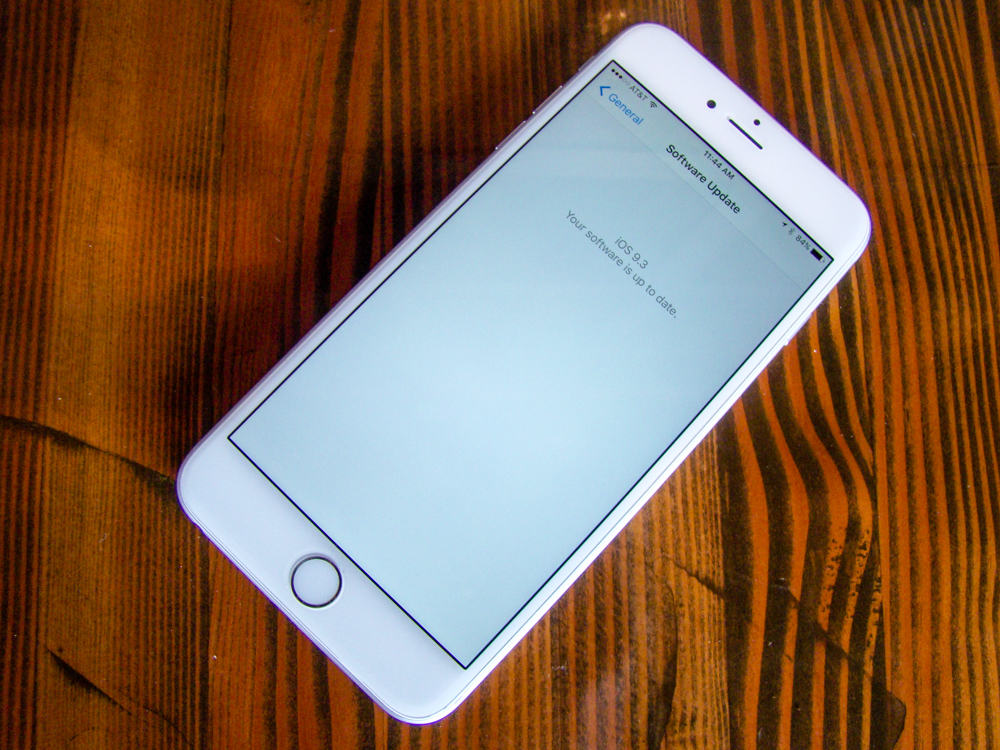
Apple has seeded a new iOS beta to developers today just a week after the company dropped iOS 9.3.2 on the public. The new update likely contains a number of under the hood improvements and bug fixes, but Apple may surprise us with a few other tweaks.
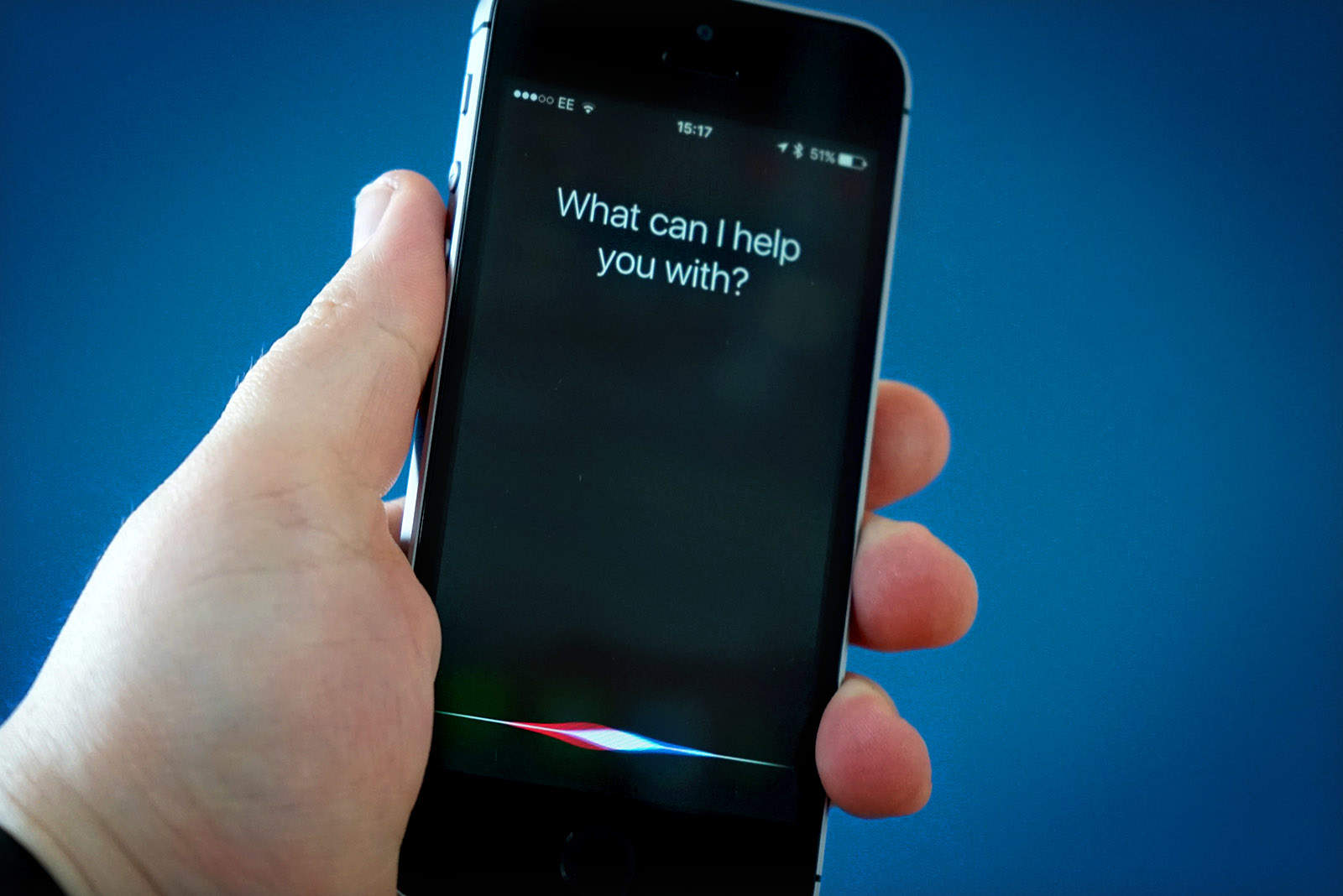
Siri is coming to Mac. Photo: Ste Smith/Cult of Mac
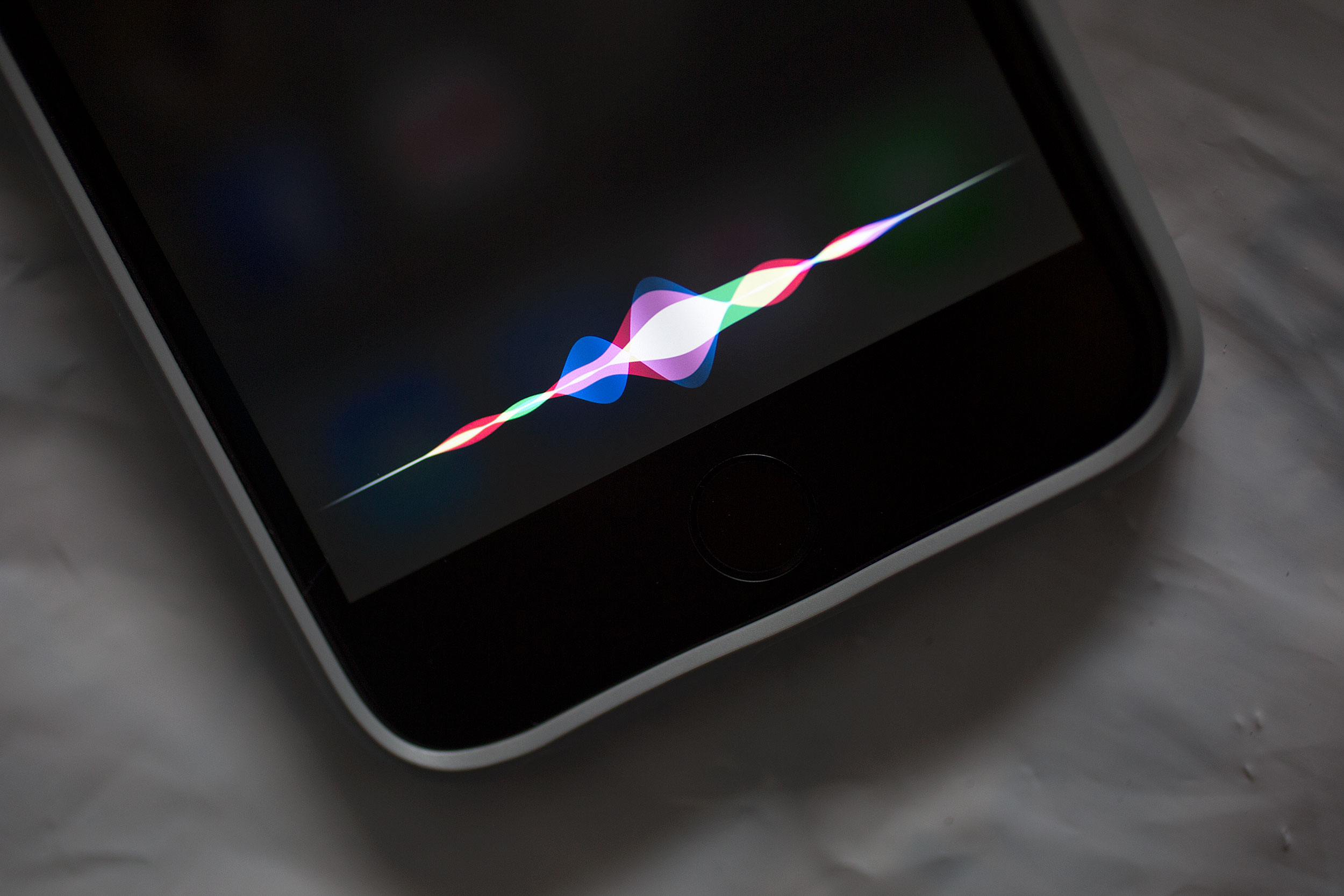
Apple’s digital assistant Siri is expected to finally arrive on Macs later this year with the next OS X update, and now it appears that we already know what the new icons will be.
Screenshots of the upcoming Siri for Mac features were leaked online today, revealing the multi-colored wave icon that will soon rest on your dock, along with a new menu bar icon for Siri.
BitTorrent Live wants to make streaming even greater. Photo: BitTorrent
In an effort to shake off its shady image, BitTorrent is launching a new streaming service that will bring a number of live channels to Apple TV, iOS, and Mac.
The service is called BitTorrent Live, and it will initially offer news, sport, music, and more.
Get the latest El Capitan update now. Photo: Apple
El Capitan users can now download the latest OS X 10.11.5 update from the Mac App Store. The release promises to improve stability and security, and it’s recommended for all users.
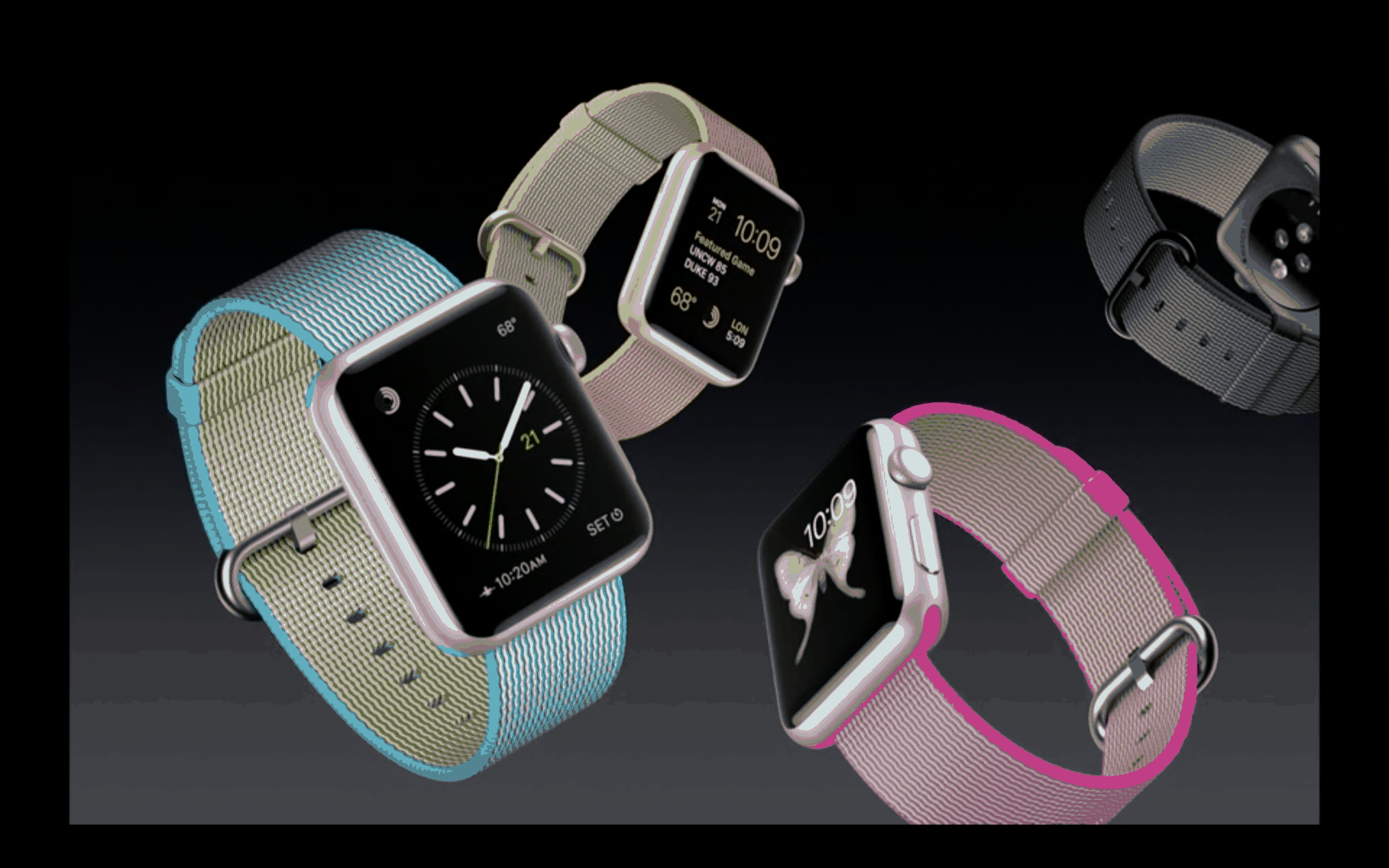
A fresh watchOS update is now available. Photo: Apple
Apple Watch wearers received a new software update today in the form of watchOS 2.2.1 that has been made available to the public after two beta versions were tested by developers.
WhatsApp has debuted its official OS X native app. Photo: WhatsApp
Having followed Cupertino’s lead with end-to-end encryption, WhatsApp is further ingratiating itself with Apple fans by introducing a new official Mac desktop app.
Windows 10 is almost a year old, and Windows 7 still rules. Photo: Microsoft
I like Windows 10. There, I said it. But unfortunately for Microsoft, millions of others have no interest in it.
Despite being free for almost a year, the company’s latest upgrade hasn’t been able to put any significant dent in Windows 7’s user base. It has only just overtaken the universally despised Windows 8.1 release.
You can now get your accessibility gadgets from Apple. Photo: Apple
Apple has added a new section to its online store where shoppers can find a range of accessibility gadgets. It is split up into vision, physical and motor skills, and learning and literacy categories, and features products for Mac, iPhone, and iPad.
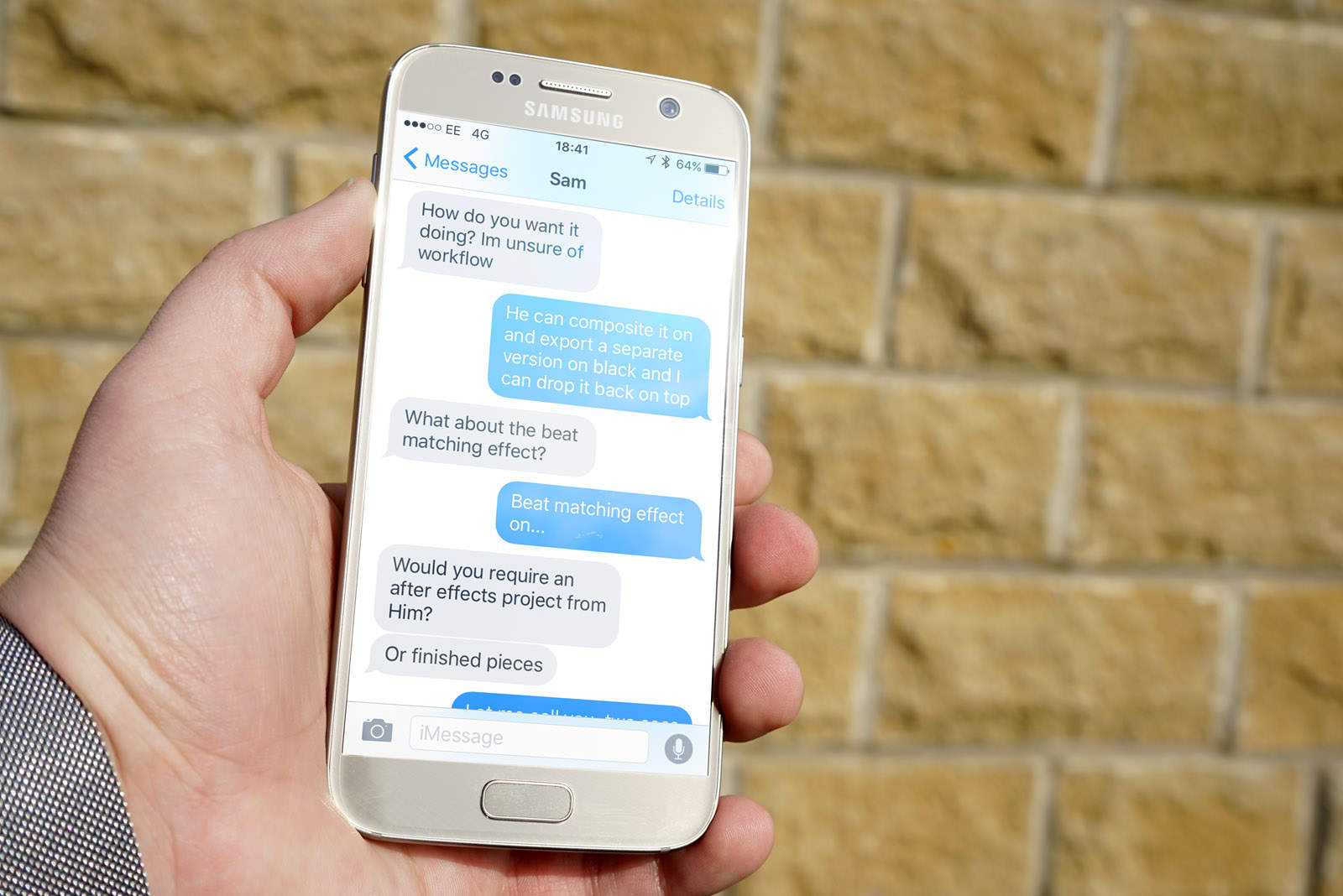
But how long will it last? Photo: Ste Smith/Cult of Mac
Having to bid farewell to iMessage is one of the reasons why many iPhone users won’t jump ship to Android. But thanks to a new app called PieMessage, you can now enjoy Apple’s insanely popular messaging platform on a Google-powered smartphone.
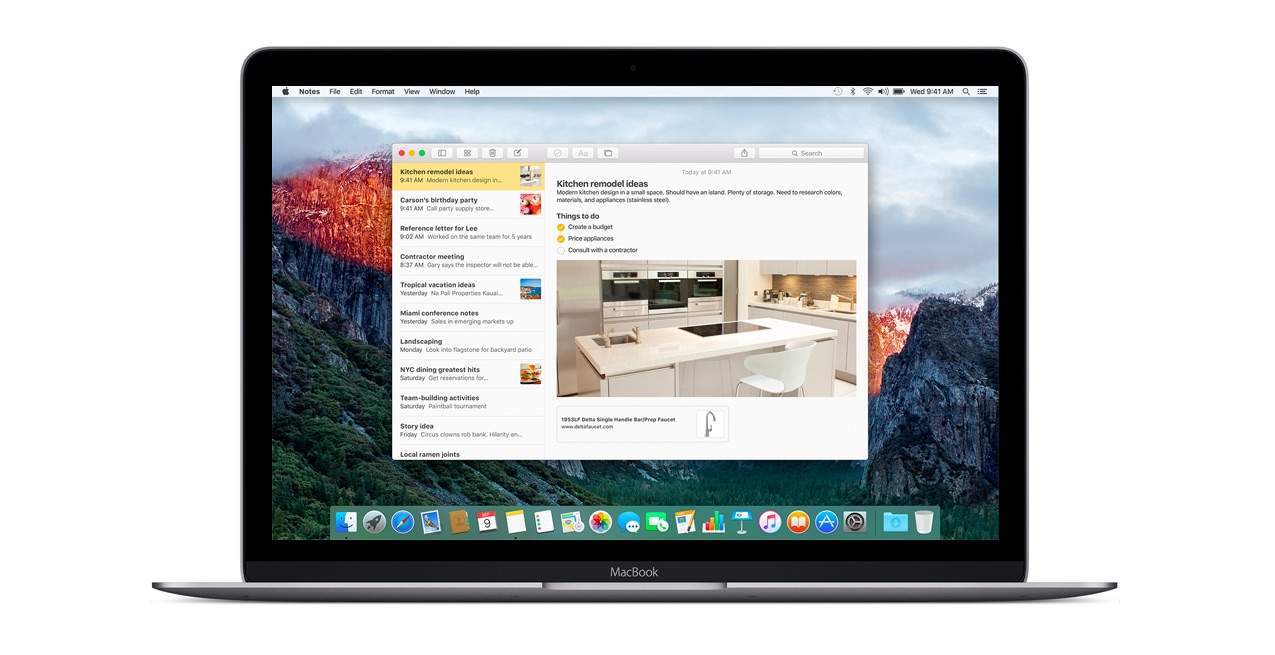
Keep your notes secure in OS X. Photo: Ste Smith/Cult of Mac
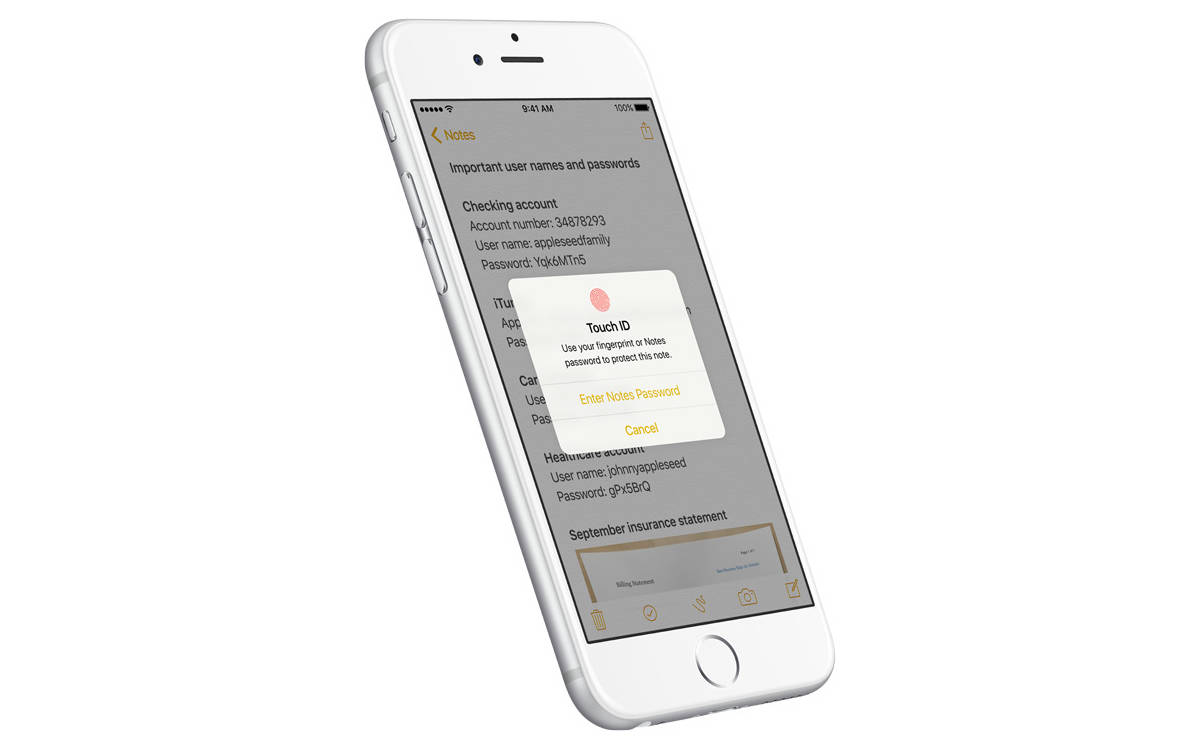
Lots of us were excited to keep our Notes private when iOS 9.3 added the feature to Apple’s mobile devices. We all store private details in our notes such as bank details, pin numbers and more within the notes app for convince. Knowing this information is now more secure than ever is one less thing to worry about.
But did you know that you can do the same on your Mac?
In this week’s Quick Tips video, I’m going to help you with your peace of mind and show you how to secure your notes in OS X.
Developers and public beta testers alike can download the latest El Capitan starting today now that Apple has seeded the third beta of OS X 10.11.5, plus the public version of iOS 9.3.2 beta 3.
The new updates come a week after Apple released the second beta builds of the new operating systems. Testers can grab the new software through the Mac App Store if you’re signed up for Apple’s Public Beta Program, but Apple has a couple extra goodies for developers as well.
What Bizarro World is this where the FBI helps Apple? Photo: Jim Merithew/Cult of Mac
The FBI has informed Apple of a vulnerability affecting older iPhones and Macs. It’s the first time such information has been shared with Apple by the feds under a White House “Vulnerability Equities Process” intended to disclose security weaknesses when they are discovered.
The Vulnerability Equities Process is designed to act as a balance between the desire of law enforcement and U.S. intelligence services to be able to hack into devices and the public interest in warning companies of weaknesses in their systems that may be exploited by criminals.
Apple’s most recent keynotes have been a little… boring. Even die-hard fans have been left disappointed by the lack of action and surprises, but with WWDC 2016 right around the corner, many have high hopes that Apple’s about to buck that trend.
Apple’s keynote will offer our first sneak peeks at iOS 10 and the next big upgrades to OS X, watchOS, and tvOS — plus possible refreshes for Apple Watch and various Macs. Will these things make up for the lack of excitement?
Join us in this week’s Friday Night Fight between Cult of Android and Cult of Mac as we talk about (argue over) all things WWDC!
Get your iOS device up to date fast and easy. Photo: Rob LeFebvre/Cult of Mac
Members of Apple’s public beta testing program can now get their hands on all the new software updates Apple dropped on developers yesterday.
New betas for iOS, tvOS, watchOS and OS X have been seeded to the public, bringing a bunch of bug fixes for every Apple platform, as well as some new features on iPhone.
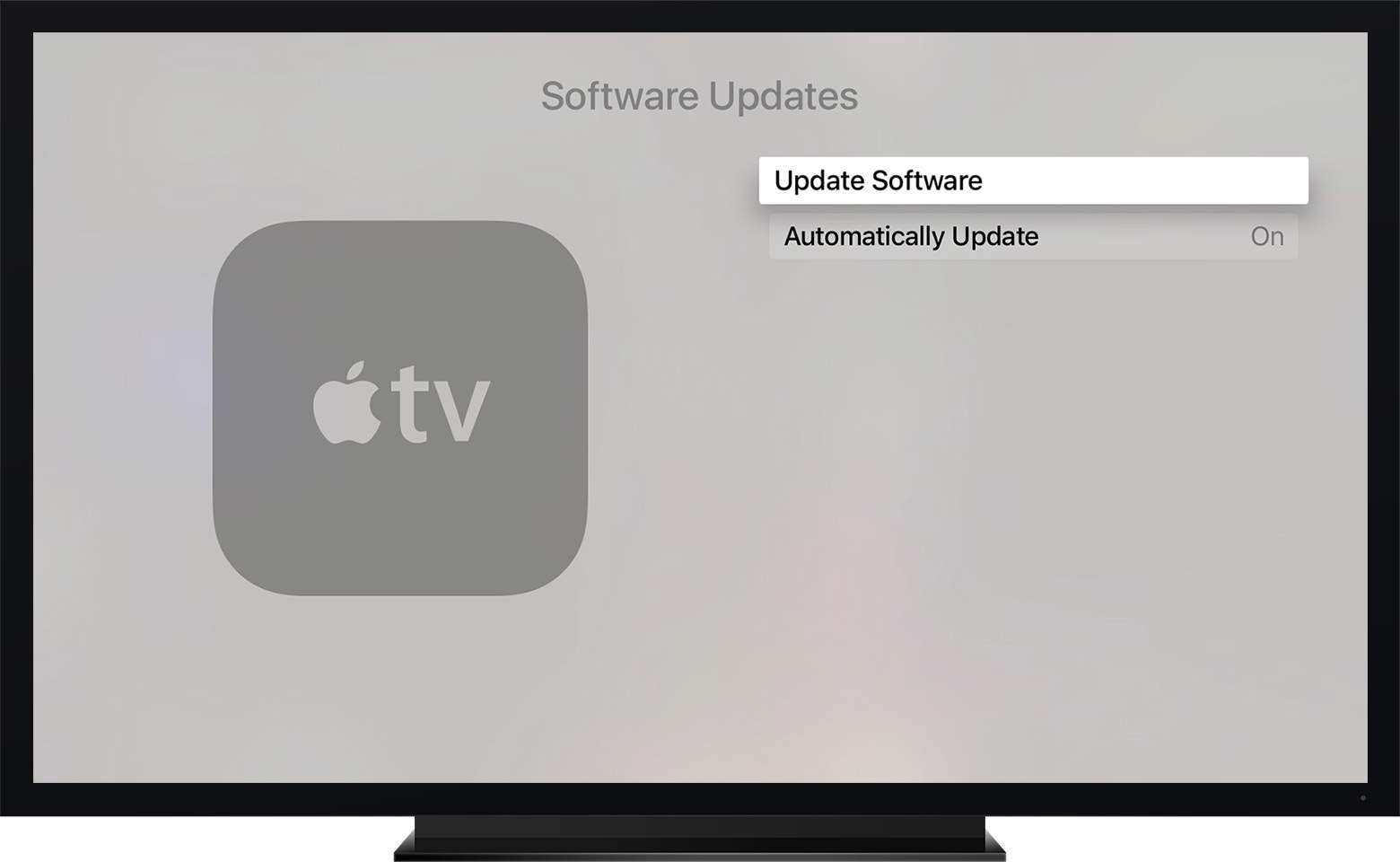
A fresh new batch of Apple beta software is now available for developers two weeks after the company dropped its last big set of new software.
New beta builds of iOS 9.3.2, watchOS 2.2.1, tvOS 9.2.1 and OS X 10.11.5 can be found in the Apple developer center, bringing a bunch of new bug fixes, and hopefully some feature improvements as well.
When is WWDC 2016? Siri knows. Photo: Jim Merithew/Cult of Mac
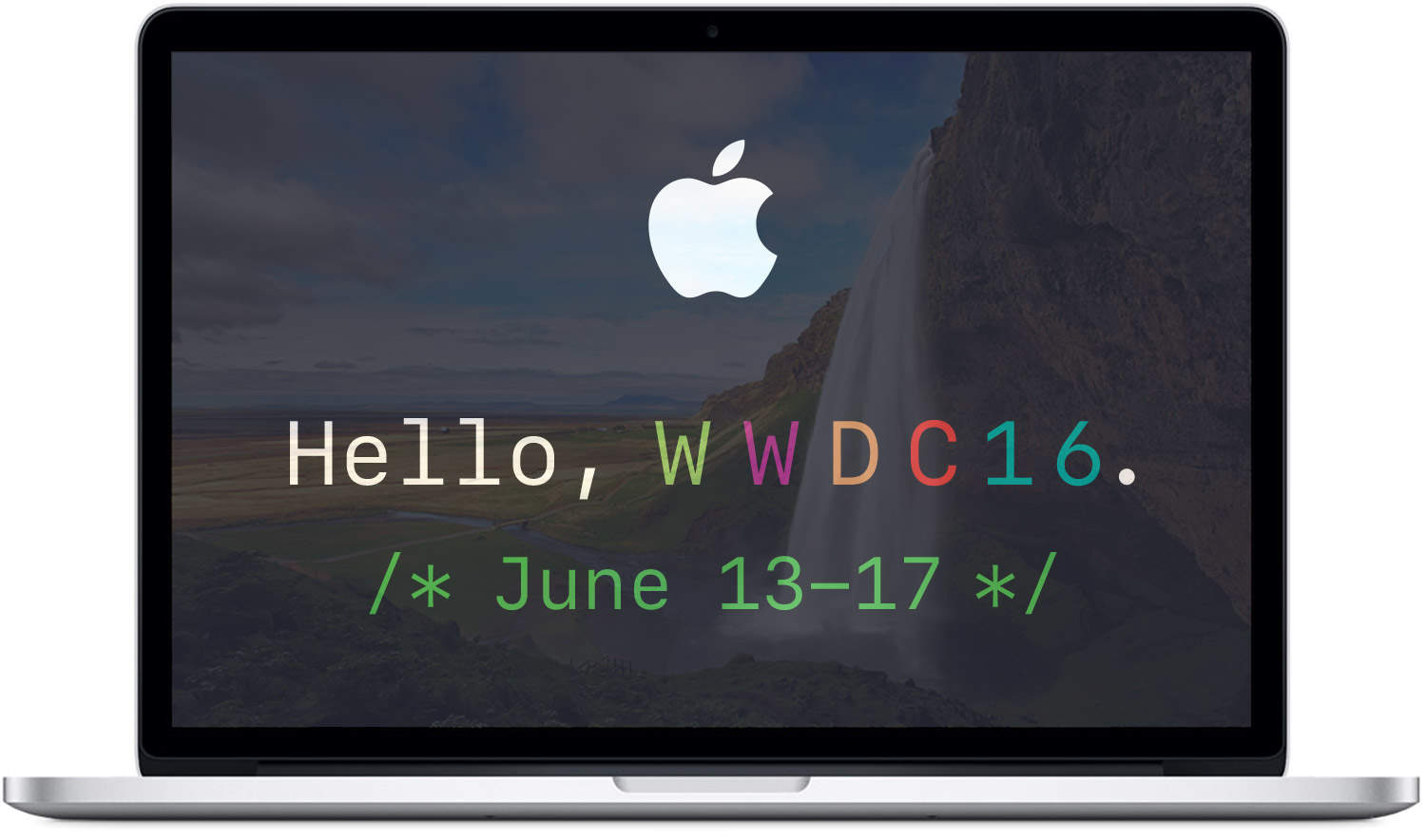
Update: Apple has confirmed that its Worldwide Developers Conference 2016 will take place June 13 through June 17 in San Francisco. The keynote address will rock the stage at the Bill Graham Civic Auditorium, with the remainder of the week’s sessions at Moscone Center West. See below for registration details.
While Apple has not yet made public the dates or location for this year’s Worldwide Developers Conference, apparently Siri knows when and where the event will take place.
Get ready to delete your unwanted Apple apps. Photo: Sam Mills/Cult of Mac
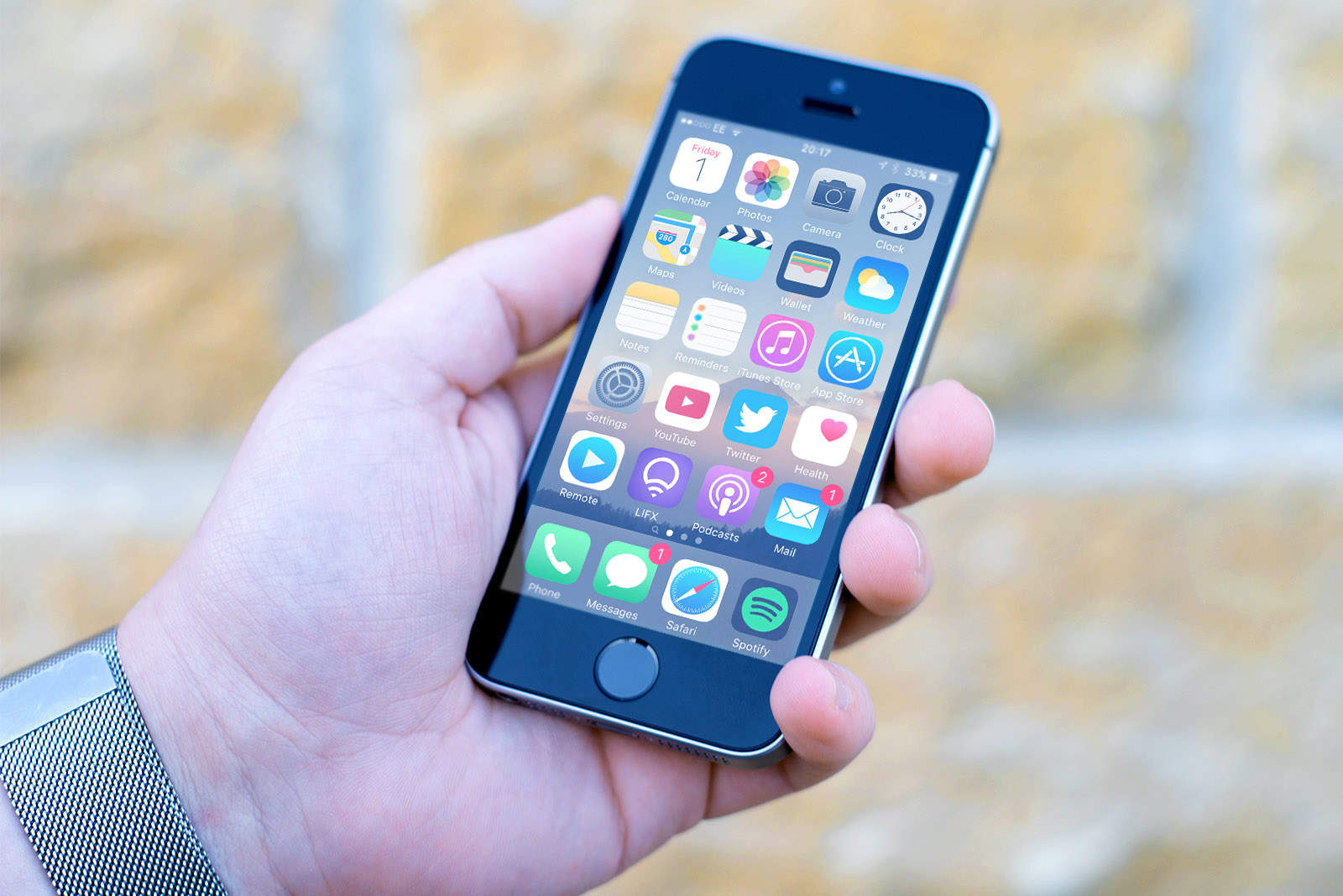
Get ready to say goodbye to that folder on your iPhone holding all the stock iOS apps you never use.
Code found in iTunes suggests Apple finally plans to give iPhone and iPad users the tools to delete unwanted iOS apps that come pre-installed on devices like the Compass, Tips, Stocks, Voice Memos, and more.