OS X Yosemite more strongly resembled iOS than previous versions of the Mac software. Photo: Apple
June 2, 2014: Apple shows off Mac OS X 10.10 Yosemite for the first time at its Worldwide Developers Conference in San Francisco. Following the Jony Ive-redesigned iOS 7, Yosemite boasts an aesthetic change that brings Apple’s desktop computers closer than ever to the look of the company’s mobile software.
Named after Yosemite National Park, the update follows the previous year’s Mavericks as the second Mac operating system named after a California landmark.
Steve Jobs introduced the world to OS X. Photo: Ben Stanfield/Flickr CC
May 11, 1998: As part of his mission to turn Apple around, CEO Steve Jobs spells out the company’s strategy for the Mac operating system going forward. The big news is that Apple is hard at work creating a major new operating system called OS X, he says at Apple’s Worldwide Developers Conference in San Jose, California.
However, first the company will ship Mac OS 8.5 and the first customer release of an OS called Rhapsody that fall.
November 25, 1996: A midlevel manager at NeXT contacts Apple about the possibility of Cupertino licensing NeXT’s OpenStep operating system. The phone call sows the seeds of Mac OS X and Apple’s rejuvenation.
The talk in question takes place between NeXT’s Garrett L. Rice and Ellen Hancock, Apple’s chief technology officer. While just the first formal step in a long process, it ultimately leads to Apple buying NeXT, the creation of Mac OS X, and Steve Jobs returning to the company he co-founded.
This was the end of Amelio's 500 days running Apple. Photo: Apple
July 6, 1997: Following a massive quarterly loss for Apple, board member Edgar S. Woolard Jr. calls CEO Gil Amelio and informs him that he needs to step down. “You’ve done a lot to help the company, but the sales haven’t rebounded,” Woolard says.
Steve Jobs, who recently returned to the company he co-founded, denies being responsible for Amelio’s ouster. However, the move results in Jobs becoming Apple CEO for the first time. Now it’s time for a real turnaround!
OS X changed the game for Apple. Image: Killian Bell/Cult of Mac
OS X, the most important piece of software in Apple history, turns 20 today.
Going on sale in its full, public version on March 24, 2001, Mac OS X 10.0 — code-named Cheetah, the first of many cat-themed names — transformed Apple’s operating system forever. It brought user interface enhancements that persist to this day, as well as technological advances that form the backbone of Apple’s current operating systems. In fact, OS X paved the way for today’s post-PC devices, from the iPhone and Apple Watch to HomePod and Apple TV. If you’d like toknow more about Apple’s operating system evolution, check out this deep dive into its history.
While Apple eventually ditched the “OS X” branding for “macOS,” and switched from naming Mac software after big cats to California locations in 2013, Cheetah’s impact continues to be felt two decades after its introduction.
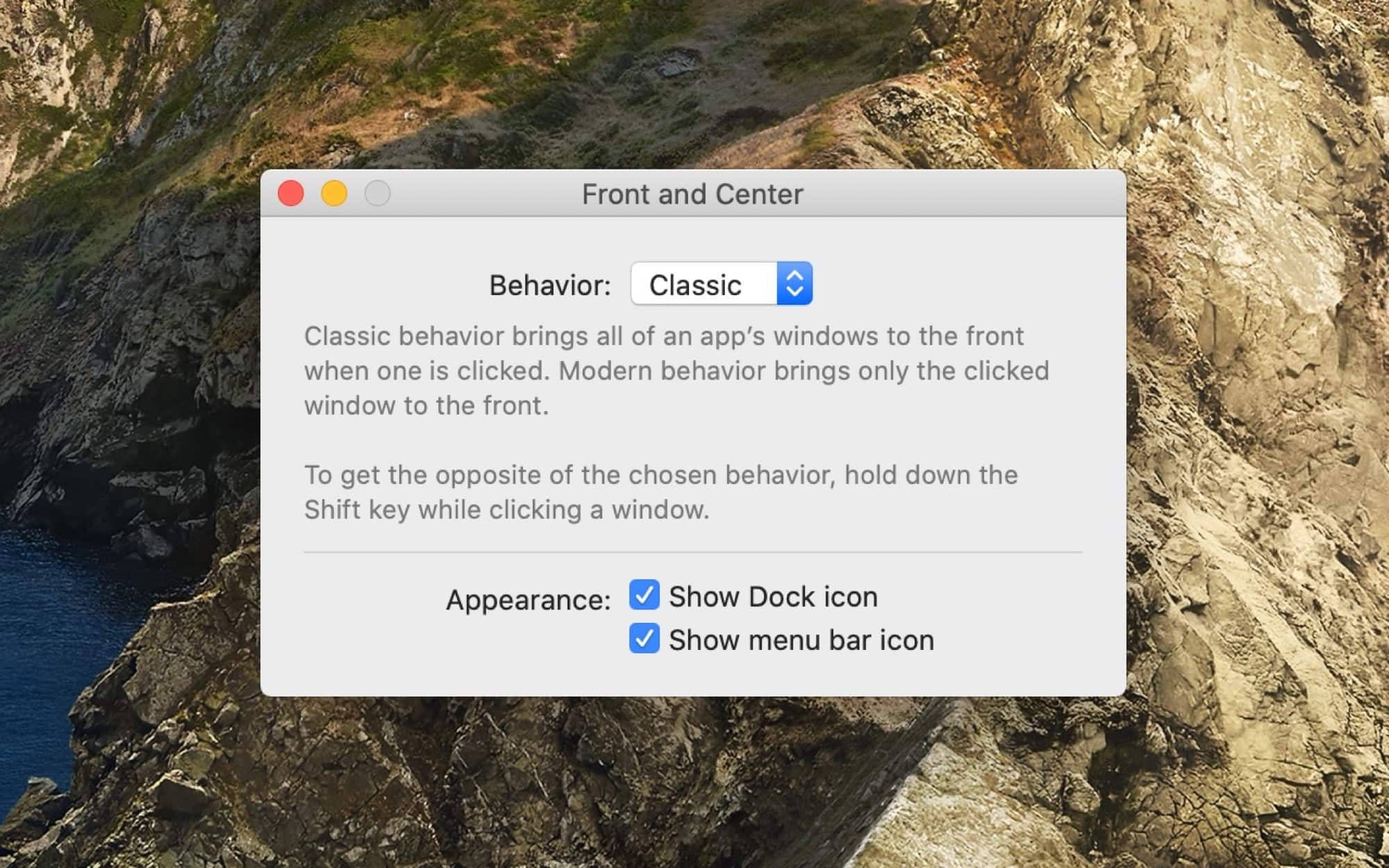
The window 'manager' you never knew you wanted. Photo: John Siracusa
If you’re at your Mac, go ahead and click a window for another app (don’t forget to come back right away). Clicking an app’s window brings it to the foreground, of course. But did you notice that only the window you clicked came forward. If that other app has any other windows open, they will stay hidden. It wasn’t always this way. In pre-OS X days, the default behavior was to bring all those windows to the front. And now, thanks to a new app called Front and Center, from John Siracusa, you can get this behavior on a modern Mac.
Microsoft might see the Mac as a threat to its Windows platform, but that won’t stop it from protecting macOS users. The company’s Defender anti-virus software, previously a Windows exclusive, has made the leap to Apple.
Defender comes in a limited preview for now, and businesses will get it first.
Google has poached senior macOS engineer Bill Stevenson to help build its upcoming Fuchsia OS.
Stevenson will make the switch in February after spending 14 years at Apple, where his most recent role was senior manager for Mac and Windows program management.
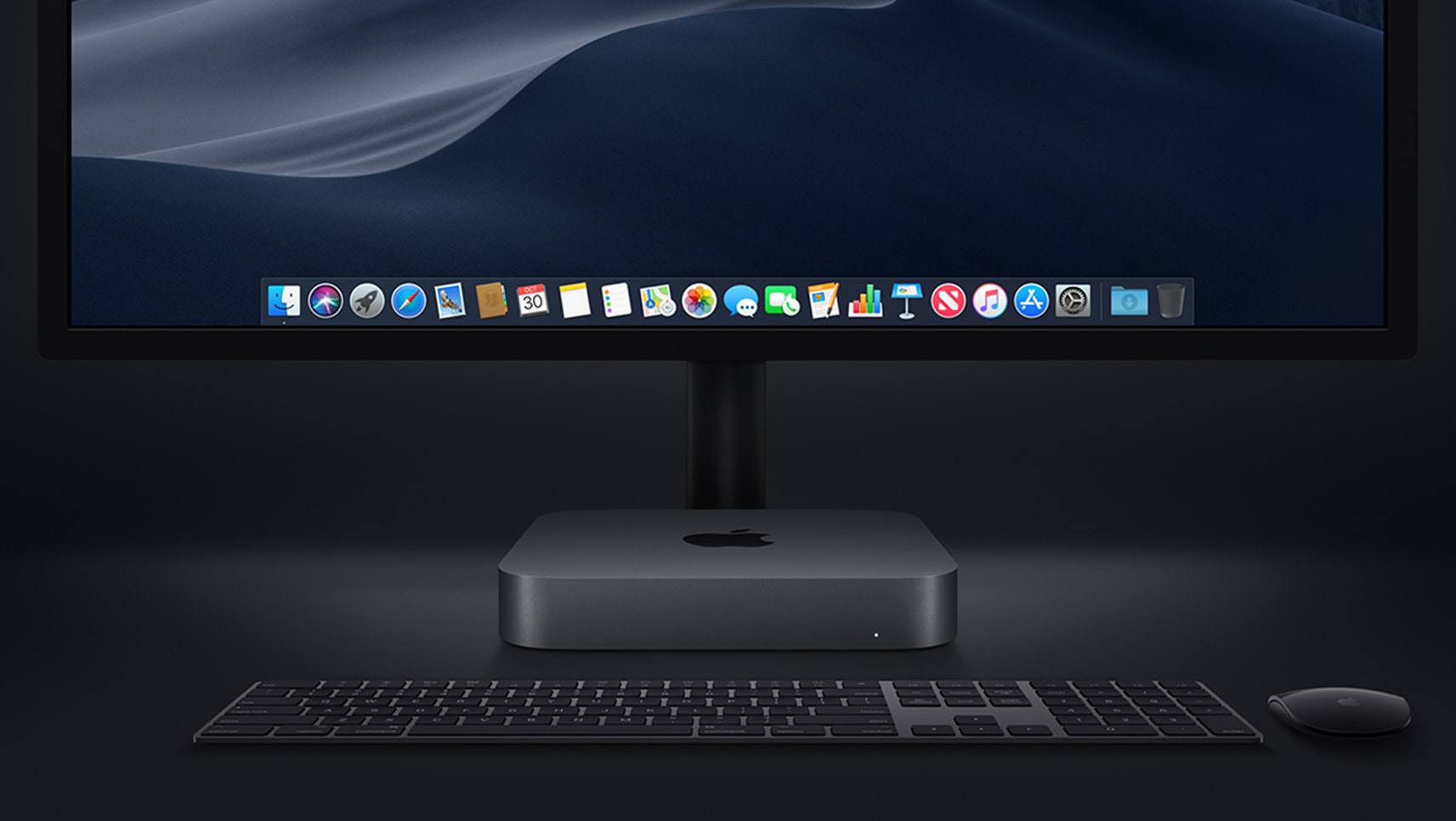
Save on the new Mac mini while you still can. Photo: Apple
After being forgotten for four years, the Mac mini is back with an upgrade that was well worth waiting for.
Apple’s most affordable desktop, which is still small enough to stick anywhere, is vastly more powerful than it’s ever been before. You now get quad-core processors as standard, significantly faster graphics, all the memory you can shake at stick at, and so much more.
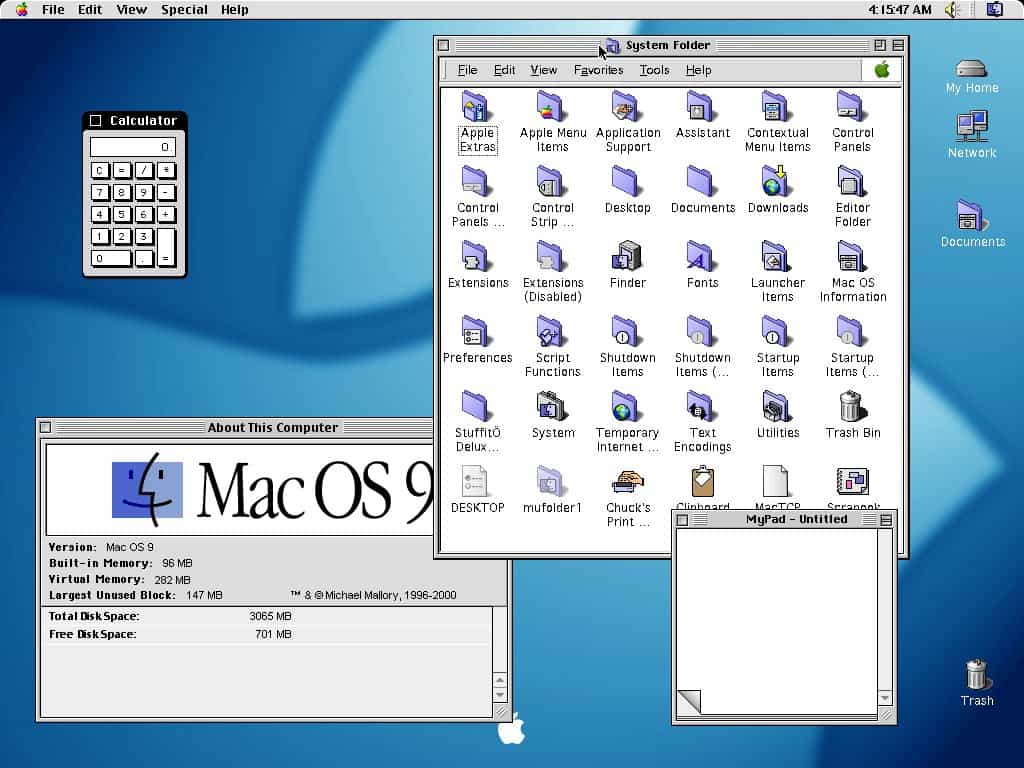
Mac OS 9 brought welcome new features. Photo: Developers-Club
October 23, 1999: Apple releases Mac OS 9, the last version of the classic Mac operating system before the company will make the leap to OS X a couple years later.
It does not veer far from OS 8 in terms of look and feel. However, OS 9 adds a few nifty features that make it well worth the upgrade.
NeXTStep was an operating system ahead of its time. Image: NeXT
September 18, 1989: Steve Jobs’ company NeXT Inc. ships version 1.0 of NeXTStep, its object-oriented, multitasking operating system.
Incredibly advanced for its time, NeXTStep is described by The New York Times as “Macintosh on steroids.” In an ironic twist, the operating system Jobs plans to use to compete with Cupertino turns out to be one of the things that saves Apple a decade later.
AirPods will ‘just work’ with a 10-year-old iPhone Photo: Apple
Apple has confirmed that it plans to block iTunes and App Store payment information changes on old versions of iOS, OS X, and Apple TV Software.
As of June 30, those with really old devices could have trouble making purchases when their existing payment information expires. Apple says the change is to “ensure your financial data is protected when you make purchases.”
OS X passed a major milestone this week. Photo: Olarila
Call it macOS or OS X if you want, but today Apple’s Mac operating system passed a major milestone: overtaking Apple’s classic Mac OS by a single day.
Pointed out by Jason Snell of Six Colors, the original Mac operating system lasted 6,269 days from January 24, 1984 to March 24, 2001. The current operating system, meanwhile, has lasted from March 24, 2001 to the present day — a total of 6,270 days! Time sure flies, right?
Paragon's new Retrofit Kit for Mac. Photo: Paragon Software
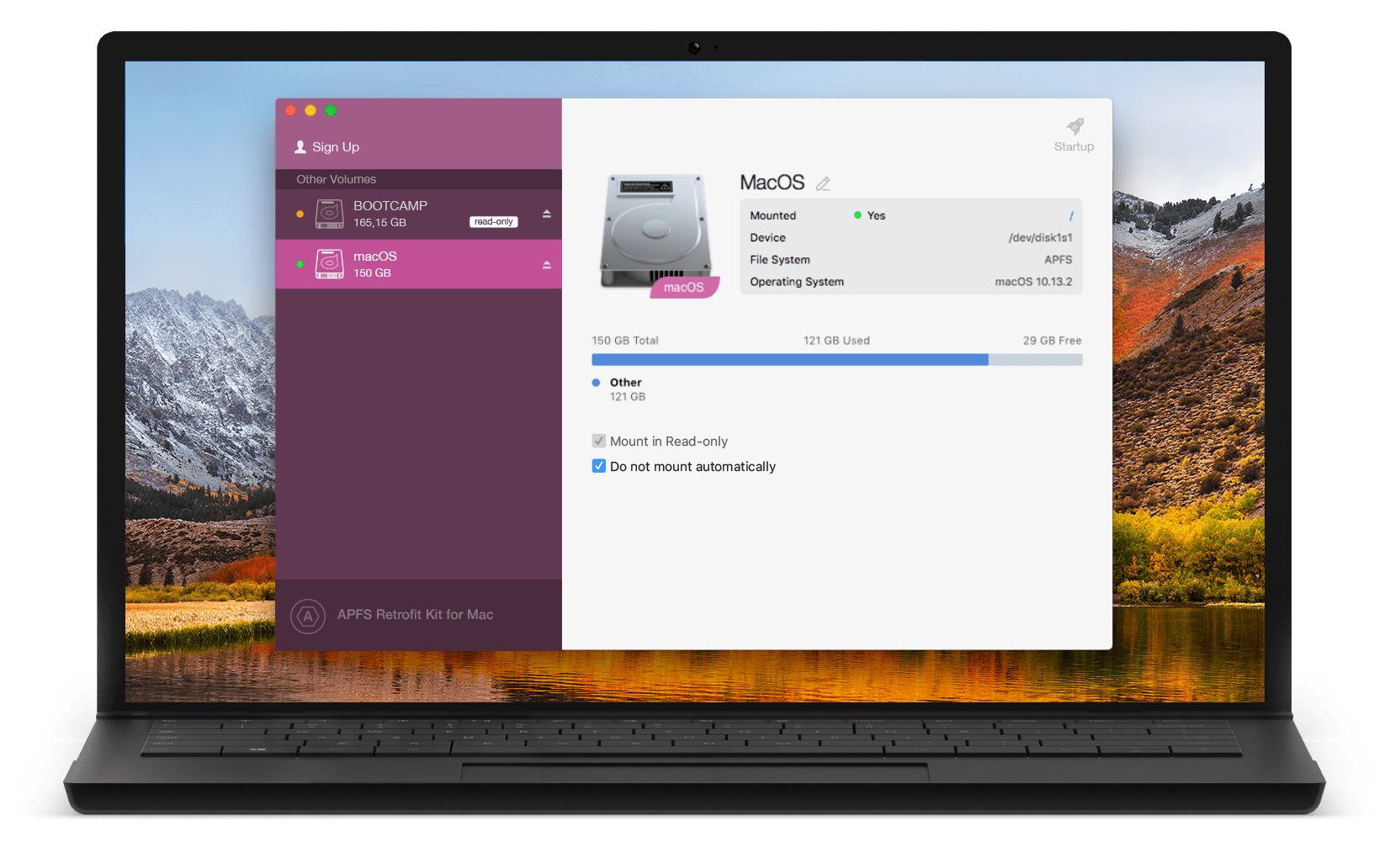
Paragon Software today unveiled its free Retrofit Kit that allows users to access Apple File System (APFS) volumes on older versions of macOS and Mac OS X. It works with traditional spinning hard disks, solid-state drives, and USB flash sticks.
Get in on the new betas while they're hot. Photo: Apple
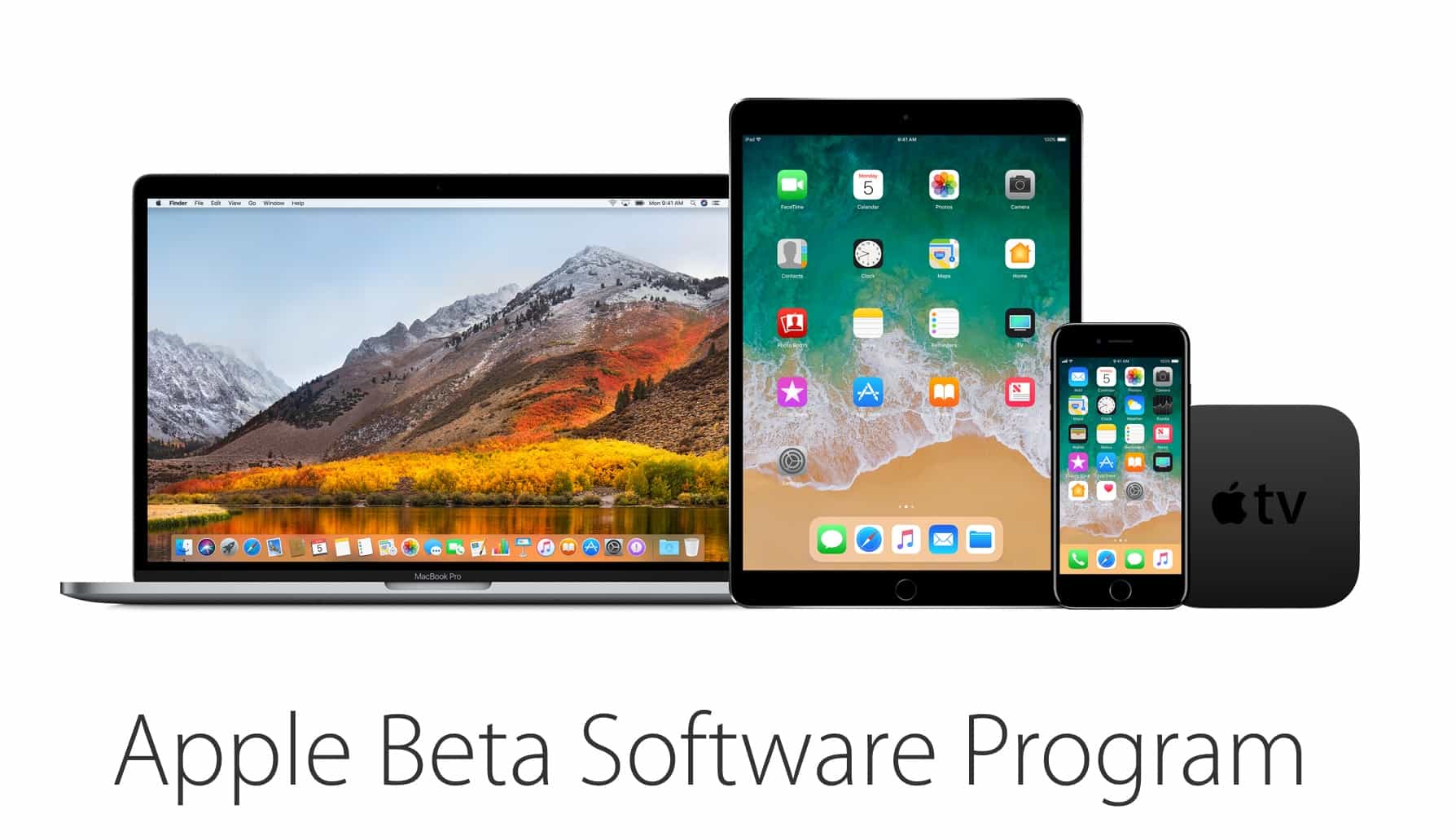
Public testers can finally get their first taste of Apple’s new operating system for Mac starting today with the release of the first public beta of macOS High Sierra.
Apple’s new operating system was unveiled earlier this month at WWDC 2017 where the company showed off macOS High Sierra’s new features and improved design. Developers have been testing the new software since June 5th, but now anyone can get macOS High Sierra which is being billed as Apple’s best desktop operating system ever.
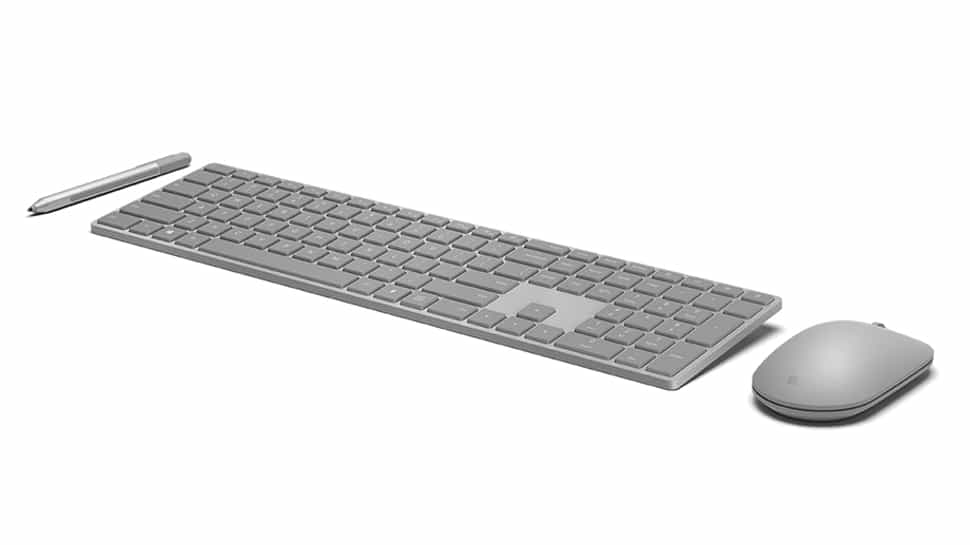
It's compatible with Mac ... but not as good. Photo: Microsoft
Microsoft has beaten Apple to delivering a wireless keyboard with biometric security.
Its new Modern Keyboard is built out of aluminum to be slim and strong and features a hidden fingerprint scanner that makes login passwords a thing of the past. It’s also compatible with your Mac.
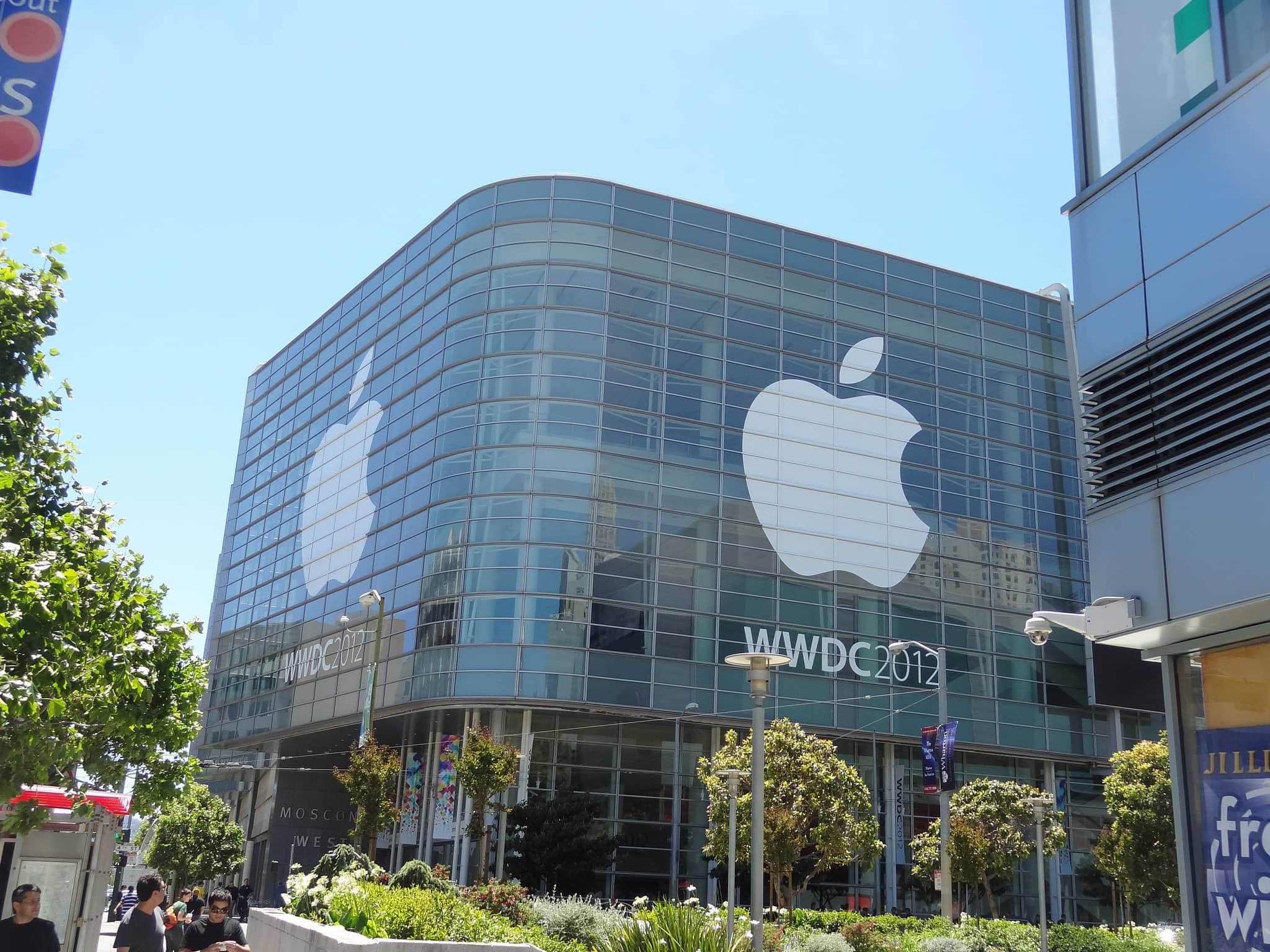
WWDC has been home to some seismic announcements over the years. Photo: Daniel Spiess/Flickr CC
As Apple’s longest-running annual keynote event, it’s no surprise that WWDC has played host to some absolutely enormous announcements over the years.
From strategies that changed the company’s course to the debut of astonishing new products, here are our picks for the most important ones. Check out the list below.
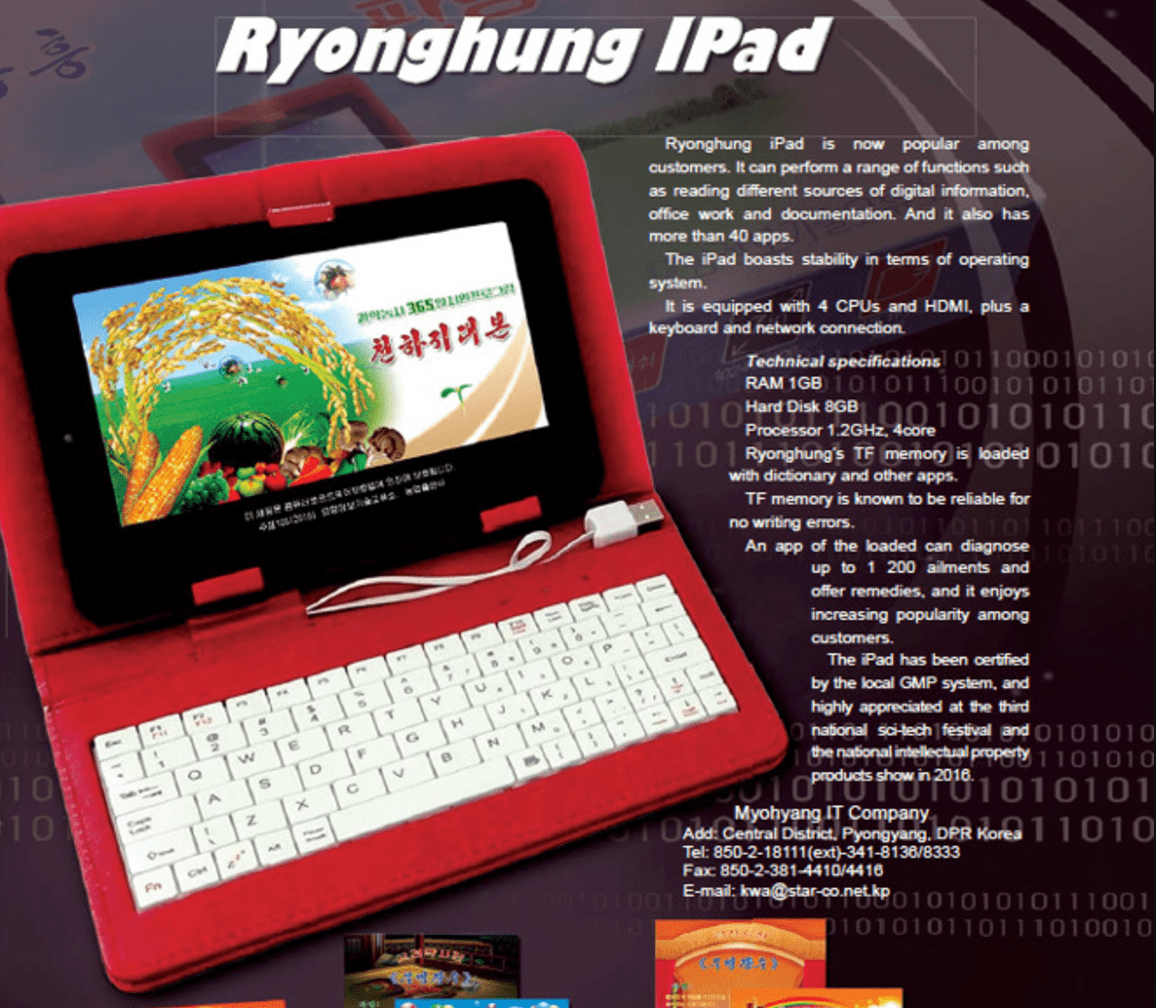
The Ryonghung iPad has more than 40 apps! Photo: NK News
Recent rumors have promised exciting iPad launches this year, but none of them warned us about the Ryonghung iPad.
That could be because it wasn’t made by Apple. It’s a North Korean knockoff with an ugly design and terrible specifications, but it steals the iPad name in an effort to be more popular in a marker where Apple’s lawyers are unlikely to come knocking.
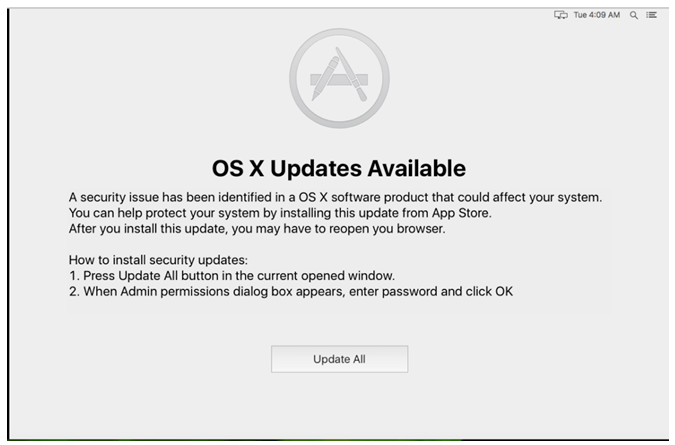
The OSX/Dok malware forces you to install a bogus OS X update. Image: Check Point
OSX/Dok, a new strain of “major scale” malware targeting macOS users, can bypass the Gatekeeper feature that’s designed to block malicious software.
The newly identified trojan, which prevents you from doing anything on your Mac until you install a bogus software update, also goes undetected by many antivirus programs.
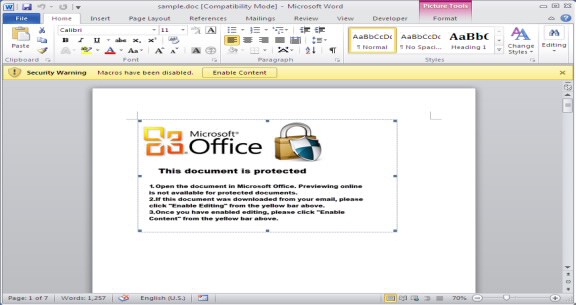
Beware untrusted Word macros. Photo: FortiGuard Labs
Another form of Microsoft Word malware that infects both macOS and Windows machines has been detected.
The malicious VBA (Visual Basic for Applications) code is buried in a Word document macro and automatically adapts its attack depending on the operating system used. Once installed, it can be used to download more payload files to your computer.
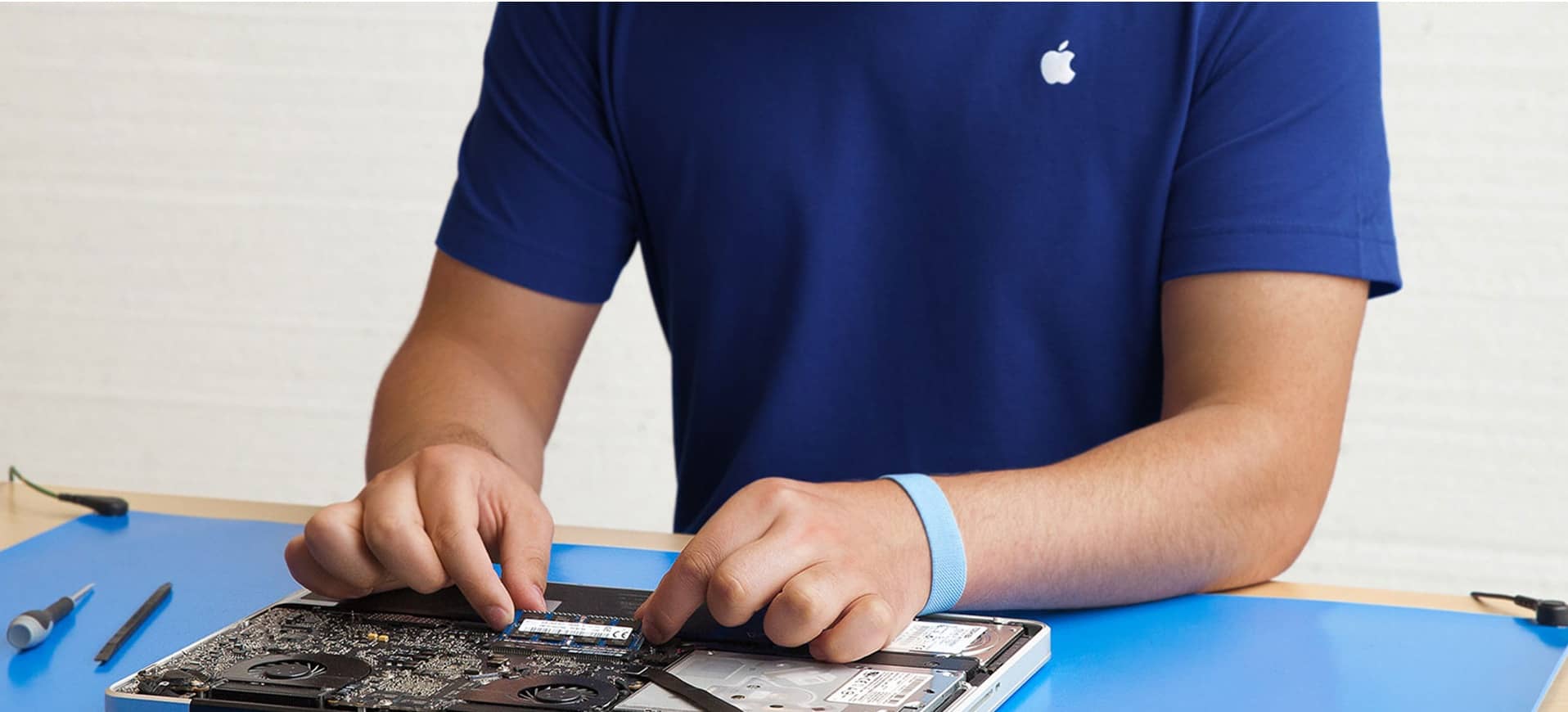
The Genius Bar is one of the best things about buying a Mac. Photo: Apple
If you want to get the absolute best tech support for your laptop, pay the Apple tax and get a Mac.
In the latest annual Tech Support Showdown rankings, Laptop Magazine has awarded Apple the number one spot for the third straight year. Apple beat out nine other companies, but it’s starting to get some serious competition from companies like Acer that are focusing more on online service.
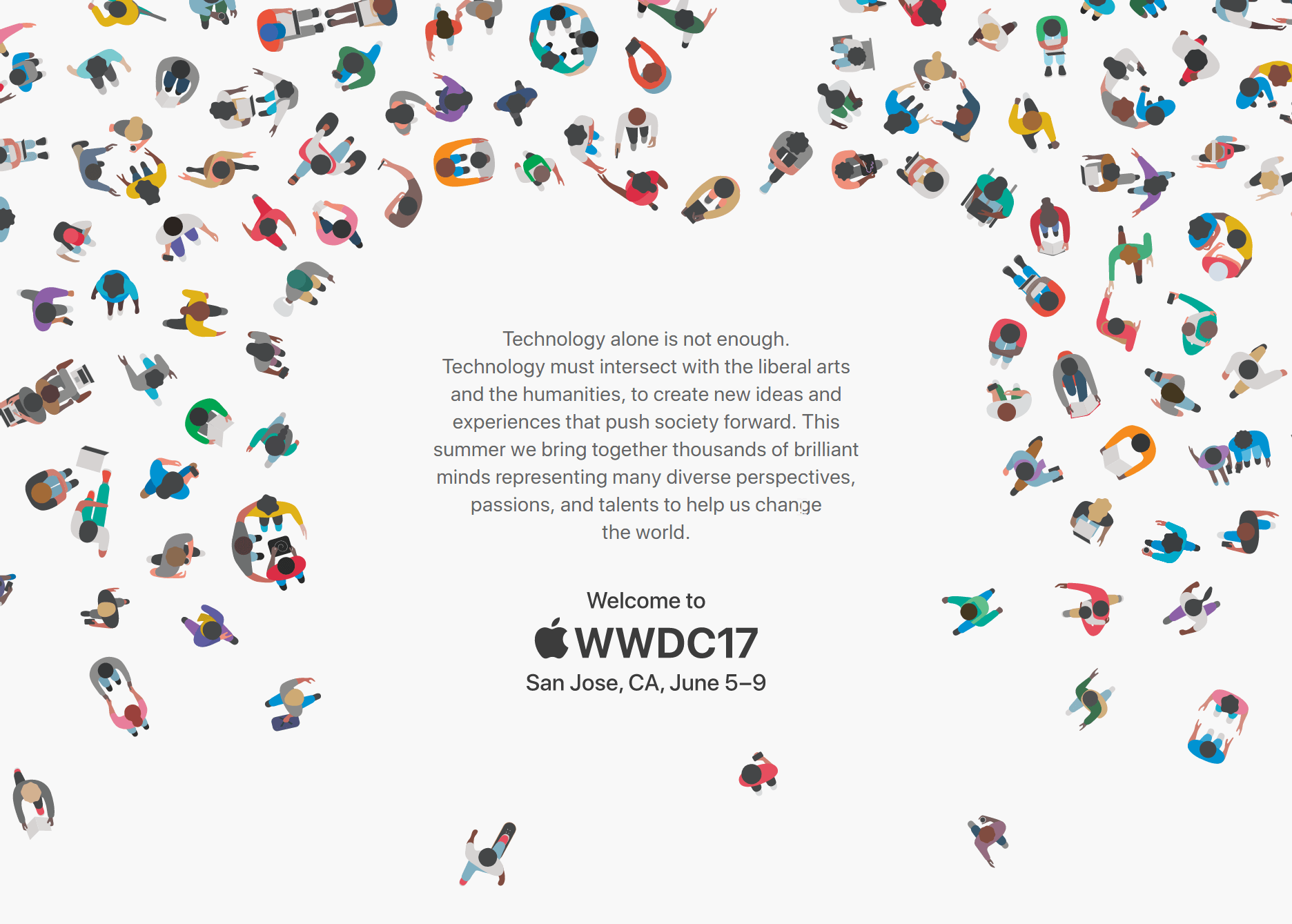
The rules for winning a coveted scholarship to Apple’s Worldwide Developers Conference are changing this year.
Apple revealed today that it will begin accepting applications for WWDC 2017 scholarships on March 27. Getting one of the spots means you don’t have to pay the $1,599 ticket price. And for the first time ever, Apple is going to hook up student winners with a free place to stay.
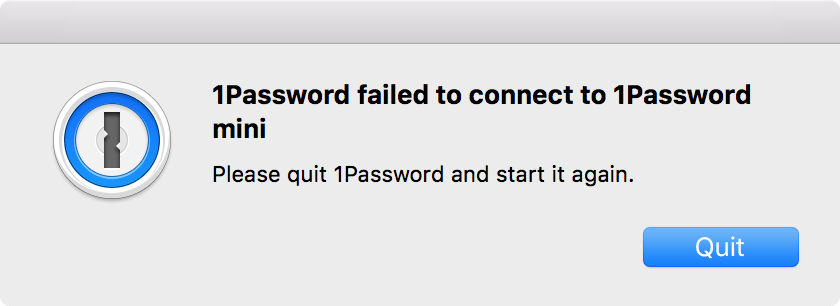
1Password is one of the apps that stopped working this weekend. Photo: AgileBits
Several popular Mac apps began crashing over the weekend after their developer certificates expired.
The apps suddenly refused to open due to a change Apple made to its signing policy last year. Apple now requires that all apps from the Mac App Store have a valid provisioning profile that must be updated periodically.
Are you ready for Apple to make Macs "pro" again? Photo: Cult of Mac
This week on The CultCast: Is a secret Apple project stalling Mac updates? It wouldn’t be the first time. Plus: Apple teases Black Friday deals; AirPort routers are walking dead, and the Mac Pro might be next; the future of Time Machine; why iPad should be an iOS/OS X hybrid; and Jony Ive’s new role designing Apple itself.
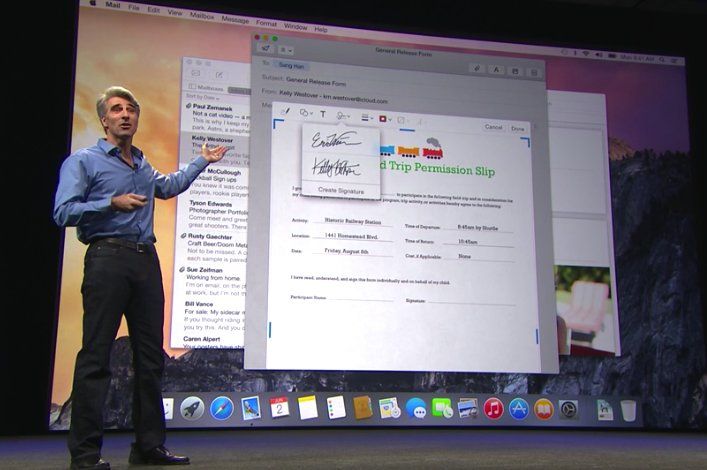
 June 2, 2014: Apple shows off Mac OS X 10.10 Yosemite for the first time at its Worldwide Developers Conference in San Francisco. Following the Jony Ive-redesigned iOS 7, Yosemite boasts an aesthetic change that brings Apple’s desktop computers closer than ever to the look of the company’s mobile software.
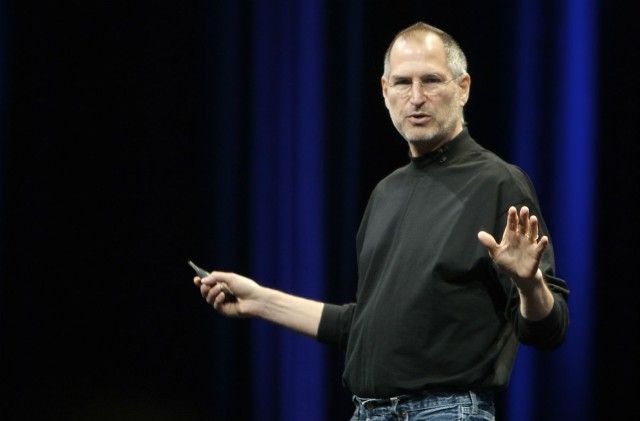
 May 11, 1998: As part of his mission to turn Apple around, CEO Steve Jobs spells out the company’s strategy for the Mac operating system going forward. The big news is that Apple is hard at work creating a major new operating system called OS X, he says at Apple’s Worldwide Developers Conference in San Jose, California.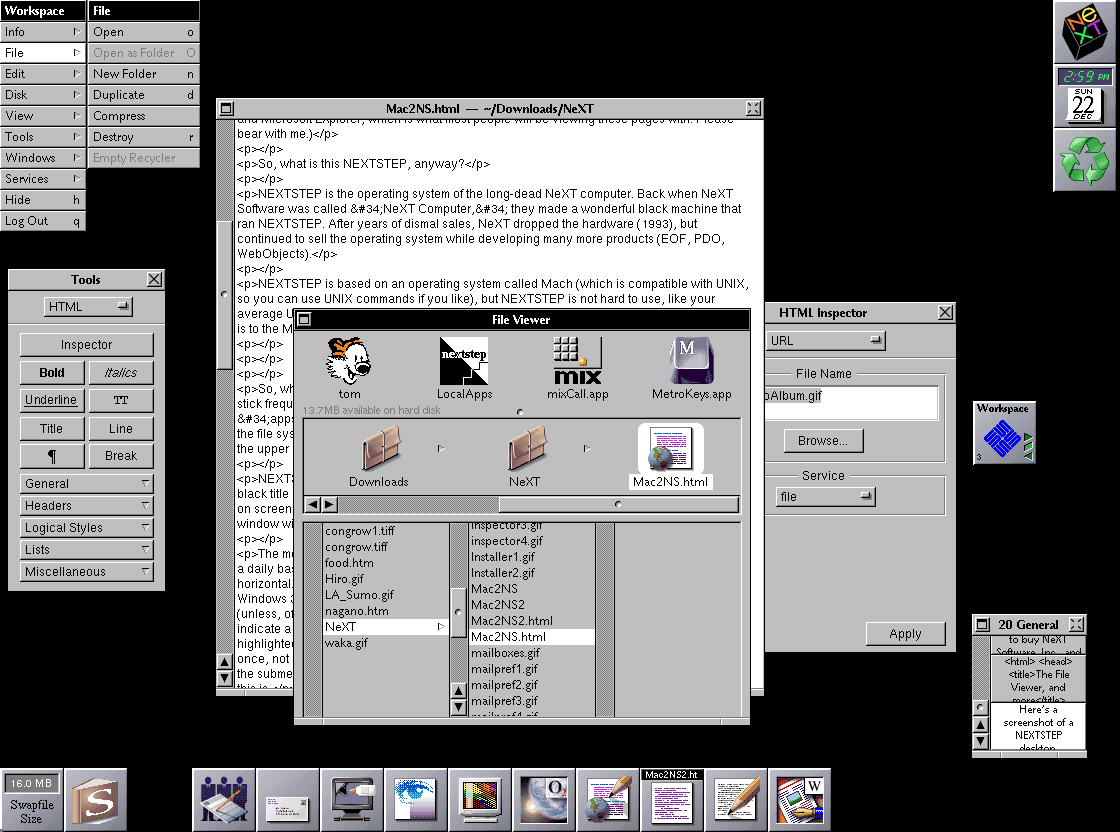
 November 25, 1996: A midlevel manager at NeXT contacts Apple about the possibility of Cupertino licensing NeXT’s OpenStep operating system. The phone call sows the seeds of Mac OS X and Apple’s rejuvenation.
 July 6, 1997: Following a massive quarterly loss for Apple, board member Edgar S. Woolard Jr. calls CEO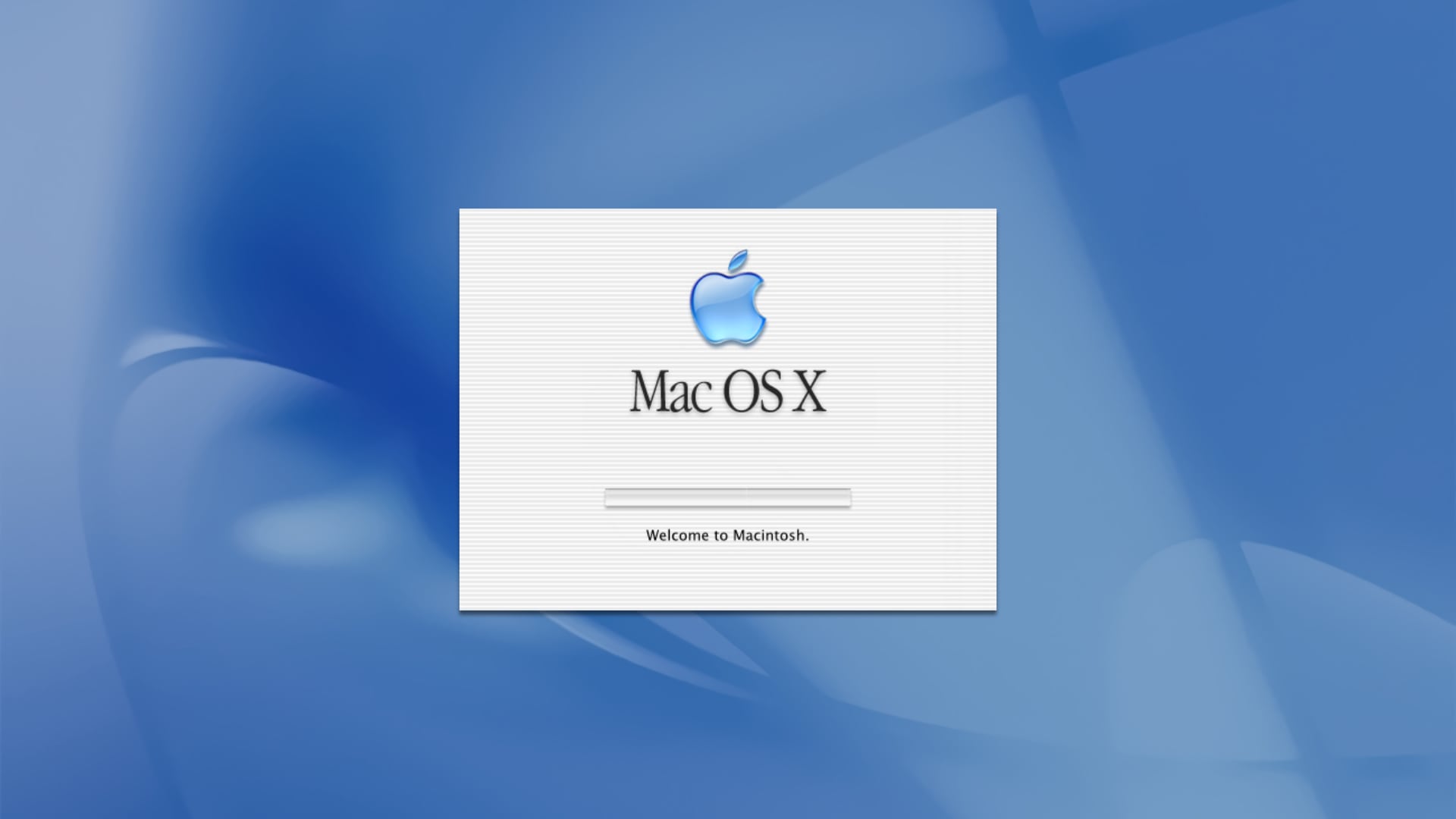
 October 23, 1999: Apple releases Mac OS 9, the last version of the classic Mac operating system before the company will make the leap to OS X a couple years later.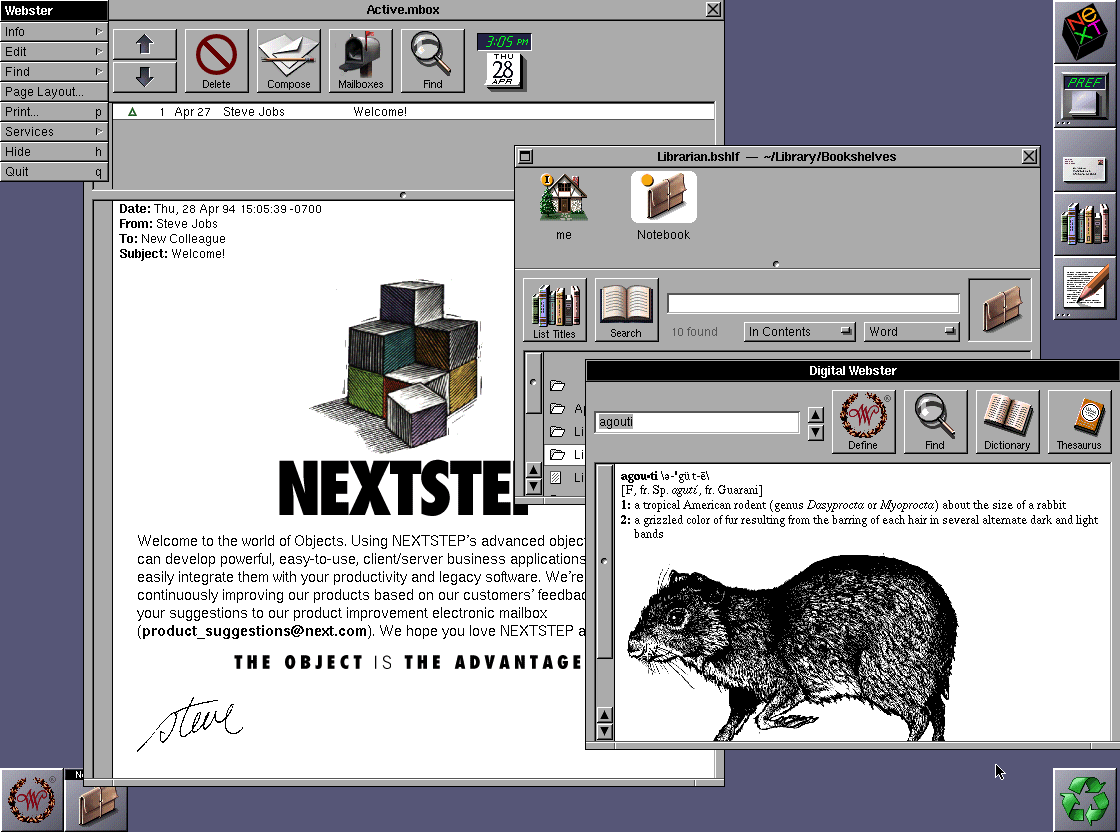
 September 18, 1989: Steve Jobs’ company NeXT Inc. ships version 1.0 of NeXTStep, its object-oriented, multitasking operating system.